
Are you ready to give your WordPress site a fresh look? Installing a new theme can transform your website’s appearance and functionality in just a few clicks.
Whether you’re aiming for a sleek, professional vibe or a playful, creative atmosphere, choosing the right theme is crucial. In this guide, you’ll learn how to install a WordPress theme using Bluehost, one of the most user-friendly hosting platforms out there.
Imagine showcasing your content with a design that truly reflects your brand’s personality. You’ll discover how effortless it can be to elevate your site and captivate your audience with stunning visuals. Keep reading to unlock the potential of your website, and make every visitor feel right at home.
Choosing The Right Theme
Your website needs a theme that fits its purpose. A blog theme is best for writing. For a store, a eCommerce theme is better. Make sure your theme shows what your site is about.
Check if the theme looks nice and works well. Does it have the features you need? Can it work on phones and computers? A good theme is easy to use and fast to load. Always pick a theme that is simple and clean.
Preparing For Installation
It’s important to backup your site before making changes. This keeps your data safe. Use a plugin to create a backup. Store it in a secure location. This helps if something goes wrong. You can restore your site easily.
Every theme has specific needs. Make sure your WordPress version is up to date. Check if the theme needs extra plugins. Ensure your server meets the needs. This prevents problems during installation. Always read the theme details carefully.
Accessing Bluehost Dashboard
Log In to Your Account: Start by visiting the Bluehost website. Click on the “Log In” button at the top right. Enter your username and password. If you don’t remember them, use the “Forgot Password” option.
Navigate to WordPress Tools: After logging in, you will see the dashboard. Look for the “WordPress Tools” section. It’s usually on the left side. Click on it to open the tools. Here, you can manage your WordPress settings.
Credit: www.bluehost.com
Installing A Theme Via WordPress
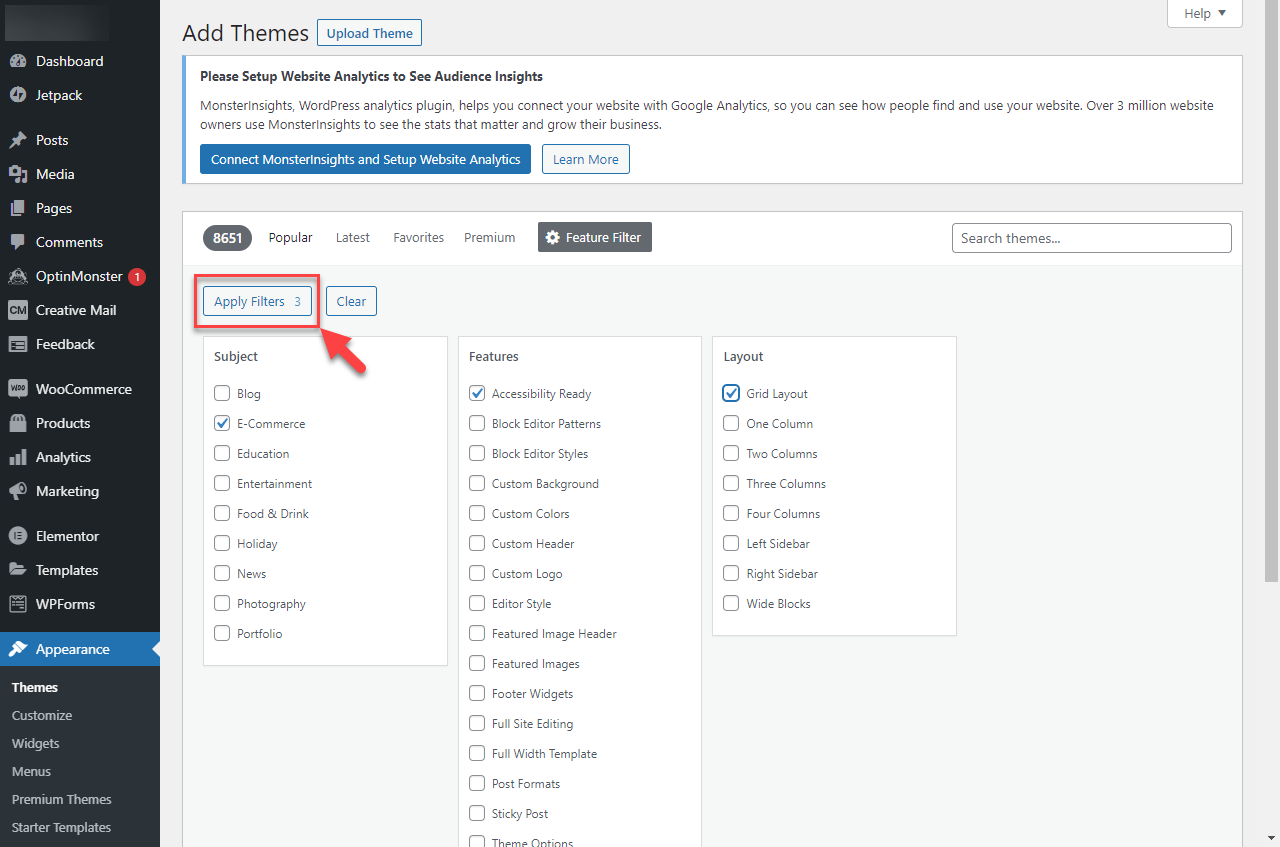
Find the WordPress Dashboard. Click on Appearance and then Themes. Next, tap on Add New. You will see many themes. Use the search bar to find a specific theme. Click on the Install button to add the theme. Finally, tap Activate to start using it. Your site will now have a fresh look.
Download the theme as a .zip file. Go to Appearance in the WordPress Dashboard. Click on Themes and then Add New. Tap on Upload Theme. Choose your .zip file and click Install Now. Once done, tap Activate to use the theme. This gives your site a new design. Easy steps for a new look.
Activating The New Theme
Activating a new theme in Bluehost is simple and quick. Access your WordPress dashboard, navigate to ‘Appearance’, and select ‘Themes’. Choose the desired theme, click ‘Activate’, and watch your site transform instantly.
Preview Before Activation
Always check the theme before activating it. The preview helps you see how your site will look. To preview, go to the appearance tab. Choose the theme and click on preview. Look at the colors, fonts, and layout. Make sure everything looks good. If you like it, proceed to activate. If not, you can choose a different theme.
Activate The Theme
Activating the theme is simple. Just click the activate button. Once clicked, the theme becomes live. Your site now has a new look. You can change it anytime. Just repeat these steps. Themes make your site unique. Pick one that matches your style. Enjoy your new design!

Credit: www.bluehost.com
Customizing Your Theme
Change the color scheme to fit your style. Choose fonts that are easy to read. Make sure the text is big enough. Look at the layout. Arrange the content neatly. Try different background images for fun.
Widgets are like small tools. Place them in the sidebar. Add a search bar to help users. Use a calendar widget if needed. Menus help users find things. Create a menu for easy navigation. Add important pages to the menu. Make sure the menu is visible.
Troubleshooting Common Issues
Installing a WordPress theme on Bluehost can sometimes be tricky. Ensure your theme is compatible with your WordPress version. Check for errors during upload and confirm your internet connection is stable. Refresh the page if the theme doesn’t appear immediately after installation.
Fixing Installation Errors
Sometimes, errors happen during theme installation. Check your internet connection. A slow connection can cause problems. Ensure you have enough space on your hosting account. Lack of space can stop the process. Disable plugins temporarily. Some plugins may conflict with the theme. After disabling, try installing the theme again. Re-enable plugins one by one. This helps find which plugin caused the issue.
Resolving Compatibility Problems
Themes may not work with certain plugins. Update all plugins and WordPress to the latest version. This can fix many issues. Check the theme’s documentation. Some themes need specific settings. Make sure your PHP version is compatible with the theme. Contact the theme developer if problems persist. They can provide solutions. Always keep a backup before making changes. This helps to restore your site if needed.

Credit: www.youtube.com
Frequently Asked Questions
How Do I Manually Install A WordPress Theme?
To manually install a WordPress theme, first download the theme zip file. Log into your WordPress dashboard, navigate to “Appearance” > “Themes,” and click “Add New. ” Select “Upload Theme,” choose the zip file, and click “Install Now. ” Finally, activate the theme by clicking “Activate” after installation is complete.
How Do I Add My Own Theme To WordPress?
Upload your theme files via FTP to the “wp-content/themes” folder. Go to WordPress dashboard, click “Appearance,” then “Themes. ” Activate your theme. Make sure it is compatible with WordPress version and plugins. Validate and test your theme for errors. Customize settings to match your website’s design needs.
How Do I Add My WordPress Site To Bluehost?
Log into Bluehost account and navigate to “My Sites”. Click “Create Site” and follow the WordPress installation steps. Enter your site details, select domain, and finalize setup. Your WordPress site will be added to Bluehost.
How Do I Download A WordPress Theme To My Website?
Go to your WordPress dashboard. Click on “Appearance,” then “Themes,” and select “Add New. ” Search for your desired theme, click “Install,” and then “Activate. ” Your theme is now live.
Conclusion
Installing a WordPress theme on Bluehost is simple and quick. Follow the steps, and your website will look great. Choose the perfect theme that fits your style. Customize it to match your brand. Keep exploring different features and options. Remember, practice makes perfect.
Every change helps your website grow. Enjoy the process and have fun with it. With patience, your site will shine. Now, you know how to install a theme. Start customizing today and build a site you love. Happy blogging!


