
Setting up web hosting on GoDaddy might seem like a daunting task, especially if you’re not a tech expert. But imagine having your website up and running, reaching audiences worldwide, and making your digital dreams a reality.
Sounds exciting, right? You’re just a few steps away from achieving this! Whether you’re launching a personal blog or expanding your business online, understanding how to set up web hosting efficiently is crucial. In this guide, you’ll discover a straightforward, step-by-step process tailored for you.
It’s not just about getting your site live; it’s about ensuring it’s secure, fast, and perfectly suited to your needs. Let’s dive in and transform your web hosting setup into a seamless experience.

Credit: www.godaddy.com
Choosing The Right Hosting Plan
Assessing Your Needs is crucial for web hosting. Start by identifying the website’s purpose. Is it for a blog, a store, or a portfolio? Each type has different hosting requirements. Consider the expected traffic. Large traffic needs more resources. Think about future growth. Will you need more space soon?
Comparing Plan Features is important. Look at storage space. How much do you need? Check bandwidth limits. More bandwidth handles more visitors. Explore security features. Secure hosting protects your data. Examine available tools. More tools make managing easier.
Considering Budget Constraints helps in decision-making. Hosting costs vary. Expensive plans offer more features. Cheaper plans suit small sites. Balance cost with needs. Ensure you get value for money. Look for discounts. Some hosts offer deals for new users.
Creating A Godaddy Account
Visit the Godaddy website. Click on the Sign Up button. Fill in your name, email, and password. Choose a strong password. Make sure it’s unique. Agree to the terms and conditions. Click on Create Account. Your account is now ready.
Check your email inbox. Find the email from Godaddy. Click the verification link in the email. This confirms your email. Your account is active now. You can access all features.
Selecting Your Domain Name
Start by thinking of words related to your business. Keep it simple and memorable. Short names work best. Use keywords that people might search for. Write down all your ideas. Don’t worry about being perfect.
Once you have a list, check if they are taken. Use a domain checker tool online. It’s important to find a unique name. If your first choice is taken, try adding small words. You can also try different endings like .com or .net.
After finding an available name, register it quickly. Go to a domain registrar website. Follow the steps to buy your domain. You’ll need to provide some information. Keep your contact details handy.
Configuring Your Hosting Settings
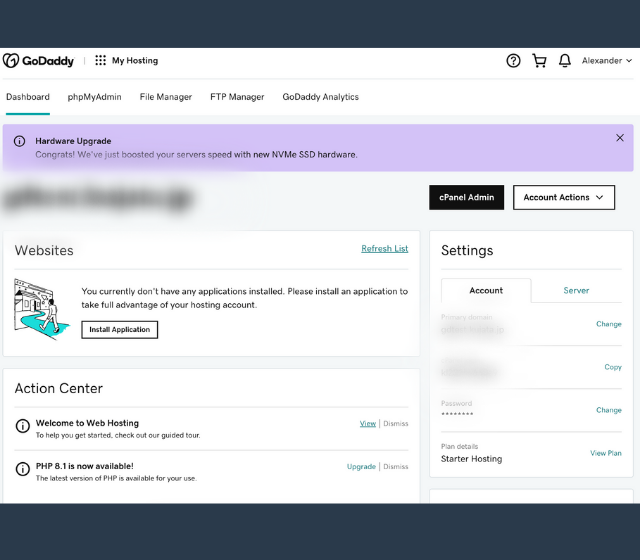
First, log in to your GoDaddy account. Find the “My Products” section. Click on “Web Hosting”. You will see a list of your domains. Select the domain you want to manage. Next, click on “Manage”. This opens the control panel. Here, you can change many settings. Make sure to explore the options. It’s important to know what each does. This will help you manage your site better.
Start by clicking on the server settings. Choose your preferred server type. Options include Linux and Windows. Linux is good for WordPress. Windows works well with ASP.NET. Next, set your PHP version. Newer versions are usually better. They are faster and safer. Don’t forget to set your file permissions. These help keep your site secure. Finally, save all your changes. This ensures everything works well.
Uploading Your Website Files
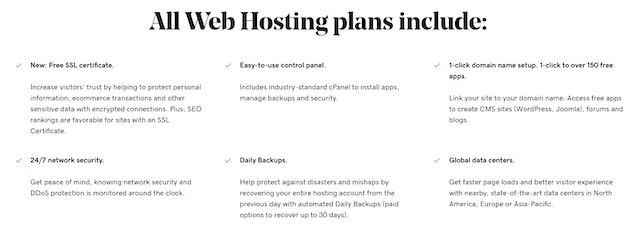
The File Manager helps you upload files. First, log in to your GoDaddy account. Find the File Manager in your hosting dashboard. Click to open. Choose the folder where you want the files. Use the upload button to select files from your computer. It’s simple and fast. Wait for files to upload completely. Check if all files are there. Done!
FTP clients are tools for uploading files. Start by downloading an FTP client. FileZilla is popular and easy. Install it on your computer. Open and find the site manager. Add a new site. Enter your GoDaddy server details. Use your username and password. Connect to the server. Drag and drop your files to upload. Watch the progress bar. Finish when all files are uploaded.
Credit: www.godaddy.com
Installing A Content Management System
A Content Management System helps manage website content easily. Popular options include WordPress, Joomla, and Drupal. Each has unique features. WordPress is user-friendly. Joomla offers flexibility. Drupal is powerful.
Many hosting services offer one-click installation. This makes setting up a CMS quick. GoDaddy provides this feature. It reduces setup time. Choose your CMS in the control panel. Click install. Follow the prompts. Your CMS will be ready in minutes.
Managing Dns Settings
DNS stands for Domain Name System. It helps map domain names to IP addresses. This mapping lets browsers find websites. DNS makes the internet easier to use. Without DNS, we would type long numbers to reach websites. DNS records store this information. They include A, CNAME, and MX records. Each record has a purpose. A records point to IP addresses. CNAME records map domain names to other domains. MX records handle email routing.
Updating DNS records is important for website changes. GoDaddy offers a DNS management tool. You can access it from your account. Choose the domain you want to update. Click on DNS settings. Here, you can modify existing records. Add new ones as needed. Changes might take time to update. This delay is called propagation. It usually takes up to 48 hours. Always double-check your entries. Incorrect entries can cause issues. Ensure each record is accurate before saving.
Securing Your Website
Setting up web hosting on GoDaddy is simple and secure. Start by purchasing a hosting plan that fits your needs. Then, connect your domain to the hosting account by following GoDaddy’s easy instructions.
Ssl Certificate Setup
SSL Certificates keep data safe. They create a secure connection. This stops hackers from stealing information. First, log into your GoDaddy account. Go to the SSL section. Buy an SSL certificate if you don’t have one. Follow the instructions to install it. This will make your site secure. Your website will show a padlock icon. Visitors will feel safe.
Regular Security Updates
Security updates are very important. They fix bugs and problems. Always check for updates. Log into your hosting account. Look for the update section. Follow the steps to update. This keeps your site safe. Hackers can’t easily break in. Your data stays safe.
Monitoring Website Performance
Checking your website traffic is vital. Use tools to see how visitors find you. Google Analytics is a good choice. It shows who visits and what they like. Track how long they stay. This helps improve your website. Adjust your content based on visitor data. More useful content attracts more people. This keeps them coming back.
Fast websites make happy users. Slow sites drive visitors away. Use smaller images to speed up loading. Compress your files. They will load faster. Minimize the use of plugins. Too many can slow things down. Check your website speed often. Make changes if it’s slow. A fast website is better for everyone.
Credit: www.godaddy.com
Troubleshooting Common Issues
Setting up web hosting with GoDaddy can be easy with the right steps. Ensure your domain points to GoDaddy servers. Check DNS settings and upload website files using the control panel.
Resolving Connection Problems
Connection problems can be frustrating. First, check your internet connection. Make sure your Wi-Fi is strong. Sometimes, restarting your router helps. Next, confirm your domain settings. Are they pointing to the right server? You may need to update DNS settings. If problems persist, contact GoDaddy support. They can guide you further. Remember, keeping your software updated is important. This avoids many connection issues.
Handling Error Messages
Errors may appear unexpectedly. First, read the error message carefully. It usually explains the issue. Common errors include 404 or 500 messages. A 404 means a page is missing. Check your URL for mistakes. A 500 error indicates server problems. Restarting your server might help. Sometimes, errors are due to plugins. Disable unnecessary plugins and see if the error goes away. If error messages continue, reach out to technical support. They can help solve complex problems.
Frequently Asked Questions
How To Setup Web Hosting In Godaddy?
Log in to your GoDaddy account. Select “Web Hosting” from the dashboard. Click “Manage” next to your hosting plan. Follow the setup instructions, including domain linking and site configuration. Once completed, your hosting is ready for use.
Is Godaddy Good For Website Hosting?
GoDaddy is a popular website hosting provider with competitive pricing and user-friendly features. It offers reliable uptime and 24/7 customer support. Some users find its performance satisfactory, while others prefer alternatives for more advanced needs. It’s essential to assess your specific requirements before choosing GoDaddy for hosting.
Does Godaddy Host Websites For Free?
GoDaddy does not offer free website hosting. They provide various paid hosting plans with different features and pricing. Users can choose from shared, VPS, or dedicated hosting options to meet their website needs. Each plan includes different resources and support levels to enhance online presence.
Does My Godaddy Domain Come With Hosting?
A GoDaddy domain does not automatically include hosting. Domain registration and hosting are separate services. You need to purchase hosting separately to build a website. Visit GoDaddy’s website to find suitable hosting packages for your domain.
Conclusion
Setting up web hosting with GoDaddy is straightforward. Follow the steps carefully. Ensure your domain is registered. Select the right hosting plan. Make use of their easy-to-use control panel. Customize your site with the available tools. Test your website before going live.
Monitor its performance regularly. Keep your website updated for security. Seek help from GoDaddy support if needed. With these steps, your site will be ready. Enjoy your online presence. Make your mark on the web!


