
Are you feeling overwhelmed by the thought of transferring your web hosting to GoDaddy? You’re not alone.
The process might seem daunting at first, but it doesn’t have to be. Imagine having the peace of mind that comes with knowing your website is in reliable hands, backed by one of the most trusted names in the hosting industry.
You deserve a seamless transition, and with the right guidance, you can achieve it without a hitch. In this guide, we’ll walk you through each step of the process, ensuring you know exactly what to do and when to do it. By the end, you’ll have a clear understanding and the confidence to make the switch effortlessly. So, ready to make your website’s home a little more secure? Let’s dive in.
Credit: chemicloud.com
Choosing The Right Hosting Plan
Understanding your website needs is crucial. Think about the size of your website. How many visitors do you expect? Larger sites need more resources. Is your site static or dynamic? Dynamic sites often need databases. Consider traffic spikes. Will you have big events or promotions? These need more bandwidth. Does your site use advanced scripts? Some scripts need specific server configurations. Check your current hosting. Are you happy with its performance and uptime? This helps in choosing a better plan.
| Plan | Features | Best For |
|---|---|---|
| Basic | Good for small sites. Limited resources. | Personal blogs |
| Deluxe | More resources. Supports larger sites. | Small businesses |
| Ultimate | High resources. Best performance. | Large businesses |
| Maximum | Highest resources. Handles heavy traffic. | Enterprise sites |
Credit: www.godaddy.com
Preparing For Transfer
Keeping a copy of your website data is crucial. It ensures you don’t lose any important files. Use a trusted method to back up your data. Some people use FTP clients for this task. Others rely on their current hosting provider’s tools. Always check if the backup is complete. Double-check if all files and databases are saved.
Before starting, collect all necessary account information. Know your current host’s login details. This includes username and password. Get the same details for your new GoDaddy account. Also, check your domain name records. Write down any important settings or configurations. Having this info ready will help you transfer easily.
Initiating The Transfer Process
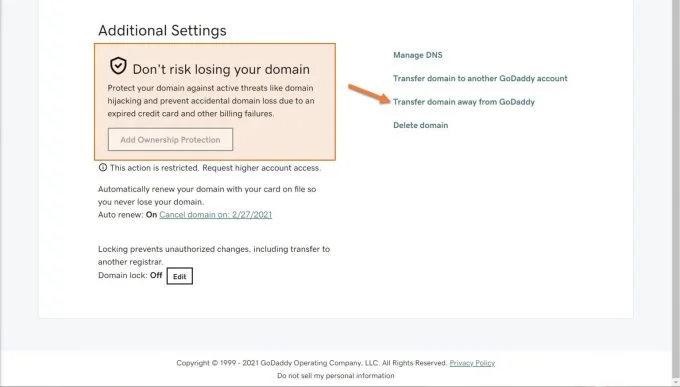
First, log in to your Godaddy account. Use your email and password. Once inside, navigate to the domain manager. It’s easy to find. Look for the domains tab. Click on it. Select the domain you want to transfer. Ensure you have access to the email linked to the domain. It’s crucial for verification.
Begin by unlocking your domain. This is important. Without unlocking, the transfer won’t work. Next, get the authorization code. Godaddy requires this for security. Check your email for the code. Enter it in the transfer request form. Confirm your request. Wait for Godaddy’s email approval. Follow their steps. Your domain will soon transfer. Patience is key.
Configuring Dns Settings
Change name servers to point to GoDaddy. Go to your domain’s current registrar. Find the settings for name servers. Enter GoDaddy’s name servers. Save changes. Wait for the update to finish. This can take 24 to 48 hours. Check if the changes are correct. Use GoDaddy’s tools for this. The process is simple and clear.
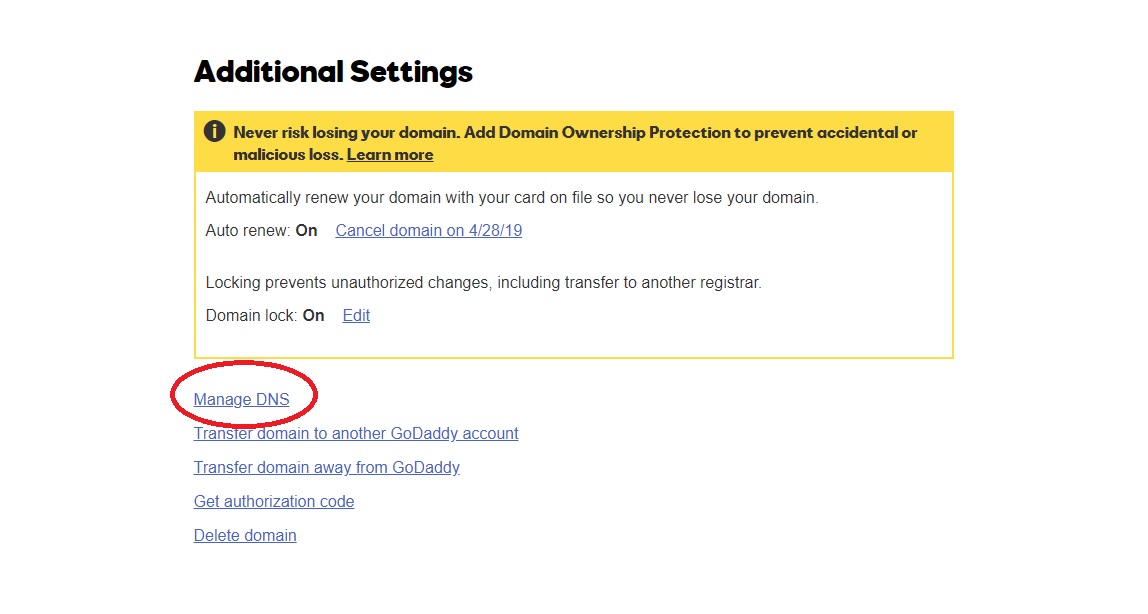
Log in to your GoDaddy account. Find your domain in the dashboard. Look for DNS settings. Click on “Manage DNS.” Add or update A records and CNAME records. Make sure they match your old hosting settings. Save any changes you make. Double-check everything is correct. This ensures your website works smoothly.
Migrating Website Files
FTP clients help move files from your old host. FileZilla is a popular tool. First, download and install it on your computer. Connect to your old host using your login details. Once connected, you see all your website files. Select the files you want to transfer. Drag and drop them to your computer. Now, connect to your Godaddy account. Use the same method to upload files there. This completes the file transfer process.
Databases store important site data. Use phpMyAdmin to export your database from your old host. Save the file on your computer. Log into your Godaddy account. Open phpMyAdmin there. Import the saved database file. Check if the import was successful. Your data will appear on Godaddy. Ensure all data is correct before moving forward.
Testing The New Setup
Check the website functionality after the transfer. Open your website in a browser. Make sure all pages load correctly. Click on the links. They should take you to the right page. Look for broken images. Fix them if you find any. Test forms on your site. See if they send data properly. A working website keeps visitors happy.
Checking Website Functionality
Use different devices to test. Try a phone and a computer. See if the site looks good on both. Fast loading is important too. A slow site can make people leave. Speed test tools can help check this. Fix any speed issues you find.
Ensuring Email Services
Email services must work after the transfer. Send a test email to yourself. Check if it arrives. Try replying to the test email. Make sure your reply gets sent. Verify the email settings in your hosting account. Correct settings ensure emails are not lost. This is crucial for business communication.
Troubleshooting Common Issues
Navigating web hosting transfers to GoDaddy can be tricky. Common issues include DNS errors and file transfer hiccups. Follow step-by-step guides to ensure a smooth transition.
Resolving Dns Propagation Delays
DNS propagation can take time. Sometimes, it takes up to 48 hours. This can slow down your site’s visibility. Check DNS settings to ensure they are correct. Use tools to verify DNS changes. Clear your browser cache to see updates faster. Always use a reliable internet connection. You might need to contact your provider for help.
Addressing Compatibility Problems
Compatibility issues can cause trouble. Check server requirements for your site. Ensure your software is up-to-date. Sometimes, plugins can conflict. Disable conflicting plugins to find the issue. Review your site’s code for errors. You can also seek expert help if needed. It’s important to ensure smooth operation. Keep your site and software compatible.
Credit: www.godaddy.com
Frequently Asked Questions
How Do I Change Hosting To Godaddy?
Change hosting to GoDaddy by purchasing a plan, updating DNS settings, and migrating your website files. Use their migration tool for easy transfer. Contact GoDaddy support for assistance if needed. Ensure backups to prevent data loss during the transition.
Can You Transfer A Website To Godaddy?
Yes, you can transfer a website to GoDaddy. Use their website migration service for seamless transfer. Ensure your domain settings and hosting plan are compatible. Follow GoDaddy’s step-by-step guide for easy migration. Contact GoDaddy support for assistance during the transfer process.
Can You Transfer Website Hosting?
Yes, you can transfer website hosting. Choose a new provider, backup your site, and follow their transfer process. Notify your domain registrar to update DNS settings.
How Do I Point My Website To Godaddy?
Log into your GoDaddy account. Navigate to “Domains” and select your domain. Choose “DNS” settings. Update your domain’s nameservers to GoDaddy’s default ones. Save changes to point your website to GoDaddy.
Conclusion
Transferring web hosting to GoDaddy can be simple. Follow the steps carefully. Check each detail and ensure a smooth transition. Backup your files to prevent data loss. Update domain settings for seamless access. Test your website after transfer. This confirms everything works correctly.
Contact GoDaddy support for help if needed. They offer guidance through the process. You now have the basics to transfer hosting confidently. Your website will be secure with GoDaddy. Enjoy reliable service and peace of mind. Happy hosting!


