
Are you ready to launch your website and make your online presence known? Connecting your domain name with your web hosting is a crucial step.
If you’ve chosen GoDaddy as your provider, you’re in good hands. This guide will take you through the process in simple, straightforward steps. Imagine the excitement of seeing your website live, accessible to the world! By the end of this article, you’ll be equipped with everything you need to seamlessly link your domain and hosting.
Stay with us, and let’s make this technical task a breeze together. Your website deserves to shine, and we’re here to help you make it happen.
Choosing The Right Domain And Hosting
Choosing the perfect domain is important. It should be easy to remember and relevant. Think about what makes your website special. Use those words in the name. Avoid using numbers or hard words. They can confuse people. Pick a domain name that is easy to spell.
Next, select a hosting service. It should be reliable and fast. Godaddy is a popular choice. They offer many plans. Look for a plan that fits your needs. Check if it has enough space for your website. Consider support options. Good support is very helpful.
Credit: www.godaddy.com
Accessing Godaddy Account
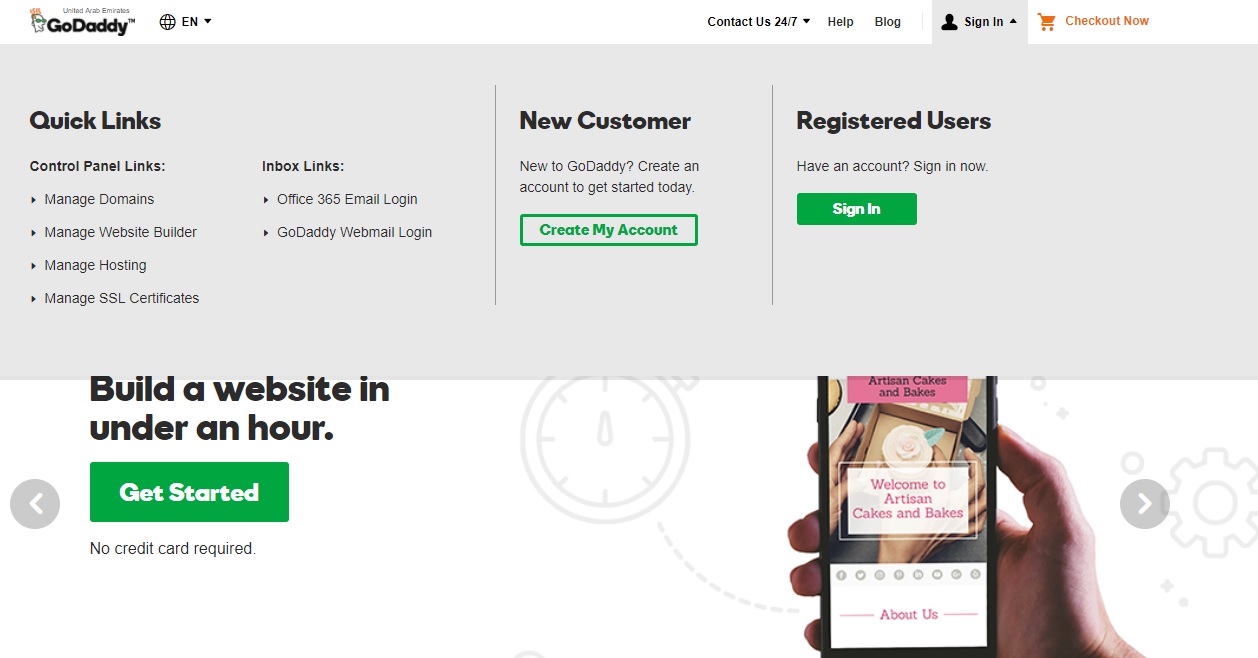
Go to the GoDaddy website. Click on the “Sign In” button. Enter your username and password. If you don’t have an account, create one. It’s simple. Follow the steps on the screen. After logging in, you’ll reach your account dashboard.
Look for the “My Products” section. It’s on the top menu. Click on it. Here, you see all your domains and hosting plans. Click on the domain you want to connect. Check its settings. Make sure everything looks right. This is where you manage your domain.
Managing Domain Settings
First, log in to your Godaddy account. Find the section where you can see your domains. This is often called “My Products” or “Domain Manager”. Click on the domain you want to connect. It’s important to ensure that the domain is active.
After selecting the domain, look for DNS settings. This might be under a tab or button labeled “DNS” or “Manage DNS”. Click it to open the DNS management page. Here, you can see and edit DNS records. It’s like a phone book for your website. You will need to update these records to connect your domain with your hosting.
Updating Nameservers
Easily connect your domain name with web hosting on GoDaddy by updating nameservers. Access your domain settings and enter the hosting provider’s nameservers. This links your domain and hosting, making your website accessible online.
Understanding Nameservers
Nameservers are like address books for the internet. They tell computers where to find websites. Godaddy uses nameservers to connect your domain to your website. Each domain needs the correct nameservers. Without them, your site won’t be visible. Think of it as a map guiding users to your site. Ensure you have the right details before making changes. This is key to a smooth process.
Changing Nameserver Settings
First, log into your Godaddy account. Go to your domain settings. Look for the section named nameservers. You might see a list of numbers and letters. These are your current settings. To change them, click on “Manage”. Enter the new nameservers given by your host. Double-check them. Click “Save”. It may take time for the changes to update. Be patient. Your site will soon connect.
Configuring Dns Records
A Records point your domain to an IP address. This tells browsers where to find your website. Log in to your GoDaddy account. Find your domain settings. Look for DNS management. Click on “Add” to create a new record. Choose “A” from the record type. Enter the IP address given by your web hosting. Save the changes. Wait a few minutes. Your domain should connect soon.
CNAME records link a domain to another domain. Use them for subdomains. Go to DNS management in GoDaddy. Click “Add” for a new record. Select “CNAME” as the type. Enter the subdomain you want. Point it to your web host domain. Save changes to apply them. This helps in connecting your subdomain correctly.

Credit: www.youtube.com
Verification And Propagation
Connecting your domain name with web hosting on GoDaddy involves verification and propagation. Verify your domain settings in the DNS manager. This ensures the domain points to the correct server. Wait for DNS propagation, which can take up to 48 hours, to complete the process.
Checking Domain Connection
First, open your browser. Type your domain name in the address bar. Check if it loads your website. If it does, your domain is connected. If not, there might be a mistake. Double-check your settings in GoDaddy. Ensure the nameservers are correct. Sometimes, clearing your browser cache helps. Also, try using a different browser. It’s important to be patient and thorough. Fixing a small error might solve your problem.
Understanding Propagation Time
Propagation time can be tricky. It is the time it takes for changes to update. This usually lasts 24 to 48 hours. Sometimes less, sometimes more. Be patient during this period. Your site might work in some places, not others. This is normal. Propagation depends on your internet provider. Stay calm and wait for it to finish. If issues persist, contact GoDaddy support for help. They can offer guidance and solutions.
Troubleshooting Common Issues
Facing issues connecting your domain with web hosting on GoDaddy? Start by accessing your GoDaddy account dashboard. Locate the DNS settings to update the nameservers. Save changes to finalize the connection.
Nameserver Errors
Nameserver errors can stop your domain from working. Make sure the nameservers are set right. Go to your GoDaddy account. Check the nameserver settings. They should match your hosting provider’s details. If they do not, update them. This helps to connect your domain correctly. Wait a few hours after changes. The internet needs time to update.
Dns Record Mistakes
DNS record mistakes can cause problems too. Check your DNS settings in GoDaddy. Look for A records and CNAME records. They should be correct for your website. If they are wrong, change them to the right settings. Contact your hosting provider for help. They will give the correct DNS settings. After changes, wait for them to take effect. This may take some time.
Utilizing Godaddy Support
GoDaddy Support helps connect your domain name with web hosting easily. Follow simple steps in your account dashboard. Ensure DNS settings match your hosting provider for smooth website access.
Contacting Customer Support
Customer support can be a helpful resource. GoDaddy offers a 24/7 support team. Their team helps with domain and hosting questions. You can reach them by phone or chat. They assist with technical issues and provide guidance. Prepare your questions before contacting them. This ensures you get the help you need quickly.
Exploring Help Resources
GoDaddy provides many resources online. Their help center has articles and guides. These resources cover common issues. You can find step-by-step instructions. They also offer video tutorials. Videos help understand complex topics. Search for keywords related to your problem. This helps find the right solution faster.

Credit: www.askdesign.biz
Frequently Asked Questions
How To Connect Domain With Hosting In Godaddy?
To connect your domain with hosting in GoDaddy, log into your account, go to “Domains,” select your domain, click “DNS,” and update the nameservers to match those provided by your hosting provider. Save changes to complete the connection.
How Do I Add Web Hosting To Godaddy?
Log into your GoDaddy account. Select “My Products,” then choose “Web Hosting” and click “Add Hosting. ” Follow the setup instructions to complete the process.
Does My Godaddy Domain Come With Hosting?
A GoDaddy domain does not automatically include hosting. You need to purchase hosting separately. Explore GoDaddy’s hosting plans for your domain to ensure optimal website performance and functionality. Check available options to find the best fit for your needs.
How To Connect Godaddy Domain To Another Website?
Log into your GoDaddy account and access your domain settings. Locate DNS settings and update nameservers or A records with your new website’s details. Save changes to connect the domain. Wait for propagation, which can take up to 48 hours.
Ensure your website is configured to accept the new domain.
Conclusion
Connecting your domain to web hosting on GoDaddy is straightforward. Follow each step carefully. Check settings and ensure proper configuration. Your website will be live and accessible. It’s essential for online presence. Remember, patience is key during setup. Explore GoDaddy’s support if needed.
Keep your domain information handy. This process empowers your digital journey. Your website connects you to the world. Enjoy your new online space. Happy hosting!


