
Are you ready to take control of your online presence and host your website using Apache Web Server? Imagine the satisfaction of having your site live, accessible to anyone with an internet connection.
With Apache, one of the most reliable and flexible web servers available, you can achieve this. Whether you’re a budding developer or a business owner looking to expand your digital footprint, mastering how to host your website on Apache can be a game-changer.
This guide will demystify the process, showing you step-by-step how to get your site up and running. You’ll discover the secrets to a smooth setup, from installation to configuration, ensuring your website is efficient and secure. Dive in, and let’s unlock the potential of your website together!
Setting Up Your Environment
Start by picking the best Operating System for your server. Many choose Linux because it’s free and stable. Ubuntu and CentOS are popular choices. They have lots of support. Windows is another option but costs more. Choose what fits your needs best. Make sure it supports Apache well.
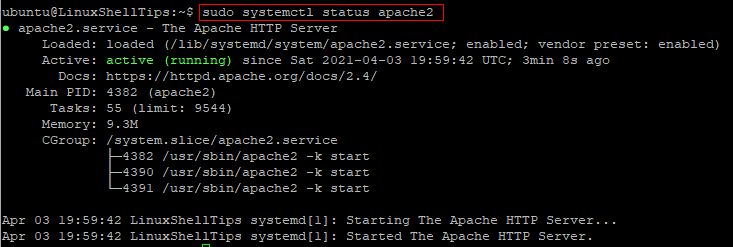
First, update your system. Open the terminal and type simple commands. For Ubuntu, type sudo apt update. Then, install Apache with sudo apt install apache2. Check if Apache is running. Type systemctl status apache2. It should say “active”. Now your server is ready.
Protect your server with a firewall. Allow Apache traffic through it. On Ubuntu, use sudo ufw allow 'Apache'. This command opens the right ports. Always check firewall status. Type sudo ufw status. Make sure Apache is allowed. This keeps your server safe.
Preparing Your Website Files
Organizing HTML and CSS files is important. Keep them in a single folder. Name folders clearly. Use one folder for HTML. Use another for CSS. This makes your work easy. Your site will be neat.
Uploading Files to Server is the next step. Use a tool like FileZilla. Connect to the server. Drag and drop your files. Now, your files are on the server. Check them to be sure.
Testing Your Local Setup is very important. Open a web browser. Type “localhost” in the address bar. See if your site shows up. Fix errors if needed. This ensures your site works fine.
Configuring Apache
Apache’s configuration file is important. It’s often called httpd.conf. Open the file using a text editor. Look for the line that starts with “Listen”. This sets the port number. The default is usually 80. Ensure it’s correct. Save changes. Restart Apache to apply them.
Virtual Hosts allow multiple sites on one server. Each site needs its own directory. In the config file, use the tag. Define the domain and its root directory. Example: ServerName www.example.com. Save and restart Apache. Check each site loads correctly.
Modules add features to Apache. Some are off by default. Open the httpd.conf file. Look for lines starting with LoadModule. Remove the # to enable a module. Save your changes. Restart Apache to see changes. Common modules include mod_rewrite for URLs and mod_ssl for security.
Credit: www.ubuntumint.com
Managing Domain And Dns Settings
Choose a name that fits your website. Visit a domain registrar like GoDaddy or Namecheap. Search for your desired name. If available, add it to your cart. Complete the purchase. Keep the registration email safe. It has important details.
Log into your registrar’s dashboard. Find the DNS settings section. Add an A record pointing to your server’s IP address. Add a www CNAME pointing to your domain. Save changes. Wait for DNS propagation. This can take a few hours.
Open a web browser. Type your domain in the address bar. Hit enter. Check if your website loads. If not, revisit DNS settings. Ensure records are correct. You can use tools like ping or traceroute. They help verify connection issues.
Securing Your Apache Server
SSL certificates keep your data safe. They encrypt data between your server and users. Users trust websites with SSL. Install certificates from a trusted authority. Update them regularly to avoid errors. Always check for expired certificates. This ensures your site stays secure.
Firewalls block unwanted traffic. They act like guards at a gate. Use tools like mod_security for Apache. They help block harmful requests. Regularly update your firewall settings. This keeps your server safe from attacks. Always monitor logs for unusual activities.
Monitoring helps keep your server healthy. Use tools to check server load. Keep an eye on memory and CPU usage. High load means your server is busy. Check logs for errors or warnings. They tell you if something is wrong. Regular monitoring helps prevent problems.

Credit: www.veeble.com
Troubleshooting Common Issues
Hosting a website on Apache Web Server can face common issues like configuration errors, permissions, and firewall settings. Resolving these requires checking Apache logs and ensuring correct file paths and access rights.
Resolving Configuration Errors
Configuration errors can stop your website. Check your Apache configuration files. Look for missing or wrong settings. Syntax errors are common. Use command line tools to test these files. This helps find mistakes quickly. Make sure file paths are correct. Also, permissions should be set right.
Fixing Network Connectivity Problems
Network issues can prevent access to your site. Ensure your server is online. Use tools to test connectivity. Check the firewall settings. Sometimes, firewalls block necessary ports. Verify the IP address and DNS settings. These should match your server’s configuration.
Debugging Website Performance
Slow websites can frustrate users. Check Apache’s performance settings. Look at server load and memory usage. These affect speed. Optimize images and scripts. Large files make pages slow. Use caching to improve load times. This reduces server work.

Credit: www.veeble.com
Frequently Asked Questions
Can I Host A Website On Apache?
Yes, you can host a website on Apache. Apache HTTP Server is widely used for web hosting. It supports various platforms and offers robust performance and security features. Apache is open-source, making it a popular choice for developers and businesses seeking flexible and cost-effective web hosting solutions.
How To Deploy An Html Page In An Apache Http Server?
Deploy your HTML page by placing it in the Apache server’s ‘htdocs’ directory. Ensure Apache is running. Access your page via ‘http://localhost/yourpage. html’. Adjust file permissions if necessary, allowing read access. Confirm Apache configuration allows HTML files, ensuring smooth deployment.
How Do I Host My Own Website On My Server?
To host your website, set up a server, install a web server software, and configure DNS settings. Secure your server with a firewall and SSL certificate. Upload your website files to the server. Regularly update and maintain your server for optimal performance and security.
How To Create A Virtual Host In Apache Web Server?
To create a virtual host in Apache, edit the configuration file. Add a “ block specifying the domain and document root. Save the file and restart Apache to apply changes. Ensure DNS points to your server for the domain.
Conclusion
Hosting a website on an Apache server is straightforward. Follow the steps carefully. Start by installing Apache on your server. Configure the settings to match your needs. Upload your website files to the server. Test your site to ensure everything works.
Regularly update your server for security. Keep backups of your website files. This process helps keep your site running smoothly. Apache offers reliability and flexibility. Ideal for various web hosting needs. With practice, managing your site becomes easier. Enjoy hosting with Apache’s robust features.


