
If you’ve just purchased a domain from GoDaddy, you might be wondering about the next steps to get your website up and running. Adding web hosting is a crucial step, and doing it right can make all the difference.
Imagine having a website that loads swiftly, keeps your visitors engaged, and ranks well on search engines. Sounds great, right? This guide will walk you through the process of adding web hosting in GoDaddy, making it straightforward and stress-free. Whether you’re launching a new blog or setting up an online store, getting your hosting sorted is the backbone of your digital presence.
Stick with us, and by the end, you’ll have the confidence and know-how to set up your web hosting like a pro.
Credit: www.godaddy.com
Choosing The Right Hosting Plan
Godaddy offers different types of hosting. These include Shared Hosting, VPS Hosting, and Dedicated Hosting. Shared hosting is cheap and easy. But, it is slow if many people use it. VPS hosting is faster and safer. It is good for growing websites. Dedicated hosting is the best. It’s fast and secure. But, it is costly. Good for big websites.
Website size is important. Big sites need more space. Small sites need less. Think about traffic. More visitors need better hosting. Security is key. Protect your site from hackers. Speed matters too. Visitors like fast sites. Look at cost. Choose what fits your budget. Finally, check support. Good support helps solve problems fast.
Credit: www.godaddy.com
Creating A Godaddy Account
Start by visiting the GoDaddy website. Click on the “Sign Up” button. Fill in your email, username, and password. Make sure your password is strong. Click “Create Account”. You now have a GoDaddy account.
Go to your email inbox. Look for a message from GoDaddy. Open the email and find the verification link. Click on the link. This will verify your account. You will see a message saying “Account Verified”. You can now use your account fully.
Navigating The Godaddy Dashboard
Adding web hosting in the GoDaddy dashboard is simple. First, log in and find the “My Products” section. Choose “Web Hosting,” then follow the steps to select and purchase a plan that fits your needs.
Finding Hosting Options
The GoDaddy dashboard is your first stop. Log in to your account. Look for the “My Products” section. This section shows all your products. Click on the “Web Hosting” option. You will see available hosting plans. Choose a plan that fits your needs.
Understanding Dashboard Features
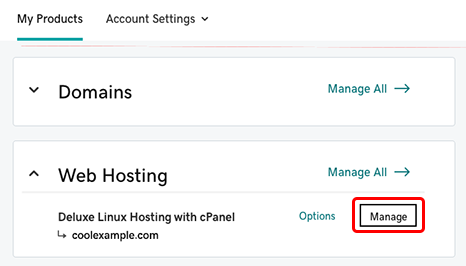
The dashboard has many tools. You can manage your domains here. Find the “Manage” button next to your hosting plan. Click it to explore more options. You can see your hosting details. Check your storage and bandwidth limits. Use these tools to keep your site running well.
Purchasing A Hosting Plan
Picking the right hosting plan is important. Godaddy offers different options like shared, VPS, and dedicated hosting. Shared hosting is good for beginners. VPS hosting gives more control. Dedicated hosting is for big websites. Choose what fits your needs best. Think about the cost and features. Look at storage and bandwidth. Check if support is available 24/7. This helps when problems occur.
Saving money is possible with discounts. Godaddy often offers promotions. Look for coupon codes online. These can reduce the price. Sometimes, buying for a longer term saves money. Signing up for newsletters can give special deals. Always check if discounts apply to your chosen plan. This makes hosting more affordable. Keep an eye out for seasonal offers too. They provide great savings.
Configuring Your Hosting Settings
Setting up web hosting in GoDaddy is straightforward. Access your account, navigate to “My Products,” and select “Web Hosting. ” Follow the prompts to link your domain and configure your settings. This process ensures your website is live and accessible to visitors.
Setting Up Domain Names
First, log into your GoDaddy account. Navigate to the Hosting Control Center. Locate the “Domains” section. Click on “Manage” next to your domain name. Choose “Add Domain” option. Enter your desired domain name. Click “Submit”. Your domain is now set up.
Adjusting Security Settings
Open the Security Center in your hosting panel. Select “SSL Certificates”. Choose a certificate to install. Follow the steps to apply it. Next, go to “Firewall” settings. Enable firewall protection. This keeps your site safe. Activate the automatic backups feature. This saves copies of your site. Safety is important for your website.
Uploading Your Website Files
Use FTP to move files to your web hosting. It’s a fast way. You need an FTP client like FileZilla. Open the client and enter your FTP details. These details are in your GoDaddy account. After logging in, find the public_html folder. Drag your files there. Wait for the upload to finish. Now, check your website. It should show your new files.
Use the control panel to manage files. Log into your GoDaddy account. Click on Web Hosting. Then, click Manage. This opens the control panel. Here, click File Manager. Now, you can see all your files. To add new files, click Upload. Choose the files from your computer. They will upload quickly. You can also delete or move files here.
Ensuring Site Functionality
After setting up hosting on GoDaddy, check your website. Open your browser and type your website’s address. Ensure the homepage appears correctly. Click links to see if they work. Check images and videos load properly. Test forms by sending a test message.
Make sure the website looks good on phones and tablets. This helps users have a good experience. Load times should be fast. Slow sites can frustrate visitors. Use online tools to measure speed. Fast websites keep visitors happy and engaged.
Sometimes, websites don’t work right. First, check your internet connection. If that’s fine, clear your browser’s cache. This helps load the latest version of your site. Sometimes, plugins cause problems. Disable them one by one. Then, see if the issue is fixed. Update your plugins and themes. Keep everything up to date for smooth performance.
If you still have trouble, contact GoDaddy support. They can help solve technical issues. They are trained to assist with hosting problems. Always keep a backup of your site. This ensures safety in case of errors.
Accessing Customer Support
Godaddy has a helpful support team. You can call them anytime. Their phone number is on the website. Email support is also available. You can send questions to their email. Live chat is another option. You can chat with them online. They help with many problems. Always have your account details ready. This helps them to assist you faster.
Godaddy offers many help resources. Help articles are on their website. These articles explain different topics. Video tutorials are also available. Videos show step-by-step instructions. Community forums are a good place to ask questions. Other users share their experiences. FAQ sections have common questions and answers. They are very useful. Use these resources to learn more.

Credit: www.godaddy.com
Frequently Asked Questions
How Do I Add Hosting To My Godaddy Domain?
Log into your GoDaddy account. Navigate to “My Products” and select your domain. Click “Manage” next to Web Hosting. Follow the prompts to add hosting. Ensure compatibility between your domain and hosting plan. Confirm your choices and finalize the setup.
Access your hosting dashboard for further configurations.
How To Setup The Web Hosting Plan Godaddy?
To set up a GoDaddy web hosting plan, sign into your account. Choose “My Products” and select your hosting plan. Click “Manage” and follow the setup instructions to link your domain. Use the cPanel to upload files and configure settings.
Your website is now ready to launch.
How To Give Hosting Access To Godaddy?
Log in to GoDaddy account, go to “My Products,” select hosting, click “Manage,” then “Delegate Access. ” Enter the recipient’s email and set permissions.
How Do I Add A Website To Hosting?
To add a website to hosting, first choose a hosting provider. Register a domain name and configure DNS settings. Upload website files via FTP or a control panel. Ensure databases and scripts are installed correctly. Verify website functionality by visiting the domain in a browser.
Conclusion
Setting up web hosting with GoDaddy is straightforward. Start by logging in. Choose your hosting plan. Follow the guided steps. Install your preferred applications. Test your website. Ensure everything works smoothly. Remember to regularly update your site. Keep your content fresh and secure.
Hosting with GoDaddy offers reliable support. Their team is ready to assist anytime. Enjoy your new website! Building online presence is rewarding. Take your time to explore GoDaddy’s features. Make the most of your hosting experience. With patience and effort, your site will thrive.


