
Have you ever felt overwhelmed by your WordPress site and wished you could start fresh? Sometimes a clean slate is the best way to reignite your creativity and enhance your website’s performance.
If you’ve been struggling with a theme that no longer fits your vision, it might be time to delete it and begin anew. Imagine the possibilities of crafting a site that truly represents your brand, without the clutter of outdated designs.
In this guide, you’ll discover how to easily delete your WordPress theme and set the stage for a stunning new look. Let’s dive in and explore how you can transform your website from the ground up.
Reasons To Delete A WordPress Theme
Old themes can slow down your website. They have extra code and features. This can make your site load slowly. Deleting unused themes can help. It makes your site faster. A fast site keeps visitors happy.
Outdated themes can be risky. Hackers look for weak spots. Old themes may have these. Deleting them can protect your site. Keep your site safe from attacks. Update to a secure theme.
Too many themes can be confusing. It’s hard to manage them all. Deleting old themes makes it easier. You can focus on the theme you use. This makes updates simpler. Your site stays organized.

Credit: wpmarmite.com
Pre-deletion Checklist
Always keep a backup of your website. This step is vital. If anything goes wrong, you can restore it. Use a plugin like UpdraftPlus or BackupBuddy. They make backups easy. Store the backup safely. On your computer or cloud storage. This ensures your data is safe.
Check your active theme. Make sure it’s the one you use. Sometimes themes change without notice. Look at the theme settings. Write down important configurations. If you switch themes, you might lose settings. Remember to note down any customizations. This helps you recreate them later.
Deactivate The Current Theme
Start by opening your WordPress Dashboard. This is your website’s control center. Look for the Appearance menu on the left side. Click on it and then select Themes. You will see all your installed themes here. Find a default theme, like Twenty Twenty-One. Click on the Activate button under it. This will switch your website to the new theme. Your current theme is now deactivated. It’s important to switch to a default theme. This ensures your website doesn’t break during the process. Remember, activating a theme is just a click away.
Delete The Theme Via Dashboard
First, log in to your WordPress dashboard. On the left side, you will see a list. Click on Appearance. This opens the theme options. You will see all installed themes here.
Click on the theme you wish to delete. A new screen will open. Look for the Delete button at the bottom right. Click it. A pop-up will ask you to confirm. Click OK to remove the theme. Your theme is now deleted. Make sure to have a backup before deleting themes.
Remove Theme Via Ftp
Connect to your server using an FTP client like FileZilla. Enter the server details to log in. These details are in your hosting account.
Navigate to the theme directory. Find the ‘wp-content’ folder. Click on it. Inside, locate the ‘themes’ folder. This is where themes are stored.
Delete theme files carefully. Select the theme you want to remove. Right-click on it. Choose ‘Delete’. Confirm the deletion. This action will remove the theme from your site.
Clean Up Database Entries
Starting fresh with a WordPress theme can enhance your site’s performance. Delete outdated themes to clean up database entries. This process simplifies management and boosts loading speed, ensuring a seamless user experience.
Use Plugins For Cleanup
Plugins can help clean your database. WP-Optimize is a popular choice. It removes unused entries easily. Advanced Database Cleaner is another option. It tidies up your database effectively. Always back up your data first. This keeps your site safe. Follow instructions carefully. Plugins are powerful tools. They save time and effort.
Manually Remove Entries
Manual cleanup requires caution. Access your database through phpMyAdmin. Identify unused tables. Delete them carefully. Look for entries related to old themes. Remove them to free up space. Backup is crucial before making changes. Mistakes can break your site. Always double-check before deleting. Take it slow. Accuracy is important.
Install A New WordPress Theme
Select a theme that works well with your site’s needs. Check the theme’s details for compatibility with your WordPress version. Read user reviews for insights. A good theme should also work on phones and tablets. Ensure it has regular updates. Look for a simple design for easy navigation. This helps users find what they need quickly. Avoid themes with too many features. They can make your site slow.
Download the theme to your computer. Go to your WordPress dashboard. Click on “Appearance” and then “Themes”. Click on “Add New” and “Upload Theme”. Choose the file you downloaded. Click “Install Now”. After it installs, click “Activate”. Your new theme is now live. Check your site to ensure everything looks right. Update any settings if needed. A fresh theme can improve your site’s look.
Customize Your New Theme
Adjust Settings in your new WordPress theme. Start by going to the settings menu. You can change the site title and tagline. This helps identify your site. Choose the right color scheme. Pick fonts that match your style. Find the best layout for your content. Make sure it looks good on mobile devices. Test your settings before you go live.
Add Widgets and Plugins to your theme. Widgets are small tools. They help you add extra features to your site. Use widgets for social media links. Add plugins for better site performance. They can help with SEO. Plugins can improve security. Choose the ones that fit your needs. Check reviews before installing. Make sure they are updated regularly.
Test Your Website
Broken links make visitors unhappy. They can also hurt your SEO rankings. Use tools to find these links. Fix them to keep users on your site. This improves the user experience. Happy visitors stay longer and explore more pages.
Many people use phones to browse. A mobile-friendly site is crucial. Check how your site looks on small screens. Make sure buttons and text are easy to tap and read. Adjust any images that are too big. A site that looks good on all devices makes everyone happy.

Credit: blog.hubspot.com
Maintain Your WordPress Theme
Starting fresh with your WordPress site is easy. Delete your current theme by navigating to your dashboard, selecting ‘Appearance’, and then ‘Themes’. Choose the theme you wish to remove and click ‘Delete’. This simple action helps maintain a clutter-free site and allows you to explore new design options effortlessly.
Regular Updates
Themes need updates to work well. Updates fix bugs and keep your site safe. Always check for new updates. An updated theme runs faster. It also has new features. Be sure to backup your site before updating. This way, you won’t lose your data. Use a plugin for easy updates. Keep your theme fresh and secure.
Monitor Theme Performance
Check how your theme works. Slow themes can hurt your site. Use tools to check speed. Faster sites keep visitors happy. Look for errors in your theme. Fix them right away. Errors can make your site look bad. Good performance helps your site rank better. Regular checks are important. A healthy theme keeps your site strong.
Credit: blog.hubspot.com
Frequently Asked Questions
How Do I Delete A WordPress Theme And Start Over?
To delete a WordPress theme, go to your dashboard, select “Appearance,” then “Themes. ” Activate a different theme, then click “Theme Details” on the theme you wish to delete. Click “Delete” in the bottom right corner. Confirm to remove the theme completely.
How Can I Reset My WordPress Theme?
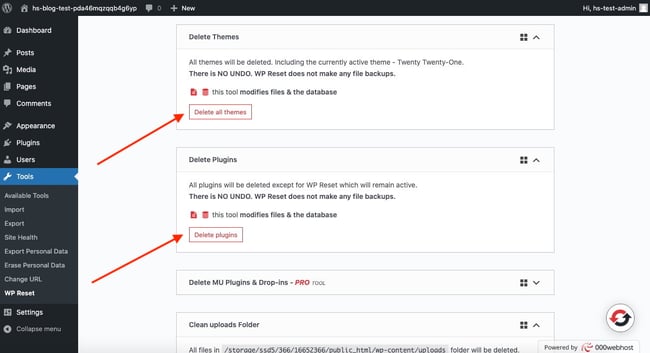
To reset your WordPress theme, go to your WordPress dashboard. Navigate to “Appearance” and select “Themes”. Click “Add New” and choose a default theme like “Twenty Twenty-One”. Activate it to reset your theme settings. Consider using a plugin like WP Reset for a complete site reset.
How Do I Delete Everything From WordPress And Start Over?
To reset WordPress, use a plugin like WP Reset. Install it, activate it, and choose “Site Reset. ” Confirm your choice to delete everything. For manual reset, delete the database via cPanel and reinstall WordPress. Always back up your data before deleting to prevent loss.
How To Start All Over In WordPress?
To start over in WordPress, back up your site first. Then, navigate to Tools > Site Health > Reset. Confirm the reset to begin fresh. Reinstall themes and plugins as needed. Regular backups ensure data safety.
Conclusion
Starting fresh with WordPress can seem daunting. But it’s manageable. Deleting themes gives you a clean slate. A chance to create something new. Follow the steps carefully. Ensure backups of important data. This process is simple and rewarding. It opens doors to new possibilities.
Remember, a fresh start can improve your site’s performance. Keep it simple. Focus on the essentials. Your website will be better for it. Enjoy the creative process. Explore new designs and features. Your WordPress journey begins anew. With patience, success is within reach.


