
Are you eager to customize your WordPress site but don’t know where to start with the theme’s code? You’re not alone.
Unlocking the full potential of your WordPress theme by accessing its code can seem intimidating, yet it’s easier than you might think. Imagine having the power to tailor every detail to perfectly match your vision. In this guide, you’ll discover straightforward steps to access and edit your theme’s code, giving you the creative control to transform your site into something truly unique.
Let’s dive in and unveil the secrets hidden within your WordPress theme, empowering you to craft a website that stands out.

Credit: kinsta.com
Locating Theme Files
The WordPress Directory Structure helps find theme files. It organizes files in a neat way. Look for the wp-content folder. Inside, find the themes folder. Each theme has its own folder there. This makes it easy to locate.
Theme Folder Identification is simple. Check the folder names. Each theme is named after itself. Open the folder to see files. Common files are style.css, functions.php, and index.php. These files hold the theme’s code. This code controls your website’s look.
Credit: 10web.io
Accessing Via WordPress Dashboard
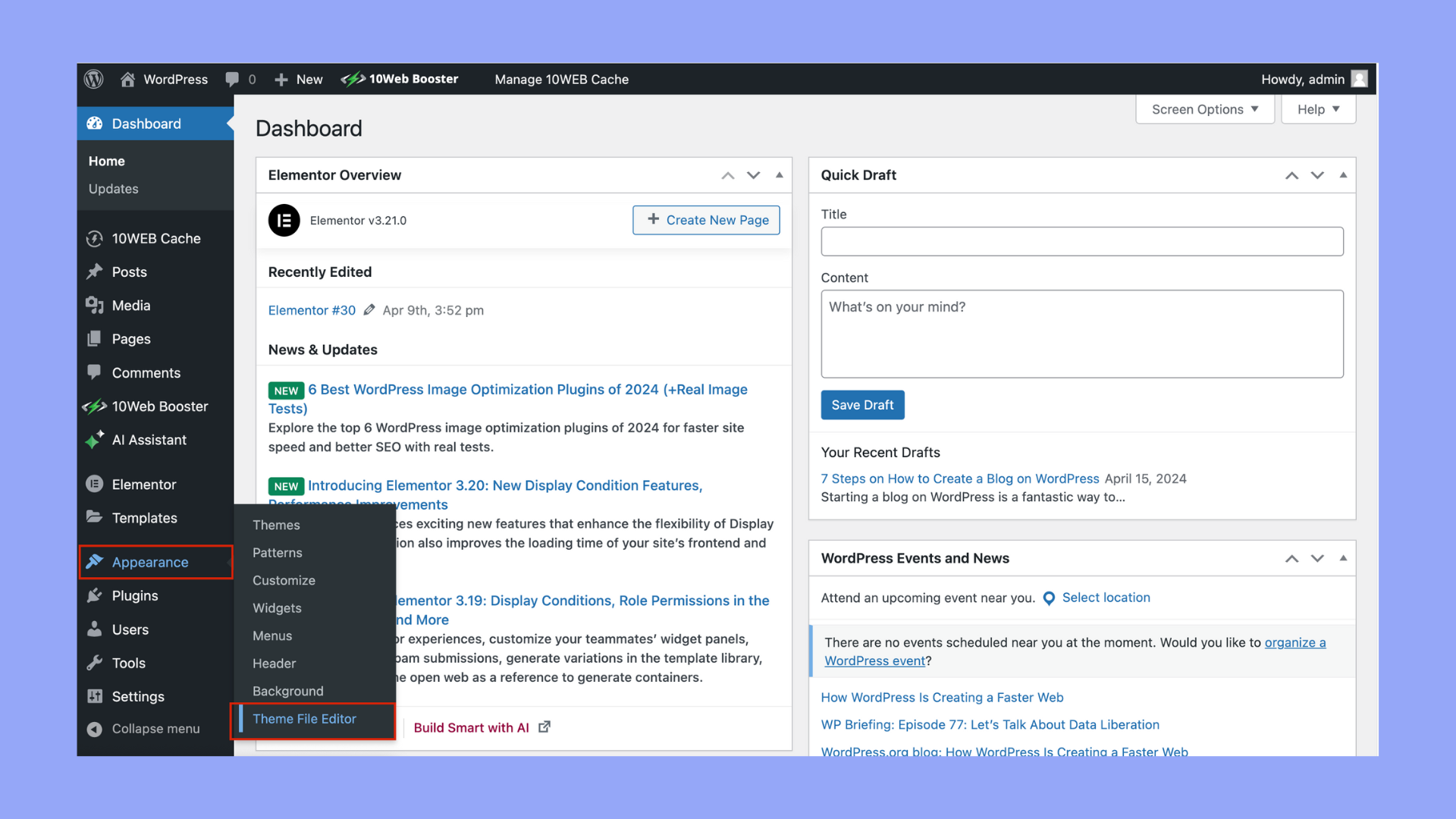
Explore WordPress Dashboard to access theme’s code effortlessly. Navigate to ‘Appearance’, then ‘Theme Editor’ for direct editing. Instantly view and modify files, making customization straightforward and user-friendly.
Using Theme Editor
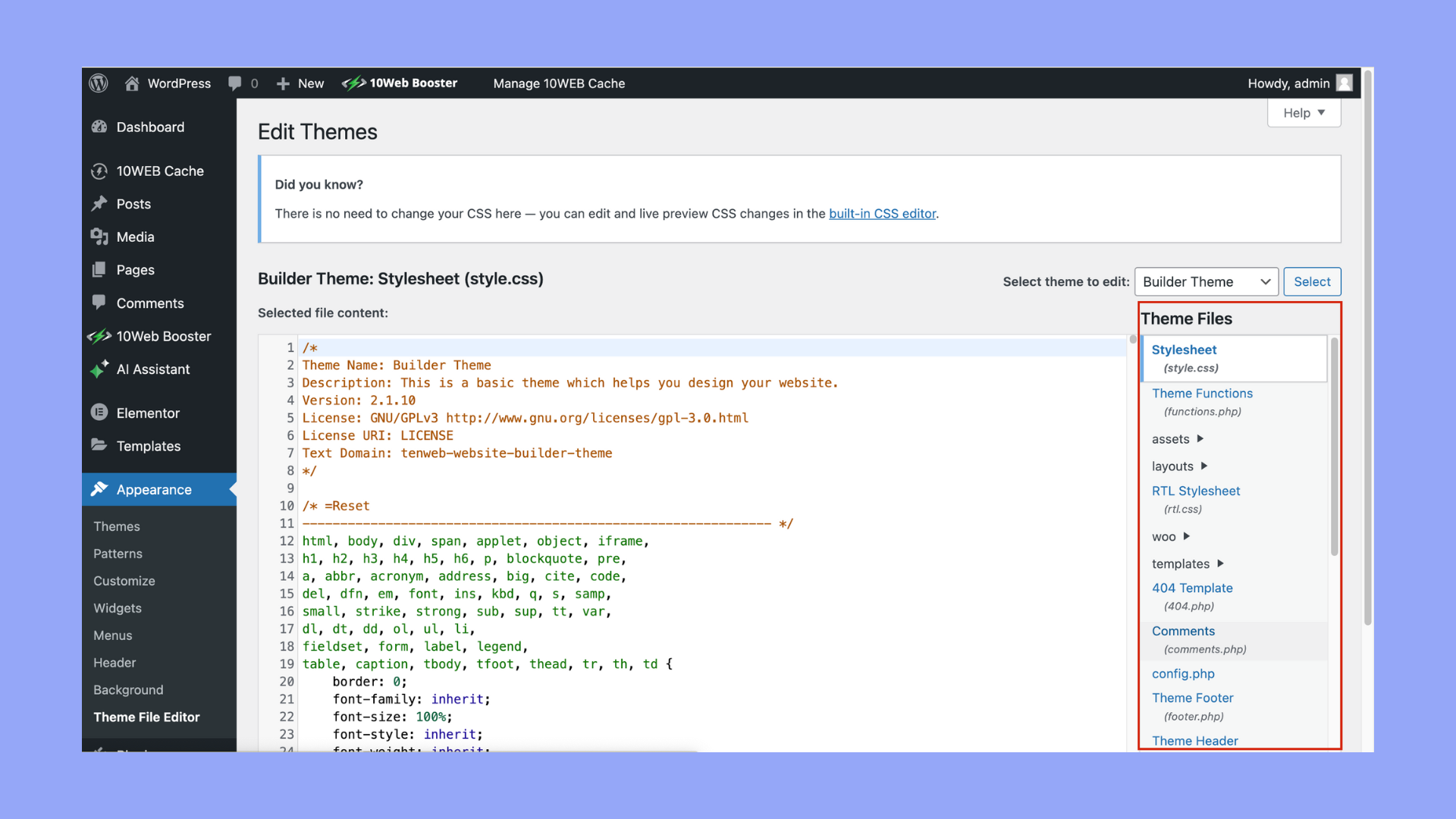
Open your WordPress Dashboard. Go to the Appearance menu. Choose Theme Editor. The editor shows your theme’s files. You will see a list on the right. Click any file to view or edit it. Be careful with changes. Mistakes can break your site. Always backup your theme before editing. This helps if things go wrong. The editor is easy to use. But it has limits. Some files may not appear there.
Limitations And Considerations
Changes made in the editor affect your live site. Mistakes can cause errors. You need some coding knowledge. If unsure, ask for help. Updates might erase your changes. Consider using child themes. They save your changes safely. Always test changes first. Safety is key. Know your limits. Keep learning and be careful.
Accessing Via Ftp
An FTP client helps you connect to your website files. You need a username and password to start. Use apps like FileZilla or Cyberduck. They are easy to use. Download and install your chosen app. Open it and enter your FTP details. Click “connect” to access your site’s files.
After connecting, find the folder named “wp-content”. This folder has all your theme files. Click on it. Inside, find the “themes” folder. Click it to see your active theme. Open your theme folder to access its code. Look for files like style.css or functions.php. These files hold your theme’s code. Make sure to back up files before changes.
Using File Manager In Hosting Control Panel
First, log in to your hosting control panel. Look for the File Manager option. It is often found in the dashboard. Click to open it. Navigate to the public_html folder. This is where your WordPress files are stored. You will see many folders and files here.
Find the folder named wp-content. Inside, there’s a folder called themes. Open this folder to view all your installed themes. Each theme has its own folder. Click on the desired theme folder. You can see the theme’s files here. These include PHP, CSS, and JavaScript files. You can open and edit these files directly from the File Manager.
Modifying Theme Code
Accessing the PHP files is simple. Use the WordPress dashboard. Navigate to Appearance, then Theme Editor. Select the theme you want to edit. Look for files ending in .php. These files control the website’s functions. Always backup before editing. Mistakes can break your site. Edit carefully and test changes.
CSS styles change the look of your site. Find them in the Theme Editor. Look for files ending in .css. These files manage colors, fonts, and layout. Adjust styles to fit your needs. Try changing a color or font. Preview changes before saving. Small tweaks can make a big impact.
Credit: 10web.io
Best Practices For Theme Code Changes
Always back up your files before making changes. This keeps your data safe. Use a plugin for easy backups. You can also use your hosting provider’s tools. This way, you can restore your site if something goes wrong. Backups save time and stress. They are very important.
Create a child theme for your changes. This keeps your original theme safe. Updates won’t erase your custom changes. A child theme is a copy of your theme. It is easy to make. Use child themes for better theme management. This is a smart way to handle theme updates.
Troubleshooting Common Issues
Accessing a WordPress theme’s code helps solve design and functionality issues. Start by navigating to the WordPress dashboard. Find the Appearance section and select Editor. Here, you can view and edit theme files directly. Always back up your site before making changes to avoid data loss.
Error Messages In Editor
Error messages can be confusing. Sometimes, they appear due to coding mistakes. Check if there is a missing semicolon. Look for unclosed brackets. These errors can cause big problems. Fix them to make your website work again.
Restoring Original Files
Original files are important. They keep your theme working. Backups help you restore files. Use a tool to backup your files. If you change a file and it breaks, restore the backup. This will fix the problem. Keep backups safe. You might need them again.
Frequently Asked Questions
How Do I Access The Theme Code In WordPress?
Go to your WordPress dashboard. Click on “Appearance” and then “Theme Editor. ” Here, you can access and edit the theme code directly. Always back up your site before making any changes to the code.
How Do I Access The WordPress Code?
Access WordPress code through the WordPress dashboard or FTP. Use a code editor for editing files. Navigate to Appearance > Theme Editor for theme files. Use FTP for advanced access to core files. Always back up your site before making changes to avoid potential issues.
How To View WordPress Source Code?
To view WordPress source code, right-click on the page and select “View Page Source. ” Alternatively, use a text editor to access theme files via FTP.
How To Access The Html Code In WordPress?
Access HTML code in WordPress through the “Appearance” menu. Navigate to “Theme Editor” for theme files. Alternatively, use the “Custom HTML” widget in “Appearance” > “Widgets” for specific sections. For posts or pages, switch the editor to “HTML” mode using the block editor or classic editor options.
Conclusion
Accessing a WordPress theme’s code is simpler than it seems. Start with a backup to ensure safety. Use the WordPress dashboard for easy access. FTP offers deeper control for those comfortable with it. Editing code allows for customization and unique designs.
Always save changes and check your site afterward. Mistakes happen, but backups protect your work. Practice makes it easier over time. With patience, you’ll manage your theme’s code confidently. Stay curious and keep learning. It enhances your WordPress journey. Happy coding!


