
You’ve just installed a new theme on your WordPress site, but it doesn’t quite fit your vision. Now, you’re wondering how to uninstall it without causing a hiccup in your website’s performance.
You’re not alone—many WordPress users face this dilemma. Uninstalling a theme might seem daunting, but it’s actually a straightforward process. Imagine the relief of having a clean, streamlined site that perfectly showcases your content. This article will guide you through each step, ensuring you can confidently remove any theme you no longer need.
Ready to learn how to tidy up your WordPress site? Let’s dive in and make it happen.

Credit: www.wpbeginner.com
Accessing The WordPress Dashboard
First, open your web browser. Type your website’s URL. Add “/wp-admin” at the end. Press Enter. You will see the login page. Enter your username and password. Click the Log In button. This takes you to the dashboard.
On the dashboard, look at the left side. Find the Appearance menu. Click it. You will see more options. Choose Themes. A list of installed themes appears. Select the theme you want to remove. Click the Delete button below it. Confirm your choice. The theme is now uninstalled.
Identifying Active And Inactive Themes
Visit your WordPress dashboard. Look for the Appearance menu. Click on it. You will see a page with themes. The active theme will have a label. It usually says Active. This is the theme your site is using now. Note its name. This is important for uninstalling later.
In the Appearance section, you will find all themes. Scroll to see them. Each theme has a thumbnail. Inactive themes do not have the Active label. You can preview them if you wish. Click on a theme to see more options. You can uninstall any inactive theme.
Switching To A Different Theme
To switch themes, go to your WordPress dashboard. Find the Appearance menu. Click on Themes. Here, you will see all your installed themes. Choose a theme you like. Click the Activate button. Your site will now have a new look.
You can preview a theme before switching. In the Themes section, hover over a theme. Click the Live Preview button. This shows how your site will look. It helps you decide if you want to change. Once happy, click Activate. Now your site has a fresh design.
Credit: www.domain.com
Uninstalling A Theme
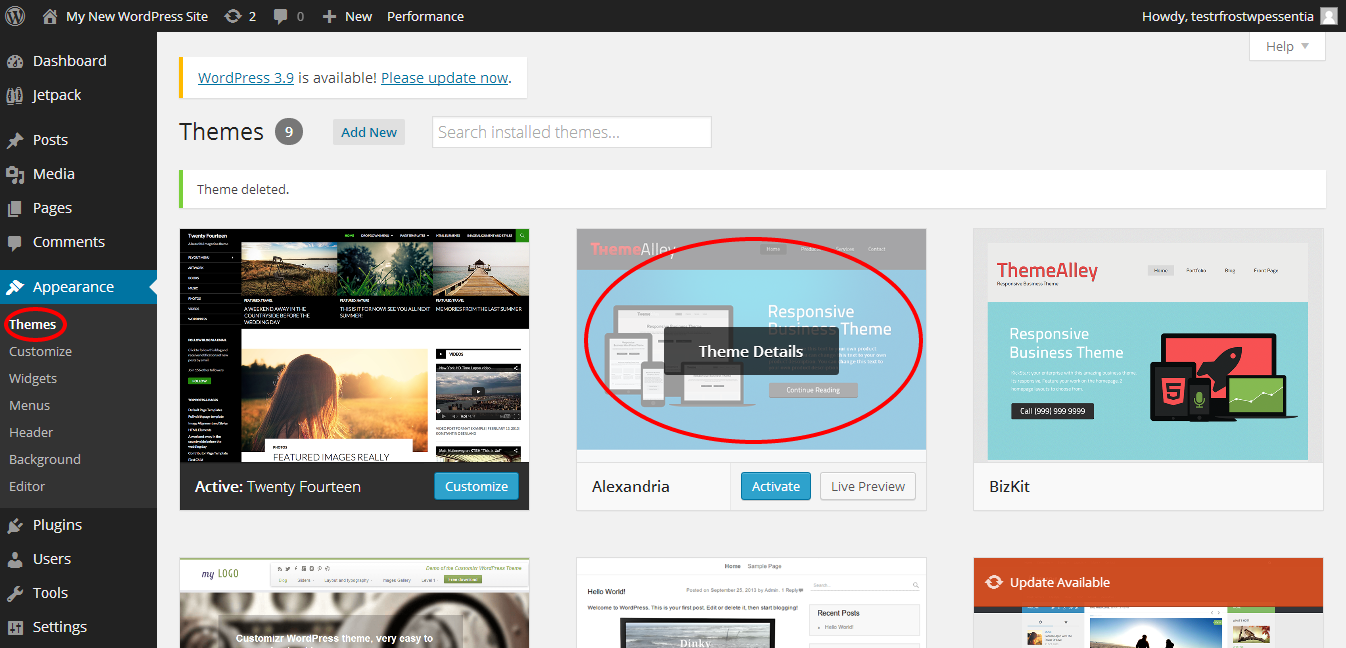
To delete unused themes, start from your WordPress dashboard. Click on Appearance and then Themes. This shows all your installed themes. Find the theme you want to remove. Click on the theme to see details. Look for the Delete button at the bottom. Click it to remove the theme. Removing unused themes can free up space and improve site speed.
After deleting, check if the theme is gone. Go back to the Themes page. Make sure the theme is not listed. If it’s not there, the removal was successful. If it still appears, try deleting again. Confirming removal ensures your site stays clean and efficient.
Cleaning Up Theme Files
To uninstall a theme on WordPress, navigate to your dashboard, click on “Appearance,” and select “Themes. ” Locate the theme you wish to remove, click on “Theme Details,” and then hit “Delete. ” This process ensures your site runs smoothly by removing unnecessary files.
Removing Theme Files Via Ftp
Use FTP to remove theme files safely. First, connect to your website using an FTP client. Navigate to the “wp-content/themes” folder. Locate the theme you want to delete. Right-click on the theme folder. Choose “Delete” to remove it. Double-check before deleting to avoid mistakes.
Deleting theme files frees up space. It ensures your site runs smoothly. Old themes can slow down your website. Clean up regularly for better performance. Files left behind can cause issues. Always remove unused themes.
Using Plugins For Cleanup
Plugins help clean leftover theme files. Install a cleanup plugin from the WordPress plugin directory. These plugins find and remove unnecessary files. Plugins make cleanup easy. They save time and effort. Always check reviews before installing a plugin. Choose plugins with good ratings.
Some plugins offer extra features. Backup your site before using them. This ensures data safety. Regular cleanup keeps your site healthy. Use plugins wisely for best results. They help maintain your site’s performance.

Credit: wpmarmite.com
Troubleshooting Common Issues
Removing a WordPress theme involves a few simple steps. Access the dashboard, go to “Appearance,” then “Themes. ” Select the theme you want to remove and click “Delete. ” Ensure the theme is deactivated before deleting. This process helps keep your site clean and organized.
Dealing With Errors
Uninstalling a theme can sometimes cause errors. The site might not work. Check if you have deleted the right theme. Ensure the theme is not active. To fix errors, clear your browser cache. This can help see changes. Disable plugins that might conflict. Try turning them off one by one. Backup your files before making changes. This keeps your data safe.
Restoring A Theme
Want to bring back a deleted theme? Locate it in your theme directory. Reinstall the theme from the WordPress dashboard. Activate it once installed. Check if everything works fine. Sometimes, settings might be lost. Redo the theme settings. Restore any custom changes you made before. This helps your site look as it was.
Frequently Asked Questions
How Do I Uninstall The Theme?
To uninstall the theme, go to your website’s dashboard. Navigate to “Appearance” and select “Themes. ” Find the active theme and click “Deactivate. ” Then, click “Delete” to remove it completely. Make sure you have a backup before proceeding.
How Do I Delete Unused WordPress Themes?
Go to your WordPress dashboard. Click on “Appearance,” then “Themes. ” Hover over the unused theme and click “Theme Details. ” Press “Delete” at the bottom-right corner. Confirm the deletion. Repeat for other unused themes. Regularly delete unused themes to improve site performance.
How Do I Remove A Theme From My Website?
Access your website’s admin panel. Navigate to the “Appearance” or “Themes” section. Select the theme you wish to remove. Click on “Delete” or “Remove” option. Confirm your choice to successfully remove the theme.
How Do I Remove A Template From WordPress?
To remove a template from WordPress, go to Appearance > Themes. Activate a different theme, then delete the unwanted one.
Conclusion
Deleting a WordPress theme is simple and quick. Follow the steps carefully. You start by logging into your WordPress dashboard. Find the Appearance tab, click on Themes. Choose the theme you want to remove. Click Delete, and confirm your choice.
Your theme is gone. Keep your site neat and tidy. Remove unused themes regularly. This helps with site performance. Fewer themes mean fewer updates. It also reduces security risks. Regular maintenance is key for a smooth website experience. Enjoy a streamlined WordPress site!


