
Imagine transforming your WordPress site with a fresh, eye-catching theme. You’ve found the perfect one, downloaded it, but now what?
Installing a theme on WordPress might seem daunting, especially if you’re not a tech guru. But don’t worry—you’re about to learn how simple it can be. By the time you finish this article, you’ll feel confident and ready to revamp your site, making it stand out like never before.
We’re here to guide you through each step. So, stay tuned and discover how easy it is to breathe new life into your WordPress site with just a few clicks.
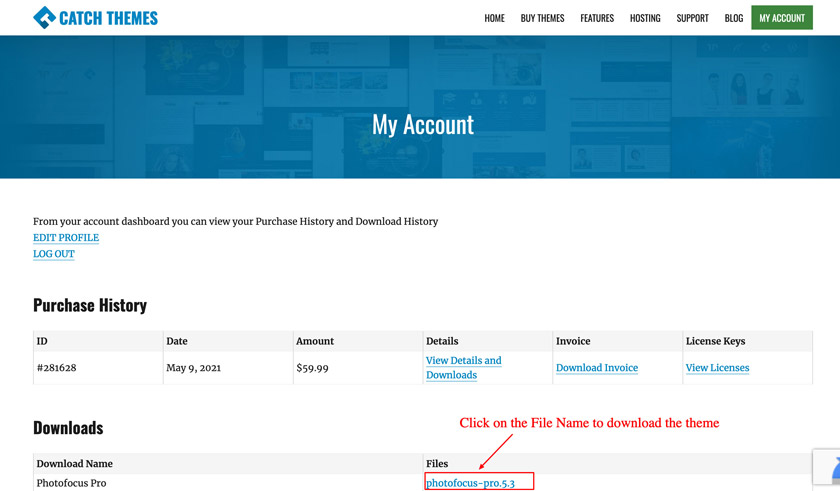
Credit: catchthemes.com
Preparing Your WordPress Site
Installing a downloaded theme in WordPress is simple. Navigate to the dashboard, click “Appearance,” then “Themes,” and select “Add New. ” Upload your theme file, click “Install,” and activate it. Your site’s look is ready to impress.
Backup Your Site
Always keep your website safe. Create a backup of your site first. Use plugins like UpdraftPlus or BackupBuddy. These tools help save your data. Store your backup on an external drive or cloud. Restoring is easy if something goes wrong.
Check Theme Compatibility
Not all themes fit every WordPress site. Check if your theme is compatible. Read theme details carefully. Look for the version number. See if it matches your WordPress version. Some themes need extra plugins. Ensure your site has them installed. Avoid problems by checking first.

Credit: www.greengeeks.com
Downloading A Theme
First, find a trusted website for WordPress themes. Many sites offer free themes. Some offer paid ones. Look for user reviews. They can help you decide. Always check the theme ratings. Pick one with high ratings. This means others like it too.
Beware of unknown sources. They might have bad themes. These can harm your site. A good source is important. It keeps your site safe.
After finding a theme, it’s time to download. Click the download button. Most themes come in a zip file. Save this file on your computer. Remember the folder location. You will need this file later.
Double-check the file name. Make sure it matches the theme name. If it’s different, check again. A wrong file can cause problems.
Uploading The Theme
First, open your web browser. Type your website URL. Add /wp-admin at the end. This takes you to the login page. Enter your username. Type your password. Click Login. You will see the WordPress dashboard. It’s like the control room for your site.
Look at the left menu. Find the Appearance tab. Click it. A drop-down menu appears. Select Themes. You see a page showing all your themes. At the top, find the Add New button. Click it. Then, click Upload Theme. It’s now ready for your file.
Installing The Theme
Easily install your downloaded theme in WordPress by navigating to the dashboard. Select “Appearance” and click “Themes”. Upload the theme file, then activate it. Enjoy your new website look instantly.
Using The Upload Method
First, go to your WordPress dashboard. Click on Appearance and then Themes. Find the Upload Theme button at the top. Click it. Now, select the theme file from your computer. It should be a .zip file. Click Install Now. Wait a few seconds. Your theme is now uploaded.
Activating The Theme
After uploading, you will see the theme on your dashboard. Click Activate to use it. Your site will now have a new look. Check your website to see the changes. If there are issues, check theme settings. You can always switch back. Enjoy your new theme!
Configuring Theme Settings
Customizing theme options lets you change how your site looks. Most themes have a settings page. You can adjust colors, fonts, and layouts. Click on Appearance in your dashboard. Then click on Customize. Explore the options given. Save changes by clicking the Publish button.
Setting up widgets and menus helps organize your site. Widgets are small blocks that add features. Menus help with navigation. Go to Appearance and select Widgets. Drag and drop items into the sidebar. For menus, click on Menus under Appearance. Choose pages to add. Arrange them in order you like. Save your changes when done.
Testing The Theme
Installing a downloaded theme in WordPress enhances your site’s appearance. Access the dashboard, click ‘Appearance’, then ‘Themes’, and select ‘Add New’. Upload your theme file and activate it to see changes instantly. This simple process ensures your site looks fresh and modern.
Previewing The Theme
Always use the Preview option before activating a theme. This helps you see how the theme looks on your site. Make sure all parts of your site are visible. Check the layout, colors, and fonts. Ensure everything matches your style. If something doesn’t look right, you can fix it before going live. This saves you time and effort.
Checking For Compatibility Issues
Themes may not work well with all plugins. Check for any compatibility issues first. Try using the theme with your existing plugins. Look for any errors or problems on your site. If your site breaks, you may need to find another theme. Always keep a backup of your site. This helps if things go wrong.
Troubleshooting Common Issues
Installing a downloaded theme in WordPress often encounters issues. Check file compatibility and correct directory placement. Ensure theme files are unzipped before uploading.
Resolving Installation Errors
Errors can happen during theme installation. Sometimes, the theme file is incomplete. Ensure the theme file is fully downloaded. Check the theme format; it should be a .zip file. If not, you need to compress it into a zip format.
Another common error is memory limit. WordPress might not have enough memory. Increase the memory limit in your wp-config.php file. Make sure your WordPress version is up-to-date. Old versions can cause installation issues.
Addressing Display Problems
Display problems can be annoying. Sometimes, the theme looks different than expected. Check the customization settings. Ensure they are set correctly. Refresh your browser to see changes. Clear the browser cache if needed.
Widgets might not appear properly. Verify widget placement in the widget area. Ensure plugins are compatible with the theme. Update plugins if necessary. Conflicts between plugins and themes can cause display issues.

Credit: elements.envato.com
Frequently Asked Questions
How Do I Add A Downloaded Theme To WordPress?
Go to your WordPress dashboard and click “Appearance” > “Themes”. Click “Add New”, then “Upload Theme”. Choose the downloaded theme file and click “Install Now”. Once installed, click “Activate” to use the theme.
How Do I Install A Downloaded Theme?
Download and unzip the theme file. Go to your website’s admin panel. Navigate to Appearance > Themes. Click “Add New” and select “Upload Theme. ” Choose the unzipped theme file and click “Install Now. ” After installation, activate the theme.
Ensure compatibility and customize settings as needed.
How Do I Install A Downloaded Plugin In WordPress?
To install a plugin in WordPress, go to the dashboard, click “Plugins,” then “Add New. ” Click “Upload Plugin,” choose the downloaded file, and click “Install Now. ” After installation, activate the plugin.
How Do You Activate A WordPress Theme?
To activate a WordPress theme, log into your dashboard. Navigate to “Appearance” and click “Themes. ” Find your desired theme and click “Activate. ” Your theme is now live on your site. Ensure it’s properly configured for optimal performance and design compatibility.
Conclusion
Installing a WordPress theme is simple. You can enhance your website’s look. Follow the steps carefully. Upload the theme file through your dashboard. Activate it to make changes visible. Customize as needed for a personal touch. Themes offer flexibility and style.
Explore different designs to find what suits your brand. Keep your site fresh and engaging. Regular updates ensure compatibility and security. Enjoy the new look and functionality. Your WordPress site is now ready to impress visitors. Happy designing!


