
Are you ready to give your WordPress site a fresh, eye-catching look but unsure where to start? Importing a theme with demo content might just be the perfect solution for you.
It’s a quick and effective way to transform your website, saving you hours of work while providing a polished, professional appearance. But, if you’re worried about the technical side of things or fear you might mess something up, don’t worry.
You’re not alone, and it’s simpler than you think. By the end of this guide, you’ll feel confident and empowered to import a theme with demo content seamlessly. So, if you’re ready to take your site from basic to brilliant, keep reading to uncover the step-by-step process that will make your WordPress site stand out.
Choosing The Right Theme
Picking a WordPress theme is fun. But there are things to think about. First, check the theme’s design. Does it look good? Next, see if it’s easy to use. Some themes are tricky. Also, check if it works on phones and tablets. This is called responsive design. Very important! Lastly, read the reviews. What do other people say? Good reviews mean a good theme.
It’s smart to get themes from safe places. The WordPress Theme Directory is one option. All themes there are checked. Another choice is the Envato Market. It has many themes. But you need to pay for some. Also, consider ThemeForest. It offers nice designs and good support. Pick a source you trust.
Credit: www.bluehost.com
Preparing Your WordPress Site
Before making any changes, always backup your site. This keeps your data safe. Use a plugin for easy backups. Popular options include UpdraftPlus or BackWPup. Save backups to cloud storage like Google Drive or Dropbox. This ensures you can restore your site. Always check backups are complete. Missing files can cause problems.
Ensure your system meets WordPress requirements. Check PHP version is up to date. Make sure your host supports MySQL or MariaDB. These are crucial for WordPress to run smoothly. Themes may need extra memory. Check memory limits in your hosting settings. Adjust if needed. Verify that your server supports HTTPS. This keeps your site secure.
Installing The New Theme
Log in to the WordPress dashboard. Click on Appearance, then Themes. Press the Add New button. Select Upload Theme. Choose the theme file from your computer. Click Install Now. Wait for it to upload. Once done, click Activate to use the theme.
First, connect to your site using FTP. Find the wp-content/themes folder. Upload the theme’s folder here. Ensure the folder name is correct. Check for any extra zip files. Go to your WordPress dashboard. Look under Appearance, then Themes. You will see your new theme there. Click Activate to start using it.
Importing Demo Content
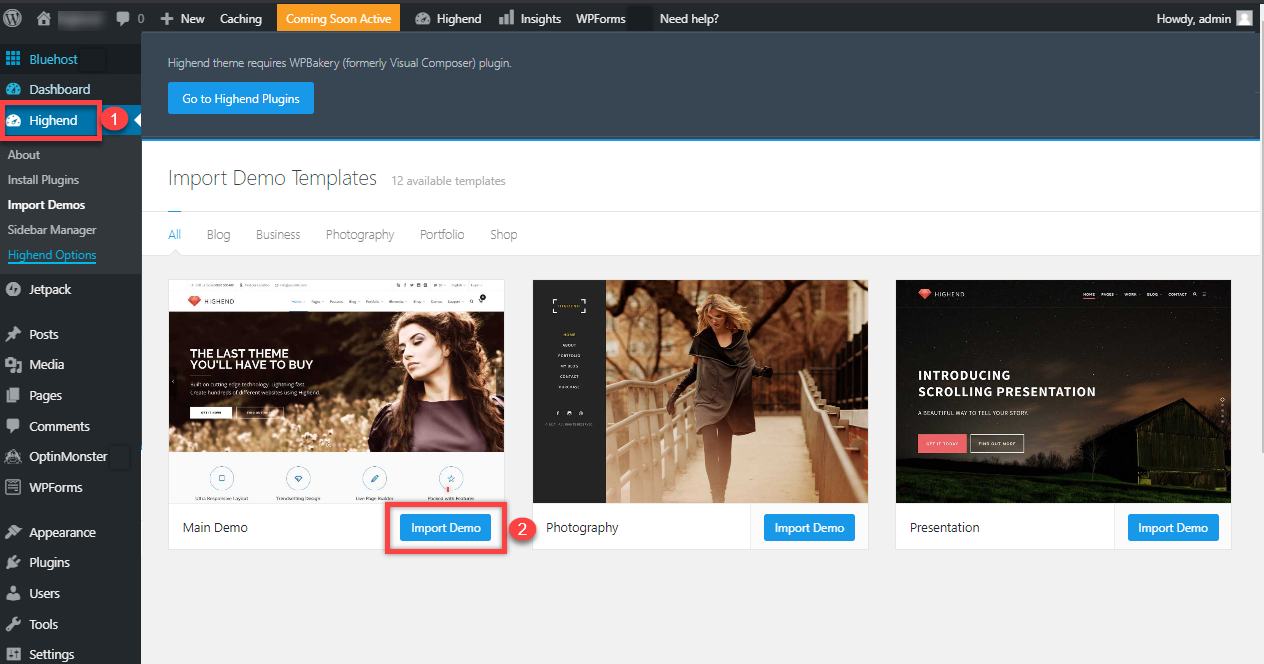
Using Built-in Import Tools in WordPress is easy. Many themes offer built-in tools. These tools help import demo content. Look for the “Import” option in the theme settings. Click it to start the import process. The tool imports pages, posts, and settings. This saves time and makes your site look like the demo. Always check for errors after importing. Fix any issues to ensure your site works well.
Manual Import Methods can be useful. Sometimes built-in tools don’t work. You might need to do it manually. Start by downloading demo files. These files are usually XML files. Open your WordPress dashboard. Go to “Tools” and then “Import.” Upload the XML file here. Wait as WordPress imports the content. Check your site for any errors. Make sure everything looks correct. Manual import can be tricky. Take your time and be careful.
Customizing The Imported Theme
Change the layout to suit your needs. Choose a different color scheme. Update fonts for better readability. You can also adjust spacing between elements. Use the theme customizer for quick changes. Add a logo to make it personal. Rearrange widgets for a unique look. Ensure the design fits your brand.
First, set your site title and tagline. This helps visitors know your site. Next, configure the reading settings for posts. Decide if you want a static homepage. Adjust the permalinks for SEO. Choose a timezone that matches your location. Don’t forget to set your language preference. These settings make your site user-friendly.
Troubleshooting Common Issues
Importing a WordPress theme with demo content can be tricky. Start by installing the theme from the WordPress dashboard. Then, navigate to the theme options to find and import demo content. This process helps replicate the theme’s preview on your site.
Handling Import Errors
Import errors can be frustrating. The first thing to check is your internet connection. A weak connection can cause issues. Also, ensure the file size is not too large. Some hosts have limits. Check with your hosting provider for details. If errors persist, try using a different browser. Sometimes, a simple switch can help. Also, make sure your WordPress version is up-to-date. This ensures compatibility. Lastly, check for plugin conflicts. Disable all plugins and try again. One of them might be causing the issue.
Fixing Compatibility Issues
Compatibility issues often arise due to outdated themes or plugins. Always update your WordPress and themes. This keeps everything running smoothly. Also, check if the theme requires any specific plugins. Install them before importing. Sometimes, themes require PHP updates. Ask your host to update it for you. Another tip is to check the theme documentation. It often provides solutions for common issues. If the problem continues, contact the theme developer. They can offer specific guidance.
Best Practices For Theme Management
Importing a theme with demo content in WordPress simplifies website setup. Begin by accessing the WordPress dashboard, then navigate to “Appearance” and select “Themes”. After uploading the theme file, activate it. Use the theme’s demo importer to bring in sample content, ensuring a seamless and visually appealing website design.
Regular Updates And Maintenance
Keeping themes updated is important. It helps in fixing bugs and improving security. Check for updates regularly. Make sure to backup your site before updating. This prevents data loss. Scheduled maintenance is helpful. It ensures everything works smoothly. Regular checks can prevent problems.
Optimizing For Performance
Fast websites are better for users. They keep visitors happy. Optimize images to load faster. Use caching plugins to speed up your site. Minimize CSS and JavaScript files. This helps the theme run well. Clean up unnecessary plugins. This frees up resources and boosts performance. Regular performance checks are key. They ensure your site runs fast.
Credit: www.greengeeks.com

Credit: wordpress.org
Frequently Asked Questions
How To Import Theme Demo Content In WordPress?
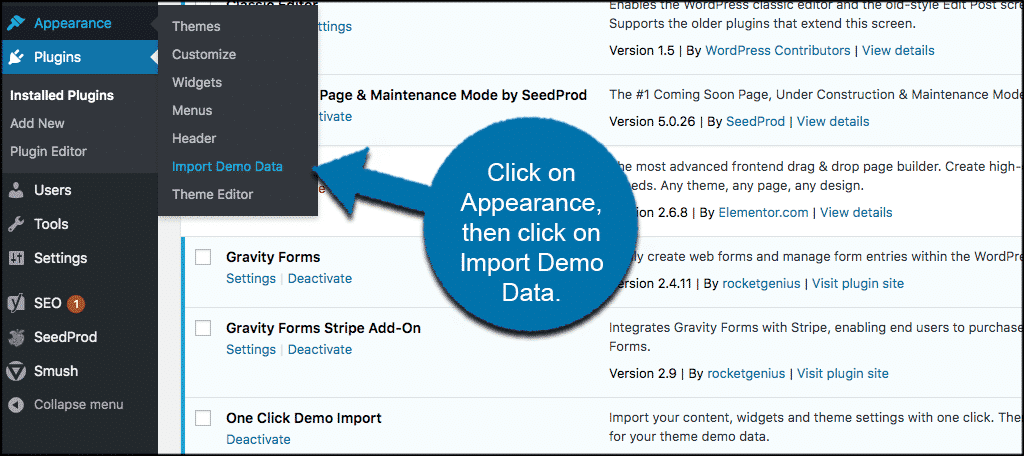
Navigate to your WordPress dashboard and install the theme. Use the theme’s import tool to import demo content. Access this tool under Appearance or Theme Options. Follow on-screen instructions to complete the import process. Check your site to ensure the demo content displays correctly.
How To Import Dummy Data In WordPress?
To import dummy data in WordPress, go to Tools > Import. Choose “WordPress” and install the importer plugin. Upload your XML file and click “Upload file and import”. Assign authors and configure settings, then click “Submit”. Your dummy data will be imported successfully.
How Do I Make My WordPress Theme Look Like A Demo?
Import the theme demo content using WordPress Importer. Customize settings and widgets to match demo layout. Ensure plugins are activated and configured. Adjust menus and widgets as required. Save changes and refresh to see the demo appearance.
How Do I Import A WordPress Theme?
To import a WordPress theme, go to your WordPress dashboard. Click on “Appearance” and then “Themes. ” Select “Add New” and click “Upload Theme. ” Choose your theme file and click “Install Now. ” After installation, click “Activate” to use the theme.
Ensure the theme is compatible with your WordPress version.
Conclusion
Importing a theme with demo content in WordPress is simple. Follow the steps carefully. Start by choosing a theme that suits your needs. Use the theme’s documentation for guidance. Install the theme in your WordPress dashboard. Import the demo content with the theme’s built-in tool.
Check your site to ensure everything looks right. Customize the theme to fit your style and brand. Remember to save your changes. These steps help you create a beautiful, functional website. Practice makes perfect. Keep exploring WordPress for more features and options.


