
Are you looking to make it easier for your website visitors to reach out to you? Adding a contact form to your WordPress theme is a simple yet powerful way to do just that.
Imagine your website as a storefront; a contact form is like the doorbell inviting guests to connect with you. This step-by-step guide will walk you through the process, ensuring that even if you’re not tech-savvy, you can create a seamless communication channel.
By the end of this article, you will have a clear, user-friendly contact form up and running, making it easy for your audience to get in touch with you. Keep reading to discover how this small addition can significantly enhance your website’s interactivity and boost your engagement.
Choosing The Right Plugin
Selecting an appropriate plugin simplifies adding contact forms to WordPress themes. Look for features like easy customization and responsiveness. Ensure compatibility with your theme for seamless integration and user-friendly experience.
Popular Contact Form Plugins
Contact Form 7 is easy to use. It is free. Many people like it.
WPForms is friendly for beginners. It has a drag-and-drop builder. It offers a free version too.
Gravity Forms is very flexible. It suits advanced users. It is not free.
Factors To Consider
- Check if the plugin is easy to install.
- See if it has good reviews.
- Ensure it offers responsive design.
- Look for customization options.
- Verify if it provides spam protection.
Installing The Plugin
Easily add a contact form to your WordPress theme by installing a popular plugin. This plugin allows you to create customizable forms. Enhance user interaction and gather essential information seamlessly.
Accessing The Plugin Directory
Visit your WordPress dashboard. Click on “Plugins” in the menu. Select “Add New”. You will see the plugin directory. Search for “Contact Form” in the search bar. A list of plugins will appear. Choose one you like. Make sure it has good reviews. Click on “Install Now” to add the plugin.
Step-by-step Installation Process
Once installed, click on “Activate” to start using the plugin. Go to “Settings” under the plugin name. Customize the form as needed. Add fields like name, email, and message. Save your settings. Copy the shortcode given by the plugin. Go to the page where you want the form. Paste the shortcode there. Preview the page to see your form. Make sure it works well.
Creating A Contact Form
First, choose a plugin for your contact form. Popular options are WPForms and Contact Form 7. Install the plugin through your WordPress dashboard. Go to your plugin settings. Create a new form. Add fields like name, email, and message. Make sure each field has a label. Labels help users understand what to enter. Set required fields if needed. This ensures users fill out all important details. Save your form. Check it works correctly. Preview it on your site.
Customize your form to match your site. Use the plugin’s design settings. Change colors to fit your theme. Adjust font styles for readability. Add a border for a clean look. Consider spacing between fields. Spacing keeps the form organized. Preview changes as you go. Ensure text is easy to read. Keep your design simple. Simple designs are user-friendly. Save your design changes.

Credit: wordpress.org
Adding The Form To Your Theme
Shortcodes make adding forms easy. First, install a contact form plugin. Many plugins offer shortcodes for use. Copy the shortcode provided by the plugin. Next, go to your WordPress page or post editor. Paste the shortcode where you want the form. Save your changes to see the form live. Plugins like Contact Form 7 are popular. They are free and easy to use. Using shortcodes is a quick method. It saves time and effort.
Page builders help create beautiful pages. Elementor and Beaver Builder are common. They offer drag-and-drop features. Open the page builder on your site. Look for a widget or module for forms. Drag the form widget to your page. Customize the form as needed. Page builders make form design easy. They give more control over the look. Many builders support third-party form plugins. This makes integration smooth and easy.
Testing The Contact Form
Adding a contact form to your WordPress theme enhances communication. First, install a plugin like Contact Form 7. Customize fields to match your needs, ensuring user-friendly interaction. Finally, test the form by sending messages to verify proper functionality and seamless user experience.
Ensuring Functionality
Check if the contact form sends messages. Fill out every field. Click the submit button. Did you get a confirmation message? If yes, then it works. Test it on different devices. Use a phone, tablet, and computer. Make sure it looks good. Ask a friend to test it too. Get feedback from them. Make changes if needed.
Troubleshooting Common Issues
Sometimes, forms don’t work. Check if the plugin is active. Look at the form settings. Ensure the email address is correct. Clear your browser cache. This can solve many problems. If it still doesn’t work, disable other plugins. They might cause conflicts. Enable them one by one. Find the one causing the issue. Update all plugins and themes. This keeps everything working well.
Enhancing Form Features
Adding a contact form to a WordPress theme is simple and efficient. It enhances user interaction and captures essential information. Follow easy steps to install and customize a plugin, improving your site’s communication features.
Adding Captcha For Security
Captcha helps keep your form safe. It stops unwanted spam. To add a Captcha, use a plugin. Many plugins are free. They are easy to install. Captcha asks a simple question. Users answer to prove they are real. This keeps your site safe. No more fake entries.
Incorporating Autoresponders
Autoresponders send quick replies. They thank users for filling the form. This is polite and professional. Plugins can help with this too. Choose a plugin that suits your needs. Set a friendly message. It can say, “Thanks for contacting us. We will reply soon.” Users feel valued and informed. This builds trust with your audience.
Monitoring Form Submissions
Track how users interact with your form. This is important. You can see what fields users click. You can check how many users submit the form. This helps understand user behavior. Use plugins for tracking. Many plugins are easy to use. They show detailed reports. Reports help improve your form. Look for patterns in user actions. Patterns show what users like or dislike.
Tracking User Interactions
It’s useful to know which fields users fill first. Some fields might be skipped. This information tells you a lot. It shows user interest. You can change fields based on this data. Make your form easier for users. Easy forms get more submissions.
Analyzing Submission Data
Look at data from form submissions. Data shows common user details. Check names, emails, or comments. This helps understand user needs. Use data to improve your service. Data can show what users want. Improve form based on data insights.
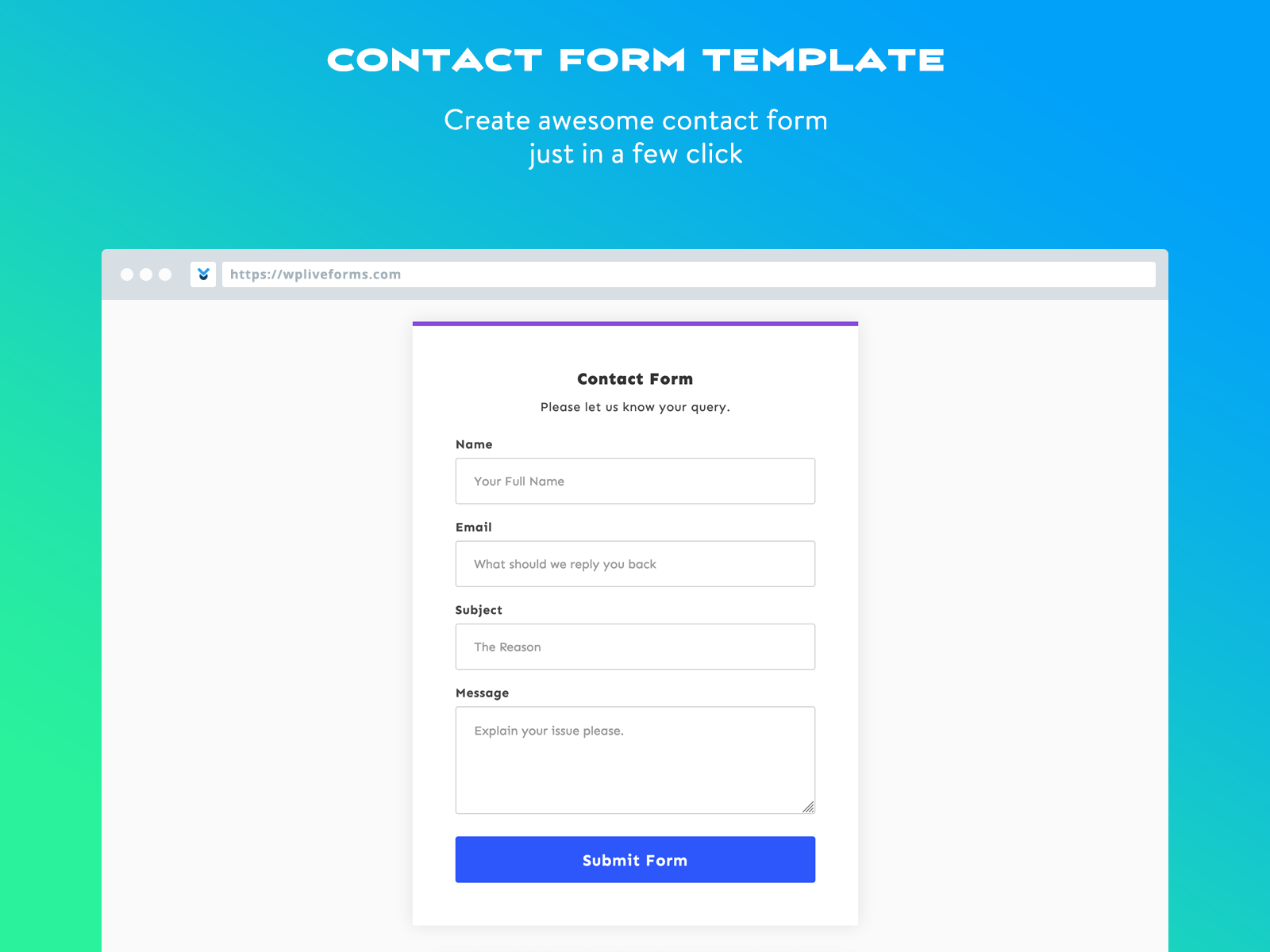
Credit: wpliveforms.com

Credit: wp101.com
Frequently Asked Questions
How Do I Add A Contact Form To WordPress?
Install a WordPress plugin like Contact Form 7 or WPForms. Create a new form using the plugin. Customize the form fields and settings. Copy the form shortcode. Paste the shortcode into a page or post where you want the form to appear.
Save the changes and publish.
How Do I Embed A Contact Form In WordPress?
Use a plugin like WPForms or Contact Form 7. Install the plugin, create your form, and copy the shortcode. Paste the shortcode into your desired page or post. Ensure the form is published and visible to users. Customize settings as needed for optimal functionality.
How Do I Add A Constant Contact Form To WordPress?
Install the Constant Contact plugin from the WordPress Plugin Directory. Activate it. Go to the plugin settings. Connect your Constant Contact account. Create a form and customize it. Use a shortcode to insert the form into your desired page or post.
Save your changes.
How To Create Custom Contact Form In WordPress Without Plugin?
To create a custom contact form in WordPress without a plugin, use HTML and PHP. First, add HTML form code to a WordPress page template. Then, use PHP to handle form submissions. Validate and sanitize inputs to ensure security. Finally, style the form with CSS for a better appearance.
Conclusion
Adding a contact form to your WordPress theme is simple. It boosts interaction with your visitors. Follow the steps to make it work smoothly. A contact form helps you get feedback. It can improve your site and business. Easy to customize, it fits any theme.
It also helps maintain communication with users. No coding skills needed, which saves time. Enhancing user experience is key. Your website will be more engaging. Remember, a contact form is essential. Start adding one today and connect better with your audience.


