
Are you looking to give your WordPress website a fresh look? Adding new theme files could be the game-changer you need.
Imagine transforming your site with just a few clicks, making it more appealing and user-friendly. But how exactly do you go about it without getting lost in a sea of technical jargon? In this guide, you’re going to discover a straightforward process to add theme files in WordPress.
You’ll find that it’s easier than you might think, and by the end of the article, you’ll have the skills to effortlessly enhance your website’s design. Don’t let the fear of coding or tech overwhelm you—this article breaks it down into simple steps that anyone can follow. Dive in to unlock the potential of your WordPress site, and keep your visitors coming back for more with a stunning, customized theme. Ready to take control of your website’s aesthetics? Let’s get started!
Choosing The Right Theme
Free themes are easy to find. Many people use them. They are good for simple sites. Premium themes cost money. They have more features. They offer better support. Choose based on your needs. Free is good for beginners. Premium works well for businesses.
A responsive theme works on all devices. Phones, tablets, and computers. Responsive design helps your site look good everywhere. It improves user experience. It also helps with search engine ranking. Always check if a theme is responsive before using it.
Plugins add features to your site. Not all themes support all plugins. Compatibility is key. Check if the theme works with popular plugins. Like SEO tools and page builders. Test plugins with the theme. Ensure everything runs smoothly together.
Credit: wordpress.stackexchange.com
Downloading Theme Files
Themes can be found in many places. The official WordPress Theme Directory is a great source. It offers free themes that are safe and reliable. Another option is premium theme marketplaces. These include sites like ThemeForest and Elegant Themes. They offer themes for purchase. Some developers also create custom themes. These are unique but cost more.
Each theme has a set of files. The style.css file controls how your site looks. It affects colors, fonts, and layout. Another file, index.php, displays your site’s content. The functions.php file adds features to your theme. These files work together to create your site. Knowing their roles helps in editing themes.
Uploading Theme Via WordPress Dashboard
First, log into the WordPress dashboard. Find the Appearance option on the left side. Click it. This opens the theme section. You are ready to add a new theme now.
Look for the Add New button at the top. Click it. Now, choose Upload Theme. A new page will open. Click on Choose File. Select your theme ZIP file. Then, click Install Now. Wait a moment. The theme will upload.
After uploading, you will see an Activate link. Click on it. Your new theme is now active. Visit your site to see the changes. Enjoy your new look.

Credit: www.mastersofwordpress.com
Installing Theme Via Ftp
First, you need an FTP client like FileZilla. Download and install it. Get your FTP credentials from your web host. This usually includes a server name, username, and password. Enter these into your FTP client. Click connect to access your website files. Look for the WordPress directory. It’s often named “public_html” or “www”. You now have access to your website’s files.
Locate the theme files on your computer. They are usually in a zip file. Extract the files before uploading. Navigate to “wp-content/themes” in the FTP client. Drag and drop the extracted theme folder here. Wait for the upload to complete. Once done, go to your WordPress dashboard. Activate the new theme under Appearance > Themes. Your new theme is now live.
Sometimes, uploads might fail. Check your internet connection first. Ensure you have enough server space. File permissions might be incorrect. Change them to 755 for directories and 644 for files. If problems persist, contact your web host for help. They can offer specific solutions. Always backup before making changes. This keeps your site safe.
Customizing Your Theme
The WordPress Customizer is a tool for changing your theme. It helps you view changes live. You can adjust colors, fonts, and layouts easily. Explore settings to make your site unique. Use it to add your logo and set your site title. It is simple and fun to use.
Custom CSS lets you tweak your theme’s look. It helps make your site look special. You can change styles without touching core files. Put your CSS code in the customizer. This keeps things safe and clean. Use it to change colors, fonts, and size.
Child themes are a way to modify themes safely. They let you keep changes after updates. You make a child theme by copying the main theme files. Add new styles and functions without harm. It’s a smart way to keep your site fresh. Easy to create and manage.

Credit: www.namecheap.com
Updating Theme Files
WordPress often updates themes automatically. This keeps your site safe. The system checks for new versions. If found, it downloads and installs them. Users need not worry about missing updates. This process is quick and easy. Always ensure your site allows automatic updates. Regular updates protect your site from problems.
First, download the new theme file from the source. Next, go to your WordPress dashboard. Click on Appearance and then Themes. Find the Upload Theme button. Select the downloaded file. WordPress will install it. Finally, activate the theme. This process may take a few minutes. Ensure you have a backup before starting.
Customizations might get lost during updates. Use a child theme to keep them safe. A child theme uses the main theme’s features. But it keeps your changes intact. Create a child theme before making changes. This ensures customizations remain even after updates. Always backup your site before major changes.
Troubleshooting Theme Issues
Themes can sometimes cause problems. They might not work well with plugins. This can break your site. Check which plugin is causing the issue. Disable plugins one by one. See if the problem goes away. Themes may also conflict with WordPress updates. Always update your theme after WordPress updates. This keeps everything running smoothly.
Use debugging tools to find errors. WordPress has a debug mode. Turn it on to see problems. Use browser tools to check for CSS and JavaScript issues. Look for errors in the console. Debugging tools can help make your site work better.
Sometimes themes are too hard to fix alone. It is okay to ask for help. Hire a WordPress expert. They know how to solve complex issues. Experts can save you time and stress. They make sure your site works well and looks good.
Frequently Asked Questions
How Do I Upload Theme Files To WordPress?
To upload a theme to WordPress, go to your dashboard. Navigate to Appearance > Themes > Add New. Click “Upload Theme,” choose your file, and click “Install Now. ” Activate the theme after installation.
How Do I Add Themes In WordPress?
Go to your WordPress dashboard. Click “Appearance” then “Themes. ” Click “Add New,” search or upload a theme, and install.
How Do I Access The Theme Files In WordPress?
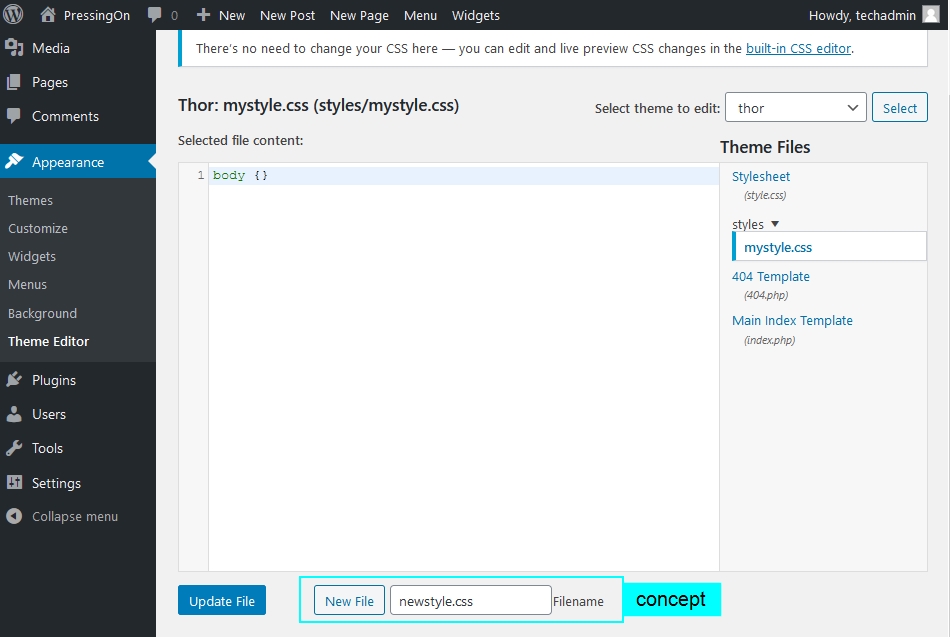
Access theme files by logging into your WordPress dashboard. Navigate to Appearance > Theme Editor. Select your theme. Edit the necessary files like style. css or functions. php. Ensure you back up files before making changes. Use a child theme to preserve changes during updates.
How Do I Manually Upload A Theme To WordPress?
To manually upload a theme, access WordPress Dashboard. Click “Appearance,” then “Themes,” and “Add New. ” Select “Upload Theme,” choose your theme file, and click “Install Now. ” After installation, activate the theme to use it on your site. Ensure the theme file is in.
zip format for successful upload.
Conclusion
Adding theme files in WordPress can be simple. Follow the steps carefully. Start by downloading the theme you want. Upload it via the WordPress dashboard. Activate the theme to see changes on your site. Always check for compatibility with plugins.
Regularly update your themes for security. Practice makes perfect. Soon, managing themes will feel easy. Remember, a well-chosen theme enhances your website’s look. Keep experimenting to find what works best for your site. Happy theming!


