
Have you ever found yourself staring at your screen, wondering just how long it will take for a theme to upload to your WordPress site? You’re not alone.
The anticipation can be nerve-wracking, especially when you’re eager to see your website take on a fresh, new look. But fear not! Understanding the factors that influence upload time can save you from unnecessary stress and frustration. We’ll explore the elements that impact upload speed and provide you with practical tips to ensure a smooth, efficient process.
Stick with us to uncover the secrets of swift theme uploads and get your WordPress site looking fabulous in no time.
Factors Affecting Upload Time
Larger themes take more time to upload. More files mean more data transfer. Smaller themes finish quicker. Simple designs have fewer files. Less data means faster upload.
Fast internet speeds up uploads. Slow internet makes uploads take longer. Uploads rely on data transfer rates. Faster rates mean quicker uploads. Slower rates delay uploads.
Strong servers handle uploads better. Weak servers may struggle. Good servers process data swiftly. Poor servers may lag. Server health impacts upload speed.
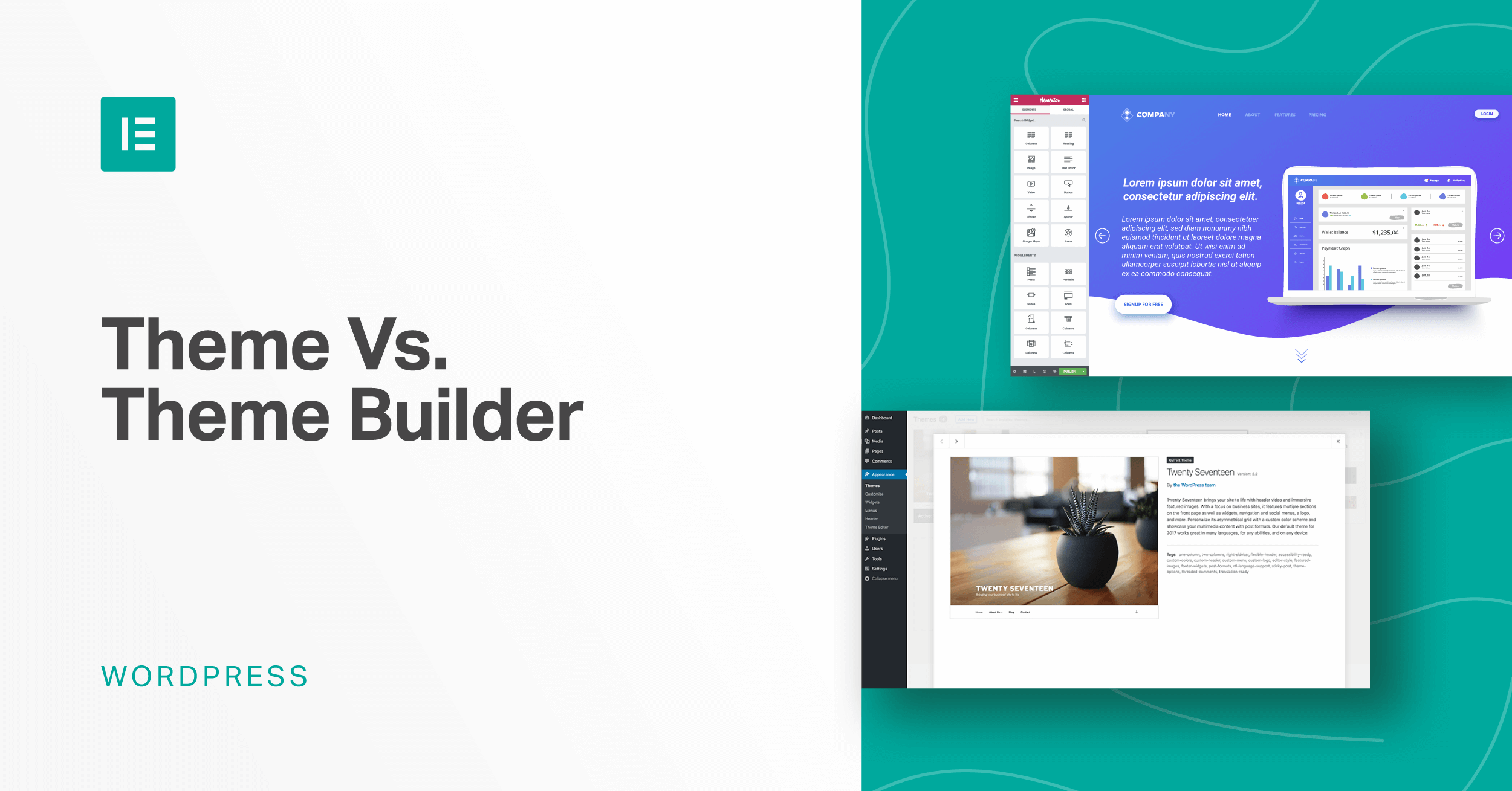
Credit: elementor.com
Steps To Upload A Theme
Start by logging into your WordPress account. Find the Dashboard on the left side. Click it to open. The Dashboard is where you manage your site.
In the Dashboard, locate the Appearance tab. Click on it. You will see the Themes option. Click on Themes to view installed themes.
Click on Add New at the top. Then, select Upload Theme. Choose the theme file from your computer. Click Install Now. Wait for the upload to finish. It takes a few seconds.
Common Issues During Upload
Upload errors can be very frustrating. Sometimes, the internet connection is slow. This slows down the process. Other times, the file size is too big. Always check your internet first. Then, check the file size. This might solve the issue.
Compatibility problems are common. Some themes do not fit your WordPress version. Always ensure the theme matches your version. This prevents many issues. Read the theme details. This helps to know if it is the right fit.
Memory limitations can stop theme uploads. WordPress has a memory limit. If your theme is too large, it won’t upload. Increase your memory limit to fix this. You can edit the wp-config.php file. This might help with large themes.
Tips To Speed Up Upload Process
Compress theme files to reduce their size. Use tools like Gzip or WinRAR. Remove unnecessary files and folders. Smaller files upload faster. Check for large images. Resize them to save space. This makes uploads quicker.
Use a wired connection instead of Wi-Fi. Wired is usually faster. Close unused apps on your device. This frees up bandwidth. Restart your router if needed. Sometimes it boosts speed. Check your internet speed online. A faster connection helps a lot.
Consider upgrading your hosting plan. More resources mean faster uploads. Ask your host for options. Increase your server’s memory if possible. A larger memory helps handle bigger files. Check if your server is overloaded. Free up some space for better performance.
Alternative Methods For Theme Installation
Uploading WordPress themes can vary in time. Some themes take minutes, while others require longer due to file size. Alternative installation methods, like FTP, might offer quicker solutions for larger themes. Always check theme requirements to ensure smooth uploads.
Ftp Upload
FTP is a way to upload files. It stands for File Transfer Protocol. First, open your FTP software. Enter your website’s server details. Connect to the server. Find the WordPress themes folder. It’s usually named “wp-content/themes”. Upload your theme file here. Make sure it is unzipped. Check your WordPress dashboard. Activate your theme. FTP is useful for large themes. It can handle big files better. It may seem tricky at first. But it gets easier with practice.
Direct Server Installation
Direct server installation is another method. Log in to your server. Use a control panel like cPanel. Find the File Manager section. Locate your WordPress directory. Navigate to “wp-content/themes”. Upload your theme folder here. Make sure the theme is unzipped. This method is fast. It bypasses WordPress limits. Check your dashboard. Activate your theme. Direct installation is handy. It saves time for big themes. Always make sure to back up your site first.

Credit: nitropack.io

Credit: wpmarmite.com
Frequently Asked Questions
How Long Does It Take To Upload A Theme To WordPress?
Uploading a theme to WordPress typically takes 1-5 minutes. The duration depends on your internet speed and theme size. Ensure you’re using the correct theme format, usually a. zip file, for a smooth upload process. Faster internet connections and smaller themes will reduce upload time.
How Long Does WordPress Import Take?
WordPress import duration varies based on file size and server speed. It typically takes a few minutes. Larger files or slower servers may extend the time. For best results, ensure your internet connection is stable.
How Long Should WordPress Update Take?
A WordPress update typically takes a few minutes. Factors like server speed and update size can affect duration. Always back up your site before updating. Ensure a stable internet connection to avoid interruptions. Regular updates improve security and performance.
How Long Does It Take To Publish Changes In WordPress?
Publishing changes in WordPress usually takes a few seconds. Ensure you clear cache for instant updates. Regular updates appear immediately on most setups. Use tools like caching plugins or content delivery networks to manage visibility timing.
Conclusion
Uploading a theme on WordPress varies in time. Factors like file size and internet speed influence this. Larger themes take longer to upload. Faster internet speeds reduce wait times. Always ensure your theme is compatible with WordPress. This saves time and frustration.
Remember to check your hosting plan’s limitations. Some plans restrict upload sizes. Regularly update WordPress for smoother uploads. Patience and preparation make the process easier. With these tips, you can upload themes efficiently. Enjoy customizing your WordPress site with ease.


