
Have you ever stumbled upon a beautifully designed WordPress site and wondered, “How do I find my WordPress theme to create something just as stunning?” You’re not alone.
Whether you’re a seasoned blogger or just starting out, the theme you choose can make or break your website’s first impression. But with countless options out there, the task can feel overwhelming. Don’t worry; you’re not here by accident. Your quest for the perfect theme ends now.
Dive into our guide, and discover not only how to identify the theme you’re currently using but also how to find one that perfectly aligns with your vision. Ready to transform your site into a masterpiece? Let’s get started!
Accessing Your WordPress Dashboard
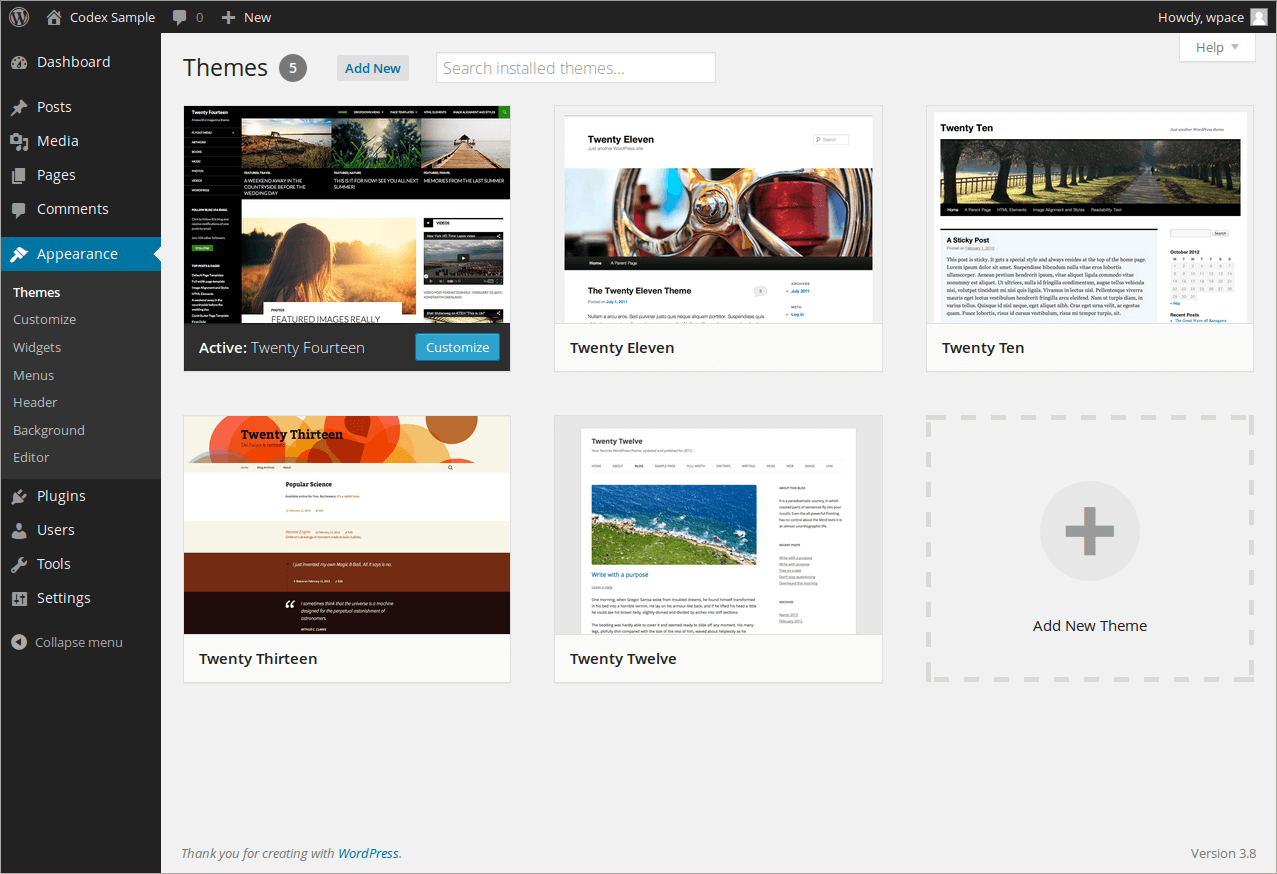
Start by logging into your WordPress account. Use your username and password. Once inside, look for the Dashboard. It is usually on the left side. Click on Appearance. This is where you find themes. Your current theme is at the top. It shows you the name and details. Sometimes, it has a picture. You can search for new themes here. Just type in the search box. Explore different themes. Check features and styles. Choose one that fits your needs. You can also upload themes. Use the Upload Theme button. Follow the instructions. Make sure to activate your theme. This is important for your site. A theme changes the look of your site. It should be simple and clear.
Credit: www.hostpapa.com
Locating Theme Information
Discovering your WordPress theme involves accessing the Appearance section in the admin dashboard. Navigate to “Themes” to view the active theme’s name and details. For deeper insights, consider using theme detectors or checking the source code.
Using The Appearance Menu
Open your WordPress dashboard. Find the Appearance menu on the left side. Click on it. You will see the Themes option. Select it. A list of installed themes will appear. Your active theme is the first one shown. It usually has a label saying Active theme. This is your current theme.
Checking Theme Details
Click on the theme thumbnail. A popup window will appear. It shows theme details. Here, you can see the theme’s name and version. You can also find the theme’s author. This helps in knowing more about your theme. If you need to change themes, use this menu to explore options. It’s easy to manage themes this way.
Using Theme Files
To find your theme, you first need to locate the theme folder. This folder is inside the wp-content/themes directory. You will see different folders here. Each folder is for a different theme. The active theme will be one of these folders. Open each folder to check their names.
The theme folder name is often the same as the theme name. Check the folder for a file named style.css. This file tells you more about the theme. You can also find the theme name inside this file.
The style.css file is easy to read. Open it with a text editor. At the top, you will see the theme name. Look for the line that says Theme Name. This is the name of your theme. This file also has other details like version and author. These details help you know more about the theme.
Using Plugins To Identify Themes
Theme Identification Tools help find your WordPress theme easily. These tools scan the website and show theme details. They also list plugins used on the site. Some popular tools include WP Theme Detector and What WordPress Theme Is That. Using these tools, you can quickly know your theme and plugin names. They save time and effort. Sometimes, they even provide links to the theme’s official page. This helps if you want to download or buy the theme.
Installing Theme Detector Plugins is simple. Search for the plugin in your WordPress dashboard. Click on ‘Add New’ under plugins. Type the plugin name in the search box. Click ‘Install Now’ next to the plugin. After installing, activate the plugin. Once activated, use the plugin to find your theme. Follow instructions provided by the plugin. Usually, it takes just a few clicks to get theme details. Plugins make theme identification very easy.
Exploring Theme Customization
The WordPress Customizer is user-friendly. It helps you change your site’s look. You can see changes in real-time. Adjust colors, fonts, and backgrounds easily. It’s like a magic tool for your site. Make sure to click Publish to save changes.
The Theme Editor is for advanced users. It allows you to edit code. You can change the style.css file. Be careful with changes. Wrong edits can break the site. Always keep a backup before editing. Use this tool if you know coding basics. It’s powerful but requires caution.
Credit: help.one.com
Troubleshooting Theme Issues
Common Theme Problems can cause confusion. Themes may not look right. Sometimes, they break your site. You might see missing images. Or, the layout might be off. These issues are common. They often happen after updates. A plugin might not like your theme. Or, your theme may not like a plugin. Check for updates. Always keep themes updated. This helps fix problems.
Resolving Theme Conflicts can be tricky. First, deactivate all plugins. Then, check your theme. Does it work now? If yes, turn plugins on one by one. This finds the bad plugin. Another way is to use a different theme. Does this fix it? If yes, your theme might be the problem. Always back up your site first. This keeps your data safe.
Switching Themes Safely
Make sure to backup your site before changing themes. This helps protect your data. Use plugins for easy backups. Some popular choices are UpdraftPlus and BackupBuddy. These plugins save your files safely. You can store backups on cloud services. Examples are Google Drive or Dropbox. Always check your backup files. Keep them updated regularly. This ensures you do not lose important data.
Try new themes in a safe environment. Use a staging site for this. It is like a test playground. Staging sites do not affect your main site. They help find errors quickly. You can fix problems without worry. Make sure all features work well. Check images and text display correctly. Ensure links go to the right pages. Take your time testing. This helps avoid big mistakes on the live site.

Credit: themeforest.net
Frequently Asked Questions
How To Find The WordPress Theme Of A Website?
Use browser tools to inspect the site. Look for the theme name in the HTML source code. Tools like What WordPress Theme Is That can also help identify the theme.
Where Is My WordPress Theme Folder?
Find your WordPress theme folder in “wp-content/themes” directory. Access it via your hosting file manager or FTP client.
Where Is The Theme Option In WordPress?
Find the theme options in WordPress by navigating to the “Appearance” menu in your dashboard. Click on “Themes” or “Customize” to access and modify theme settings. These options allow you to personalize the appearance and functionality of your website efficiently.
How Do I Find My WordPress?
Log in to your WordPress account by visiting your site’s URL followed by “/wp-admin”. Use your username and password. If unsure, check your email for registration details or contact your hosting provider for assistance. Access your dashboard to manage your site.
Conclusion
Finding the right WordPress theme is essential for your site. Start by browsing the WordPress theme directory. Explore popular themes to see what’s trending. Use search filters to narrow down your options. Consider your site’s purpose and audience while choosing.
Preview themes to get a feel of their design. Check user reviews for insights on functionality. Ensure the theme is compatible with your plugins. Look for responsive designs that adapt to all devices. Once you find the perfect theme, install and customize it to fit your brand.
Enjoy creating a website that stands out!


