
Are you excited about giving your WordPress site a fresh look but unsure how to install a downloaded theme? You’re not alone!
Choosing the perfect theme is a thrilling part of crafting your online presence, but the installation process can be a bit of a puzzle. Don’t worry; we’re here to guide you step-by-step. Imagine the satisfaction of transforming your site into a stunning masterpiece that captivates your audience.
In this blog, you’ll discover how easy it is to install that downloaded theme and start making your website stand out. Ready to dive in and unlock your site’s full potential? Let’s get started!
Choosing The Right Theme
Evaluating Theme Features is crucial before installing a theme. Look for features that match your needs. Does the theme support your desired layout? Check for customizable elements. Can you change colors and fonts? Ensure it has the necessary plugins. Themes with built-in SEO tools are a bonus. Make sure the theme is responsive.
Checking Theme Compatibility is essential. Verify the theme works with your WordPress version. Check for updates. Ensure it supports your plugins. Look at compatibility with browsers. Does it work on mobile devices? Compatibility issues can cause problems.
Reading User Reviews helps in decision-making. Reviews give insight into theme performance. Users share experiences with the theme. Look for feedback on speed and bugs. Good reviews often mention support quality. Negative reviews highlight problems. Reviews guide you in choosing a reliable theme.
Preparing For Installation
Always keep a backup of your website. This will protect your data. Use a plugin to save your site. Store it in a safe place. Backups help if things go wrong. You can restore your site easily. Never skip this step!
A child theme keeps changes separate. It protects your original theme. Start by making a new folder. Name it after your theme. Add a new style.css file. Link it to your main theme. This is crucial for future updates.
Check if your plugins work with your new theme. Some themes need special plugins. Visit the theme’s page for details. Update all plugins before the new theme. This avoids any issues. Good plugin compatibility ensures smooth site performance.
Uploading The Theme
Accessing WordPress Dashboard is easy. Open your browser and type your site URL. Add “/wp-admin” at the end. Enter your username and password. Click “Log In” to access the dashboard.
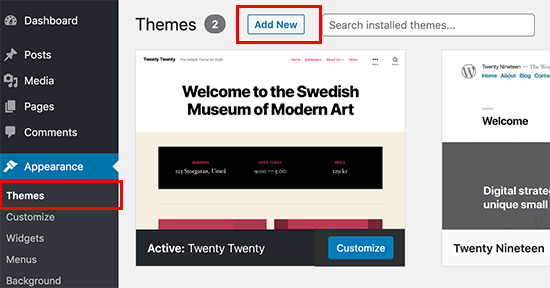
To find the Theme Section, look on the left menu. Click on “Appearance.” A drop-down menu appears. Choose “Themes” from this list. You will see a new page with current themes.
Uploading the Theme File is simple. On the Themes page, click “Add New.” Then, click “Upload Theme” at the top. You will see a button that says “Choose File.” Click it and find your downloaded theme file. Make sure it’s a .zip file. Click “Install Now.” Wait for the upload to finish. Once done, click “Activate” to use your new theme.
Credit: wordpress.gradientthemes.com
Activating The Theme
Previewing the Theme is an essential step before activation. Click on ‘Appearance’ then ‘Themes’. Find your new theme and click ‘Live Preview’. This lets you see how your site will look. Check colors, fonts, and layout. Ensure everything fits your style. If all looks good, you can move on to the next step.
Activating the Theme is simple. Go back to ‘Appearance’ then ‘Themes’. Find your theme and click ‘Activate’. Your site now uses the new theme. Check your site again. Ensure all pages display correctly. If something seems off, adjustments might be needed.
Troubleshooting Activation Issues can be necessary. Sometimes themes don’t activate properly. If this happens, check theme compatibility with your version of WordPress. Ensure all plugins are updated. Deactivate any conflicting plugins. If issues persist, contact theme support for help. They can guide you through solutions.
Customizing Your Theme
Installing a downloaded theme on WordPress is simple. First, log into your WordPress dashboard. Next, navigate to ‘Appearance’ and click ‘Themes’, then ‘Add New’. Upload your theme file, click ‘Install Now’, and activate it. Enjoy your new look!
Using The WordPress Customizer
The WordPress Customizer lets you change your theme easily. Access it from your dashboard. Navigate to Appearance then Customize. Here, you can adjust colors and fonts. Preview changes before saving. It helps keep your website looking good. Make sure to explore each option. This tool is user-friendly.
Adjusting Theme Settings
Theme settings allow personalization. Start from the dashboard. Click on Appearance then Theme Settings. Adjust elements like layout and header style. Options vary by theme. Find settings that fit your needs. Save changes to apply them. This process helps tailor your site.
Adding Custom Css
Custom CSS lets you tweak your theme. Open your WordPress dashboard. Go to Appearance, then Customize. Find the Additional CSS section. Add your CSS code here. This changes the look of your site. Use CSS to modify specific elements. Test your changes before publishing.

Credit: www.greengeeks.com
Testing Your Theme
Installing a downloaded theme on WordPress is simple. First, navigate to the WordPress dashboard. Then select ‘Appearance’ and click ‘Themes’. Next, choose ‘Add New’ and upload your theme file. Finally, activate it. Enjoy your new theme with ease.
Checking For Mobile Responsiveness
Themes should fit on all screen sizes. Open your site on a phone. Make sure everything looks good. Text should be easy to read. Buttons should be easy to click. Pictures should not be cut off. A mobile-friendly site keeps visitors happy.
Ensuring Cross-browser Compatibility
Your theme should work on all browsers. Test it on Chrome and Firefox. Also check it on Safari and Edge. Look for any broken parts. Fix them if found. A site should work well everywhere. This keeps all users happy.
Verifying Site Speed And Performance
Fast sites make users happy. Use tools like Google PageSpeed Insights. Find out how fast your site is. Check for slow parts. Fix them for better speed. Fast loading keeps visitors on your site. Slow sites can lose visitors.
Maintaining Your Theme
Installing a downloaded theme on WordPress is straightforward. Access your WordPress dashboard. Navigate to “Appearance” and select “Themes. ” Click “Add New,” then “Upload Theme. ” Choose your downloaded theme file and press “Install Now. ” Once installed, activate it to see changes.
Simple steps for a fresh look!
Updating Your Theme Regularly
Themes need updates for security. Updates also add new features. Check for updates often. Most themes have update alerts. Always use the latest version. Old versions might have bugs. Bugs can break your website. It’s easy to update a theme. Go to the dashboard and look for updates. Click update and wait. Your theme will be new again. This keeps your site safe.
Managing Theme Conflicts
Sometimes themes don’t get along. This can cause problems. Plugins might stop working. Parts of your site might disappear. Check for conflicts after installing new plugins. Deactivate plugins to find the problem. Change theme if problems stay. Pick a theme that works well.
Keeping A Backup Of Your Theme
Always have a backup. Backups save your work. If something breaks, you can fix it. Use a plugin to make backups. Store backups in a safe place. Back up your theme before updates. This way you can go back if needed.
Credit: catchthemes.com
Frequently Asked Questions
How To Install A Downloaded Theme In WordPress?
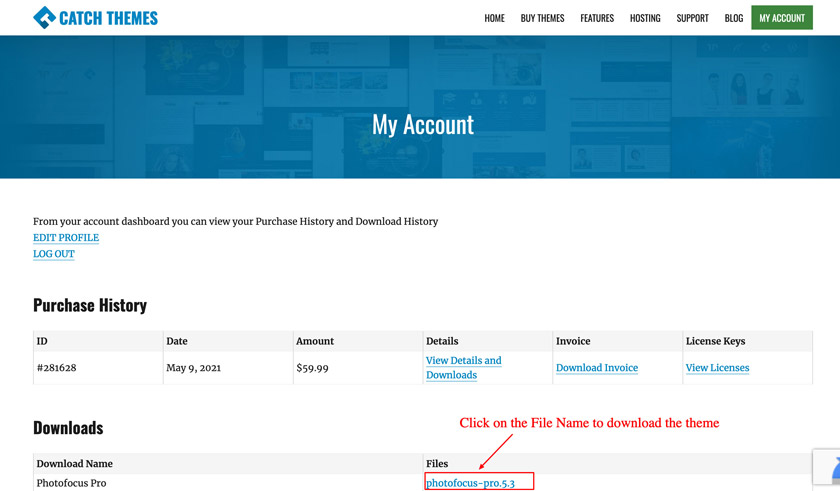
To install a downloaded theme in WordPress, go to Dashboard > Appearance > Themes > Add New > Upload Theme. Choose your theme file, click “Install Now,” then “Activate. ” Your new theme is now live.
How Do I Apply A Downloaded Theme?
To apply a downloaded theme, unzip the file. Then, upload it to your website’s theme directory. Go to your website’s admin panel, navigate to the ‘Themes’ section, and activate the new theme. Ensure compatibility with your platform and check for any additional settings or plugins required for optimal performance.
How Do I Manually Upload A Theme To WordPress?
To manually upload a theme to WordPress, go to the dashboard. Click “Appearance” and then “Themes. ” Select “Add New” and then “Upload Theme. ” Choose the theme’s ZIP file from your computer and click “Install Now. ” After installation, activate the theme to use it.
How Do I Install A Downloaded Plugin In WordPress?
To install a plugin in WordPress, go to the dashboard. Click “Plugins,” then “Add New. ” Select “Upload Plugin. ” Choose your downloaded file, and click “Install Now. ” After installation, click “Activate” to enable it. Ensure your plugin is compatible with your WordPress version for smooth functionality.
Conclusion
Installing a WordPress theme is simple with the right steps. Download your preferred theme. Then, log into your WordPress dashboard. Navigate to “Appearance” and select “Themes. ” Click “Add New” and then “Upload Theme. ” Choose your downloaded theme file.
Press “Install Now” and let WordPress do the work. Once installed, activate your theme to see the changes. Customize it to fit your style. Enjoy your new website look. With practice, theme installation becomes easier. Now, you’re ready to enhance your site! Remember to always keep themes updated for security.


