
Looking to give your WordPress site a fresh new look without spending a dime? You’ve come to the right place.
Installing a free WordPress theme is like giving your website a makeover. It’s a simple way to transform your site’s appearance and improve its functionality. Whether you’re a seasoned blogger or just starting out, choosing the right theme can make a huge difference.
Imagine a theme that not only reflects your style but also keeps your visitors engaged. It’s easier than you think! In this guide, we’ll walk you through the step-by-step process of installing a free WordPress theme. Get ready to unlock the potential of your website and captivate your audience with a stunning design. Curious to see how easy it is? Let’s dive in and get started!
Choosing The Right Theme
Picking the right theme is very important. Design should be simple and clean. Speed is crucial; a fast theme keeps users happy. Responsiveness matters; themes should work on all devices. Customization options help make your site unique. Look for support and updates; themes should be updated often.
| Theme Name | Main Feature |
|---|---|
| OceanWP | Fast and responsive |
| Astra | Highly customizable |
| Neve | Lightweight design |
| GeneratePress | Versatile and flexible |
Credit: kinsta.com
Preparing Your WordPress Site
Backup is important. You could lose your data. Use a plugin to back up your site. Many plugins are free. Popular ones include UpdraftPlus and BackWPup. They save your data safely. Backing up is easy. Follow the plugin steps. It takes only a few clicks.
The theme must match your site’s version. Check your WordPress version first. You find it in the dashboard. Click on updates. See your current version there. Visit the theme’s page. Read the version details. Make sure they match. If not, look for another theme. Compatibility keeps your site safe.
Downloading A Free Theme
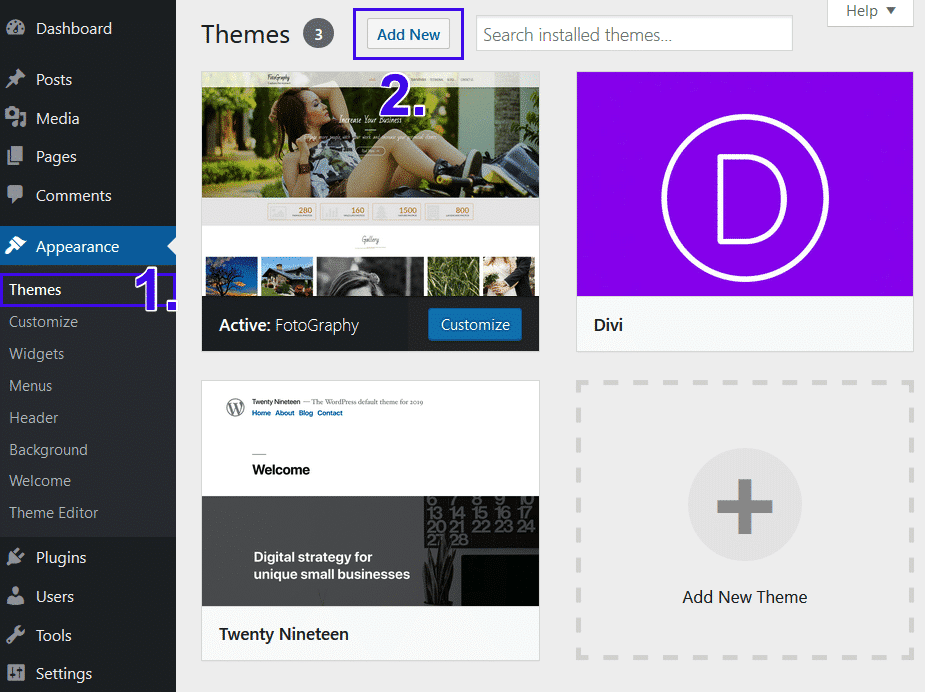
The WordPress Theme Directory is a great place to find free themes. It is easy to use and offers a wide variety. Start by logging into your WordPress dashboard. Look for the “Appearance” tab on the left side. Click on “Themes”. Then, click “Add New” to explore themes. You can search for themes using the search bar. Once you find a theme you like, click “Install”. After installing, click “Activate” to use the theme. Now your site looks new and fresh.
Many websites offer free WordPress themes. Some popular ones are ThemeForest and TemplateMonster. Visit these sites to find more choices. Download the theme files to your computer. Then, return to your WordPress dashboard. Go to “Appearance” and click “Themes”. Click “Add New” and choose “Upload Theme”. Select the theme file from your computer. Click “Install Now”. After the installation, click “Activate”. Your new theme is ready to use.
Installing The Theme
Open your WordPress dashboard. Click on Appearance in the menu. Select Themes. Click the Add New button. Browse through the free themes. Click Install on the theme you like. Wait for the theme to install. Click Activate to use the theme. Your new theme is now live.
Download the theme file to your computer. Open your FTP client. Connect to your WordPress site. Go to the wp-content/themes directory. Upload the theme folder. Log in to your WordPress dashboard. Click on Appearance and then Themes. Find the uploaded theme. Click Activate. Your theme is now ready to use.
Activating The Theme
Start by visiting the WordPress dashboard. Look for the Appearance tab. Click on it. You will see a list of installed themes. Find your new theme. Click the Activate button. The theme is now active. Your website’s look will change. You can preview the changes. Make sure everything looks good.
Post-activation Checks
Check your site after activating. Ensure text is readable. Images should appear correctly. Look at the menu. Make sure links work. Check the footer and header. They should look neat. Adjust settings if needed. Customize widgets. Make sure they fit your theme. This keeps your site looking nice.
Troubleshooting Issues
Problems may appear. Check theme compatibility. Some plugins might not work well. Update them if needed. Clear your browser cache. Sometimes it helps. Look for error messages. They can tell what’s wrong. Visit the support page of your theme. You might find solutions there. You can ask for help if needed.

Credit: www.youtube.com
Customizing Your Theme
The Customizer lets you change your theme easily. You can adjust colors and fonts. You can also add logos or background images. This tool shows changes in real time. It’s easy to use and understand. The options are on the left side of the screen. Click to edit and see changes instantly. Save changes when done. This makes your site look unique.
Widgets add features to your site. They can show recent posts or comments. Plugins help add more functions. Want a contact form? Install a plugin. Need a gallery? There’s a plugin for that. Go to the dashboard. Find the widget or plugin section. Browse and install what you need. They make your site better. Just click and add them. Always check if they are updated. This keeps your site safe.
Ensuring Mobile Responsiveness
Testing the theme on many devices is crucial. Use smartphones, tablets, and computers. Check if the theme looks good on each. The theme should adjust itself. Text and images should be clear on all screens. Buttons must be easy to click. If something looks off, it needs fixing. Responsiveness means the site works everywhere. Mobile users are everywhere. Your site must be ready for them. This is very important.
Testing On Various Devices
Try using different types of phones. Include both old and new models. Tablets too. Each device may show the theme differently. If you find issues, check the theme settings. Sometimes small changes fix big problems. Testing helps find and solve issues. Happy visitors mean happy site owners.
Optimizing For Speed
Fast sites keep visitors happy. Slow sites lose them. Check theme settings for speed options. Remove extra features you don’t need. Use light images and videos. They load quicker. Use plugins to improve speed. Speed makes the site better. Visitors like fast sites. Search engines do too.

Credit: kinsta.com
Regular Updates And Maintenance
Always keep your WordPress theme updated. Updates fix bugs and improve security. Check for updates in the admin panel. Follow prompts to update safely. Backup your site before starting. This protects your work if something goes wrong. Use a plugin for easy backups.
Good security keeps your site safe. Use strong passwords for all accounts. Avoid using ‘admin’ as your username. Update plugins and themes regularly. This helps block hackers. Install a security plugin for extra protection. Monitor your site for unusual activity. This can prevent problems before they start. Regular maintenance keeps your site running smoothly.
Frequently Asked Questions
How To Install A Free Theme In WordPress?
Go to your WordPress dashboard, click “Appearance,” then “Themes. ” Press “Add New,” search for your desired theme, and click “Install. ” Finally, activate the theme.
Is There A Completely Free WordPress Theme?
Yes, WordPress offers many completely free themes. You can find them in the WordPress theme directory. These themes are customizable, user-friendly, and great for beginners. Choose a theme that suits your site’s purpose to enhance user experience and SEO performance.
How To Install WordPress Theme From Zip For Free?
Install a WordPress theme by navigating to Appearance > Themes. Click “Add New” then “Upload Theme. ” Choose the zip file and click “Install Now. ” Activate the theme after installation. Ensure your theme is compatible with your WordPress version for optimal performance.
How Do I Use A Free WordPress Template?
Choose a free WordPress template from the library. Install it via the dashboard under “Appearance. ” Customize settings and content using the WordPress editor. Preview changes to ensure satisfaction. Publish your website when ready.
Conclusion
Installing a free WordPress theme is simple. Start by choosing a theme. Download and save it on your computer. Go to your WordPress dashboard. Navigate to “Appearance” and click “Themes. ” Click “Add New” and upload the theme file. Activate your new theme with one click.
Customize it to suit your style and needs. Always ensure your theme is compatible with your WordPress version. Keep themes updated for security. Enjoy your fresh website look. With these steps, you’re ready to enhance your site easily and quickly.
Happy blogging!


