
Are you looking to give your WordPress website a fresh look? Changing fonts can instantly transform your site’s appearance, making it more engaging and easier to read.
Whether you want to reflect your brand’s personality or simply give your site a modern twist, tweaking the typography can make all the difference. In this guide, you’ll discover how simple it is to change fonts in WordPress themes. We’ll walk you through straightforward steps that anyone can follow, even if you’re not tech-savvy.
So, if you’re ready to captivate your audience and elevate your site’s design, keep reading and unlock the power of typography.
Credit: themeisle.com
Choosing The Right Font
Fonts are like clothes for words. They change how words look. Font styles and font families help you pick the right one. Styles can be bold, italic, or regular. Families include serif, sans-serif, and cursive. Each style gives a different feel. Serif fonts look classic and formal. Sans-serif fonts feel clean and modern. Cursive fonts seem playful and fancy.
Picking a font is important for your website. It affects readability and aesthetics. Easy-to-read fonts keep visitors happy. Beautiful fonts make your site look good. Choose wisely. Experiment with different styles. See what fits best for your theme. Remember, the right font makes your content shine.
Accessing Theme Customizer
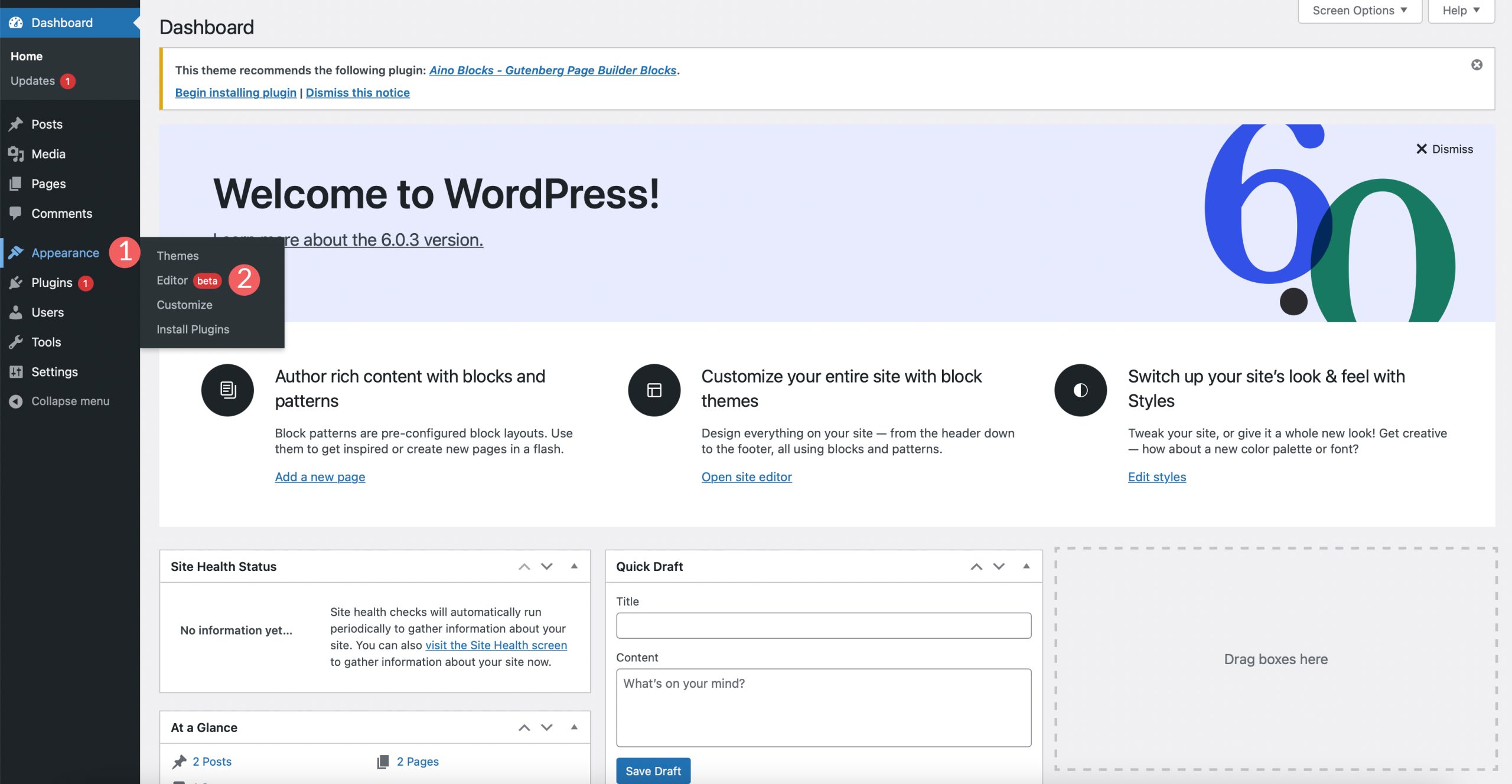
Start by logging into your WordPress dashboard. Find the sidebar on the left. Look for the Appearance tab. Click on it. Choose Customize from the drop-down menu. This opens the Theme Customizer. Here, you can change many settings. You are ready to navigate to theme options.
Navigating To Theme Options
Once in the customizer, look for Theme Options. Not every theme has this. Some themes call it differently. Find the section that changes the look of your site. Click on it. This is where you find the font settings.
Locating The Font Settings
Inside theme options, search for Typography or Font Settings. This is usually where you change fonts. Here you will see different options. You can select a font style and size. Some themes let you change fonts for headers and body text separately. Make your choices and then save changes.
Using Css For Font Changes
Changing fonts in WordPress themes involves using CSS to customize typography. Adjust font family, size, and style directly in your theme’s stylesheet. This simple method enhances your site’s appearance, making it more engaging and visually appealing.
Adding Custom Css
To change fonts, use CSS code in your WordPress theme. First, go to the WordPress dashboard. Find the Appearance option. Then click on Customize. This opens the theme customizer.
In the customizer, look for Additional CSS. Click on it to open a blank area. Here, you can write your CSS rules. To target specific elements, use the element’s class or ID.
For example, to change the font of all paragraphs, type:
p { font-family: 'Arial', sans-serif; }
To target a specific class, use:
.classname { font-family: 'Times New Roman', serif; }
Save your changes. Now, check your site. Your new fonts should appear.
Integrating Google Fonts
Google Fonts offers many free fonts. Visit the Google Fonts website. Explore different fonts. Choose a font you like. Each font has its own style. Pick one that fits your theme. Make sure the font is easy to read. Look at how it appears in different sizes. Consider the mood it sets. Download the font or copy its URL. You will need this for your theme.
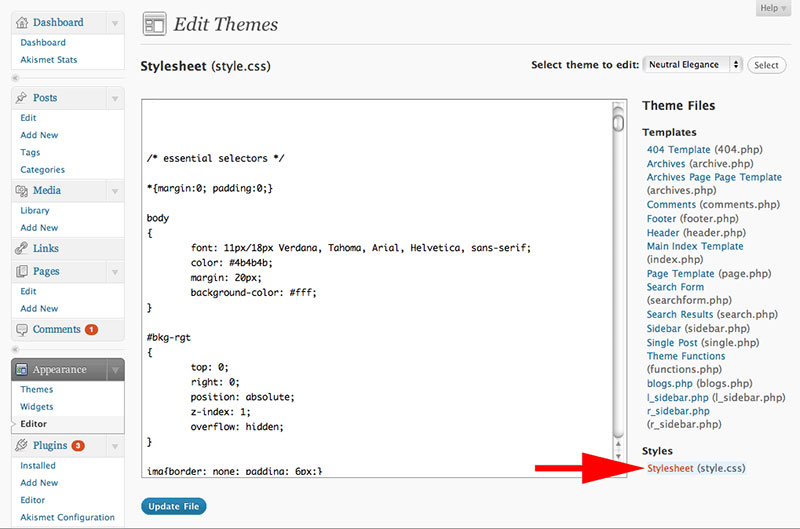
Open your WordPress dashboard. Go to Appearance and then Editor. Locate your theme’s CSS file. Find where fonts are mentioned. Replace existing font URL with your new font URL. Save changes. Refresh your site to see the new font. If the font does not show, check the URL. Make sure it is correct. Sometimes, you need to clear your browser cache. This helps display the new font. Ensure the font is working on all devices. Test on mobile and desktop.
Exploring Font Plugins
Easy Google Fonts is a popular choice for many. It lets users change fonts without coding. Another great plugin is Use Any Font. This plugin allows uploading custom fonts. Both plugins are user-friendly. They offer a wide variety of font options. They help in enhancing the look of a website. Typography is also crucial for readability. Good font selection improves user experience.
Installing a plugin is simple. First, go to the WordPress dashboard. Click on ‘Plugins’, then ‘Add New’. Search for the desired plugin. Click ‘Install Now’, then ‘Activate’. Configuring plugins is easy too. Most have a settings page. Customize font settings as needed. Adjust size, color, and style. Save changes and refresh your website. See the new fonts in action.
Testing And Previewing Changes
Testing font changes is very important. You want your site to look good everywhere. Different devices may show fonts differently. A font that looks great on a computer might not look the same on a phone. Always preview your changes.
Use different browsers to check how your site looks. Google Chrome and Firefox may display fonts differently. Also, check for any mistakes or errors in the text display.
Checking For Responsiveness
Make sure your site is responsive. This means it looks good on all screens. Adjust the font size to fit smaller screens. Use a tool to see how your site looks on tablets and phones. Make sure everything is easy to read.
Ensuring Compatibility Across Devices
Different devices can show fonts in different ways. Try testing on different phones and tablets. Check if the text is clear and readable. If something looks off, consider using a different font. Make sure your fonts work on all devices.
Troubleshooting Font Issues
Fonts might not display correctly due to several reasons. Missing fonts can occur if the theme doesn’t include the font files. Incorrect font styles can make text look odd. Browser issues can also cause fonts not to appear.
Check if the font files are uploaded in the theme folder. Ensure that font styles are correct in your CSS. Use browser developer tools to inspect and troubleshoot font issues. Clear your browser cache to see if the fonts load correctly. Use Google Fonts for better compatibility across browsers.
Credit: wpdatatables.com
Credit: www.elegantthemes.com
Frequently Asked Questions
How Do I Change The Font In A Theme?
Access the theme’s settings in your website builder or platform. Locate the typography or font section. Choose your desired font from the available options. Save or publish the changes to apply them. Always preview your site to ensure the font displays correctly.
How To Change Font On WordPress For Free?
To change the font on WordPress for free, use the Google Fonts Typography plugin. Install and activate it. Go to the plugin settings, choose your desired font, and customize your site. Save changes to apply the new font. No coding needed.
How To Change Font In WordPress Elementor Theme?
To change fonts in Elementor, go to the WordPress dashboard. Navigate to Elementor > Settings > Style. Adjust the typography settings to select your desired font. Save changes to apply the new font to your theme.
Where Are Fonts Stored In WordPress?
Fonts in WordPress are typically stored in your theme’s folder. Access them via the “wp-content/themes/your-theme/fonts” directory. You can also use Google Fonts or custom font plugins to add fonts. For custom fonts, upload them to your media library or theme folder for easy integration.
Conclusion
Changing fonts in WordPress themes is simple. It enhances your site’s look. Follow the steps we discussed. Choose fonts that match your brand. Remember, readability is key for visitors. Use plugins for more options. Always preview changes before saving. This ensures your design remains consistent.
Practice regularly to become comfortable. With time, you’ll customize with ease. Enjoy the creative process and make your website shine. Happy designing!


