
Are you feeling stuck with your current WordPress theme? Maybe it’s not performing as you expected, or perhaps you just miss the simplicity of the original design.
Whatever the reason, resetting your WordPress theme to its default settings can give your website a fresh start. Imagine the freedom of wiping the slate clean and having a chance to rebuild your site just the way you want. In this guide, you’ll discover how easy it is to reset your theme, step by step.
You’ll gain the confidence to take control of your website’s appearance and functionality. Ready to transform your site and reclaim your vision? Let’s dive in!
Reasons To Reset A WordPress Theme
Changing themes can cause issues. Settings may not match the new theme. Resetting fixes this problem. The site looks fresh again. It helps remove old theme bugs. Bugs make the site slow. Resetting clears them. Customization can get messy. Too many changes make it hard to fix. A reset starts fresh. It is like a clean slate. Restoring the default theme makes work easier. The site runs smoothly. Visitors have a better experience. They stay longer. Site speed improves too. Resetting is easy. It saves time. It avoids long fixes.

Credit: blog.hubspot.com
Backup Your Site
Backups are very important. They keep your data safe. Mistakes can happen. You might lose your site. A backup saves your work. It brings peace of mind. You can restore your site if needed. It’s like having a safety net. Never skip making a backup. It’s a smart step.
Many tools can help you. Popular ones include UpdraftPlus and BackupBuddy. These tools are easy to use. They make the backup process simple. You don’t need to be a tech expert. Just follow the steps. Save your backup in a safe place. Keep it secure and accessible.
Using Built-in Options
Many themes have a Theme Settings Page. This page helps you reset to default. Look for options like Reset to Default or Restore Settings. Click on them to start the reset. Your theme will go back to its original state. Always save your changes. This makes sure nothing is lost. If you can’t find these options, check the theme’s documentation. Sometimes, the steps are different. Reading the guide can help a lot. Resetting is simple and safe with the right steps.
The Customizer lets you change your theme’s look. You can also use it to reset. Open the Customizer from the WordPress dashboard. Look for a Reset button. It’s usually at the bottom. Clicking it will reset the theme. This brings back the default settings. All your changes will be lost, so be careful. If unsure, make a backup. This way, you can return to your settings later. Resetting is a quick process. It helps in fixing theme issues fast.
Reset With Plugins
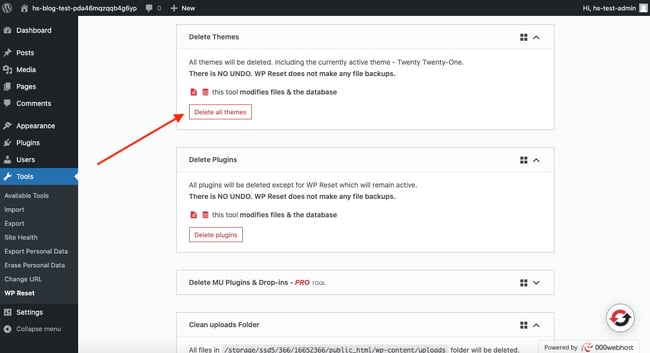
WordPress reset plugins help return your site to its original state. They are easy to use and save time. Some popular ones include WP Reset and Advanced WordPress Reset. These plugins are reliable and trusted by many users. They provide a simple way to start fresh without hassle.
First, install a reset plugin from the WordPress plugin store. Go to your dashboard and find the plugin section. Search for a reset plugin and click install. After installation, activate the plugin to use it.
Next, go to the plugin settings. Choose the reset option. Confirm the reset action when prompted. Your theme will return to default settings. Remember to back up your site before resetting.
Manual Reset Method
Changing theme files can bring back the default look. First, open the WordPress dashboard. Click on the Appearance tab. Then, go to Theme Editor. Here, you will see many files. Make sure you pick the right theme. Look for the functions.php file. This file is important. Make changes to this file carefully. Mistakes can cause problems. It’s good to make a backup. A backup saves your work.
Inside the Theme Editor, find style.css. This file controls the look. You can reset styles here. Be careful with changes. Wrong edits can break your site. Always check changes. Preview before saving. If unsure, ask for help. Experts can guide you. Editing files needs patience. Take your time.
Sometimes, resetting the database is needed. A tool called WP Reset helps. This tool is found in plugins. Install it from the plugin tab. Choose reset options. This deletes changes. It keeps your site safe. No loss of important data. Be sure to know what it deletes. Read instructions carefully. Resetting is serious. Think before doing it.

Credit: m.youtube.com
Potential Issues And Solutions
Many face trouble with resetting a WordPress theme. Themes may not load properly. Sometimes, settings do not save. This can be confusing. It happens due to plugin conflicts. At times, theme files get corrupted. This can cause errors. A backup is vital. Without it, data loss may occur.
Start by deactivating all plugins. This helps find the issue. Switch to a default theme like Twenty Twenty-One. See if the problem persists. Use a file manager. Check for missing or damaged files. Reinstall the theme if needed. Always keep a backup. It saves data. Regular updates prevent many issues. Keep WordPress and themes updated.
Post-reset Tasks
Resetting a WordPress theme returns it to its original settings. This process removes customizations, ensuring a clean slate. Follow steps to access theme settings and select the reset option for a fresh start.
Reconfigure Site Settings
Many settings will return to their original state. It’s important to reset your site’s settings. This means fixing your site title, tagline, and timezone. Check your reading settings and permalinks. Make sure they match your preferences. Double-check your comments settings to handle spam. Also, update your user roles. Ensure they have the correct permissions. Regularly save your changes. This keeps your site safe.
Restore Customizations
Your customizations might disappear after a reset. It’s crucial to restore your custom settings. This includes your theme options and widgets. Re-add your custom CSS if needed. Check your menus. Recreate any custom links. Also, verify your header and footer scripts. Don’t forget about any plugins you used. Reinstall them and set them up again. Ensure your website looks and works as it should.
Credit: blog.hubspot.com
Frequently Asked Questions
How Do I Delete A WordPress Theme And Start Over?
Go to WordPress Dashboard, click on Appearance, then Themes. Select the theme you want to delete. Click on Theme Details, then click Delete at the bottom right. Confirm deletion. Now, you can install and activate a new theme to start over.
How Do I Revert Back To An Old Theme On WordPress?
Go to your WordPress dashboard. Click “Appearance,” then “Themes. ” Locate your desired old theme. Click “Activate” below it. Your site will now use the old theme. Always preview before activating to ensure compatibility.
How Do I Reset The Default Template?
To reset the default template, navigate to the template settings in your application. Select ‘Reset’ or ‘Restore Defaults’. Confirm the action to apply changes. Always backup your custom settings before resetting to avoid data loss.
How Do I Go Back To The Default Theme?
Navigate to the settings menu in your device or application. Select themes, then choose the default option. Confirm your selection to revert back.
Conclusion
Resetting a WordPress theme to default is simple. It helps fix errors. Beginners can easily follow the steps. First, backup your site. Then, navigate to theme settings. Choose the reset option. This restores original settings. Always check your changes after resetting.
Ensure your site works well. Regularly resetting can improve performance. Keep your site updated. A default theme provides a fresh start. It helps maintain site stability. Remember, resetting is just a beginning. Continue learning WordPress features. Explore new themes and plugins.
Stay creative and curious on your WordPress journey.


