
Are you looking to give your WordPress website a fresh new look? Installing an external theme could be the perfect solution for you.
It’s a simple way to personalize your site and make it stand out. Imagine transforming your website into a visually stunning platform that captures your audience’s attention right from the first click. This guide will show you, step-by-step, how to install an external theme in WordPress, so you can focus on creating engaging content without worrying about the technical details.
Curious to see how easy it can be? Let’s dive in and unlock the potential of your website together.
Credit: www.mgt-commerce.com
Choosing The Right Theme
Free themes are good for beginners. They cost nothing but may have fewer options. Premium themes often offer more features. They may have better support and updates. Consider your needs before choosing.
Compatibility is key for a smooth website. Check if the theme works with your plugins. Look for important features like a customizable layout. Make sure the theme supports SEO settings. These help improve site visibility.
Responsive design is crucial today. It ensures your site looks good on all devices. Check if the theme adapts to different screen sizes. This keeps users happy and improves engagement.
Preparing For Installation
Backup is very important. It keeps your site safe. Use a plugin to do it. Many plugins are free. The plugin saves your site files. It also saves your database. You need these backups if something goes wrong. Always make a backup before changes.
Look at your theme settings. Write them down. You might need them later. Check your widgets and menus. They might change with a new theme. Make sure you know where everything is. This helps you put things back.
Downloading The Theme
Find themes on WordPress.org. It’s the official place. Safe and reliable. You can trust these themes. They are checked for quality. They also get updated often. This means fewer bugs. Better security too. You can search by categories. Find themes for blogs. Or for shops. Whatever you need!
Other websites have themes. Some are premium. Some are free. Be careful. Check reviews first. Look for trusted sources. Like ThemeForest or Elegant Themes. They have good options. Always download from known websites. This keeps your site safe. You avoid bad themes. These can harm your site. Choose wisely!
Uploading The Theme To WordPress
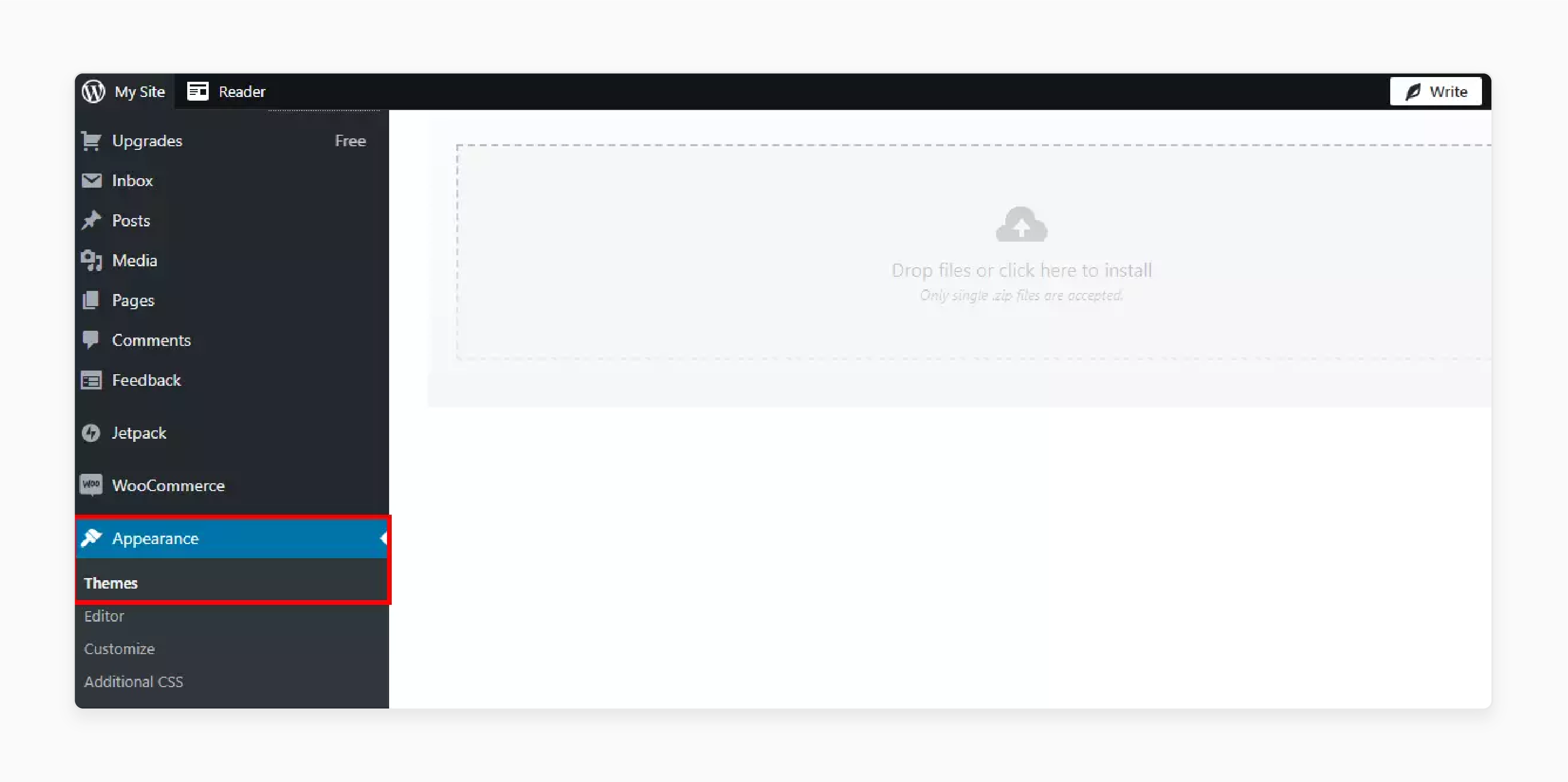
Begin by logging into your WordPress dashboard. Click on the Appearance tab. Then select Themes. Next, click on the Add New button. You will see an Upload Theme button at the top. Click it. Choose the .zip file of your theme from your computer. Click the Install Now button. Wait for the upload to complete. Finally, click Activate to start using the theme.
First, open your FTP client and connect to your server. Navigate to wp-content/themes directory. Find the theme folder on your computer. Drag and drop it into the themes directory. Wait for the upload to finish. Then, go back to your WordPress dashboard. Click on Appearance, then Themes. Find your new theme. Click Activate to use it.
Activating The Theme
After installing your theme, it’s time to make it live. Go to your WordPress dashboard. Click on Appearance and then Themes. You’ll see your new theme there. Hover over the theme and click Activate. Your website now uses this theme. But there’s more to do. Themes often need some tweaks.
Every theme offers different customization options. Click on Customize under Appearance. Here, you can change colors, fonts, and layouts. You can add or remove widgets too. Each change updates your site in real-time. This way, you can see how it looks. Make sure everything fits your style. This step ensures your site looks unique.
Check if all features work well. Visit different pages on your site. Ensure that images and links are displayed correctly. Test your site on phones and tablets. Different devices may show your site differently. Make sure it loads fast everywhere. Fix any issues you find. A smooth site keeps visitors happy.
Credit: managewp.com
Troubleshooting Common Issues
Installing an external theme in WordPress often involves uploading the theme file and activating it. Check your WordPress version compatibility and ensure your theme is properly uploaded. If errors persist, verify file permissions and PHP memory limits to resolve common issues.
Resolving Installation Errors
Installation errors can be frustrating. Check if the theme file is complete. Sometimes, files get corrupted during download. Make sure the theme is in a .zip format. Also, verify your WordPress version. It should match the theme’s requirements. Insufficient memory can cause errors too. Increase the memory limit in the wp-config.php file. Contact your hosting provider for help. They can assist you with server settings.
Dealing With Compatibility Problems
Themes might not work with all plugins. Disable plugins one by one. Check if the problem resolves. Some themes need specific plugins to function. Read the theme’s documentation carefully. Look for any required plugins. Keep WordPress updated to avoid issues. Developers release updates for compatibility. Themes and plugins must be updated too. Always keep backups before making changes. This will save your data if something goes wrong.
Enhancing Your Theme
Discover how to effortlessly install an external theme in WordPress. Navigate to your WordPress dashboard, click on ‘Appearance,’ then ‘Themes. ‘ Choose ‘Add New,’ upload your theme file, and activate it. Enhance your website’s appearance with just a few clicks.
Adding Custom Css
Custom CSS makes themes unique. Open your WordPress dashboard. Find Appearance in the sidebar. Click on Customize. Locate the Additional CSS section. Paste your CSS code here. Preview changes immediately. Adjust colors, fonts, or sizes. Save when satisfied. Your theme looks fresh now. Easy to do, no coding skills needed.
Installing Essential Plugins
Plugins enhance theme features. Search for needed plugins. Navigate to the Plugins section. Click Add New. Type the plugin name in the search bar. Select the right plugin. Click Install Now. Activate it after installation. Check plugin settings. Configure according to needs. Plugins like Yoast SEO or WPForms are popular. Improve your site’s performance easily.

Credit: www.youtube.com
Frequently Asked Questions
How Do I Add An External Theme In WordPress?
Go to WordPress dashboard, click “Appearance,” then “Themes. ” Click “Add New,” then “Upload Theme. ” Choose your theme file and install.
How Do I Manually Install A WordPress Theme?
To manually install a WordPress theme, download the theme file first. Then, log into your WordPress dashboard. Navigate to “Appearance” and select “Themes. ” Click “Add New,” then “Upload Theme. ” Choose the downloaded file and click “Install Now. ” Finally, activate the theme by selecting “Activate” under the installed theme.
How To Install An External Plugin In WordPress?
Go to the WordPress dashboard. Click on “Plugins” then “Add New. ” Search or upload your plugin file. Click “Install Now” and activate it.
How Do I Add External Css In WordPress?
To add external CSS in WordPress, enqueue the stylesheet in your theme’s functions. php file. Use the wp_enqueue_style() function, specifying the stylesheet’s URL and other parameters. This method ensures efficient loading and avoids conflicts. Make sure to place the code within the <?
php? > tags.
Conclusion
Installing an external theme in WordPress is straightforward. Follow the steps to enhance your site. Themes can change the look and feel easily. Choose a theme that fits your brand. Upload, activate, and customize it to suit your needs. Remember to check for theme updates regularly.
Updates help keep your site secure. Experiment with different themes if needed. Each theme offers unique features and styles. Don’t hesitate to explore and find the perfect match. A well-chosen theme makes your website stand out. Enjoy the new look of your WordPress site!


