
Are you eager to give your WordPress website a stunning look but unsure how to start? Installing demo data in your WordPress theme is the secret sauce to achieve a professional and polished site instantly.
Imagine skipping the tedious steps of building your pages from scratch and instead, seeing your site come to life with ready-to-use layouts, vibrant images, and engaging content. With demo data, you’re not just imagining; you’re making it happen. Think about the time you’ll save and the frustration you’ll avoid by following a few simple steps.
This guide is crafted to be your go-to resource, allowing you to effortlessly set up your theme, just like the demo you admired. You deserve a website that looks as good as it functions, and by the end of this article, you’ll be equipped with the knowledge to make that happen. Ready to transform your website into something extraordinary? Let’s dive in and see how easy it can be!
Credit: wpthemego.com
Preparing Your WordPress Environment
Before installing demo data, check the theme requirements. Most themes need a specific version of WordPress. They also need some plugins. Make sure you have these. You can find this information in the theme’s documentation. If something is missing, update your WordPress or install the needed plugins.
It’s important to backup your website. This protects your data. Use a backup plugin or your host’s backup feature. Save a copy of your website files and database. If something goes wrong, you can restore your website. Backups are like a safety net. Never skip this step.
Credit: xpeedstudio.com
Activating Your WordPress Theme
Activating a WordPress theme involves installing demo data for a complete look. Start by accessing your WordPress dashboard and selecting the theme options. Follow the theme documentation to import demo content, ensuring your website mirrors the theme demo perfectly. This process enhances your site’s appearance and functionality.
Upload Theme Via WordPress Dashboard
Start by opening your WordPress dashboard. Click on Appearance, then choose Themes. Find the Add New button at the top. Click it to upload your theme file. Ensure the file is in .zip format. After uploading, click Install Now. WordPress will install the theme for you.
Activate The Theme
Once installed, locate the theme under Appearance again. You will see the newly uploaded theme listed. Click the Activate button. Your theme is now active. Check the front end of your site. Notice the new design. Your theme is ready for demo data.
Installing Required Plugins
To install demo data in a WordPress theme, begin by installing required plugins. These plugins ensure smooth data import and theme functionality. Follow the theme’s documentation for specific plugin instructions.
Identify Necessary Plugins
Many themes need special plugins. These plugins help the theme work well. First, check your theme details. Find out which plugins are needed. The theme page often lists these plugins. Some themes may show a prompt. This prompt asks to install plugins. Make sure to note them down. Each theme has different plugins.
Install And Activate Plugins
Visit your WordPress dashboard. Go to the plugins section. Click on “Add New”. Use the search box to find each plugin. Type the name of the plugin. Click the “Install Now” button. Wait for it to finish installing. Once installed, click “Activate”. Repeat these steps for other plugins. Always ensure each plugin is active. Active plugins work with your theme.

Credit: wordpress.org
Importing Demo Data
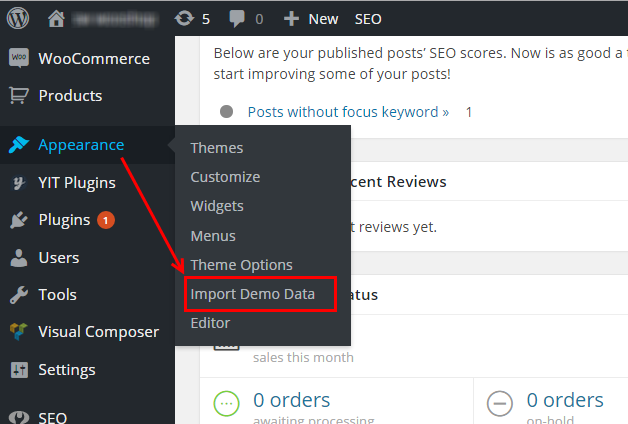
Importing demo data helps make your website look good. Locate the Demo Import Option in your WordPress dashboard. Usually, it’s under ‘Appearance’ or ‘Tools’. Finding this option is the first step. Once you find it, click on it. This opens a new window.
After opening the demo import window, choose your preferred demo content. Themes often offer many choices. Pick the one that suits your needs. Check the details before selecting. This ensures it matches your website style.
After selecting, click ‘Import’. This starts the process. Wait for it to finish. Your site will now have demo content. This makes your site look complete. Remember to check everything after importing.
Customizing Imported Content
Change the layout to match your style. Use the theme settings to switch layouts. Pick a layout that fits your brand. Explore the options for headers and footers. You can move sections around. This makes your site unique.
Update text to fit your message. Make sure the text is easy to read. Choose images that tell your story. Images should be clear and sharp. Replace demo images with your own. This helps your site stand out. You can resize images if needed.
Troubleshooting Common Issues
Installing demo data in a WordPress theme can sometimes cause confusion. Clear cache and check plugin compatibility to fix issues. Ensure server requirements meet theme specifications for a smooth installation.
Demo Import Errors
Many people face issues during demo import. Sometimes, the process may stop suddenly. This can be due to low server limits. Check the server memory and execution time. Increase them if needed. Another problem can be broken files. Ensure all files are complete. Re-upload if necessary. Always use a stable internet connection. This helps avoid interruptions.
Missing Demo Content
Missing content can confuse users. Ensure all plugins are active. Some themes need specific plugins. Without them, content may not load. Check the theme’s documentation. It often lists needed plugins. Make sure you have them all. Also, some content might be turned off. Double-check your theme settings. Enable any hidden content. This can solve the issue.
Finalizing Your Website Setup
Setting up demo data in a WordPress theme transforms a plain site into a dynamic showcase. Navigate to the theme’s settings and locate the demo import option. Follow the prompts to effortlessly integrate sample content, enhancing your site’s visual appeal and functionality instantly.
Review Site Functionality
Check if all links work. Ensure images load correctly. Test forms for errors. Is the menu easy to use? Make sure contact details are right. View your site on a phone. Is it clear? Look for missing text. Check all pages for mistakes. Ask a friend to test it. They may see things you missed.
Optimize For Performance
Use a caching plugin for speed. Compress images to load faster. Choose a fast hosting service. Reduce large files. Minimize CSS and JavaScript. Check site speed using online tools. Fix slow pages. Limit plugins to only essential ones. Avoid heavy themes. Monitor site uptime regularly.
Frequently Asked Questions
How Do I Import Demo Data Into WordPress?
To import demo data into WordPress, navigate to your WordPress dashboard. Install and activate the theme. Locate the demo import option under Appearance. Use the built-in importer or install a plugin like “One Click Demo Import”. Follow the prompts to upload demo content.
How To Install Sample Data In WordPress Theme?
To install sample data in a WordPress theme, navigate to your theme’s settings. Locate the “Import Demo Data” option. Click on it and follow the instructions to import the sample data. Ensure your theme supports demo content import for a smooth process.
How To Install Demo Content In WordPress Themeforest?
To install demo content in a Themeforest WordPress theme, first activate your theme. Navigate to the theme options or import settings. Use the provided demo import feature. Follow on-screen instructions to complete the import process. Check your site to ensure demo content appears correctly.
How To Download Demo Pages In WordPress?
Download demo pages in WordPress by installing a theme with demo content. Use the theme’s import option to add pages. Check theme documentation for specific instructions. Ensure your site is backed up before importing. Search for themes offering easy demo content import for seamless setup.
Conclusion
Installing demo data in a WordPress theme is easy. Follow the steps, and you’ll succeed. It enhances your website’s look quickly. Practice makes the process smoother. Explore different themes to find the best match. Remember to back up your data before starting.
This keeps your content safe. Enjoy the new features and designs. Your website can now attract more visitors. Simple steps lead to great results. Keep experimenting and learning. With practice, you’ll become more confident. Happy website building!


