
Are you looking to customize your WordPress site with a new page template but unsure where to start? You’re not alone.
The flexibility of WordPress allows you to design your website exactly how you envision it, but sometimes, you need that extra tweak to truly make it yours. Adding a new page template can be the key to transforming your site’s layout, enhancing user experience, and boosting engagement.
Imagine the satisfaction of seeing your ideas come to life on your website, attracting more visitors and keeping them interested. In this guide, you’ll discover simple steps to integrate a fresh page template into your WordPress theme, empowering you to take control of your site’s design and functionality. Keep reading to unlock the potential of your WordPress site and make it stand out from the crowd.
Understanding Page Templates
Page templates help change how pages look. They offer a unique design for specific pages. You can make a page special by using a template. This gives it a different layout than other pages. Templates are useful for landing pages or galleries. They let you show content in a new way. Using templates makes your site look better. They help keep the design fresh and interesting. It’s easy to customize pages with templates.
Purpose Of Page Templates
Page templates serve a vital role. They allow customization of individual pages. You can tailor a page’s look to suit its purpose. This means you can create distinct layouts for different content types. Templates enhance user experience by providing varied visual designs. They ensure each page fits its unique function. Users find it easier to navigate a well-structured site. Templates help achieve this by organizing content effectively.
Differences Between Templates And Themes
Templates focus on single page layouts. Themes affect the whole site design. Templates are part of themes. They let you change one page without changing others. Themes set the overall look for your site. Templates give pages a unique touch. Themes control colors, fonts, and styles across the site. Templates offer flexibility for specific pages. Both play important roles in web design.
Preparing Your WordPress Environment
Always create a backup before making changes. This keeps your site safe. You can use plugins like UpdraftPlus. It saves your data in the cloud. This way, you can restore your site if needed. Backups protect against data loss. They are essential for all site owners. Never skip this step. It only takes a few minutes.
A child theme is a copy of your main theme. It lets you change your site without harm. To make one, create a new folder in your themes directory. Add a style.css file inside. This file tells WordPress about your child theme. Include a functions.php file. It helps load your parent theme’s features. Child themes keep your changes safe during updates.
Creating A New Template File
Name your template file with care. Use a clear name. For example, “page-about.php”. Keep names simple. Avoid spaces in file names. Use hyphens instead. This helps WordPress find your file. Always use lowercase letters. It makes it easy to read.
Start with a PHP opening tag. Add a template name comment. For example, Template Name: About Page. This tells WordPress about your template. Next, include the header. Use php get_header(); ? to add it. Add footer too with php get_footer(); ?. Place your content between header and footer. Make it simple and clean.
Adding The Template Header
Begin with the <?php tag. This tells WordPress it’s PHP code. Inside, write the Template Name comment. Place it at the top. This helps WordPress know the template’s name. Use Template Name: followed by the name you choose. Keep it simple and clear.
The Template Name comment is very important.
It makes the template show in WordPress. Write it like this:
Template Name: My New Template .
Change “My New Template” to your own choice.
This must be the first comment at the top.
Customizing The Template
Start by opening your WordPress theme files. Look for the template files in your theme folder. Create a new file and name it with a unique name. Use the HTML structure to set up your page. Add necessary PHP code to link with WordPress features. This code will help you get the content from your site. Save the file and check if it works.
Style your template with CSS. Open the style.css file in your theme. Add your styles here. Use simple CSS rules to change colors, fonts, and layout. Make sure your styles are clear and easy to read. Check your page to see the changes. Adjust as needed to get the best look.

Credit: www.cloudways.com
Integrating With WordPress
Create a custom look for your website by adding a new page template in WordPress. Start by accessing your theme folder, then copy an existing template file. Rename it and modify the code as needed. Save your changes, and select the new template when creating a page.
Placing The Template In The Theme Directory
First, create a new file for your page template. Name it something easy to remember. Save this file with a .php extension. Place this file in your theme’s directory. This is often found in the wp-content/themes folder. Ensure the file is in the right location. Now, WordPress can find it.
Testing Template Functionality
After placing the file, check if it appears in WordPress. Go to the WordPress admin panel. Click on Pages, then Add New. Look at the Page Attributes section. Your template should appear in the Template dropdown. Select your new template. Save your page. Visit your site to see the changes. If you see the new layout, it means success.
Assigning The Template To A Page
Use the WordPress editor to assign a template. First, open the page you want. Look for the Page Attributes box on the right. Click on the Template dropdown menu. Choose your new template from the list. Click Update to save changes. Your page now uses the new template.
Using The WordPress Editor
Start by opening the page you need. Find the Page Attributes section. Click on the Template option. Choose the new template from the list. Save changes by clicking Update. Your page now has the new look.
Verifying Template Application
After updating, visit the page. Check if the design has changed. Make sure the new layout shows. If not, go back and reselect the template. Try refreshing the page. Ensure all changes are saved. Your page should now display the new template.

Credit: wordpress.org
Troubleshooting Common Issues
Easily fix issues when adding a new page template in WordPress themes. Start by checking the file structure for errors. Then ensure the template file is properly named and saved in the theme folder. If it still doesn’t appear, review theme settings and update permalinks to refresh changes.
Template Not Appearing
Sometimes, new page templates don’t show up. First, check the template file name. It should start with template name: at the top. If it’s missing, the template won’t work. Ensure the file is saved inside the theme folder. Wrong location can cause issues. Check if the theme is activated. Only activated themes show templates. Refresh your browser to see changes. It might fix the problem. Double-check the code for errors. Small mistakes can stop templates from appearing.
Styling Discrepancies
Styling problems might occur. First, examine the CSS file. Ensure it’s linked correctly. Sometimes styles don’t load. Clear your browser cache. Old data can cause styling issues. Compare styles with other pages. Look for differences. Use inspect tool to find problems. It helps see what’s wrong. Check if styles are overwritten. Another file might change your styles. Update your theme. Old themes can have bugs. Keep everything updated for better results.
Best Practices For Template Development
Creating new page templates in a WordPress theme enhances site customization. Start by duplicating an existing template file. Rename the file and include a unique template name in the header. This allows the new template to appear in WordPress page attributes, offering easy selection for your designs.
Keeping Code Clean And Organized
Clean code is easy to understand. It helps others read it. Use clear names for functions and variables. Indent the code properly. This makes it neat. Comments are helpful. Explain tricky parts. Remove unwanted code. This keeps files tidy. Use folders for different parts. This helps find files fast. Organize CSS and JavaScript. Keep styles separate from scripts. This makes changes easy.
Ensuring Compatibility With Plugins
Plugins add features to your site. Test your template with popular plugins. This checks for problems. Use WordPress coding standards. This helps avoid plugin issues. Update your template often. This keeps it working well. Check for errors on the site. Fix them quickly. Ask for feedback from users. This finds hidden problems. Work with developers. They offer good advice.
Credit: crocoblock.com
Frequently Asked Questions
How Do I Add A New Page Template In WordPress?
Create a new PHP file in your theme directory. Add a template name at the top using a comment. Customize your HTML and PHP code. Save and upload the file to your theme folder. Assign the template to a page in the WordPress editor under “Page Attributes.
“
How Do I Add A New Template To Pages?
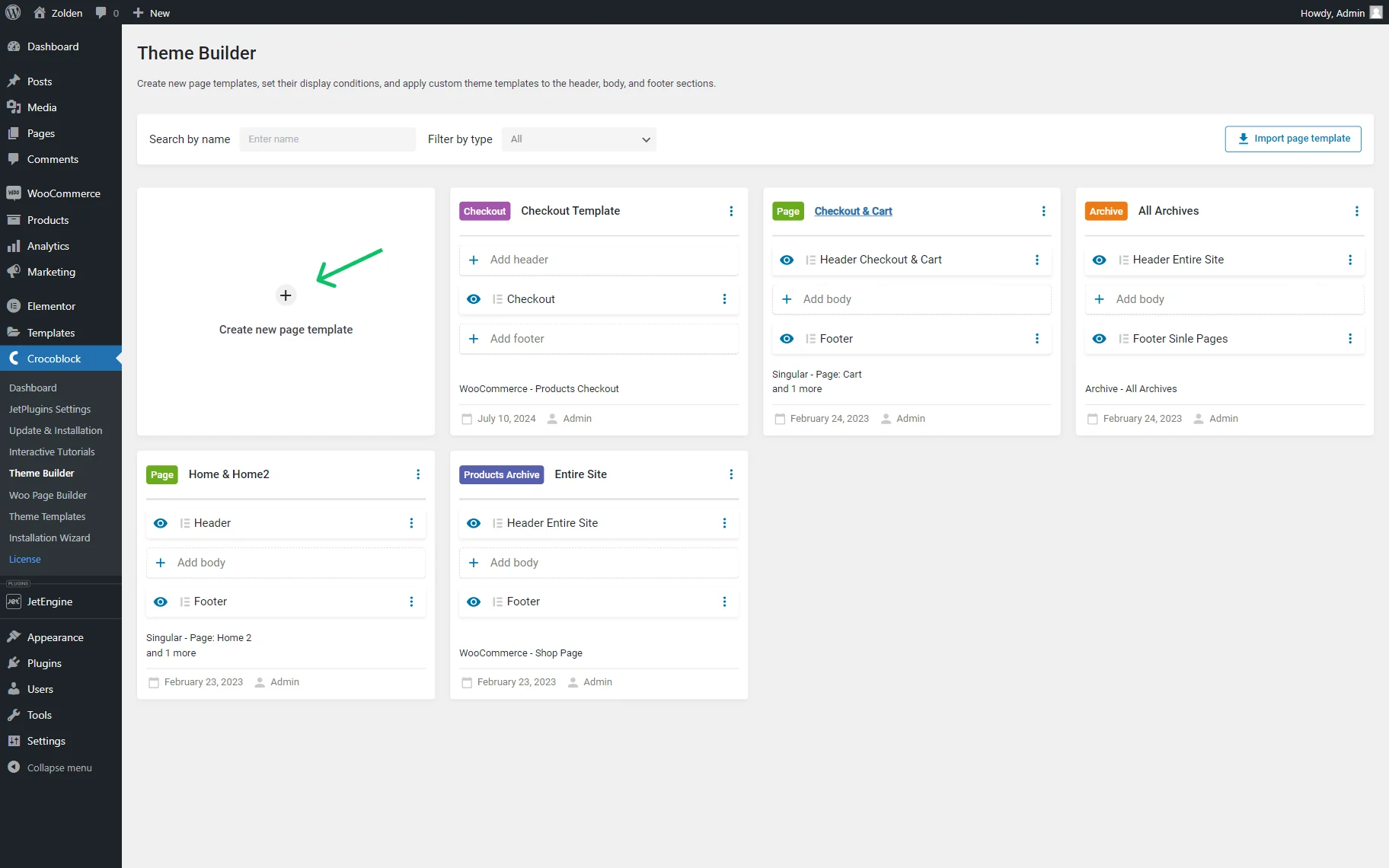
To add a new template to pages, navigate to the “Templates” section in your website builder. Select “Add New Template,” choose your desired design, and customize it. Save changes to apply the template to your pages. Ensure to preview before publishing for best results.
How Do I Add A Downloaded Template To WordPress?
Navigate to WordPress dashboard, then go to Appearance > Themes. Click “Add New”, then “Upload Theme”. Choose the downloaded template file, then click “Install Now”. Activate the theme once installed. Ensure the template is compatible with your WordPress version for optimal performance.
How Do I Add A Template Kit In WordPress?
To add a template kit in WordPress, install and activate the Elementor plugin. Navigate to “Templates” and select “Kit Library. ” Choose your desired template kit and click “Import. ” Customize and save the imported template kit to your website.
Conclusion
Creating a new page template in WordPress is simple. Follow the steps, and you’ll enhance your site. Custom templates give your site a unique look. They improve user experience and flexibility. Always back up your site before making changes. This prevents data loss.
Now you can confidently update your WordPress theme. Experiment with different designs. Make your site stand out from others. Enjoy the creative process. It’s all about making your website better. Happy designing!


