
Imagine opening your WordPress site and seeing a splash of colors that perfectly reflects your brand and personality. Sounds exciting, right?
You might be wondering how to make this vision a reality. Changing the color scheme of your WordPress theme can feel like a daunting task, especially if you’re new to website management. But don’t worry, you’re not alone. Many people feel overwhelmed when faced with the prospect of customizing their website.
The good news? It’s easier than you think! By the end of this guide, you’ll have a clear understanding of how to set colors to your WordPress theme and create an inviting and personalized look for your site. Get ready to transform your online presence and captivate your audience with the power of color. Let’s dive in!
Theme Customizer
Find the WordPress dashboard on the left side. Click on Appearance. Then, select Customize. This opens the Theme Customizer. Here, you can change many things. Colors, fonts, and more. It is easy to start. Just follow each step. Explore the options. Your site will look great.
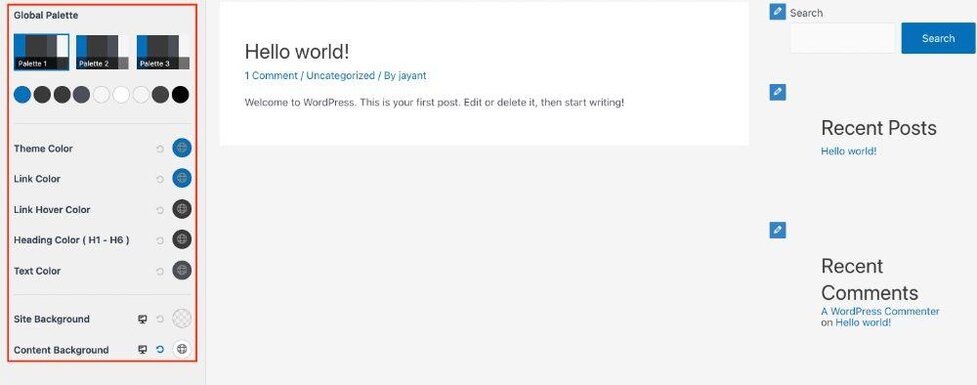
Inside the Customizer, find Colors. Click on it. You will see many color schemes. Choose one you like. Or, make your own. Play with different shades. Find what fits your style. Bright or soft? The choice is yours.
Before saving, check your changes. Use the preview option. It shows how your site looks. No need to guess. If you like it, click Publish. If not, try again. Experiment until it’s perfect. Your site, your style.
Credit: wpastra.com
Using Css
Change the color of your WordPress theme using CSS for a personalized look. Access the theme editor and add custom CSS code. Tailor colors to match your style effortlessly.
Adding Custom Css
Custom CSS lets you change your WordPress theme colors. Go to WordPress admin area. Find “Appearance” in the menu. Click on “Customize”. Look for “Additional CSS” section. Add your CSS code there. This code changes theme colors.
Targeting Specific Elements
Select elements you want to change. Use specific CSS selectors. Change background color, text color, or border color. Try this example: p { color: blue; }. This changes paragraph text to blue. Use classes or IDs for more specific changes.
Testing Css Changes
Preview your changes before saving. Check if it looks good. Use the preview button in the customizer. If it looks fine, publish your changes. You can always go back and edit. Make sure colors look nice and readable.
Theme Options Panel
Find your WordPress dashboard. Click on the Appearance tab. Then, select Customize. The theme options panel will open. Look for the Colors section. It is usually easy to find. You can see all the color settings there.
In the colors section, adjust the settings. Click the color boxes. Choose your favorite colors. You can change background colors. Also, change text colors. Make your site look nice. It’s fun and easy!
After making changes, click the Save button. Always save your work. This will keep your new colors. Your website will now have the colors you like. Enjoy your colorful theme!

Credit: doc.seatheme.net
Plugins For Color Management
Explore plugins for color management to easily set your WordPress theme colors. Customize colors with user-friendly tools, enhancing your site’s visual appeal. These plugins offer intuitive interfaces for seamless color adjustments, ensuring an attractive and cohesive website design.
Popular Plugins
Color management in WordPress can be simple with plugins. Popular options include Colorlib, WP Color Picker, and Custom Colors. These plugins let you change colors easily. They help make your site look nice. You can find these plugins in the WordPress store. They are used by many people. They are also well-rated by users.
Installation Process
Installing a plugin is easy. First, go to your WordPress dashboard. Click on Plugins and then Add New. Type the name of the plugin you want. Find the plugin in the list. Click Install Now. After that, click Activate. Your plugin is now ready to use.
Configuring Plugin Settings
Settings allow you to change colors as you like. Open the plugin settings from your dashboard. Look for the color options. Choose the colors you want. Save your changes. Your theme will now show the new colors. Make sure you like the new look. You can change colors anytime.
Color Palettes And Tools
Picking the right colors makes your site look good. Colors talk to our feelings. Warm colors like red are exciting. Cool colors like blue feel calm. Try three colors that match. Use one for main, one for accent, and one for background. Good balance of colors helps a lot.
Many tools help choose colors. Adobe Color is popular. Coolors is easy to use. These tools show colors that look nice together. Use them to make your site look great. They save time and help you pick right colors fast.
Colors must be easy to see for everyone. Some people have trouble seeing colors. Use tools like Contrast Checker. Make sure text and background colors are easy to read. Accessibility is important for every user. It makes your site friendly for all.
Common Issues
Troubleshooting Color Conflicts can be tricky. Sometimes, colors don’t match. This might happen due to different theme settings. Check your theme’s color options first. Change them if needed. Another reason could be plugin interference. Disable plugins one by one. See if the issue resolves. Always clear your cache after changes. This helps see the updates.
Debugging Custom CSS is essential for theme colors. Use the browser’s inspect tool. Check if your CSS is applied correctly. Sometimes, CSS rules overlap. This causes conflicts. Use !important to override styles. Be careful, though. Too many !important tags can confuse. Keep your CSS clean and organized.
Compatibility with Browsers affects color display. Not all browsers show colors the same. Test your site in different browsers. Check Chrome, Firefox, and Safari. Ensure colors appear correctly. Update browsers regularly. This ensures the best color display. Remember, user experience is key.

Credit: qodeinteractive.com
Frequently Asked Questions
How Do I Change The Color Of A WordPress Theme?
Go to your WordPress dashboard. Click on “Appearance,” then “Customize. ” Choose “Colors” and adjust your theme’s colors. Save changes.
How Do I Change The Color Of My Theme?
Go to your theme settings in the dashboard. Click on “Customize” and select “Colors. ” Choose your desired color and save.
What Is The Default Color Scheme In WordPress?
WordPress uses a default color scheme called “Fresh” with blue accents. Users can change it in settings. This scheme enhances visibility and readability across the admin interface. Customization options allow for a personalized look. Explore the settings to choose from various color schemes available in WordPress.
How To Customize WordPress Default Theme?
Customize the WordPress default theme by accessing the WordPress dashboard. Use the Appearance > Customize option. Adjust colors, fonts, and layouts. Add widgets and menus for personalized content. Employ a child theme for advanced modifications to avoid losing changes during updates.
Conclusion
Changing your WordPress theme color is simple and rewarding. Customize your site to reflect your personality. Your blog or business will feel more unique. Start by exploring theme options. Experiment with different color palettes. Choose colors that match your brand.
Adjust settings until you find the perfect look. Don’t rush; take your time to get it right. Enjoy the process of making your website yours. Regular updates keep your site fresh. Keep learning and experimenting with new ideas. Make your WordPress site a true reflection of your vision.


