
Are you ready to give your website a fresh look with a new WordPress theme from Envato? You might be feeling a bit overwhelmed, but don’t worry, you’re not alone.
Installing a WordPress theme can seem daunting, especially if you’re doing it for the first time. However, with the right guidance, you can transform your site with just a few clicks. Imagine the sense of accomplishment you’ll feel when your website reflects your vision perfectly.
In this guide, we’ll walk you through every step of the installation process, making it simple and stress-free. So, let’s dive in and discover how easy it is to install your new Envato WordPress theme!
Why Choose Envato For WordPress Themes
Envato offers a wide range of WordPress themes. Each theme is beautifully designed. Many themes fit different needs. You can find themes for blogs, business, and online stores.
Themes on Envato are easy to use. They come with step-by-step guides. Installation is simple. Even beginners can do it. The support team is helpful. They answer questions fast.
Themes are affordable. Prices fit many budgets. You can buy single themes or packages. Many packages offer extra features. These features make your website stand out.

Credit: help.elements.envato.com
Preparing For Installation
Get ready to install your Envato WordPress theme by downloading the theme files. Check the documentation for specific requirements. Ensure your hosting meets these needs for a smooth installation process.
Checking Requirements
Make sure your server meets all WordPress requirements. Check PHP version. Verify MySQL or MariaDB version. Ensure enough disk space. Confirm your hosting supports WordPress. These steps are crucial for a smooth setup.
Creating A Backup
Backup your site before any changes. Use plugins like UpdraftPlus or BackupBuddy. Save important files and database. This protects your data. It’s better safe than sorry.
Downloading The Theme
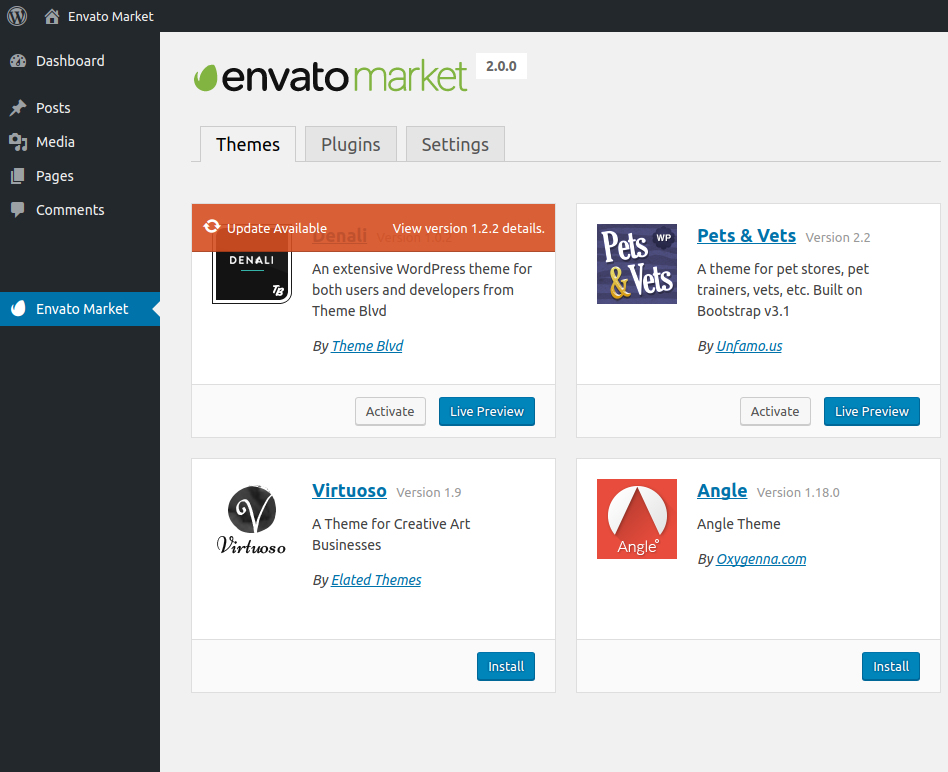
Download your chosen theme from Envato Market. Save the zip file. Keep it in a place where you can find it easily. Double-check the downloaded file. Ensure it’s the right one. Ready for installation? Let’s go!
Installing Via WordPress Dashboard
Open your WordPress dashboard. Find the Appearance option on the left. Click on it to see the Themes section. This is where you can manage your themes.
At the top, find the Add New button. Click it to start uploading. Next, click on Upload Theme. Choose the theme file from your computer. Ensure the file is in .zip format.
After uploading, you will see an Activate button. Click it to use the theme. Now your new theme is live on your website. Check your site to see the changes.
Credit: www.envato.com
Installing Via Ftp
First, open your FTP client on your computer. Enter your website’s FTP details. These include the host, username, and password. You will see your website files now.
Locate the wp-content folder. Then, find the themes folder inside it. Upload your new theme’s folder here. Wait for the upload to finish. It might take a few minutes.
Go to your WordPress dashboard. Click on the Appearance menu. Select Themes. You will see your new theme here. Click on Activate to use it. Check your website to see the changes.
Common Installation Issues
Installing a WordPress theme from Envato can sometimes lead to issues like missing style. css files or upload errors. Compatibility problems with existing plugins may also arise, causing unexpected functionality challenges. Ensuring correct file extraction and theme activation is crucial for a smooth setup process.
Theme Missing Stylesheet
Sometimes, a theme won’t install because of a missing stylesheet. This happens if the wrong file is uploaded. Make sure to upload the theme’s zip file. Do not upload the entire downloaded package. It might contain extra files. Look for the theme file inside the package. Use that file for installation.
Exceeding File Size Limit
WordPress has a file size limit. Large themes may not upload. Check the theme’s file size. If it’s too big, try using FTP. FTP helps in uploading large files. This solves the size issue. You can also increase the limit in the php.ini file. But be careful while doing this.
Resolving Permission Errors
Permission errors stop themes from installing. Check your file permissions. They should be set correctly. Usually, directories need 755 permissions. Files need 644 permissions. Use an FTP client to change these settings. Proper permissions allow theme installation. Be sure to apply changes carefully.
Credit: help.elements.envato.com
Customizing Your Theme
The WordPress Customizer helps you change your site’s look. Find it in your dashboard. You can change colors, fonts, and backgrounds. See changes live on your site. Try different styles. Make your site unique. Save your work when happy. It’s simple and fun.
Widgets add extra features to your site. Find them in the dashboard. Add a search bar, calendar, or text box. Drag them into your sidebar or footer. Menus help visitors find pages. Create menus in the dashboard. Add links to your pages. Organize your site easily.
Plugins add special functions to your site. Find them under the “Plugins” tab. Search for plugins you need. Click “Install” and then “Activate”. Some plugins need settings adjustments. Read their guides for help. Plugins make your site better. Use them wisely.
Ensuring Theme Compatibility
Ensure your theme works on popular browsers. Google Chrome, Mozilla Firefox, and Safari are common. Test on each browser. Check layout and features. They should appear the same. A theme that works on all browsers is important.
Your theme must adjust to screen size. Mobile, tablet, and desktop are key. Test using different devices. The theme should look good everywhere. Users need a smooth experience. This helps your site reach more people.
Check if your theme supports popular plugins. Plugins add features to your site. Ensure the theme does not break them. Test with plugins like Yoast SEO and WooCommerce. Compatibility means your site works well with added tools.
Regular Updates And Maintenance
Installing Theme Updates is crucial for your site’s security. Updates fix bugs and improve features. Always check for new updates. Use the WordPress dashboard for easy updates. Keep your theme up-to-date.
Monitoring Site Performance helps keep your site fast. Slow sites lose visitors. Use tools like Google Analytics. Check site speed regularly. Optimize images for faster loading. Keep your site running smoothly.
Backing Up Regularly protects your site from data loss. Use backup plugins for easy backups. Store backups in a safe place. Schedule backups weekly or daily. Restoring a backup is easy if something goes wrong.
Frequently Asked Questions
How To Install WordPress Theme From Envato?
Download the theme from Envato. Go to WordPress dashboard, click “Appearance,” then “Themes,” and select “Add New. ” Choose “Upload Theme,” select the downloaded zip file, and click “Install Now. ” After installation, activate the theme. Ensure compatibility with your WordPress version and backup before proceeding.
How To Install A Downloaded WordPress Theme?
To install a WordPress theme, log in to your dashboard. Click “Appearance” then “Themes” and “Add New. ” Select “Upload Theme,” choose the downloaded file, and click “Install Now. ” After installation, activate the theme. Ensure your theme is compatible with your WordPress version for optimal performance.
How Do I Add My Own Theme To WordPress?
Log in to WordPress dashboard. Navigate to Appearance > Themes. Click “Add New” and then “Upload Theme”. Select your theme file and click “Install Now”. After installation, activate the theme by clicking “Activate”.
How Do I Install Envato Theme To Elementor?
Install the Envato theme by downloading it from Envato. Upload it to WordPress under “Appearance” > “Themes. ” Activate the theme. Open Elementor and customize your pages using the available widgets and templates. Ensure compatibility by updating both the theme and Elementor regularly.
Conclusion
Installing a WordPress theme from Envato is simple. Follow the steps. Choose your theme carefully. Download your desired theme file. Upload it to your WordPress dashboard. Activate your new theme. Customize it to fit your needs. Remember, take your time.
Explore theme options. Adjust settings for the best look. A well-chosen theme enhances your website. It boosts its appeal. Makes your site stand out. Keep learning. Experiment with different settings. Create an engaging and functional website. Happy theming!


