
Are you looking to give your WordPress website a fresh new look? Changing the theme can be a powerful way to transform the appearance and functionality of your site.
Whether you’re aiming for a sleek, professional vibe or a creative, eye-catching design, selecting the right theme can make all the difference. But how do you go about changing it without losing your existing content or breaking your site? In this guide, we’ll walk you through each step, ensuring a smooth transition that enhances your site’s appeal and keeps your visitors engaged.
Read on to discover how you can effortlessly switch themes and elevate your WordPress website to the next level.
Choosing The Right Theme
A good theme makes your website look nice. Choose a theme that is easy to use. It should load quickly. Check if it looks good on phones too. Some themes are colorful. Others are simple. Pick what matches your style. Always read the user reviews. They help you know if the theme is good. Look at the theme’s last update. It should be recent. A theme that updates often is better. It means the theme is cared for.
Premium themes cost money. They often have more features. Free themes cost nothing. But they might have fewer features. Premium themes can give more support. Free themes may not have much help. Think about your budget. Choose what you can pay for. Both types can make your site look great.

Credit: www.wpzoom.com
Preparing For A Theme Change
Changing your WordPress theme requires careful preparation. Backup your site to prevent data loss. Review the new theme’s features and compatibility with your plugins. Test the theme in a staging environment to ensure smooth functionality before making it live.
Backing Up Your Website
Before changing your theme, create a backup. This keeps your data safe. You can use plugins for this task. Plugins like UpdraftPlus are popular. They save your website files. They also save your database. This is crucial for safety. You can restore your site anytime. Always backup before making changes.
Checking Theme Compatibility
Check the new theme’s compatibility. Not all themes work with your plugins. Visit the theme’s page for details. Look for user reviews. They often mention compatibility issues. Check if the theme supports your WordPress version. This helps avoid problems later. Make sure it fits your website’s needs. Testing the theme on a local server can be helpful.
Installing A New Theme
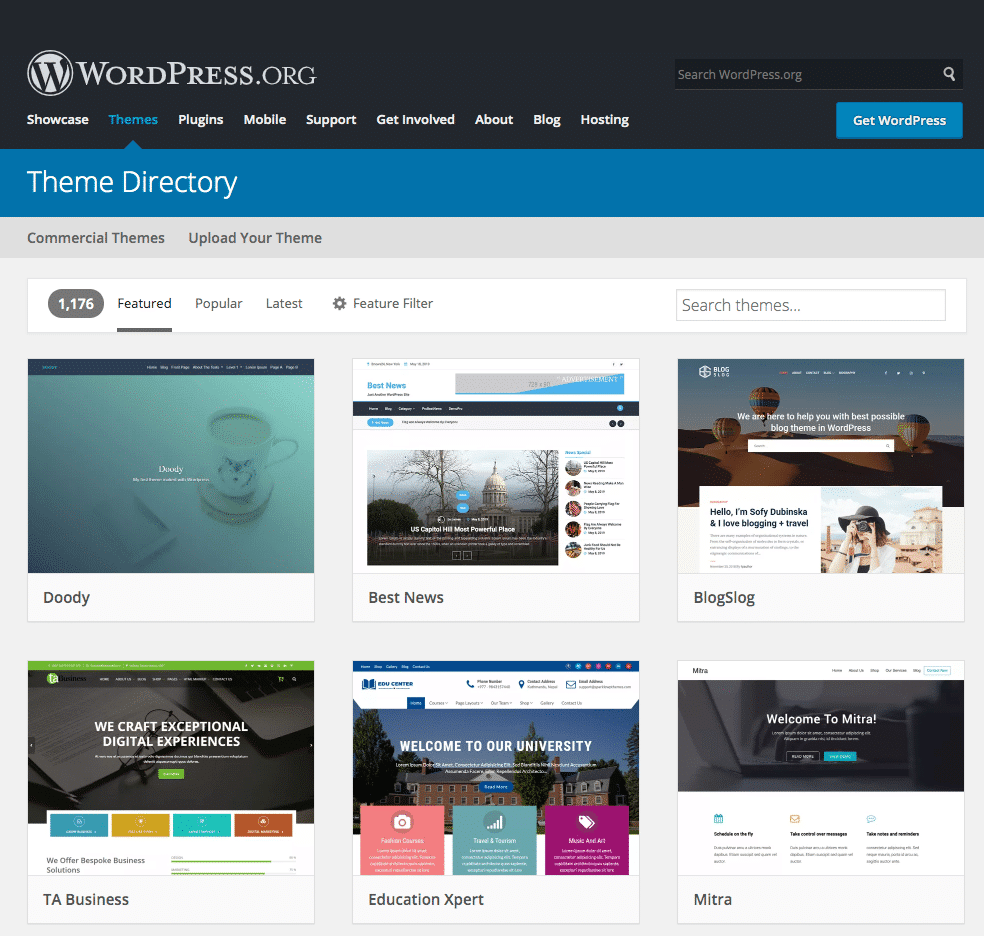
Find many themes in the WordPress Theme Directory. Open your WordPress dashboard. Click on Appearance. Select Themes. Click Add New to see options. Browse or search for a theme. Click Install on your chosen theme. Wait a few seconds. Click Activate to use it. Your theme will change quickly.
Download your theme as a .zip file. Open your WordPress dashboard. Click Appearance then Themes. Choose Add New. Select Upload Theme. Click Choose File. Pick your .zip file. Click Install Now. Wait for it to upload. Click Activate to use it. Your site will get a new look.
Customizing Your Theme
Easily change your WordPress website’s theme by navigating to the “Appearance” menu and selecting “Themes. ” Browse available options, choose one, and activate it with a click. This simple process customizes your site’s look and feel without hassle.
Using The WordPress Customizer
The WordPress Customizer is your friend. It helps you change your theme. Open your WordPress dashboard. Click on “Appearance”. Then, click “Customize”. Here, you can see many options. Change colors, fonts, and more. Save your changes when done. Enjoy your new look.
Adding Custom Css
Sometimes, you need more changes. Custom CSS can help. Go to the WordPress Customizer. Find “Additional CSS”. Click on it. You can now add your own CSS codes. Type your CSS in the box. Save your work. See the changes live. It’s easy and fun. Try it today!
Testing The New Theme
After adding a new theme, check for broken links. Broken links make your site look bad. Use online tools to find these links. Fix them fast to keep your site professional.
Make sure your theme looks good on phones. Most people use phones to browse. Use a phone or a tool to check this. The site should load quickly and look nice. A slow or bad-looking site can make people leave.
Optimizing Theme Performance
Enhance your site’s performance by changing its theme on WordPress. Navigate to the dashboard, select ‘Appearance,’ and choose ‘Themes. ‘ Preview and activate your desired theme for a refreshed look.
Improving Load Speed
Choose a theme with clean code. It helps the website load faster. Use lightweight images to improve speed. Compress images before uploading. Keep your theme updated for best performance. Disable unused features in the theme. They can slow down the site. Use a cache plugin to store pages. This reduces load time.
Minimizing Plugin Conflicts
Too many plugins can cause conflicts. They might slow down your site. Only use essential plugins. Regularly update them for smooth operation. Check plugin reviews before installation. Some plugins may not work well with your theme. Always test new plugins on a staging site. This avoids breaking the live site. Remove plugins that you no longer use. They can still cause issues even when inactive.
Maintaining Your Theme
Changing the theme of your WordPress website can refresh its appearance. Access the dashboard, navigate to “Appearance,” and select “Themes. ” Choose a new theme and activate it to update your site’s look instantly. Always check compatibility and backup your site before making changes to ensure a smooth transition.
Updating Regularly
WordPress themes need updates. Updates bring new features and fix bugs. Without updates, themes might break. Always check for updates in your dashboard. Click ‘Update’ to install new versions. It’s simple and quick. Make sure to update plugins too. Plugins work better with updated themes.
Monitoring For Security Issues
Security keeps your website safe. Themes can have security holes. Hackers look for these holes. Check your theme for security updates. Install security plugins for extra safety. These plugins find and fix issues. Keep your website secure. Backup your site often. This helps if something goes wrong.
Credit: kinsta.com

Credit: jetpack.com
Frequently Asked Questions
How Do I Change The Theme Of My WordPress Website?
Log into your WordPress dashboard. Navigate to “Appearance” then click “Themes. ” Select “Add New” and choose a theme. Click “Install” and “Activate” to apply it. Ensure your new theme aligns with your site’s goals and check its responsiveness across devices.
Backup your site before making changes.
How Do I Manually Change The Theme In WordPress?
Go to the WordPress dashboard. Click on “Appearance,” then “Themes. ” Choose a theme and click “Activate. ” For manual upload, click “Add New,” then “Upload Theme” to install a downloaded theme file.
How Do You Change The Theme On WordPress?
To change the theme on WordPress, log into your dashboard. Navigate to “Appearance” and click “Themes. ” Search or upload the new theme, then activate it. Always preview the theme before finalizing to ensure it suits your website’s design.
How Do I Change The Theme In A WordPress Site?
Log into your WordPress dashboard. Go to “Appearance” and select “Themes. ” Click “Add New” for more options. Browse, preview, and activate your desired theme. Ensure compatibility with your site’s plugins and settings. Always back up your site before changing themes to prevent data loss.
Conclusion
Changing themes in WordPress is simple and enhances your site’s look. Follow the steps carefully for a smooth transition. Always backup your site before making changes. This ensures your data stays safe. Experiment with different themes to find the perfect fit.
Each theme offers unique features. Test them to see what suits your style best. Remember, a good theme improves user experience. Keep your website fresh and engaging. Regular updates keep your site running well. Explore, test, and enjoy your WordPress journey.
Happy theming!


