
Are you ready to give your WordPress site a fresh, unique look? Uploading your own theme is the perfect way to make your website stand out and reflect your personal style or brand identity.
But where do you start, and how can you ensure the process is smooth and hassle-free? Don’t worry, you’re not alone in this. Many WordPress users have been exactly where you are now, eager to transform their site but unsure of the steps involved.
This guide will walk you through the process, providing clear and simple instructions to help you successfully upload your theme. Imagine the satisfaction of seeing your vision come to life, with every click making your website more uniquely yours. So, let’s dive in and unlock the potential of your WordPress site together!
Credit: www.hostinger.com
Preparing Your Theme Files
Start by gathering all your theme files. Each part of your theme needs a folder. Keep images, CSS, and JavaScript separate. Group similar files together. Make sure all parts are ready to use.
Once files are organized, create a ZIP archive. This makes uploading easy. Use your computer’s compression tool. Select all folders. Right-click and choose ‘Compress’. Name your ZIP file. Ensure it’s ready for WordPress. Test the ZIP before uploading. A good ZIP file is key to success.

Credit: www.wpbeginner.com
Accessing The WordPress Dashboard
First, go to the WordPress login page. Enter your username and password. Click the “Log In” button. You will see the WordPress dashboard. This is where you can manage your website.
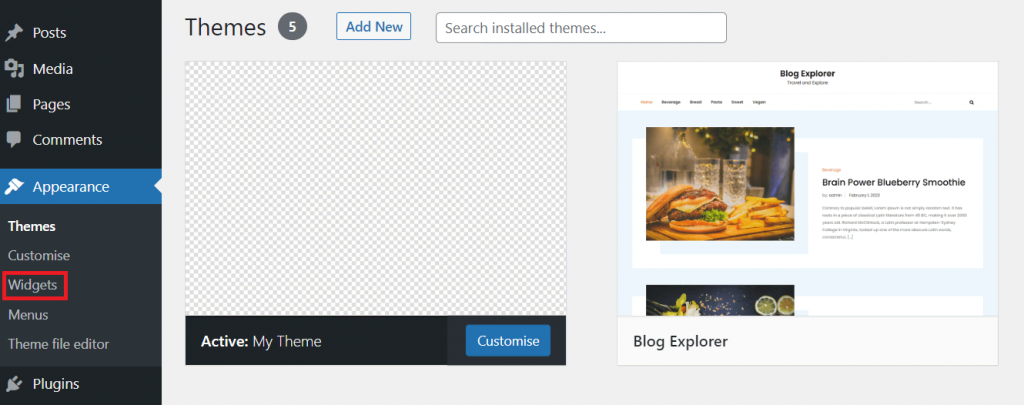
Look on the left side menu. Find the Appearance option. Click on it to see more options. Choose Themes from the list. Now you are ready to upload your own theme.
Uploading Your Theme
Begin by logging into your WordPress dashboard. Find “Appearance” on the left menu. Click “Themes”. Look for the button named “Add New“. Then, press “Upload Theme“. Choose the theme file from your computer. Make sure it’s a .zip file. Click “Install Now” and wait.
Once installed, activate the theme. Your site will look different. You can now customize your theme. Use the “Customize” option in the menu. Have fun changing colors and layouts. Make your site look great.
Sometimes, errors happen. Check if your theme file is correct. Make sure it is a .zip file. If the error continues, contact the theme developer. They can help you fix the issue.
Try using a different browser. Sometimes that helps. Clear your browser cache. This can solve many problems. Don’t worry, it’s usually an easy fix.

Credit: wordpress.com
Activating Your Theme
Previewing the Theme helps see how it looks. Click on “Appearance.” Then, choose “Themes.” Find your uploaded theme. Click “Live Preview.” Check if it looks good. Make sure everything works. Colors, fonts, and layout. Check the header. Look at the footer. Click through pages.
Activating and Customizing is next. Click “Activate.” Your theme is now live. Go to “Customize.” Change colors and fonts. Adjust the layout. Add widgets. Update the header image. Change the site title. Look at the menu. Save your changes. Your theme is now ready.
Troubleshooting Common Issues
Uploading your own theme to WordPress can be tricky. Check file formats and sizes before uploading. Use an FTP client if issues persist.
Compatibility Problems
Themes may not work with all plugins. This can cause errors. Check if the theme is compatible with popular plugins. Update the theme and plugins regularly. Updates help fix bugs and improve compatibility. Always backup your site before making changes. This prevents data loss. Developers often provide support forums. Use them to ask questions and get help. Reading reviews can also be helpful. They often mention compatibility issues.
Missing Theme Features
Sometimes themes lack certain features. This can be frustrating. You may need a custom feature. Check the theme options first. Some themes offer additional settings. If not, search for plugins that add features. Many plugins can enhance a theme. They provide extra functionalities. Try contacting the theme developer. They might offer a solution. Developers can sometimes add new features. This can improve your site’s look and feel.
Enhancing Your Theme
Custom widgets make your site unique. They add special features. These features improve user experience. Widgets can be added easily in WordPress. Go to the appearance section. Click on widgets. Choose a widget you like. Drag it to your sidebar or footer. You can customize each widget. Change its settings as needed. Make sure the widget matches your theme style.
Adding Custom Widgets
Plugins add new tools to your website. They help in many ways. You can find plugins in the WordPress library. Search for the plugin you need. Click on install. Then activate the plugin. Some plugins need settings changes. Follow the plugin guide for help. Plugins can boost site functions. Use them wisely for the best results.
Incorporating Plugins
Frequently Asked Questions
How Do I Upload My Theme In WordPress?
To upload a theme in WordPress, go to your dashboard. Click on “Appearance,” then “Themes,” and select “Add New. ” Click “Upload Theme,” choose your theme file, and hit “Install Now. ” Finally, activate the theme to apply it to your site.
How Do I Manually Add A Theme To WordPress?
Access your WordPress dashboard. Navigate to Appearance > Themes. Click ‘Add New’ and then ‘Upload Theme’. Select the theme ZIP file from your computer. Click ‘Install Now’ and then ‘Activate’. Your theme is now manually added and activated.
How Do I Upload A Custom Template To WordPress?
To upload a custom template to WordPress, access your WordPress dashboard. Navigate to Appearance > Themes. Click “Add New” and then “Upload Theme. ” Choose your template file, then click “Install Now. ” Activate the theme once installed. Ensure the template is compatible with your WordPress version.
How Do I Use A Custom Theme In WordPress?
Install your custom theme by navigating to WordPress dashboard. Click on “Appearance,” then “Themes,” and “Add New. ” Upload your theme file, click “Install Now,” and activate it. Customize through “Appearance” and “Customize” to fit your design needs. Ensure theme compatibility and updates for smooth performance.
Conclusion
Uploading your own theme to WordPress is simple with these steps. You can add a personal touch to your website. Remember to back up your site before making changes. This ensures your data stays safe. Follow each step carefully. Customize your theme to match your style.
Try different designs and layouts. Experimenting helps you discover what works best. Stay creative and make your site unique. Enjoy the process and have fun. Now, your WordPress site will truly reflect you.


