
Imagine transforming your WordPress site into a captivating masterpiece that perfectly reflects your brand’s personality. It starts with uploading a custom theme.
This exciting step not only enhances the look and feel of your website but also boosts its functionality. You might be wondering if it’s complicated—it’s not. With just a few steps, you can have your unique theme live, catching the eyes and hearts of your visitors.
Ready to make your site stand out? Let’s dive into the simple process of uploading a custom theme to WordPress, and watch your website transform!
Preparing Your Theme Files
Upload your custom theme to WordPress by preparing theme files in a ZIP format. Navigate to the WordPress dashboard, select Appearance, then Themes, and click Add New. Choose Upload Theme, select your ZIP file, and hit Install Now to complete the process.
Organizing Theme Folder
Your theme folder must be neat. Make sure to include all necessary files. These files are important for your theme to work. Common files include style.css, functions.php, and index.php. Create subfolders for images, scripts, and templates. This keeps everything tidy. A well-organized folder helps in easy installation.
Ensuring Compatibility
Check if your theme is compatible with WordPress. Use the latest version for best results. Older versions might not support new features. Test your theme on different browsers. This helps find errors. Make sure your theme works on mobile devices too. Many users visit websites on phones. Compatibility is key for a smooth experience.

Credit: www.namecheap.com
Accessing WordPress Dashboard
First, open your browser. Type your website’s URL. Add /wp-admin at the end. This will take you to the login page. Enter your username and password. Click on Login. You will now see the WordPress dashboard.
Look at the left side menu. Find the word Appearance. Click on it. A new menu will open. This is where you manage themes. You can add, remove, or change themes here.
Uploading Your Theme
Begin by accessing the WordPress Dashboard. Click on Appearance, then select Themes. Look for the Add New button at the top. Click it. Now, choose the Upload Theme option. Select the theme file from your computer. It should be a .zip file. Click Install Now. Wait for WordPress to upload the theme. Once uploaded, activate it by clicking Activate. Your new theme is ready. Enjoy your custom design!
Facing issues? Check the file size. Make sure it’s not too large. Ensure the file is a .zip format. Check your internet connection. Sometimes, a slow connection can cause problems. Review your server settings. Sometimes limits need adjustment. If errors persist, contact your hosting provider. They can offer help. Always ensure WordPress is updated. Outdated versions may cause issues. Keep plugins updated too. They can affect theme uploads. These steps solve most upload problems.
Activating Your Theme
Previewing your theme is an exciting step. You can see how your site looks. Go to the WordPress dashboard. Click on Appearance, then Themes. Find your new theme. Click on Live Preview. You can now see changes without making them live.
Ready to make it live? Find your theme in the Themes section. Click the Activate button. This will set it as your active theme. Your website now uses this theme. Visit your site to see the new look. Make sure everything works fine. Sometimes, minor tweaks are needed. Enjoy your new design!
Customizing Your Theme
The WordPress Customizer helps change your site’s look. You can pick colors and fonts. You can also add a logo. It’s fun and easy. You see changes right away. No need to know code. This tool is for everyone. Try different styles. Make your site feel like you. The Customizer is in the WordPress dashboard. Look for it under “Appearance.” Click “Customize.” Start making changes. Don’t worry about mistakes. You can always undo them. Explore different options. Find the best look for your site.
Some people like to edit theme code. This gives more control. You can change how your site works. Be careful with code. Mistakes can break your site. Always save a copy first. Use a child theme to keep the original safe. Find the code editor in the dashboard. Look for “Appearance,” then “Theme Editor.” Changes here need coding knowledge. Ask for help if unsure. Many guides are online. Learn step by step. Code can make your site special.
Checking For Functionality
Testing a theme’s features is crucial. Ensure all buttons and links work. Check if images load properly. Pages should display without errors. Pay attention to the theme’s layout. It must be consistent across different pages. Make sure the navigation menu functions smoothly. Test the contact forms. They should send messages without problems. Verify the social media buttons. Clicking them should lead to the correct pages. Responsive design is vital. The theme should look good on all devices. Test on phones, tablets, and computers. Ensure the theme supports plugins you need. If a feature doesn’t work, it might need fixing.
Resolving Compatibility Problems
Compatibility issues can arise. Themes might not work with certain plugins. Update all plugins and themes regularly. Outdated versions cause conflicts. Check if the theme is compatible with the latest WordPress version. Some themes need specific PHP versions. Ensure your server runs the required version. Use a staging site to test changes. This avoids breaking the live site. If problems persist, contact theme support. They often provide solutions. Consider switching themes if issues continue. Better compatibility ensures a smoother experience.
Managing Theme Updates
Uploading a custom theme to WordPress involves accessing the dashboard and selecting “Themes” under “Appearance. ” Click “Add New,” then “Upload Theme” to choose your file. After uploading, activate the theme to apply it to your site.
Monitoring For Updates
New updates keep your theme safe and fresh. Check for updates often. Look at your theme settings. Updates can show there. Visit the theme’s website. They may post news on updates. Set alerts in WordPress. Alerts can help you know about updates. Stay informed to keep your site secure.
Applying Updates Safely
Make a backup before updating. A backup protects your site. Test updates on a demo site. Testing avoids problems. Update at a quiet time. Fewer visitors mean fewer risks. Check your site after updates. Ensure everything works well. Restore if issues appear. Your backup is your safety net.

Credit: www.elegantthemes.com
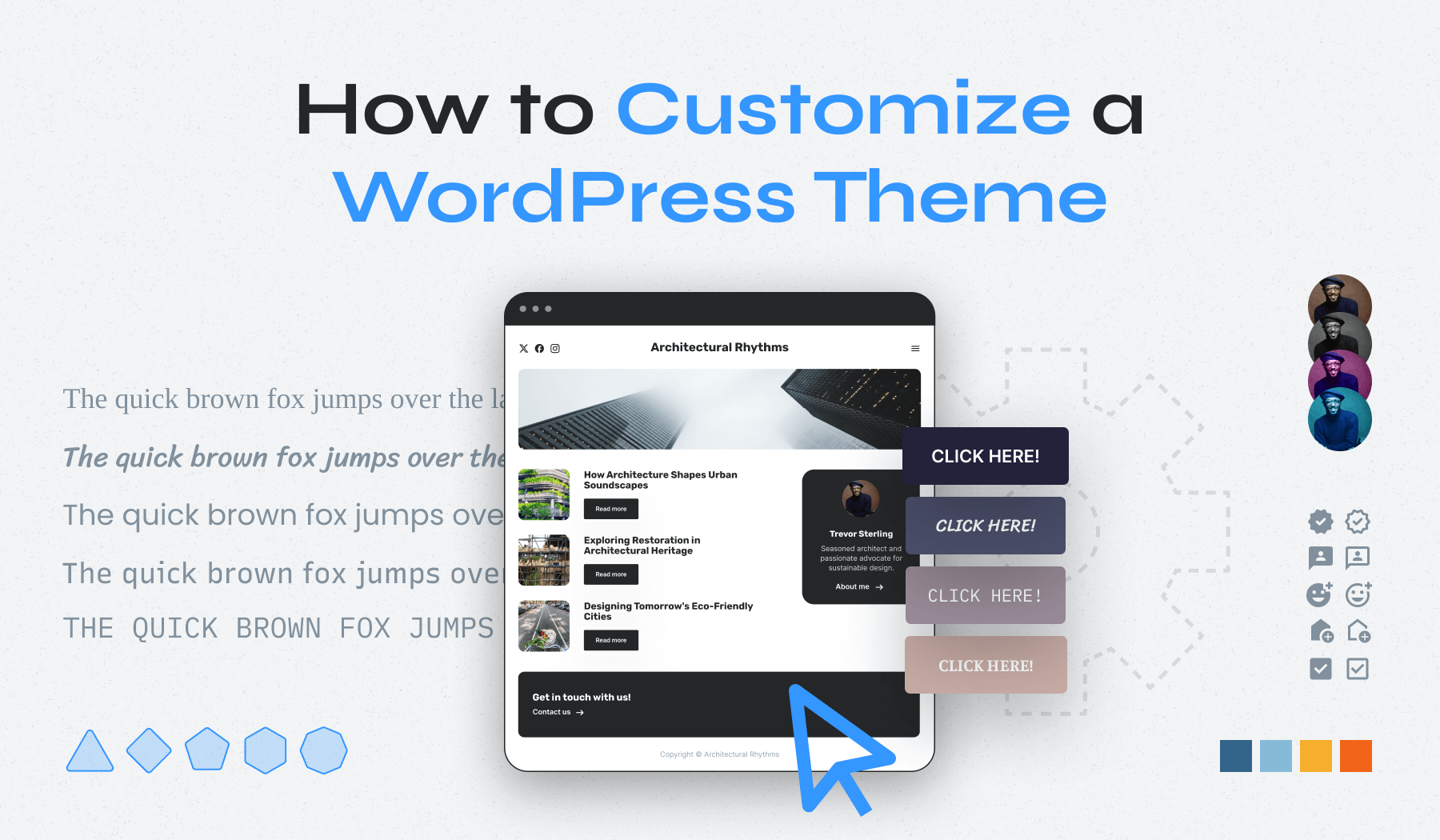
Credit: www.wpzoom.com
Frequently Asked Questions
How Do I Upload A Custom WordPress Theme?
Upload your custom WordPress theme by accessing the dashboard. Navigate to Appearance > Themes > Add New. Click ‘Upload Theme’ and select your theme file. Press ‘Install Now’, then activate your theme. Ensure your theme is in. zip format for smooth installation.
How Do I Upload A Custom Template In WordPress?
To upload a custom template in WordPress, access your dashboard. Navigate to Appearance > Themes. Click “Add New” and then “Upload Theme. ” Choose your template file, click “Install Now,” and activate it. Ensure the template is in. zip format for successful upload.
How To Install A Theme In WordPress Manually?
Go to WordPress dashboard and click “Appearance” > “Themes”. Click “Add New” > “Upload Theme”. Choose your theme file and click “Install Now”. After installation, click “Activate” to apply the theme.
How To Use A Custom Theme In WordPress?
Install your custom theme by navigating to “Appearance” then “Themes” in WordPress. Click “Add New” and select “Upload Theme”. Choose the theme file and click “Install Now”. Once installed, activate the theme by clicking “Activate”. Customize your theme in the “Customize” section under “Appearance”.
Conclusion
Uploading a custom theme to WordPress is simple and rewarding. It allows personalization that enhances your website’s appearance. Follow the steps carefully, and soon your site will stand out. Remember to check theme compatibility with WordPress versions. This prevents issues later.
Always back up your site before changes. It ensures safety for your data. Explore different themes to find what suits your needs best. Practice makes perfect, so keep experimenting. With these tips, your WordPress site will look unique and professional.
Enjoy creating and customizing with confidence. Your online presence is now in your hands.


