
Are you tired of your WordPress site looking like everyone else’s? Do you crave a unique design that truly represents you and your brand?
Customizing your WordPress theme is the key to standing out in the crowded digital space. Imagine transforming your website into a visual masterpiece that captivates visitors the moment they arrive. You don’t need to be a coding genius or a design guru to make this happen.
With just a few tweaks and some creative flair, you can personalize your WordPress theme to reflect your unique style and purpose. In this guide, we’ll walk you through the simple steps to customize your theme, helping you create a memorable online presence that keeps your audience coming back for more. Dive in, and let’s unlock the potential of your website together!
Credit: kinsta.com
Choosing The Right Theme
Selecting the ideal theme is crucial for customizing WordPress effectively. A well-chosen theme supports user-friendly design and functionality. Start with themes that align with your brand’s style and purpose.
Understanding Theme Types
WordPress offers many theme types. Each type serves a different purpose. Some themes are free. Others require payment. Free themes are great for beginners. They are easy to use. Premium themes have more features. They offer better support. Choose a theme that fits your needs. Think about your site’s purpose. Blogs, shops, and portfolios need different themes. Make sure the theme is mobile-friendly. This helps users on phones. Test the theme before using it. This way you know it works well.
Evaluating Theme Features
Themes come with different features. Customization options are important. They let you change colors and fonts. Look for themes with built-in SEO tools. This helps your site rank better. Check if the theme supports plugins. Plugins add more functions to your site. Good themes load fast. Speed affects user experience. Make sure the theme is updated often. This keeps it secure. Read reviews before choosing. Reviews tell you if others like it. Choose wisely for the best results.
Installing A WordPress Theme
Start by logging into your WordPress Dashboard. On the left, find the Appearance option. Click it, then select Themes. Next, tap on Add New. You will see many themes. Pick one you like. Click Install and then Activate. Your theme is now live.
First, download your theme as a .zip file. Go to the WordPress Dashboard. Click on Appearance, then Themes. Tap on Add New. Choose Upload Theme at the top. Hit Choose File and find your downloaded file. Click Install Now. After uploading, click Activate. Your theme is ready to use.
Customizing Theme Settings
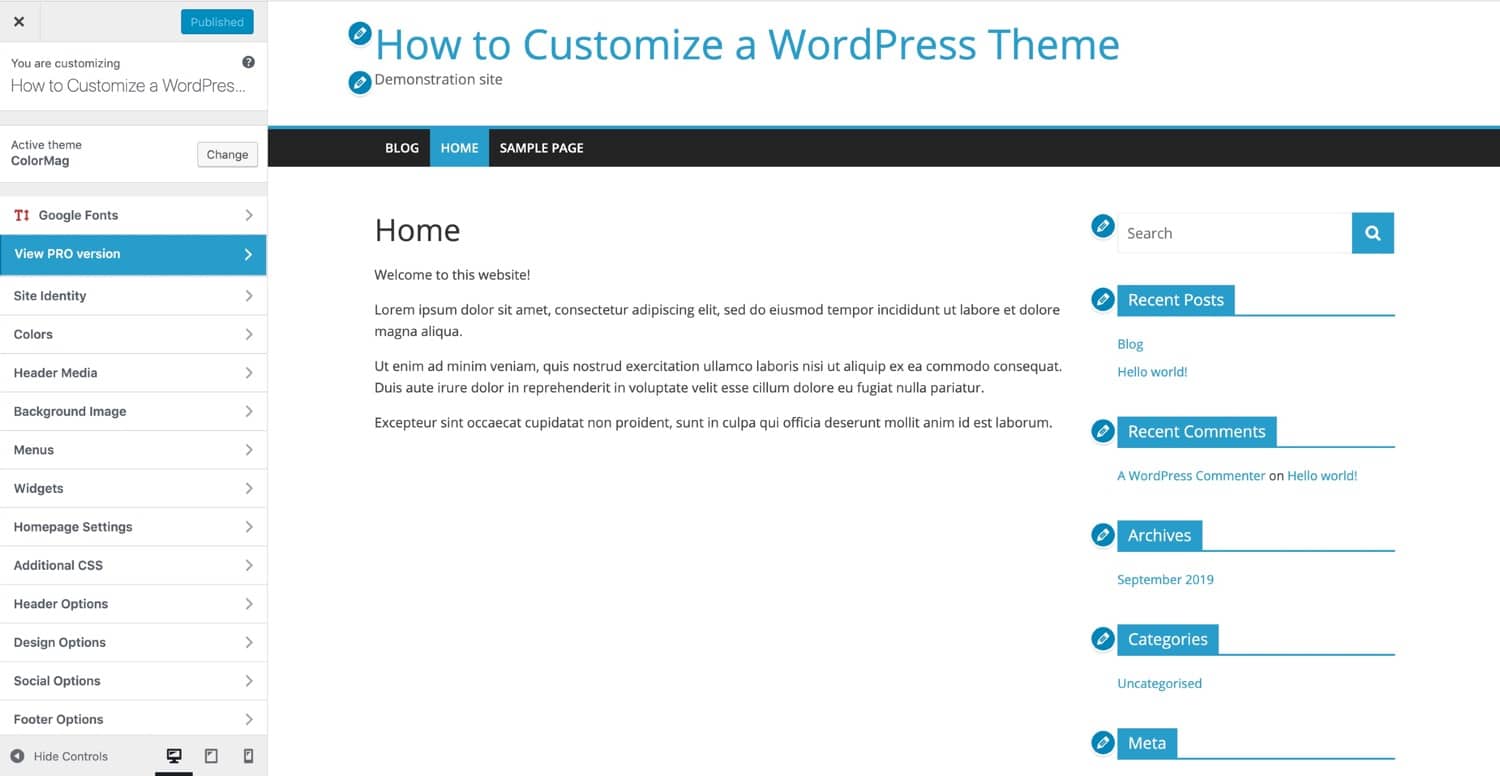
The WordPress Customizer is a tool to change your theme. It helps you see changes live. Open it from your dashboard. Click on “Appearance” and then “Customize”. You will see a menu on the left. This menu has many options. Explore them to find what you need.
Changing colors and fonts can make your site look unique. In the customizer, find the “Colors” option. Choose colors that match your brand. For fonts, look for “Typography”. Pick fonts that are easy to read. Make sure they look good with your colors.
Layout options help organize your site. Find the “Layout” section in the customizer. You can change the number of columns. Or, adjust the sidebar position. Try different settings to see what looks best. Always save your changes when done.
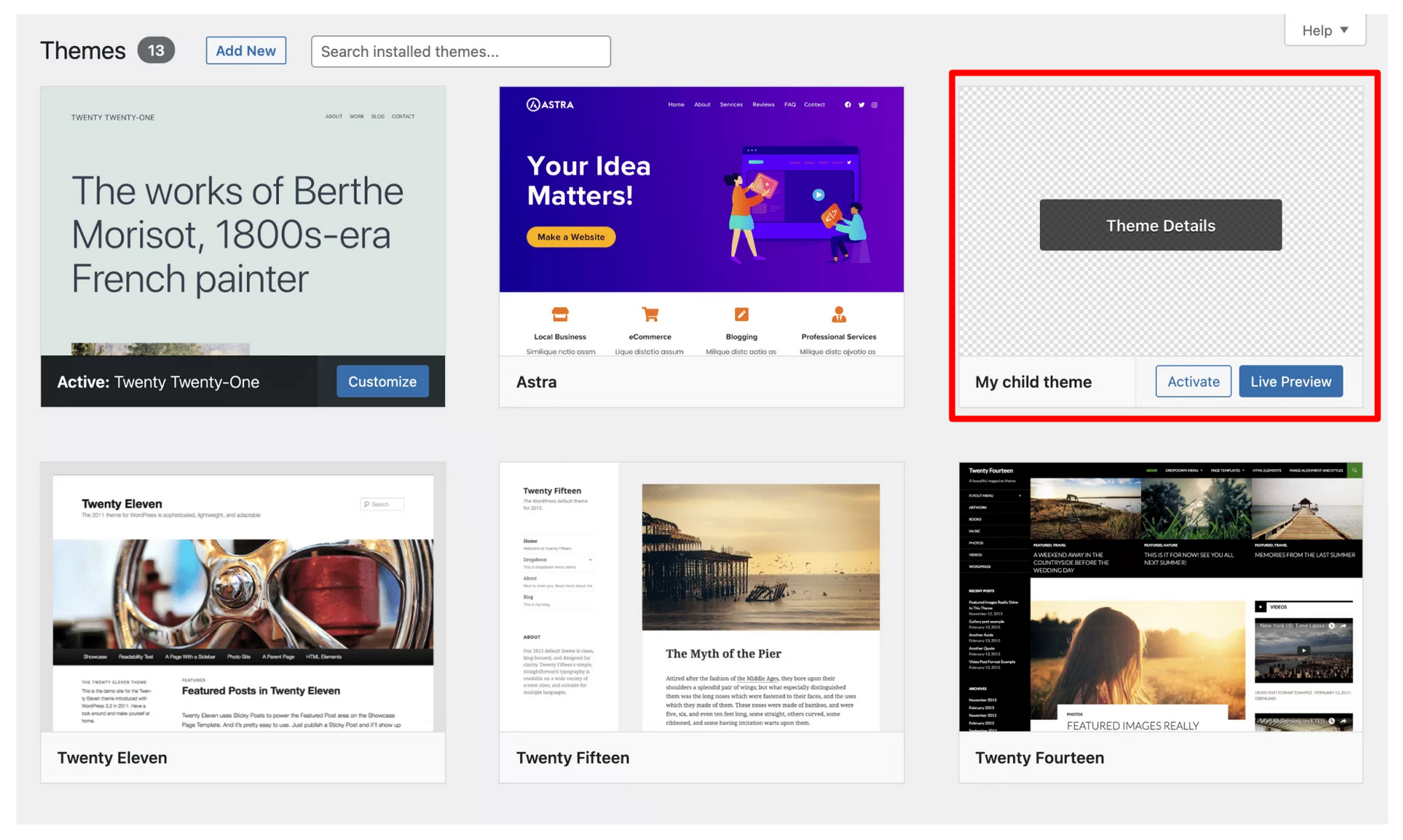
Using Child Themes
Child themes help keep changes safe. They protect your main theme from updates. To create a child theme, first make a new folder. Name it anything you like. Inside the folder, create a style.css file. This file tells WordPress about your child theme. Add the theme’s details in the file. Include the name of the parent theme. A functions.php file can also be added. This file lets you modify how the theme works. All changes go in the child theme’s folder. The main theme stays unchanged.
Editing CSS changes the look of your site. Open the style.css file to start. Add new styles or alter existing ones. For deeper changes, use PHP files. PHP changes how the site functions. Edit these files in the child theme folder. This way, the main theme remains intact. Always test changes. Make sure your site works well. Use simple CSS and PHP. Avoid complex codes. Keep things easy to understand.
Adding Custom Widgets
Exploring Widget Options opens a world of creativity. Widgets add functionality to your site. They can be placed in sidebars or footers. Popular widgets include search bars, calendars, and social media links. Each theme comes with its own widget options. Custom widgets can be created with plugins. Always check compatibility with your theme. Some plugins offer drag-and-drop features. This makes adding widgets simple. Choose widgets that suit your site’s purpose. Experiment to see what works best.
Integrating Widgets into Layout is straightforward. Use the WordPress dashboard. Find the “Appearance” section. Click on “Widgets”. You will see available areas. Drag your chosen widget to your desired spot. Customize settings as needed. Save changes to update your site. Widgets can be rearranged anytime. This helps keep your site fresh. Test how each widget looks and functions. Make sure they enhance user experience.
Incorporating Custom Code
Custom CSS helps change the look of your site. You can change colors, fonts, and sizes. This makes your site look unique. In the WordPress dashboard, go to Appearance and then Customize. You will find an option for Additional CSS. Paste your code there. Always check changes on the site. This keeps your site looking nice.
JavaScript adds special features to your site. It can make buttons do fun things. To add it, use a plugin like Insert Headers and Footers. You can also edit the theme’s header.php file. Place your script inside the tag. Be careful to not break your site. Test every change you make.
Optimizing Theme Performance
Customizing WordPress themes enhances site performance and user experience. Adjusting theme settings can improve loading speed significantly. Tailor design elements to match your brand while ensuring efficient functionality.
Improving Load Times
Fast websites make users happy. Slow sites can lose visitors. Start by optimizing images. Smaller images load quicker. Use tools to compress images without losing quality. Choose a reliable hosting service. Good hosts improve site speed. Enable caching to save data. Cached data loads faster on return visits. Minimize CSS and JavaScript files. Smaller files mean quicker load times. Use a Content Delivery Network (CDN). CDNs distribute content efficiently. They reduce server load. Regularly update your theme. Updates fix bugs and improve performance. Avoid using heavy plugins. Fewer plugins reduce load time.
Enhancing Mobile Responsiveness
Mobile users deserve good experiences. Ensure your theme is responsive. Responsive themes adapt to different screens. Use fluid grids and flexible images. Test your site on various devices. Check how it looks on phones and tablets. Optimize touch elements. Make buttons and links easy to tap. Simplify navigation for mobile users. Mobile menus should be easy to find. Ensure fast mobile load times. Compress files and use efficient coding. Regularly review mobile performance. Keep user experience a priority.
Credit: wpmarmite.com
Testing And Troubleshooting
Customizing WordPress themes involves testing and troubleshooting to ensure functionality. Identify errors by checking theme compatibility with plugins. Adjust settings to fix issues and optimize performance.
Checking Compatibility
Themes should work on all devices. Check your theme on a phone and a computer. Different browsers may show your site differently. Use Google Chrome, Firefox, and Safari to test. This way, your site looks good for everyone. Also, make sure plugins work with your theme. Sometimes, plugins and themes don’t get along. It can cause issues.
Resolving Common Issues
Themes can sometimes act up. A common issue is a broken layout. To fix, check your CSS code. Missing a semicolon can cause problems. Another issue is slow loading time. Large images can slow down your site. Try to use smaller images. Also, deactivate plugins that you don’t use. This can help speed up your site. If problems persist, consider reaching out for help.
Credit: kinsta.com
Frequently Asked Questions
How Do You Customize A WordPress Theme?
Customize a WordPress theme by accessing the theme editor or using a child theme. Modify CSS and PHP files directly. Use WordPress Customizer for layout changes. Install plugins for additional customization options. Always back up your theme before editing to prevent data loss.
Are WordPress Themes Fully Customizable?
Yes, WordPress themes are customizable. You can modify layouts, colors, fonts, and functionality using theme settings or custom code. Many themes offer drag-and-drop builders for easy customization. Plugins extend customization options further, allowing for unique designs tailored to your needs.
Always check theme documentation for specific customization features.
Why Can’t I Customize My WordPress Theme?
Your WordPress theme might lack customization options or require premium upgrades. Check theme settings for hidden features. Consider installing plugins or switching to a more flexible theme. Ensure your WordPress user role allows theme modifications. Always backup before making changes to avoid losing data.
How Do I Edit WordPress Theme Files?
Access your WordPress dashboard, go to Appearance, then Theme Editor. Choose the file you want to edit. Always back up your theme files before making changes. Use a child theme to prevent losing changes during updates. Avoid editing the core theme files directly.
Conclusion
Customizing WordPress themes can be simple and rewarding. Start small. Change colors or fonts. Experiment with layouts. Use child themes for safety. Backup your site regularly. Always preview changes before going live. Use online tutorials for guidance. Explore plugins for added features.
Keep your site’s purpose in mind. Stay creative but functional. Your visitors’ experience matters most. Enjoy the process. Each tweak brings you closer to a unique design. A design that reflects your style. Embrace this journey of personalization. Make your website stand out.
Keep learning and improving. Your efforts pay off in the end.


