
Are you tired of your WordPress site looking the same as everyone else’s? Do you want to refresh your blog or business website with a sleek, new look?
Uploading a new theme in WordPress can instantly transform your site’s appearance and functionality. It’s easier than you think and can make a huge difference in attracting and retaining visitors. Whether you’re aiming for a minimalist design or a vibrant, dynamic layout, the right theme can set the perfect tone for your content and brand.
Ready to give your site a fresh makeover? Stick around, and you’ll learn the simple steps to upload and activate a new theme in WordPress that will captivate your audience and make your site stand out.
Getting Started With WordPress
Sign up at the WordPress website. Use your email to create an account. Choose a strong password for safety. After signing up, check your email. Click the link to verify your account. You can now log in to WordPress. This is the first step to start your journey.
Log in to your account. Find the dashboard on the screen. It has many options. Click on different sections to explore. Find posts, pages, and settings. The dashboard lets you control everything. It’s the main place for changes. Take time to learn about each part. Soon, you’ll feel confident using it.
Credit: zelar.febraz.org.br
Choosing The Right Theme
Themes change the look of your site. They can make it look modern or classic. WordPress has many themes to choose from. Some themes are free, some are paid. Free themes are good for beginners. Paid themes have more features.
Not all themes fit all websites. Check compatibility with your WordPress version. Read reviews from other users. They tell you if the theme is good or bad. Look for themes that update often. This keeps your site safe from hackers.
Some themes are fast, while others are slow. A fast theme helps your site load quickly. This makes visitors happy. Responsive themes work on phones and tablets. This is important as many people use phones to browse.
Design is important. Pick a theme that matches your site’s style. Customization lets you change colors and fonts. Some themes allow more changes than others. Support is vital if you need help. Choose themes that offer good support.
SEO-friendly themes help your site rank better in search results. This means more people can find your site. Accessibility ensures everyone can use your site, even those with disabilities. A good theme considers all these factors.
Preparing For Theme Installation
Ensure your website is safe. Always back up your site before changes. Use a backup plugin to save your content. Files and databases need to be secure. Store backups in a safe place. This way, your data is safe if things go wrong.
Ensure the new theme fits your WordPress version. Check if it works with your plugins. Some themes may not be compatible. Always read the theme details. Look for user reviews and ratings. This helps in making the right choice. A good theme keeps your site running smoothly.
Uploading Your New Theme
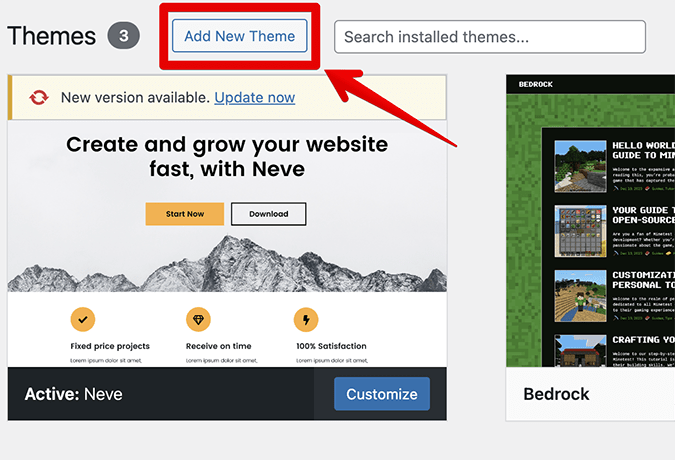
WordPress has a theme directory. It is easy to use. First, open your WordPress dashboard. Next, go to Appearance and click Themes. Here, you can see many themes. Click Add New to find more themes. Use the search box to find themes you like. Preview the theme to see how it looks. If you like it, click Install. After installation, click Activate. Now your new theme is live.
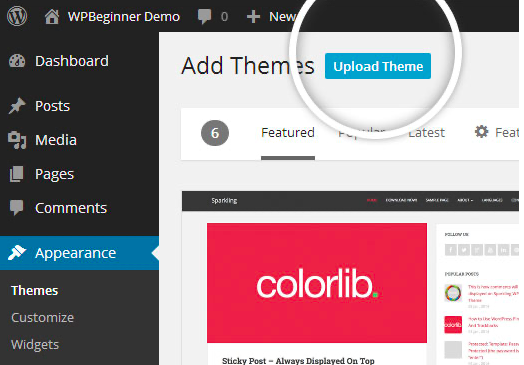
You can upload themes using a ZIP file. Start by downloading the theme ZIP file. Go to your WordPress dashboard. Click Appearance, then Themes. Click Add New, then Upload Theme. Find the ZIP file on your computer. Select the file and click Install Now. After installation, click Activate. Your new theme is now active.
Activating Your New Theme
After uploading, the new theme needs to be activated. Go to your dashboard. Click on Appearance. Then select Themes. Find your new theme. Click Activate. Your site will now use the new theme.
Make sure to check everything. See if anything is broken. If something looks wrong, you can switch back. Just activate the old theme again. It’s that simple.
Themes have different settings. Go to Appearance and click Customize. Here you can change colors, fonts, and more. Make it look nice. Adjust it to fit your style. Some themes have more options. Explore them to get the best look.
Before making it live, preview your theme. Click Live Preview under the theme. This shows how your site will look. Check every page. Make sure it looks good. You can make changes here. Once happy, click Save & Activate.
Credit: www.crazyegg.com
Troubleshooting Common Issues
Resolving installation errors can be simple. Sometimes, themes fail to install. This could be due to incorrect file format. Ensure the theme file is in .zip format. Check your WordPress version. Some themes need updated versions. Enable debug mode for more information. This helps find errors quickly.
Fixing display problems is important. Themes might not look right. This could be due to cache issues. Clear your browser cache. Sometimes, plugins can cause conflicts. Disable plugins one by one. Check if the theme displays correctly. Another solution is to reinstall the theme. Sometimes this fixes display problems.
Enhancing Your Theme
Discover the steps to upload a new theme in WordPress effortlessly. Navigate to the dashboard, click “Appearance,” and select “Themes. ” Choose “Add New,” upload your theme file, and activate it. Enjoy your enhanced website design quickly and easily.
Adding Plugins
Plugins add features to your WordPress site. Choose plugins carefully. Some plugins slow your site. Look for plugins that are updated often. Read reviews before installing a plugin. Always check plugin compatibility with your theme. Popular plugins include SEO tools and contact forms. Install plugins from the WordPress repository. Avoid downloading plugins from unknown sources. This keeps your site secure.
Optimizing Performance
Performance affects user experience. A slow site loses visitors. Use caching plugins to speed up your site. Optimize images to reduce loading time. Minimize CSS and JavaScript files. Regularly check for theme updates. Updates fix bugs and improve speed. Delete unused plugins to free up space. Always backup your site before making changes. Monitor your site’s performance regularly.

Credit: www.linkedin.com
Frequently Asked Questions
How Do I Upload A New Theme To WordPress?
Upload a new theme by accessing your WordPress dashboard. Navigate to “Appearance” and select “Themes. ” Click “Add New,” then “Upload Theme. ” Choose your theme file and hit “Install Now. ” Finally, activate your theme to apply changes. Ensure your theme is compatible with your WordPress version.
How Do I Activate A New Theme In WordPress?
Go to your WordPress dashboard. Click “Appearance,” then “Themes. ” Find the theme you want. Click “Activate. ” Your new theme is now active.
How To Install A Theme In WordPress Manually?
Download the theme ZIP file, then go to WordPress Dashboard. Click ‘Appearance’ > ‘Themes’ > ‘Add New’. Select ‘Upload Theme’, choose the ZIP file, and click ‘Install Now’. After installation, click ‘Activate’ to enable the theme.
How Do I Add A New Template To WordPress?
To add a new template in WordPress, go to Appearance > Themes. Click “Add New,” upload your template, and activate it. Ensure the template is compatible with your WordPress version for best results.
Conclusion
Uploading a new theme in WordPress is straightforward. Follow each step carefully. Choose a theme that fits your style. Always back up your site first. Check theme compatibility with your plugins. Preview before activating to ensure it looks right. Customization options vary, so explore them.
Update themes regularly for security. Themes change the look of your site instantly. Keep experimenting with new themes. They help make your site unique. Now, you can refresh your WordPress site with ease. Remember, a good theme improves user experience.
Happy blogging!


