
Have you ever come across a beautifully designed website and wondered what WordPress theme it’s using? You’re not alone.
The right theme can make a world of difference for your site, impacting both aesthetics and functionality. Imagine the possibilities if you could easily find out which theme is behind those stunning layouts you admire. This guide will reveal simple strategies to help you uncover the secrets of any WordPress theme.
By the end, you’ll be equipped with the knowledge to enhance your own site, taking it from ordinary to extraordinary. Ready to unlock these insights? Let’s dive in and empower your web design journey.
Credit: www.greengeeks.com
Identifying Theme With Browser Tools
Right-click on a website page. Choose “View Page Source.” This shows the HTML code. Search for theme name in the code. Look for lines that say “wp-content/themes/.” The name right after is the theme name. This is a simple way to find it.
Open the browser’s Developer Tools. Find the “Sources” tab. Look for folders named “wp-content.” Inside, locate “themes.” Check the CSS files for theme details. The stylesheet often has the theme name. It also lists author information.
Meta tags sometimes show theme details. In the page source, search for “meta” tags. These may include theme name or version. Not all sites have this info. But it’s worth checking.
Utilizing Online Theme Detectors
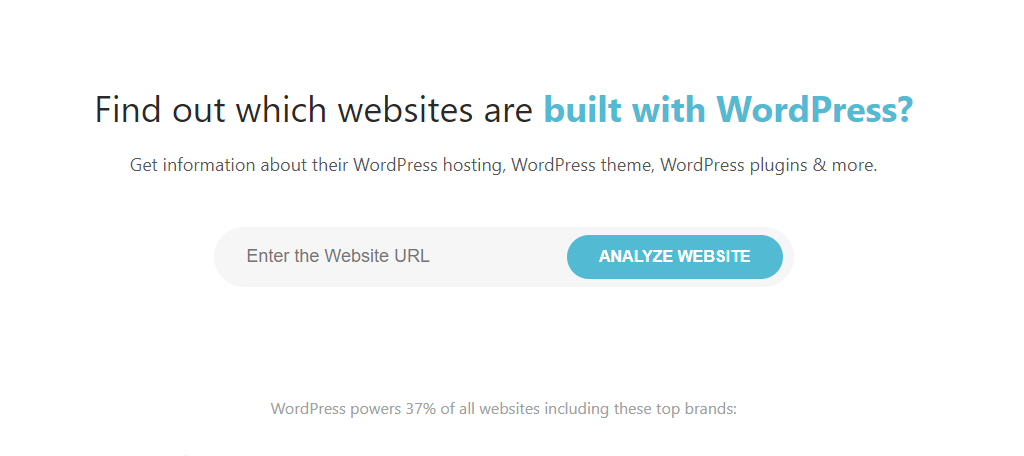
Online tools help find out a website’s theme. Some tools are very popular. WPThemeDetector is one of them. It shows detailed theme info. IsItWP is also a great tool. It is simple to use. WhatTheme can detect themes and plugins. These tools save time and effort.
Theme detectors have advantages and drawbacks. They are easy to use. Just enter the URL and get results. This saves time. But results are not always accurate. Some sites hide their theme details. This makes detection hard. Also, some tools may show ads. This can be annoying.
Exploring WordPress Theme Directory
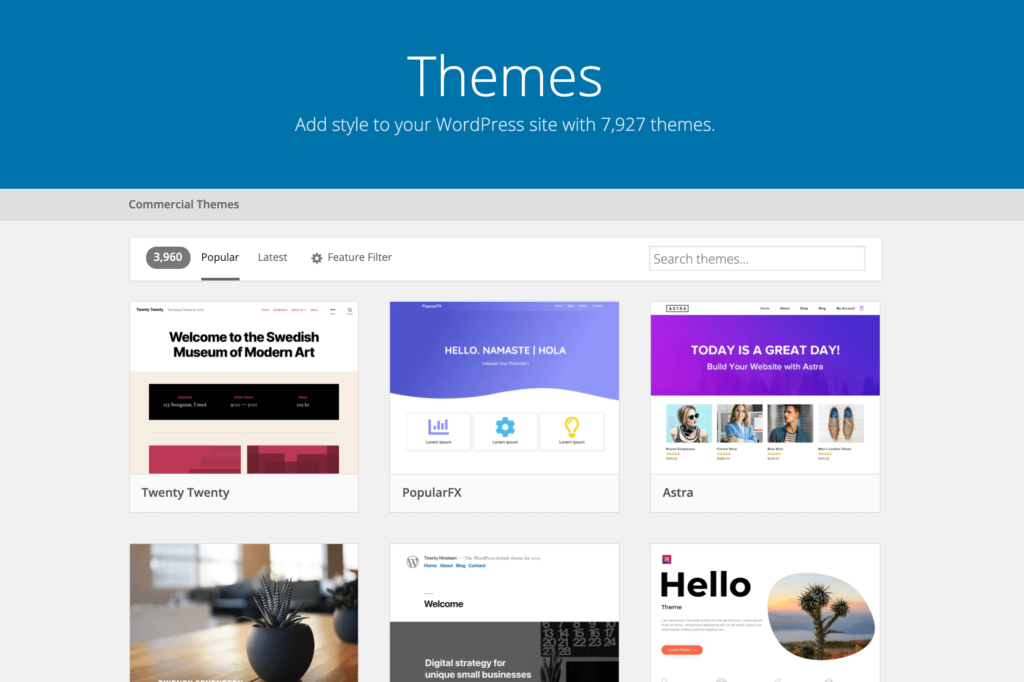
Many people want to know what theme a website uses. The WordPress Theme Directory is a good place to start. Enter the theme name in the search box. You can find many themes there. Each theme has a description and details. Read these to learn more about the theme. Some themes are very popular. Others are new and unique. Check the ratings and reviews too. They help in understanding the theme’s quality.
Theme filters help you find the right theme. You can filter by layout or features. Some people like themes with many colors. Others prefer simple designs. Filter by popularity to see what others like. This makes it easy to find a theme you will love. Filters save time and effort. The right theme makes a website look great.
Examining Website Footers
Discovering the theme of a WordPress site can be simple. Check the website’s footer. It often reveals theme details or links. This small area holds valuable information. Perfect for theme identification.
Common Footer Theme Indicators
Website footers often reveal theme details. Many themes show their name in the footer. This helps identify the theme used. Look for phrases like “Powered by” or “Theme by.” These phrases often point to the theme creator. Credits can be at the bottom of the page. They might link to the theme’s website. This is a common practice.
Recognizing Theme Credits
Theme credits provide valuable clues. They are often small text or links. Theme creators add these credits. It shows who made the theme. Sometimes, credits are hidden. Look closely to find them. Some websites remove these credits. They want to hide the theme. Look for unique footer styles. These styles can be a theme giveaway.
Consulting Browser Extensions
Many browser extensions help find out a website’s theme. They work fast and are easy to use. Some popular ones are Wappalyzer, BuiltWith, and Theme Detector. These tools are available for both Chrome and Firefox. They are free and give useful details about themes.
Installing these extensions is simple. Go to the extension store. Search for the tool you want. Click “Add to Chrome” or “Add to Firefox.” Once installed, click the icon on the browser. It will show you the theme name. Easy steps. Fast results. Now you can know what theme any site uses.
Credit: www.wpbeginner.com
Contacting Website Owners
Writing a polite message is important. Start with a friendly greeting. Introduce yourself briefly. Explain your interest in their website. Be clear about your request. Ask about the WordPress theme they are using. Keep your message short. Thank them for their time. Mention you appreciate their help. A friendly tone encourages a response.
Social media can help connect with website owners. Check if they have a Facebook or Twitter page. Send a message asking about their theme. Keep your message polite and brief. Sometimes they reply faster on social media. Follow their page for updates. Engage with their posts. This builds a connection. Being respectful increases your chances of getting a reply.
Analyzing Website Performance
Themes can affect website speed. A slow website may have a heavy theme. This makes loading times longer. People leave slow sites. A fast theme keeps users happy. Fast themes often use fewer images. They also use simple designs. This helps speed up the site.
Some themes are faster than others. Light themes load quickly. Heavy themes take more time. Fast websites do well in search results. They get more visitors. Slow websites lose visitors. Choose themes wisely. Fast themes improve user experience.
Simple themes load faster. Look for themes with clean code. Themes with fewer plugins perform better. Check how the website behaves. Quick loading means a well-optimized theme. A slow site may need theme improvements. Optimize themes for better speed.
Credit: torquemag.io
Frequently Asked Questions
How Do I Find Out What WordPress Theme A Site Is Using?
Use online tools like “What WordPress Theme Is That” to identify a site’s theme. Inspect the site’s source code for theme details in the “wp-content/themes” directory. Alternatively, check the website footer for theme credits or inquire directly with the site owner.
How Do I Know What Template My Website Is Using?
Check your website’s source code for template details. Use browser tools or inspect element feature. Search for theme or template name in the code. Alternatively, visit the admin panel or CMS dashboard, where template information is often listed. Contact your web developer for assistance if needed.
How Do You Tell What Version Of WordPress A Website Is Using?
Check the website’s source code for meta generator tags. View the WordPress version in the admin dashboard. Use online tools to detect the WordPress version. Inspect the “readme. html” file in the site’s root directory, if accessible. Ensure plugins or themes display version details in settings.
How Do You Find Out What WordPress Plugins A Site Is Using?
Use online tools like BuiltWith or Wappalyzer to detect WordPress plugins. Inspect the site’s source code for plugin paths. Check the site’s “wp-content/plugins” directory if accessible.
Conclusion
Finding a WordPress theme can be simple with the right tools. Use online tools to inspect the website’s code. Look for theme names in the source code or style sheets. Browser extensions can make theme detection easier. These methods help you discover the theme quickly.
Knowing a website’s theme can inspire your own projects. It also helps you understand design trends. With these tips, you’ll efficiently identify WordPress themes. Enjoy exploring and learning from different websites.


