Want to keep your visitors on your WordPress site longer and boost your page views? Adding related posts is one of the smartest ways to do just that.
When you show your readers content that matches their interests, they’re more likely to click and explore. But how do you add related posts without spending hours or needing technical skills? This guide will walk you through simple, effective steps to add related posts to your WordPress site and turn casual visitors into loyal followers.
Keep reading, and you’ll discover easy methods that anyone can use right away.
Credit: www.hostinger.com
Benefits Of Related Posts
Adding related posts to your WordPress site helps readers find more content they like. It makes your site more useful and interesting. Visitors stay longer and explore more pages. This section explains key benefits of related posts.
Increase User Engagement
Related posts catch the reader’s eye. They offer more topics that match the reader’s interest. Visitors click to read more articles. This keeps them active on your site. Active visitors are more likely to return.
Boost Seo Rankings
Search engines favor sites with more page views. Related posts create more links inside your site. This helps search engines find and rank your pages better. Your site becomes easier to discover online. It improves your search position.
Reduce Bounce Rates
Bounce rate means visitors leave quickly after one page. Related posts invite readers to continue browsing. They lower bounce rates by keeping people on your site. Lower bounce rates show search engines your site is valuable.
Choosing The Right Plugin
Choosing the right plugin to show related posts on your WordPress site matters a lot. The right plugin helps keep visitors longer and makes your site look professional. Not all plugins work the same way. Some are simple, while others have many features. Picking the best one depends on your needs and site goals.
Popular Related Post Plugins
Many plugins help display related posts. Some popular ones include Yet Another Related Posts Plugin (YARPP), Contextual Related Posts, and Related Posts for WordPress. These plugins are easy to use and have good reviews. They offer different ways to show related posts, like by category, tags, or content analysis. Try testing a few to see which fits your site best.
Criteria For Selection
Choose a plugin that loads fast and does not slow your site. It should match your theme and be mobile-friendly. Check if it allows customization of how posts appear. Good support and regular updates are important too. Look for plugins with clear settings and easy setup. Avoid those that cause conflicts with other tools.
Free Vs Premium Options
Free plugins offer basic features and work well for small sites. Premium plugins come with extra options like advanced layouts and better support. Decide based on your budget and the features you need. Sometimes free versions are enough for simple related posts. Paid versions suit larger sites or those wanting more control and style choices.
Manual Method For Adding Related Posts
Adding related posts manually in WordPress helps keep visitors engaged. It shows readers more content they might like. This method requires some basic WordPress knowledge but offers more control. It works well without relying on plugins. Below are simple ways to do it yourself.
Using Categories And Tags
Categories and tags group similar content together. Use them to find posts related to the current one. Display links to these posts below your content. This method uses built-in WordPress features only. Check which categories or tags the post belongs to. Then, query other posts with the same categories or tags. Limit the number of related posts shown for a clean look.
Custom Code Snippets
Create small PHP code snippets to fetch related posts. Use WordPress functions like WP_Query for this task. Write code that searches for posts in the same category or tag. Display the post titles and links below your article. Place this code in your theme’s functions.php file or a site-specific plugin. This method needs basic PHP and WordPress coding knowledge.
Template Modification Tips
Edit your theme’s template files to insert related posts. Common files include single.php or content-single.php. Insert your custom query and loop to show related posts. Style the output with CSS for a neat appearance. Use child themes to avoid losing changes during updates. Always back up files before editing templates.
Setting Up A Related Posts Plugin
Setting up a related posts plugin helps visitors find more content on your site. It keeps readers engaged by showing posts similar to what they just read. This section explains how to install, configure, and customize a related posts plugin for WordPress.
Installation Steps
Start by logging into your WordPress dashboard. Go to the Plugins menu and click “Add New.” Type “related posts” in the search bar. Choose a plugin with good ratings and many installs.
Click “Install Now” and then “Activate.” The plugin is now ready to use. Some plugins add a new menu item for settings.
Configuring Display Settings
Open the related posts plugin settings from the dashboard. Select where to show related posts. Common options include below posts or in sidebars.
Choose how many posts to display. Pick a method for selecting related posts, such as tags or categories. Save changes to apply your settings.
Customizing Appearance
Many plugins allow you to change how related posts look. Adjust the layout style like list or grid. Set thumbnail sizes and text fonts.
Match colors with your website’s design. Preview changes before saving. Good design helps readers notice related posts easily.
Optimizing Related Posts For Traffic
Optimizing related posts can boost your website’s traffic effectively. Showing readers more content keeps them on your site longer. This increases page views and lowers bounce rates. You can guide visitors to interesting articles that match their needs. Smart placement and relevant choices make related posts work best.
Placement Best Practices
Place related posts where visitors expect them. The end of an article is a common spot. Some sites add them in sidebars or below comments. Avoid cluttering the page. Keep the design clean and easy to scan. Test different positions to see what keeps readers engaged.
Choosing Relevant Content
Select posts that closely match the current article’s topic. Relevance encourages clicks and keeps readers interested. Use categories, tags, or keywords to find related articles. Avoid showing unrelated or outdated posts. Fresh, useful content keeps readers coming back.
Testing And Analytics
Track how visitors interact with related posts. Use tools like Google Analytics or WordPress plugins. Measure clicks, time spent, and bounce rates. Test different layouts and content choices regularly. Adjust based on data to improve results steadily.
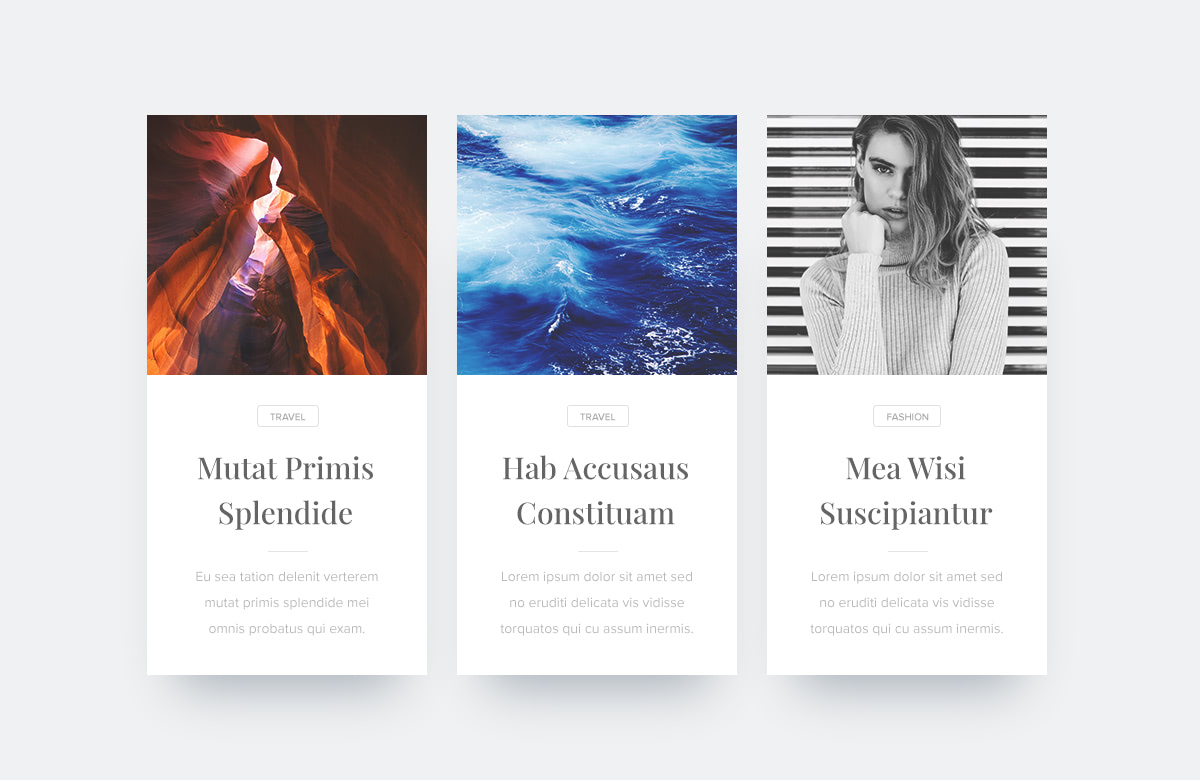
Credit: creativethemes.com
Troubleshooting Common Issues
Troubleshooting common issues with related posts in WordPress helps keep your site user-friendly. Problems can stop related posts from showing or slow down your site. Fixing these issues improves visitor experience and keeps your site smooth.
Plugin Conflicts
Plugins sometimes clash and cause related posts to break. Deactivate other plugins one by one to find the conflict. Clear your cache after each change to see results. Update all plugins to the latest versions for better compatibility.
Performance Impact
Related posts can slow your website if not optimized. Use lightweight plugins that do not load extra scripts. Limit the number of related posts to reduce server load. Test your site speed after adding related posts to ensure fast loading.
Display Problems
Related posts might not appear correctly due to theme issues. Check if your theme supports related posts or requires custom code. Clear your browser cache to see style changes. Adjust plugin settings to match your site’s design style.

Credit: cyberchimps.com
Frequently Asked Questions
What Are Related Posts In WordPress?
Related posts are blog entries linked by similar topics or tags. They keep readers engaged and improve site navigation.
How Do I Add Related Posts Using Plugins?
Install a related posts plugin like Yet Another Related Posts Plugin. Activate it and configure display settings in the dashboard.
Can I Add Related Posts Manually In WordPress?
Yes, manually add related posts by editing your theme files. Use custom queries based on tags or categories for accuracy.
Why Add Related Posts To My WordPress Blog?
Related posts increase page views, reduce bounce rates, and improve user experience by suggesting relevant content to readers.
Conclusion
Adding related posts boosts user engagement and keeps visitors on your site. It helps readers find content they like easily. Choose a method that fits your WordPress skills and site needs. Test different plugins or manual options to see what works best.
Keep your related posts relevant and updated often. Small changes like this improve your blog’s usability and reader experience. Start adding related posts today to make your site more helpful and interesting.