Are you ready to take control of your website but don’t know where to start? Opening your WordPress dashboard is the first step to managing your site like a pro.
It’s where you’ll create posts, change designs, and customize settings—all in one place. If you’ve ever felt stuck or unsure how to access this powerful hub, this guide is made just for you. Keep reading, and you’ll learn exactly how to open your WordPress dashboard quickly and easily, so you can get back to building the website you’ve always wanted.
Credit: www.inmotionhosting.com
Accessing Your WordPress Site
Accessing your WordPress site is the first step to managing your content. You need to find the right login page to reach your dashboard. This process is simple but essential for site control. The following sections explain how to locate your login URL and use hosting tools to access your site quickly.
Finding Your Login Url
Your WordPress login URL usually ends with /wp-admin or /wp-login.php. Add this to your website address in the browser. For example, www.yoursite.com/wp-admin takes you to the login page.
Some sites have custom login URLs for security. Check your setup or ask your developer if unsure. Bookmark your login page for easy access later.
Using Hosting Provider Tools
Many hosting providers offer tools to access your WordPress dashboard. Log in to your hosting account. Look for options like “WordPress Manager” or “One-Click Login.”
These tools let you enter your dashboard without typing your login URL. This saves time and avoids confusion. Hosting panels often show site details and quick access links.
Credit: www.youtube.com
Logging Into WordPress
Logging into WordPress is the first step to managing your website. It gives you access to the dashboard where you control everything. The process is simple and quick. Follow the steps carefully to avoid any issues.
Entering Username And Password
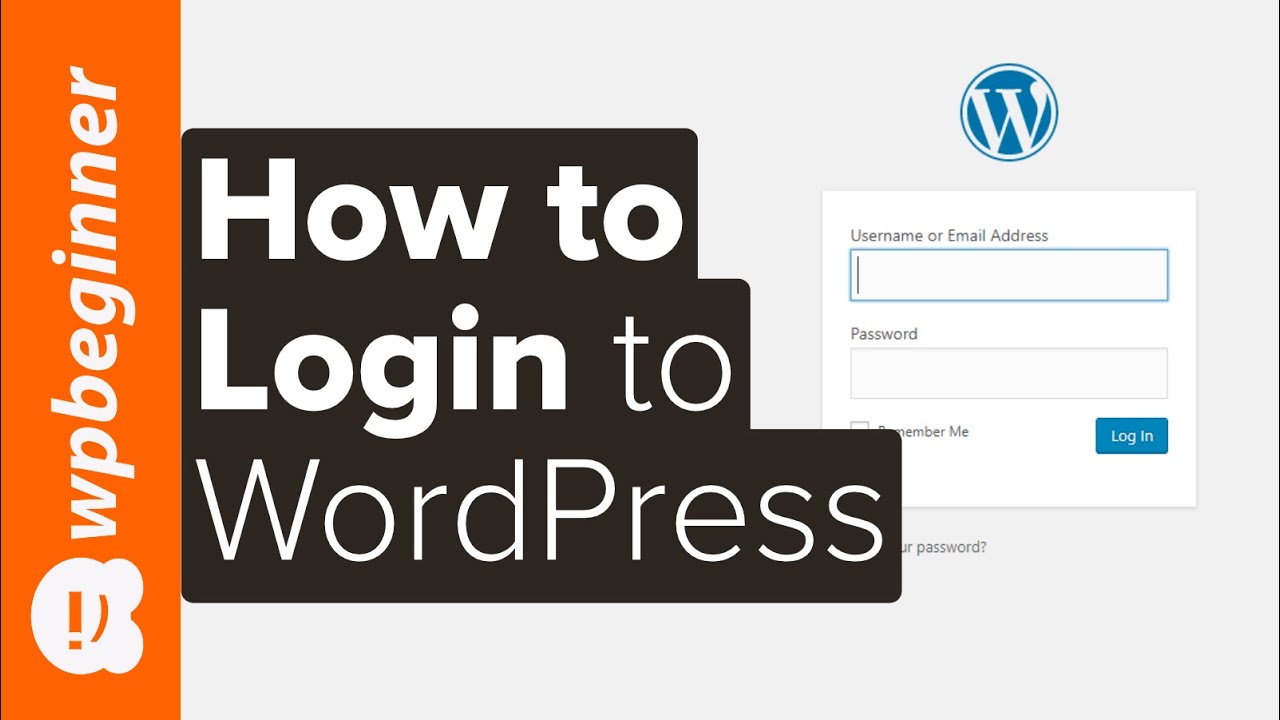
Open your web browser and go to the WordPress login page. Usually, it is yourwebsite.com/wp-admin or yourwebsite.com/wp-login.php. Enter your username in the first box. Then type your password in the next box. Both fields must be correct to log in. Click the “Log In” button to proceed.
Troubleshooting Login Issues
Sometimes, login problems occur. Check if your username and password are correct. Make sure your keyboard is typing the right letters. Clear your browser cache and cookies, then try again. Use the “Lost your password?” link to reset it. If problems continue, contact your hosting provider for help.
Navigating The Dashboard
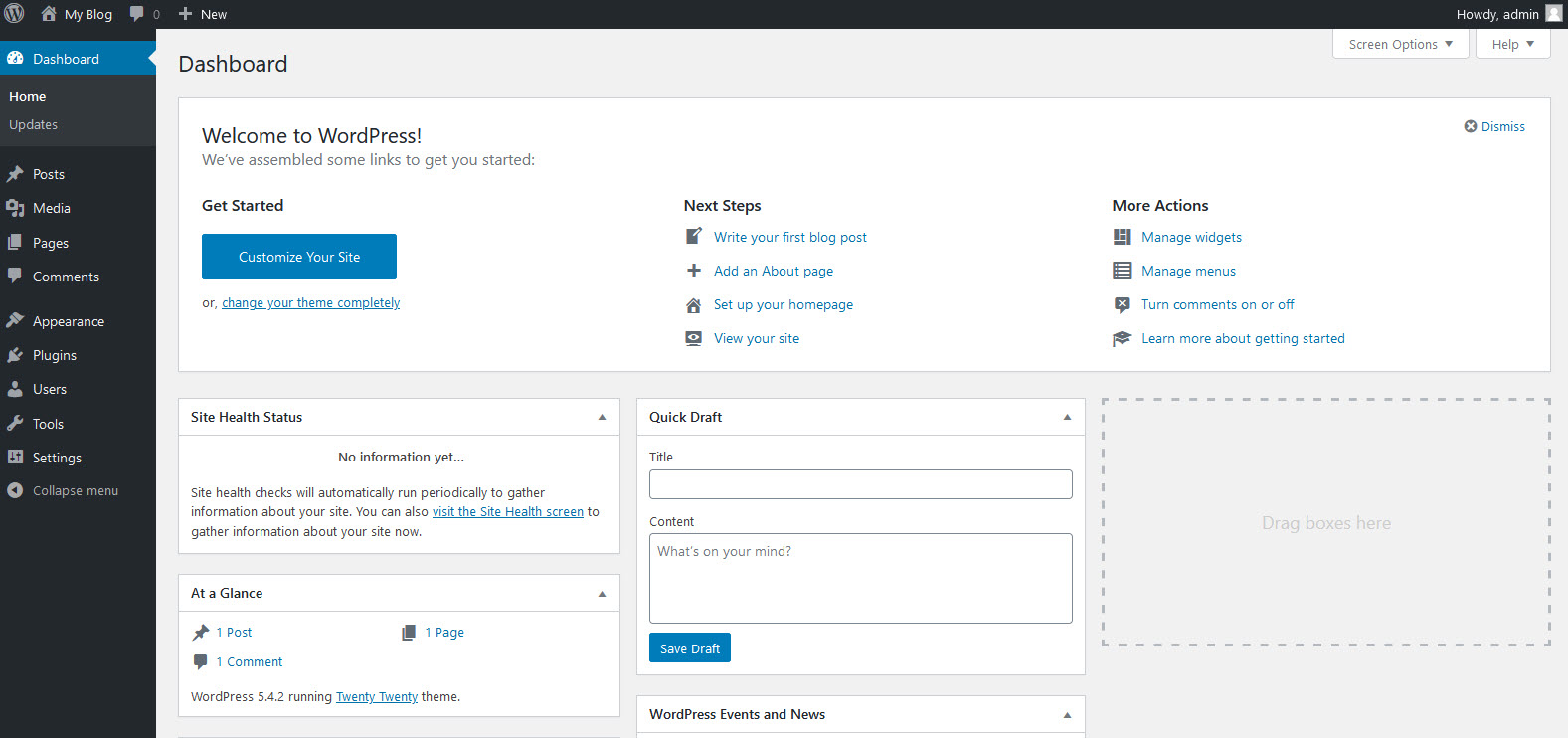
Navigating the WordPress dashboard is simple once you know the basics. The dashboard is the control center for your website. It gives you access to all tools needed to manage your site.
Understanding the layout helps you work faster and with less stress. The dashboard shows an overview and key menu sections. Each part has a specific role to help you manage content, settings, and more.
Dashboard Overview
The dashboard overview is the first screen you see after logging in. It shows a quick summary of your website’s status. You find widgets like recent posts, site activity, and updates here.
This overview helps you keep track of new comments and website performance. You can customize the dashboard by adding or removing widgets. This way, you see only what matters most to you.
Key Menu Sections
The main menu appears on the left side of the screen. It has different sections to manage your site’s content and settings. Each section opens a set of tools for specific tasks.
Common menu items include Posts, Pages, Media, and Settings. Posts let you create and edit blog entries. Pages manage static content like About or Contact pages.
The Media section stores images and files you upload. Settings control your site’s general options like site title and timezone. Learning these menu sections speeds up your work.
Customizing Your Dashboard
Customizing your WordPress dashboard helps you work faster and easier. You can change what you see and how it looks. This makes your dashboard fit your needs better. Small changes can make a big difference in your daily tasks.
Adding And Removing Widgets
Widgets are small boxes that show information or tools. You can add new widgets to get quick access to useful info. To add a widget, click the “Screen Options” tab and check the boxes. Remove widgets by unchecking the boxes you don’t need. This keeps your dashboard clean and simple.
Adjusting Screen Options
The Screen Options tab is at the top right of your dashboard. Click it to see choices for your layout. You can change how many columns you want. Show or hide different sections to fit your style. Adjusting these options helps you see what matters most.
Securing Your Dashboard Access
Keeping your WordPress dashboard safe is very important. It stops hackers from entering your site. Protecting this area helps keep your content and settings secure.
Strong security steps make your dashboard harder to break into. Simple actions can greatly improve your site’s safety.
Setting Strong Passwords
Choose passwords that are hard to guess. Use a mix of letters, numbers, and symbols. Avoid common words or simple patterns. Change your password regularly to stay safe.
Never use the same password for different accounts. Strong passwords protect your site from many attacks. Use a password manager if you find it hard to remember.
Enabling Two-factor Authentication
Two-factor authentication (2FA) adds an extra security step. Besides your password, you enter a code from your phone. This code changes every time you log in.
2FA makes it harder for hackers to access your dashboard. Even if someone knows your password, they need the code. Activate 2FA through your WordPress security plugin or hosting service.

Credit: www.interserver.net
Frequently Asked Questions
How Do I Access WordPress Dashboard Url?
To access your WordPress dashboard, add “/wp-admin” or “/wp-login. php” after your site’s domain name. For example, www. yoursite. com/wp-admin. Then, enter your username and password to log in securely.
What Are The Login Credentials For WordPress Dashboard?
Your WordPress dashboard login requires a username or email and a password. These credentials are set during installation or provided by your site admin. Keep them safe to protect your website from unauthorized access.
Can I Customize WordPress Dashboard Appearance?
Yes, WordPress allows dashboard customization. You can change the layout, add widgets, and modify colors via plugins or your user profile settings. Customizing improves your workflow and makes the dashboard easier to use.
What To Do If I Forget WordPress Dashboard Password?
If you forget your password, click the “Lost your password? ” link on the login page. Enter your email to receive a reset link. Follow the instructions to create a new password and regain access.
Conclusion
Opening the WordPress dashboard is simple and quick. Just enter your website’s URL followed by “/wp-admin” in the browser. Then, log in with your username and password. This access lets you manage posts, pages, and settings easily. Regular visits help keep your site updated and secure.
Don’t hesitate to explore the dashboard’s tools at your own pace. Soon, managing your website will feel natural and straightforward.