
Are you wondering if WordPress supports iframes and how they can enhance your website? You’re not alone.
Iframes can be a powerful tool to embed content like videos, maps, or other web pages directly into your site. But before you dive in, it’s important to know how WordPress handles them—and what you need to watch out for.
Keep reading to discover everything you need to make iframes work smoothly on your WordPress site.

Credit: www.liquidweb.com
WordPress And Iframes
WordPress allows the use of iframes to embed external content within your site. This feature helps include videos, maps, and other web pages directly inside your posts or pages. Understanding how iframes work in WordPress can improve your site’s content and user experience.
Iframe Basics
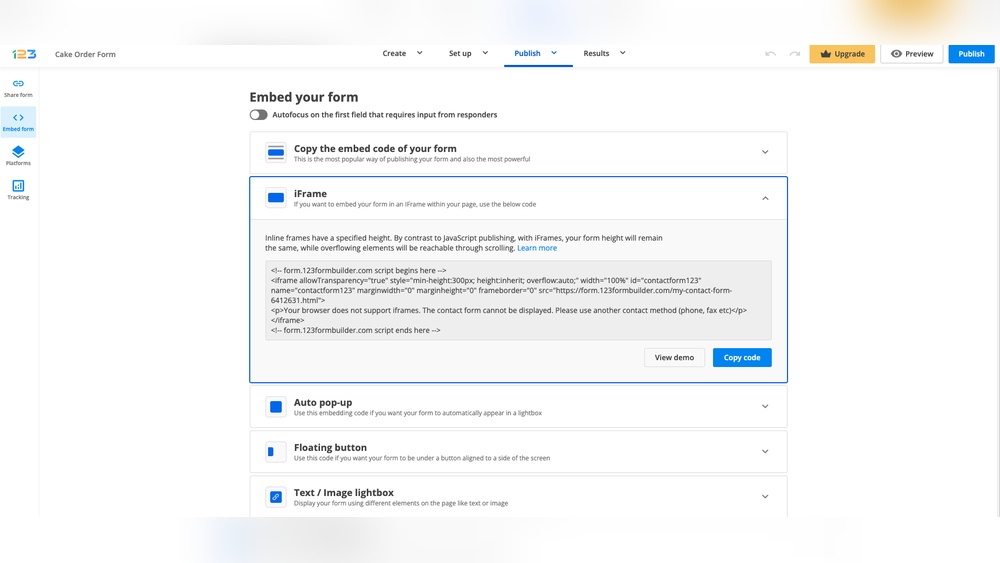
An iframe is an HTML element that shows another web page inside your page. It works like a window to another site. You add an iframe using simple HTML code with a URL inside it. WordPress supports iframes but sometimes blocks them for security reasons. You can add iframes through the HTML editor or use plugins to make it easier.
Common Uses For Iframes
Iframes are popular for embedding videos from YouTube or Vimeo. They also show Google Maps to help visitors find locations. Another use is displaying content like calendars, forms, or social media feeds. Iframes keep visitors on your site while showing outside content. This improves engagement and makes your site more dynamic.
Embedding Iframes In WordPress
Embedding iframes in WordPress allows you to display content from other websites directly on your pages. This is useful for videos, maps, forms, or any external content that supports iframe embedding. WordPress offers several ways to add iframes, depending on the editor or widget you use. Each method is simple and does not require advanced coding skills.
Using The Block Editor
The Block Editor, also called Gutenberg, makes adding iframes easy. Use the Custom HTML block to paste your iframe code. Simply add a new block, choose Custom HTML, and enter the iframe code. Preview the content to ensure it looks right before publishing. This method keeps your page clean and works well with most iframe sources.
Classic Editor Methods
The Classic Editor requires switching to the Text tab to add iframe code. In the Visual tab, iframe code does not show correctly. Paste the iframe code in the Text tab where you want the content to appear. Save or update the post to see the iframe live. This method suits users who prefer the older WordPress editing style.
Adding Iframes Via Widgets
WordPress allows iframe embedding inside widgets for sidebars or footers. Go to Appearance > Widgets and add a Custom HTML widget. Paste the iframe code inside this widget and save. The iframe will show on your site’s widget area. This method works well for adding maps, videos, or external content on all pages.
Security Considerations
Using iframes in WordPress can add useful content from other websites. Yet, iframes also bring security risks that website owners must know. Understanding these risks helps protect your site and visitors from harm.
Risks Of Iframe Usage
Iframes can load content from untrusted sources. This content might contain harmful scripts or malware. Attackers can use iframes to steal user data or inject harmful code. Iframes can also cause clickjacking, where users click hidden elements unknowingly. These risks make it important to be careful when adding iframes.
Safe Practices For Embedding
Only embed iframes from trusted and secure websites. Use HTTPS links to ensure secure connections. Set iframe attributes like sandbox to limit what the iframe can do. Avoid allowing scripts or forms inside the iframe unless necessary. Test your website regularly for security problems caused by iframes.
Plugins To Enhance Iframe Support
WordPress supports iframes but with some limits. Plugins help improve iframe use on your site. They add features to control how iframes work and appear. Plugins also make it safer to embed content from other sites.
Using plugins can help you display videos, maps, or other media easily. They also help fix common iframe problems like responsiveness and security.
Popular Iframe Plugins
Many plugins offer good iframe support. “Advanced iFrame” lets you customize iframe size and content. “Iframe” plugin is simple and easy to use. “Embed Any Document” helps you add documents via iframe. Each plugin has unique tools to fit different needs.
Features To Look For
Choose plugins with responsive iframe options. This makes iframes fit well on all screen sizes. Look for security features to block harmful content. Check if the plugin allows easy iframe resizing. Also, find plugins that support lazy loading to speed up pages. Good support and updates are important too.
Troubleshooting Iframe Issues
Troubleshooting iframe issues in WordPress can be tricky. Iframes do not always work smoothly due to different reasons. These problems can stop your content from showing correctly. Understanding common problems helps fix them quickly. Fixing display errors improves your site’s look and user experience.
Common Problems
One common issue is iframe content not loading. This can happen because of browser security settings. Some sites block their content from being shown in iframes on other domains. Another problem is iframe size. If the iframe is too small, content may be cut off or hard to see. WordPress themes or plugins can also interfere with iframes. They might add code that conflicts with iframe display.
Fixing Display Errors
Start by checking the iframe URL. Make sure it is correct and active. Use the full URL including “https://”. Next, adjust the iframe width and height. Use values that fit your page layout. Try adding inline CSS styles for better control. Disable plugins one by one to find conflicts. Switch to a default WordPress theme to test. Clear your browser cache to see changes. Use browser developer tools to spot errors. These steps often solve most iframe issues.

Credit: www.datawrapper.de
Alternatives To Iframes
Using iframes on WordPress can be tricky. Some websites block iframes for security reasons. Also, iframes can slow down your page load time. There are better ways to add external content to your WordPress site. These alternatives work well and keep your site fast and safe.
Using Shortcodes
Shortcodes are simple codes that add content or features. WordPress supports many shortcodes by default. You can also create custom shortcodes for specific content. Shortcodes let you embed videos, forms, and other media easily. They keep your pages clean and load faster than iframes. Many plugins offer shortcodes for popular services. Just copy and paste the shortcode where you want the content.
Embedding Via Apis
APIs let you connect your site with other services directly. This method pulls data or content without using iframes. It gives you more control over how content appears. APIs are useful for displaying social media feeds, maps, or live data. You can customize the look and feel to match your site. Many WordPress plugins use APIs to embed content smoothly. This approach improves site speed and security.

Credit: fixmysite.com
Frequently Asked Questions
Does WordPress Allow Embedding Iframes By Default?
Yes, WordPress supports iframes but restricts them in the visual editor. You can add iframes using the HTML block or by switching to the Text editor mode.
How To Safely Add Iframes In WordPress Posts?
To add iframes safely, use the HTML block or a trusted plugin. Avoid pasting iframes directly into the visual editor to prevent removal.
Can Iframes Affect WordPress Site Security?
Yes, iframes can pose security risks if from untrusted sources. Always embed content from reliable websites to protect your WordPress site.
Are There Plugins To Manage Iframes In WordPress?
Yes, several plugins allow easy iframe embedding and management. These plugins enhance security and customization options for iframe content.
Conclusion
WordPress does support iframes, but with some limits. You can add them using the Custom HTML block or plugins. Always check your theme and security settings first. Some sites may block iframe content for safety reasons. Use iframes carefully to keep your site fast and secure.
This makes your pages more interactive and useful. Overall, iframes work well with WordPress when used correctly. Try it out and see how it fits your needs.



