

Are you struggling to find a quick way to access your WordPress dashboard through GoDaddy’s cPanel? You’re not alone.
Many website owners get stuck when trying to manage their site efficiently. Imagine saving time and avoiding unnecessary clicks every time you want to update your content or check your site’s settings. In this guide, you’ll discover simple, step-by-step instructions that put you in control right away.
Keep reading to unlock a smoother, faster way to manage your WordPress site from GoDaddy’s cPanel.
Accessing Cpanel On Godaddy
Accessing the cPanel on GoDaddy is the first step to managing your WordPress site. It allows you to control your hosting environment and make changes easily. This guide shows you how to open the cPanel quickly. Follow the steps below to reach your dashboard without hassle.
Logging Into Your Godaddy Account
Start by visiting the GoDaddy website. Enter your username and password in the login fields. Click the “Sign In” button to access your account. If you have trouble logging in, use the “Forgot Password” link to reset it.
After signing in, you will see your account dashboard. This page lists all your products and services. Look for your hosting plan on this page.
Navigating To Cpanel Dashboard
Find the “My Products” section on your account dashboard. Locate your hosting plan under this section. Click the “Manage” button next to your hosting plan.
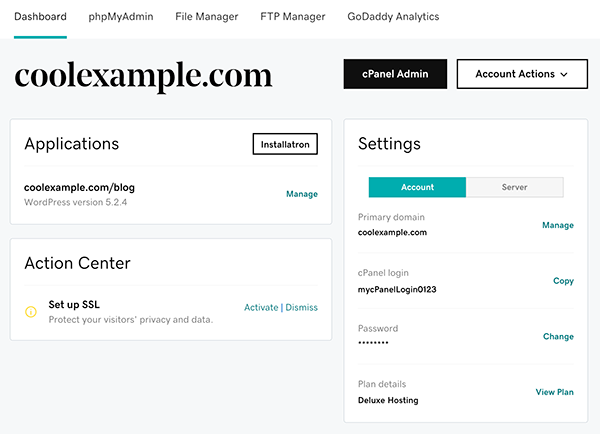
Inside the hosting management page, find the “cPanel Admin” button. Click it to open the cPanel dashboard. Now, you can manage your website files, databases, and emails.
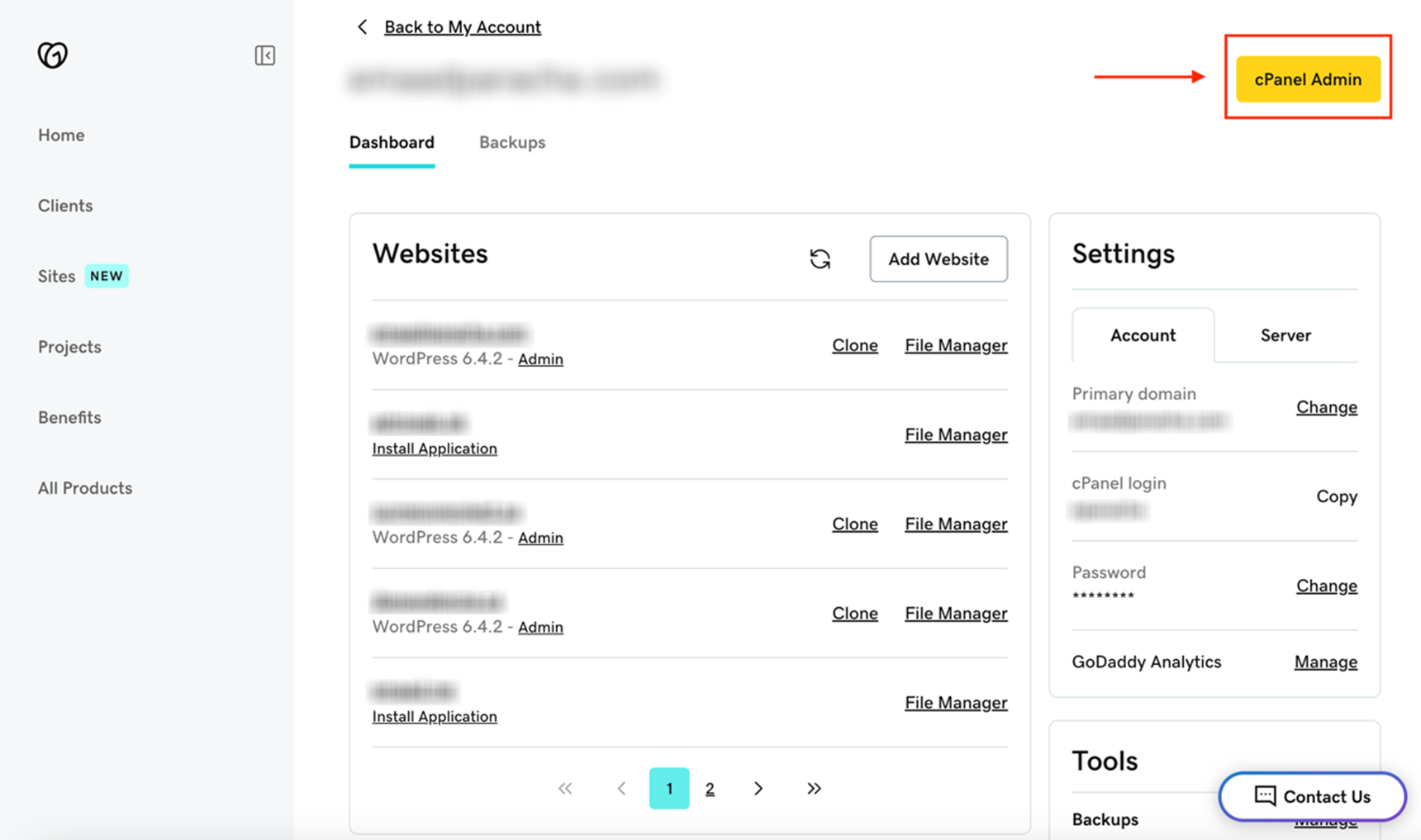
Credit: www.godaddy.com
Locating WordPress Installation
Finding your WordPress installation on GoDaddy’s cPanel is the first step to access your dashboard. Knowing where WordPress files are located helps you manage your site better. This guide shows you how to locate these files easily.
Using File Manager To Find WordPress Files
Log into your GoDaddy cPanel account. Locate the “File Manager” icon and click it. This tool lets you browse all the files on your server. Usually, WordPress files are stored in the “public_html” folder. Open this folder to start searching for your WordPress files.
Identifying The WordPress Directory
Look for folders like “wp-admin,” “wp-content,” and “wp-includes.” These folders confirm the presence of WordPress. If you see these, you found the WordPress directory. Sometimes, WordPress is installed in a subfolder inside “public_html.” Check any subfolders carefully to locate it.
Accessing WordPress Dashboard Via Url
Accessing the WordPress dashboard via URL is the fastest way to manage your site. The dashboard is where you control content, themes, and settings. Knowing the correct URL helps you log in quickly and safely.
Every WordPress site has a specific login address. This address is usually easy to find if you know the pattern. You can type the URL directly into your browser to reach the dashboard login page.
Constructing The Admin Url
Most WordPress sites use a standard format for the admin URL. Start with your website’s domain name. Then add /wp-admin at the end. For example, www.yoursite.com/wp-admin.
This URL takes you to the login screen. Enter your username and password to access the dashboard. Remember to replace yoursite.com with your actual website address.
Common Login Url Variations
Some sites use different login URLs for security reasons. The most common variations include /wp-login.php and /admin. Try www.yoursite.com/wp-login.php or www.yoursite.com/admin.
If these don’t work, check with your hosting provider or look for custom login URL settings. Using the right URL keeps your site safe and easy to manage.
Resetting WordPress Password From Cpanel
Resetting your WordPress password from cPanel is a useful skill. It helps when you forget your login details or cannot access your dashboard. This method lets you change your password directly from the database. It is a quick and safe way to regain access to your site.
Two common ways to reset the password from cPanel are using phpMyAdmin or creating a new admin user. Both methods work well and do not need WordPress login access.
Using Phpmyadmin To Change Password
First, log in to your GoDaddy cPanel account. Find and open phpMyAdmin under the Databases section. Select your WordPress database from the list on the left side.
Look for the table named wp_users. Click to open it. Find your username in the list. Click the Edit button next to your username.
In the user_pass field, change the function dropdown to MD5. Then, type your new password in the Value box. Scroll down and click Go to save changes.
Your WordPress password is now reset. Try logging into your dashboard with the new password.
Creating A New Admin User Via Database
This method adds a new admin user to your WordPress site. Open phpMyAdmin from your GoDaddy cPanel. Select your WordPress database.
Go to the wp_users table and click Insert. Fill in the fields:
- ID: Use a number not used by other users.
- user_login: Enter your new username.
- user_pass: Choose MD5 as the function and type your password.
- user_nicename: Enter a nickname.
- user_email: Use a valid email.
- user_status: Set to 0.
Click Go to add the user. Next, go to the wp_usermeta table and click Insert again. Add two rows for your new user:
- user_id: Use the same ID as above.
- meta_key: Set to
wp_capabilitiesandwp_user_level. - meta_value: Use
a:1:{s:13:"administrator";b:1;}for capabilities and10for user level.
Save the changes. Your new admin user can now log in to WordPress.
Troubleshooting Access Issues
Accessing the WordPress dashboard from cPanel on GoDaddy can sometimes face issues. Troubleshooting these access problems helps you regain control fast. Common problems include URL redirect errors and plugin conflicts. Both can block your login or freeze the dashboard. Fixing these issues requires simple steps anyone can follow.
Fixing Url Redirect Errors
URL redirect errors occur when your site sends you to the wrong page. This can happen after a site move or update. Start by checking your site URL settings in the WordPress database. Use phpMyAdmin in cPanel to find the wp_options table. Look for siteurl and home entries. Make sure both have the correct URL.
Clear your browser cache to remove old redirects. Also, check the .htaccess file in your root directory. Rename it temporarily to see if the redirect stops. If it does, reset the file with default WordPress rules. This can fix common redirect loops.
Dealing With Plugin Conflicts
Plugins can cause conflicts that block dashboard access. Disable all plugins at once using cPanel’s File Manager. Rename the plugins folder inside wp-content to something else, like plugins_backup. Try to log in again.
If you regain access, the problem is a plugin. Rename the folder back to plugins. Then, disable plugins one by one from the dashboard. This helps find the faulty plugin. Delete or replace it to avoid future issues.

Credit: www.youtube.com
Credit: www.godaddy.com
Frequently Asked Questions
How Do I Log Into WordPress Via Godaddy Cpanel?
To log in, first access your GoDaddy cPanel dashboard. Locate the WordPress installation under “Applications. ” Click “Manage” and then “Admin” to open your WordPress dashboard directly.
Can I Reset WordPress Password Through Godaddy Cpanel?
Yes, you can reset your WordPress password via cPanel. Use the “phpMyAdmin” tool, locate your WordPress database, and update the user password in the “wp_users” table.
What If WordPress Dashboard Link Is Missing In Cpanel?
If the link is missing, manually access WordPress by typing your domain followed by /wp-admin. Alternatively, check if WordPress is correctly installed in cPanel.
How To Find WordPress Database In Godaddy Cpanel?
In cPanel, go to “MySQL Databases” or “phpMyAdmin. ” You will see the database associated with your WordPress installation for management or troubleshooting.
Conclusion
Accessing your WordPress dashboard through GoDaddy’s cPanel is simple. Just follow the steps carefully. This method saves time and keeps your site management easy. You can update content, install plugins, and manage settings quickly. No need to remember extra login details.
Keep this guide handy for future use. Managing your website becomes smoother with this approach. Enjoy a hassle-free way to control your WordPress site anytime.


