

Are you looking to make your WordPress site truly yours? Adding custom HTML and CSS can give your website a unique look and feel that stands out from the crowd.
But if you’re not sure where to start or worried it might be too complicated, don’t worry. This guide will show you simple, step-by-step ways to add your own code without breaking anything. By the end, you’ll have the power to customize your site exactly how you want it—grab your keyboard and let’s get started!

Credit: kubiobuilder.com
Choosing The Right Method
Choosing the right method to add custom HTML and CSS in WordPress depends on your skill level and needs. Each method offers different control and ease. Pick the one that fits your comfort and goals. This guide breaks down three common ways to add custom code.
Using Theme Customizer
The Theme Customizer is the simplest way to add CSS. It does not require coding knowledge. Go to Appearance > Customize > Additional CSS. Paste your CSS code there. Changes show live before saving. This method keeps your custom styles safe during theme updates. It is best for small style tweaks.
Editing Theme Files
Editing theme files gives full control over HTML and CSS. Use a child theme to avoid losing changes after updates. Access files via Appearance > Theme Editor or FTP. Add custom HTML in template files and CSS in style.css. Be careful. Mistakes can break your site. This method suits users comfortable with code.
Using Plugins For Custom Code
Plugins simplify adding custom HTML and CSS without editing files. Popular plugins let you insert code snippets in headers, footers, or pages. They keep code organized and safe from theme updates. This method works well for beginners and advanced users. It offers flexibility without risking site stability.
Adding Custom Html
Adding custom HTML in WordPress allows you to personalize your website. It helps create unique content and design elements. HTML code can be inserted in different parts of your site. This section explains easy ways to add custom HTML.
Inserting Html In Posts And Pages
You can add HTML directly inside posts or pages. Use the WordPress block editor to insert a “Custom HTML” block. Paste or write your HTML code in this block. It shows a live preview of your code. This method is perfect for adding buttons, forms, or styled text inside content.
Adding Html Via Widgets
Widgets let you place HTML in sidebars, footers, or other widget-ready areas. Go to Appearance > Widgets in your dashboard. Add a “Custom HTML” widget to your chosen area. Enter your HTML code inside the widget box. Save and check your site to see the changes.
Embedding Html In Theme Templates
For advanced users, editing theme files is an option. Access your theme’s PHP files through a child theme or a file manager. Insert your HTML code inside appropriate template files like header.php or footer.php. This method customizes your site’s structure and appearance deeply. Always back up your site before editing theme files.
Adding Custom Css
Adding custom CSS in WordPress lets you change your site’s look. It gives control over colors, fonts, layouts, and more. You can make your site unique and fit your style. This guide explains three simple ways to add CSS code safely and easily.
Using The Additional Css Panel
WordPress has a built-in tool called the Additional CSS panel. You can find it in the Customizer under Appearance > Customize. Just type your CSS code here. The changes show in real-time, so you can see updates immediately.
This method is safe because it keeps your code separate from theme files. It also stays after theme updates. Use it for small style tweaks or quick fixes.
Editing Stylesheet Files
Editing stylesheet files means working directly with your theme’s CSS files. You can access these files via Appearance > Theme Editor. Look for the style.css file to add your code.
Be careful here. Changes may disappear after theme updates. Use a child theme to keep your edits safe. This method gives full control but needs some care.
Applying Css Through Plugins
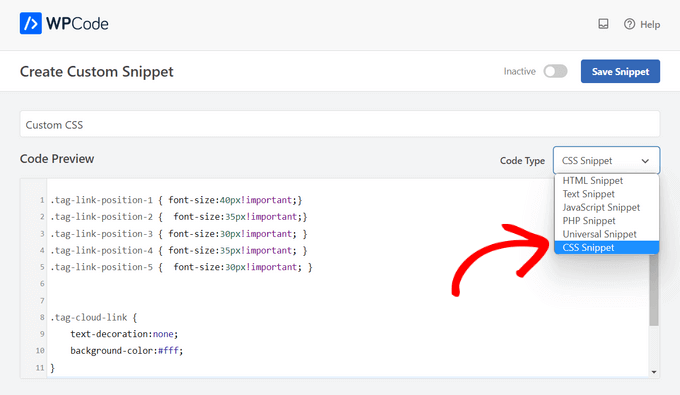
Plugins offer another way to add custom CSS. You can install a CSS plugin from the WordPress plugin library. These plugins provide an easy interface to add and manage CSS.
They keep your custom styles separate from the theme files. This method works well for users who want simple tools without touching code files. Plugins often include extra features like syntax highlighting.
Credit: www.wpbeginner.com
Best Practices For Custom Code
Adding custom HTML and CSS to WordPress can improve your site’s look and function. Doing it right keeps your site safe and fast. Follow some best practices to avoid errors and make updates easier.
Backing Up Your Site
Always back up your site before adding custom code. A backup saves your work if something breaks. Use plugins or your hosting service to create backups. Store copies in a safe place. This step protects your data and time.
Testing Changes Safely
Test your code on a staging site first. A staging site is a copy of your live site. It lets you check changes without risks. Avoid editing live pages directly. Use browser tools to preview CSS changes quickly. Fix errors before going live.
Keeping Code Organized
Organize your code for easy updates and fixes. Use comments to explain what each part does. Separate CSS and HTML in different files if possible. Name your files clearly. Clean code saves time and helps others understand your work.
Troubleshooting Common Issues
Adding custom HTML and CSS in WordPress can sometimes cause issues. These problems can stop your site from looking right or working well. Troubleshooting these issues helps keep your site smooth and user-friendly.
Most problems come from code conflicts, display glitches, or caching. Understanding how to fix these helps you control your site better. Below are common problems and easy ways to solve them.
Fixing Code Conflicts
Code conflicts happen when your custom code clashes with existing themes or plugins. Check your HTML and CSS for errors first. Use simple syntax and proper tags.
Deactivate plugins one by one to spot conflicts. Switch to a default theme to see if the problem stays. Fix or remove the conflicting code or plugin.
Resolving Display Problems
Display issues appear as broken layouts or wrong styles. Inspect elements using browser tools to identify faulty CSS. Look for missing tags or misplaced brackets.
Ensure your CSS selectors match the HTML structure. Use clear and specific styles to avoid overrides. Test changes on different devices and browsers.
Clearing Cache For Changes
WordPress caching can hide your updates after editing code. Clear your browser cache to see new changes. Use caching plugins to clear site cache too.
Turn off caching temporarily during development. This ensures you view the latest version of your site. Refresh your page after clearing cache to confirm updates.

Credit: kinsta.com
Frequently Asked Questions
How Do I Add Custom Html In WordPress?
You can add custom HTML using the WordPress block editor’s “Custom HTML” block. Simply paste your code there. This allows you to insert any HTML directly into your pages or posts safely and easily without editing theme files.
Can I Add Custom Css Without A Plugin?
Yes, WordPress lets you add custom CSS via the Customizer under Appearance > Customize > Additional CSS. This method is simple and safe. It applies your styles site-wide without needing extra plugins or modifying theme files.
Where Do I Place Custom Html In WordPress Themes?
To add custom HTML in themes, use a child theme and edit template files like header. php or footer. php. This method ensures your changes won’t be lost during theme updates and allows precise placement of your custom code.
Is It Safe To Add Custom Css In WordPress?
Adding custom CSS via the Customizer or child themes is safe. Avoid modifying core files directly. Always back up your site before applying changes to prevent potential styling or functionality issues.
Conclusion
Adding custom HTML and CSS in WordPress helps create unique websites. It allows you to change how your site looks and works. Use the right tools and follow simple steps to avoid mistakes. Practice makes it easier to understand and apply code.
Keep your site clean and organized for better results. Small changes can make a big difference. Start with basic code and grow your skills over time. Your website will feel more personal and professional this way.


