
Are you ready to make your WordPress site more engaging and attract more visitors? Adding a blog page is one of the easiest and most effective ways to do this.
Imagine having a space where you can share your ideas, stories, or expert tips with your audience. Sounds great, right? In this guide, you’ll learn exactly how to add a blog page to your WordPress site step-by-step. By the end, you’ll have a fully functional blog that keeps your visitors coming back for more.
Let’s dive in and get your blog up and running!
Set Up WordPress
Setting up WordPress is the first step to creating your blog page. This process involves selecting a hosting provider, installing WordPress software, and accessing your dashboard. Each step is simple and crucial for your blog’s success.
Choose A Hosting Provider
Choose a hosting provider that suits your needs and budget. Hosting is where your website lives on the internet. Popular options include Bluehost, SiteGround, and HostGator. Look for a provider with good speed, uptime, and customer support. Many hosts offer one-click WordPress installation to make the process easier.
Install WordPress
After selecting a host, install WordPress on your server. Most hosting providers offer a simple installation tool in their control panel. Follow the steps to set up your site’s name, username, and password. This process usually takes a few minutes. Once installed, WordPress is ready to use.
Access WordPress Dashboard
Access your WordPress dashboard by going to your website’s URL followed by “/wp-admin.” This is where you control your site’s content and settings. Log in with the username and password you created. The dashboard is user-friendly and allows you to add posts, pages, and customize your site.
Credit: zipwp.com
Create A Blog Page
Creating a blog page is the first step to share your thoughts and stories. A blog page organizes your posts neatly. It makes your site look professional and easy to navigate.
Follow simple steps to create your blog page in WordPress. This guide will help you set it up quickly.
Add A New Page
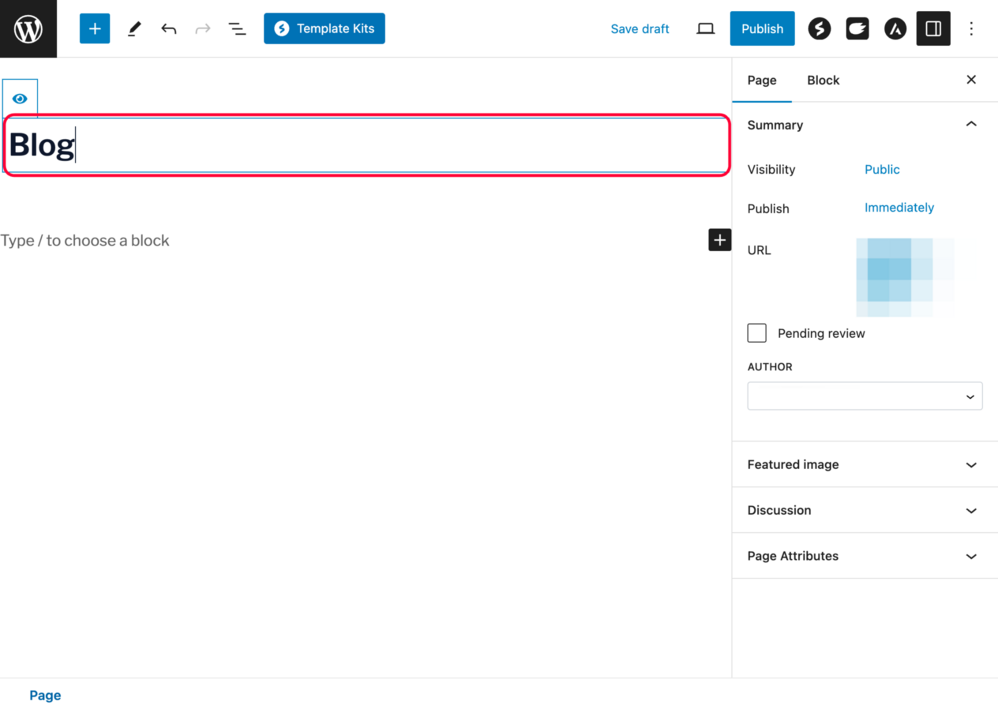
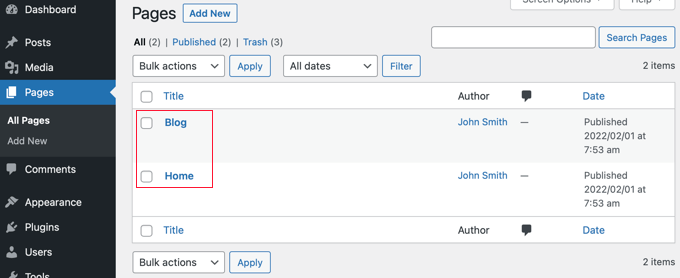
Go to your WordPress dashboard. Find the “Pages” section on the left menu. Click “Add New” to create a fresh page. This page will serve as your blog hub.
Name Your Blog Page
Enter a clear and simple name for your blog page. Use words like “Blog” or “News” to make it obvious. This helps visitors find your posts easily.
Publish The Page
After naming, look for the “Publish” button on the right side. Click it to make your blog page live. Now, this page is ready to show your posts.
Assign Blog Page For Posts
Assigning a blog page for your posts is an important step in WordPress. This tells WordPress where to display all your blog articles. It keeps your site organized and easy to navigate.
Setting the correct page for your blog posts helps visitors find your latest content quickly. You can do this in just a few clicks inside the WordPress dashboard.
Go To Reading Settings
Open your WordPress dashboard. Look for the “Settings” menu on the left side. Click on “Reading” to open the reading settings page. This area controls how your homepage and blog page behave.
Select Your Blog Page
In the Reading Settings, find the option labeled “Posts page.” This dropdown lets you choose a page to display your blog posts. Select the page you created for your blog from the list. This page will now show all your posts.
Save Changes
After selecting your blog page, scroll down. Click the “Save Changes” button to apply your settings. WordPress will now direct all blog posts to this page. Check your site to see the blog page live with your posts.
Credit: www.youtube.com
Customize Blog Layout
Customizing your blog layout helps make your site unique and easy to use. A clear layout keeps visitors interested and guides them to your best content. Simple changes can improve how your blog looks and works. Focus on design that fits your style and your audience’s needs.
Choose A Theme
Select a WordPress theme that suits your blog style. Themes control how your blog looks and feels. Pick one with a clean design and easy navigation. Many free and paid themes offer blog-specific layouts. Choose a responsive theme so your blog works well on all devices.
Use Widgets For Sidebar
Widgets add extra features to your blog’s sidebar. Common widgets include recent posts, categories, and search bars. Drag and drop widgets in the WordPress dashboard under Appearance > Widgets. A well-organized sidebar helps visitors find content faster. Keep the sidebar simple and relevant to your blog’s topic.
Add Featured Images
Featured images show a visual preview of your blog posts. They attract attention and improve the overall look. Upload a clear, high-quality image for each post. Most themes display featured images on the blog page automatically. Use images that match your content to keep readers interested.
Add Blog To Navigation Menu
Adding your blog page to the navigation menu helps visitors find it easily. A clear menu improves site navigation and keeps readers engaged. This step is essential after creating your blog page in WordPress.
Open Menu Settings
Log in to your WordPress dashboard. Go to the Appearance section on the left side. Click on Menus to open the menu settings. Here, you can manage all menu items and their order.
Add Blog Page To Menu
Look for your blog page in the list of pages. Check the box next to your blog page name. Click the Add to Menu button. Your blog page will appear in the menu structure on the right.
Rearrange Menu Items
Drag and drop menu items to change their order. Place the blog page where visitors will notice it quickly. After arranging, click the Save Menu button to apply changes.
Credit: www.wpbeginner.com
Write And Publish Posts
Writing and publishing posts is the heart of your blog. It shares your ideas, stories, and knowledge with readers. WordPress makes this process simple and clear. This section guides you through creating, adding content, and publishing posts on your blog.
Create New Post
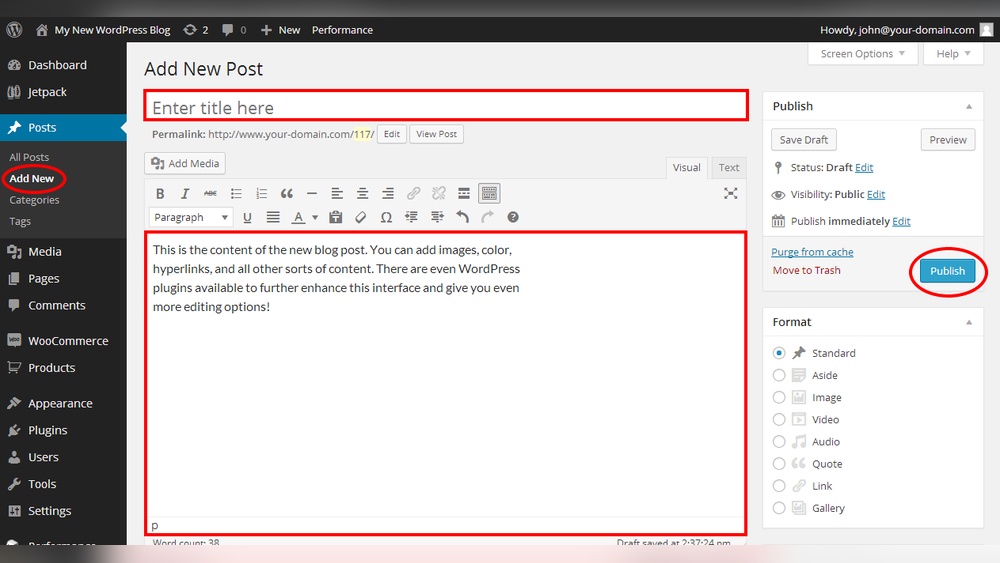
Start by logging into your WordPress dashboard. Look for the “Posts” menu on the left side. Click “Add New” to open a blank post editor. This page is where you write your blog post. The title box is at the top. Below, you have a large area for your content. Easy and ready for your words.
Add Content And Images
Type your text in the main editor. Keep your sentences short and clear. Use headings to break up the text. This helps readers scan your post. To add images, click the “+” button inside the editor. Choose “Image” from the block list. Upload your picture or select one from the media library. Images make your post more attractive and easier to understand.
Publish Your Post
Once your content looks good, it’s time to publish. Find the “Publish” button on the right side. Click it to make your post live. WordPress shows a preview first. Check everything one last time. If all is well, confirm the publish action. Your post is now online for everyone to read.
Optimize Blog For Seo
Optimizing your blog for SEO helps your content get found by search engines. This increases your chances of attracting visitors. Simple steps can improve your blog’s visibility and ranking. Focus on key elements that search engines value.
Start by choosing the right tools and using keywords smartly. Also, write clear meta descriptions for each post. These small actions make a big difference.
Install Seo Plugin
SEO plugins make optimization easier. They guide you through SEO best practices. Popular plugins like Yoast SEO or Rank Math help manage keywords and meta tags.
They also create sitemaps and improve site structure. Installing a plugin takes just a few clicks. After activation, configure it to fit your blog’s needs.
Use Keywords Effectively
Keywords are the words people type into search engines. Use them naturally in your titles, headings, and content. Avoid stuffing keywords; keep it smooth and readable.
Focus on one main keyword per post. Add related words to support it. This helps search engines understand your content better.
Add Meta Descriptions
Meta descriptions are short summaries shown in search results. Write clear, concise descriptions that include your main keyword. Keep them under 160 characters.
A good meta description invites users to click. It should describe the post’s content accurately. Update meta descriptions for every new blog post.
Maintain Your Blog
Maintaining your blog is important for its success and safety. Regular care keeps your site fast and secure. It also helps you find and fix problems early. Here are some key steps to keep your WordPress blog in good shape.
Update WordPress Regularly
WordPress often releases updates to improve security and add features. Keep your WordPress version up to date to avoid bugs and hacks. Updates also improve compatibility with plugins and themes. Check for updates at least once a week. Install them quickly to protect your blog.
Backup Your Site
Backing up your blog means saving a copy of all files and data. This step is crucial in case your site crashes or gets hacked. Use plugins or your hosting service to create backups automatically. Store backups in a safe place, like cloud storage. Regular backups give you peace of mind and quick recovery.
Monitor Blog Performance
Keep an eye on how fast your blog loads and its uptime. Slow sites lose visitors and search rankings. Use tools to check speed and fix issues like large images or heavy plugins. Monitor uptime to ensure your blog stays online. Good performance improves user experience and SEO.
Frequently Asked Questions
How Do I Create A Blog Page In WordPress?
To create a blog page, go to Pages > Add New. Name it “Blog” and publish. Then, set it as your posts page in Settings > Reading.
Can I Customize The Blog Page Layout In WordPress?
Yes, you can customize the layout using themes or page builders. Many themes offer blog-specific templates to adjust appearance and structure.
How Do I Set The Blog Page As My Homepage?
Go to Settings > Reading. Select “Your homepage displays” and choose “A static page. ” Set your blog page as the posts page to display blog posts.
Is It Necessary To Install Plugins For A Blog Page?
No, WordPress has built-in blog functionality. However, plugins can enhance features like SEO, social sharing, and performance on your blog page.
Conclusion
Adding a blog page to WordPress is simple and quick. You only need a few steps to get started. Create a new page and set it as your blog. Make sure your posts show up there automatically. This helps your visitors find your latest content easily.
Keep your blog updated to attract more readers. Now, you can share your ideas and stories with the world. Start writing and enjoy your new WordPress blog page today.


