
Are you looking to make your WordPress site more organized and user-friendly? Adding tabs can help you do just that.
Tabs allow you to display more information without cluttering your pages. Imagine your visitors easily finding what they need with just a click. You’ll learn simple, step-by-step ways to add tabs to your WordPress site. Whether you want tabs for product details, FAQs, or any other content, you’ll discover easy methods that anyone can follow.
Keep reading to transform your site’s layout and keep your visitors engaged longer!
Credit: shapedplugin.com
Choosing The Right Tab Plugin
Choosing the right tab plugin for WordPress can make your website easier to navigate. Tabs help organize content neatly, saving space and improving user experience. The right plugin fits your needs and works well with your theme. It should be simple to use and reliable.
Popular Tab Plugins For WordPress
Several tab plugins have strong reputations in the WordPress community. “WP Tabs” is a user-friendly option with basic features. “Tabby Responsive Tabs” offers a clean design and mobile-friendly tabs. “Elementor Tabs” works well if you use Elementor page builder. Each plugin has its own style and customization options.
Features To Look For
Look for easy setup and clear interface. Responsive design is crucial for mobile users. The plugin should support multiple tabs and content types. Check if it allows style customization to match your site. Fast loading speed is important to avoid slowing your site down. Compatibility with your current theme and plugins is a must.
Free Vs. Premium Options
Free plugins offer basic functions and are good for simple needs. Premium plugins provide advanced features like animation and more styles. Premium options often come with support and regular updates. Decide based on your budget and the features you need. Sometimes free plugins are enough for small websites.
Installing And Activating The Plugin
Installing and activating a plugin is the first step to adding tabs on your WordPress site. Plugins add new features without coding. This guide shows how to find, install, and activate the right plugin.
Finding The Plugin In WordPress Repository
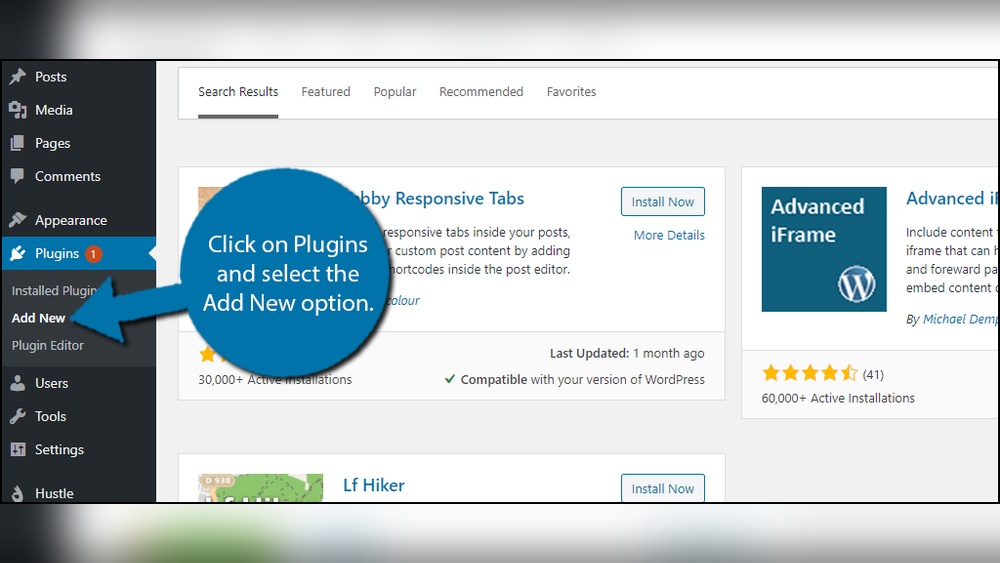
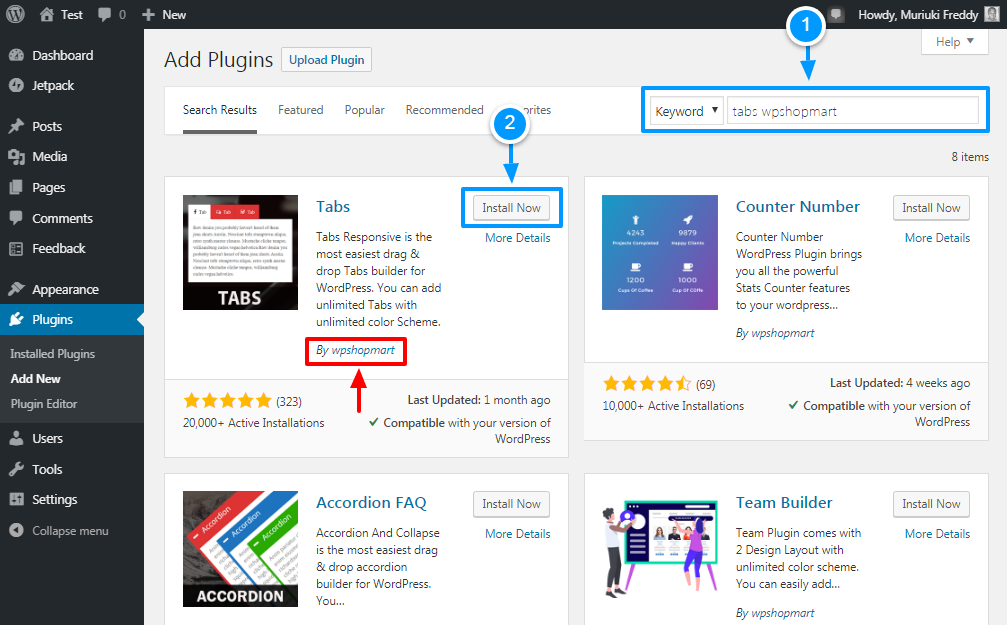
Start by logging into your WordPress dashboard. On the left menu, click “Plugins.” Then select “Add New.”
Type “tabs” or “tab plugin” in the search bar. The repository will show many options. Choose one with good ratings and recent updates. Read the description to confirm it fits your needs.
Step-by-step Installation Guide
Once you find the plugin, click the “Install Now” button. WordPress downloads and prepares the plugin automatically. Wait a few seconds for the process to complete.
Do not close the page during installation. You will see a confirmation message when done. The button changes to “Activate.”
Activating The Plugin
Click the “Activate” button to enable the plugin. WordPress will load the plugin files and make its features available.
After activation, look for new menu items or settings related to the plugin. These allow you to customize your tabs easily.
Creating Your First Tab
Creating your first tab on WordPress is simple and useful. Tabs help organize content neatly. Visitors can see different information without leaving the page. Follow these steps to add your first tab quickly and easily.
Accessing The Tab Plugin Settings
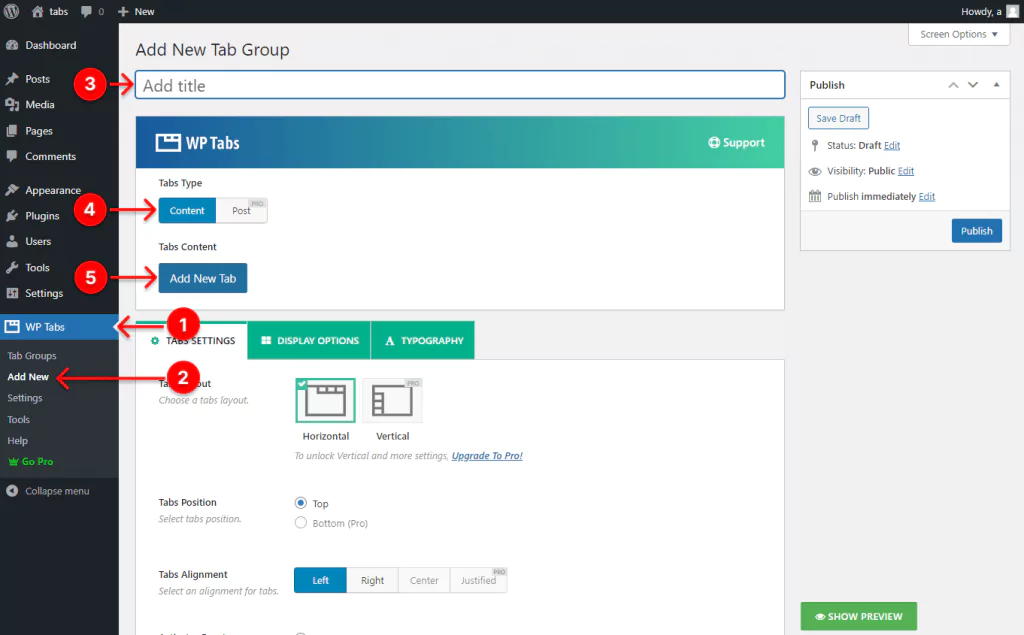
First, log in to your WordPress dashboard. Find the tab plugin installed on your site. Click on its menu item in the sidebar. This opens the plugin settings area. Here, you manage all your tabs. You can create new tabs or edit existing ones.
Adding Tab Titles And Content
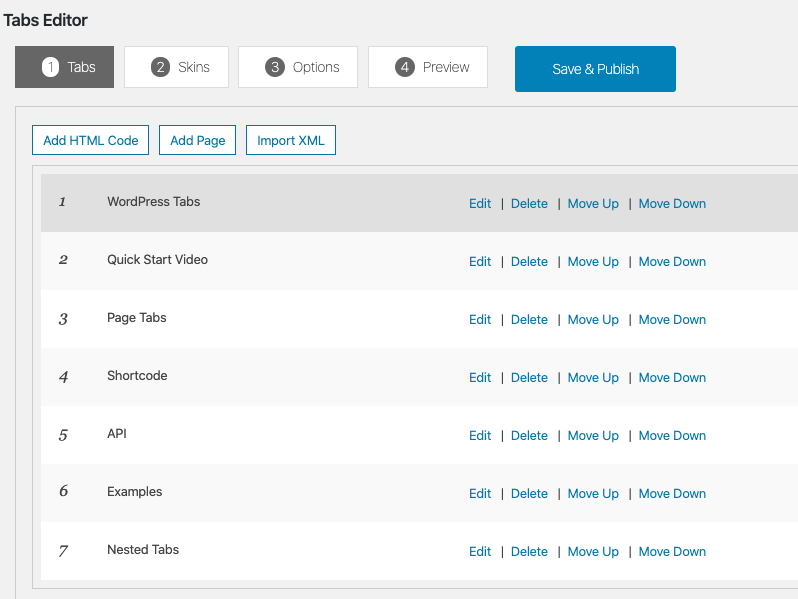
Click the button to add a new tab. Enter a clear title for your tab. The title appears on the tab label visitors see. Below, add the content you want inside the tab. Use text, images, or other media. Keep the content short and relevant. Add as many tabs as needed to organize your page.
Customizing Tab Appearance
Adjust the look of your tabs to fit your site. Choose colors, fonts, and sizes in the settings. Many plugins offer simple design options. Preview your tabs to check how they look. Make sure tabs are easy to read and use. Good design improves visitor experience and keeps them on your page longer.
Credit: www.wpexplorer.com
Adding Tabs To Pages Or Posts
Adding tabs to your WordPress pages or posts helps organize content neatly. Tabs allow visitors to switch between different sections without leaving the page. This keeps your site clean and easy to read. You can add tabs using simple tools inside WordPress. Below are ways to insert tabs effectively.
Using Shortcodes To Insert Tabs
Shortcodes are small pieces of code that add features quickly. Many tab plugins provide shortcodes to place tabs anywhere. Copy the shortcode from the plugin settings. Paste it into your post or page editor where you want the tabs to appear. Shortcodes make tab insertion fast and easy.
Each shortcode usually includes a container and tab content. Customize the text inside the shortcode to fit your needs. No coding skills are required to use shortcodes.
Embedding Tabs With Block Editor
The WordPress Block Editor supports blocks for tabs. Some tab plugins add their own tab block. Click the plus (+) icon to add a new block. Search for the tab block provided by your plugin. Insert it into the page or post.
Use the block settings to add tab titles and content. Drag and drop tabs to reorder them. The block editor shows a preview of your tabs while editing.
Previewing Tabs On Your Site
After inserting tabs, preview the page to see how they look. Click the Preview button in WordPress. Check if all tabs display correctly and switch smoothly. Test on different devices like phones and tablets.
Fix any layout issues before publishing. Make sure the tabs improve the reader’s experience. A good preview saves time and prevents errors.
Optimizing Tabs For User Experience
Optimizing tabs on WordPress improves how visitors interact with your site. Well-designed tabs make content easy to find and reduce clutter. They help users navigate without confusion. This section covers key ways to enhance tabs for a better user experience.
Making Tabs Mobile-friendly
Many users visit websites on phones and tablets. Tabs must look good and work well on small screens. Use responsive design so tabs adjust size and layout. Avoid tiny tap targets; keep buttons large enough. Test tabs on different devices to ensure smooth use.
Improving Load Times
Fast-loading tabs keep visitors engaged. Use lightweight code and minimize images or scripts inside tabs. Avoid loading all content at once; load only what users see first. Lazy loading helps speed up the page. Check page speed regularly to spot issues.
Accessibility Best Practices
Tabs should work for everyone, including people with disabilities. Use proper ARIA roles and labels to describe tabs. Make sure keyboard users can switch tabs easily. Provide clear focus indicators to show active tabs. Test with screen readers to confirm content is readable.
Troubleshooting Common Issues
Adding tabs on WordPress can sometimes lead to small problems. These issues often stop tabs from working or showing properly. Knowing how to fix common problems saves time and frustration. This section covers simple steps to fix tabs not showing, plugin conflicts, and how to keep tabs updated.
Tabs Not Displaying Correctly
Tabs may not show due to theme or code problems. Check if your theme supports tabs. Sometimes, custom CSS or JavaScript can block tabs from appearing. Clear your browser cache to see recent changes. Try switching to a default WordPress theme. This helps find if the theme causes the issue.
Plugin Conflicts
Plugins can stop tabs from working. Two plugins might use the same script or style, causing conflicts. Deactivate all plugins except the tab plugin. Check if tabs work now. Reactivate plugins one by one to find the problem. Update all plugins to the latest version. Outdated plugins cause many errors.
Updating And Maintaining Tabs
Keep your tab plugin updated for best performance. Developers fix bugs and add features in updates. Back up your site before updating. Test tabs after each update. Remove unused tabs to keep your site fast. Regular checks prevent future problems and keep tabs working well.
Credit: www.wonderplugin.com
Frequently Asked Questions
How Do I Add A Tab In WordPress Without Plugins?
You can add tabs using custom HTML and CSS in your post or page. This method requires basic coding knowledge. It is lightweight but less flexible compared to plugins. Use the WordPress block editor’s Custom HTML block to insert your code.
Which WordPress Plugin Is Best For Adding Tabs?
Popular tab plugins include WP Tabs, Tabby Responsive Tabs, and Ultimate Tabs. These plugins offer easy drag-and-drop interfaces. They provide customization options and responsive design. Choose one based on your feature needs and compatibility with your theme.
Can I Create Tabs In WordPress Gutenberg Editor?
Yes, some Gutenberg block plugins offer tab blocks. Alternatively, you can embed custom HTML and CSS in a Custom HTML block. However, native Gutenberg doesn’t support tabs by default. Using a plugin is the easiest way to add tabs in Gutenberg.
Are WordPress Tabs Mobile-friendly And Responsive?
Most modern tab plugins ensure mobile-friendly, responsive tabs. Responsive tabs adjust layout based on screen size for better usability. Always test your tabs on different devices. Choose plugins that explicitly mention mobile responsiveness for best results.
Conclusion
Adding tabs to your WordPress site makes content easier to find. It helps organize information neatly and looks professional. You can add tabs using plugins or custom code. Choose the method that fits your skill level. Test your tabs on different devices for the best user experience.
Keep your site simple and clear. Tabs can improve how visitors use your site. Try adding tabs today to see the difference.


