
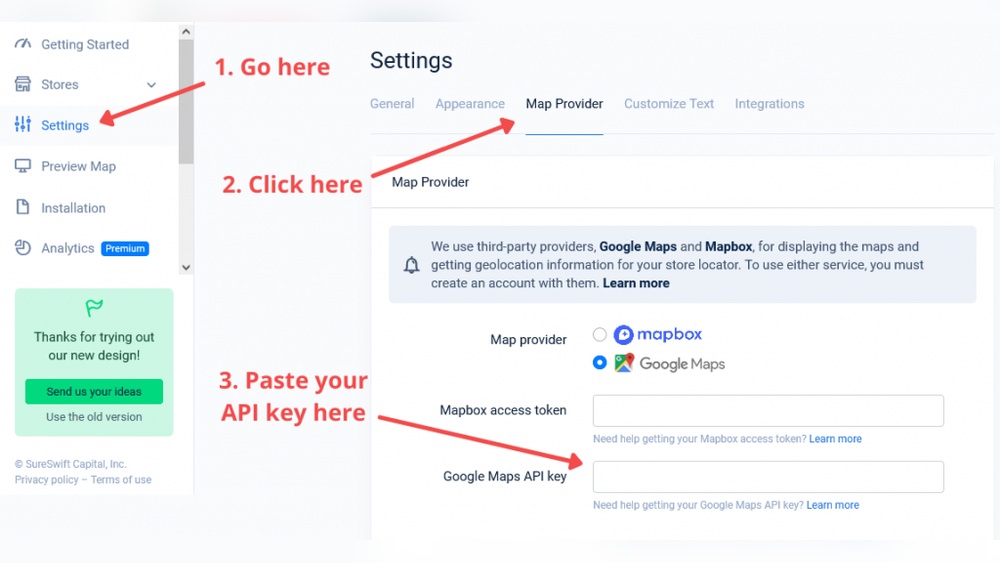
Want to make your WordPress site more interactive and helpful? Adding a map is a simple way to do just that.
Whether you run a business, blog about travel, or share local events, a map lets your visitors find locations easily. In this guide, you’ll learn step-by-step how to add a map to your WordPress site without any hassle. By the end, you’ll have a clear, clickable map that keeps your visitors engaged and coming back for more.
Ready to boost your site’s appeal? Let’s dive in!
Credit: wpmet.com
Choosing The Right Map Plugin
Choosing the right map plugin is key to adding maps in WordPress. The plugin shapes how your map looks and works. It affects site speed and user experience. Picking a good plugin saves time and trouble later.
Consider your needs carefully. Some plugins suit simple maps, others fit complex uses. The right choice matches your skills and goals. It should be easy to use and reliable.
Popular Map Plugins For WordPress
Many map plugins exist for WordPress. Some popular options include Google Maps Widget, WP Google Maps, and MapPress Maps for WordPress. These plugins offer different styles and features. Google Maps Widget is simple and quick. WP Google Maps allows custom markers and layers. MapPress provides easy map embedding inside posts.
Features To Consider
Look for features that fit your needs. Custom markers help highlight locations. Zoom controls improve user interaction. Mobile responsiveness is important for phone users. Some plugins let you add multiple maps per page. Check if the plugin supports different map types like satellite or terrain. Easy setup and clear instructions save time.
Plugin Compatibility And Updates
Choose plugins that work well with your WordPress version. Check if the plugin receives regular updates. Updates fix bugs and add new features. A plugin without updates may cause security risks. Also, ensure it works with your theme and other plugins. Test the plugin in a safe environment before live use.
Preparing Your Map Content
Preparing your map content is a key step before adding it to your WordPress site. It helps create a clear and useful map for your visitors. This part focuses on choosing the right locations, customizing markers, and setting the map’s zoom and layout. These steps make your map easy to read and navigate.
Selecting Locations To Display
Pick the places you want to show on your map carefully. These could be your business locations, event spots, or popular landmarks. Keep the number of locations manageable to avoid clutter. Each location should add value and guide visitors effectively.
Customizing Map Markers
Map markers help users identify locations quickly. Choose simple icons or colors that match your website style. Custom markers stand out and make the map look professional. Avoid too many different marker styles to keep the map clean.
Setting Map Zoom And Layout
Set the zoom level to show all your chosen locations clearly. Too close or too far can confuse visitors. Pick a layout that fits your page design. Responsive layouts work well on both desktop and mobile devices. This makes your map easy to use everywhere.
Installing And Activating The Plugin
Installing and activating a map plugin in WordPress is a simple process. It helps you show locations clearly on your site. This guide covers easy steps to get your map plugin ready fast. Follow these instructions to start adding maps to your pages.
Step-by-step Installation Guide
Log in to your WordPress dashboard. Find the “Plugins” menu on the left side. Click “Add New” to open the plugin search page. Type “map” or the plugin name in the search box. Look for a plugin with good reviews and many installs.
Click “Install Now” on the chosen plugin. Wait a few seconds for the installation to finish. After that, click “Activate” to enable the plugin on your site. The plugin is now ready for setup.
Configuring Basic Settings
Go to the plugin’s settings page. This is usually under the “Settings” or a new menu item. Enter your map provider’s API key if required. Set the default map size and zoom level. Choose the map type, like roadmap or satellite.
Save your changes to apply the settings. Check if the plugin offers options for pins or markers. Customize marker colors or labels if available. These simple settings prepare your map for use on your site.
Adding The Map To Your WordPress Site
Adding a map to your WordPress site helps visitors find your location easily. It also makes your site look professional and trustworthy. There are several ways to add maps, depending on where you want them to appear. You can place maps in posts, pages, or even in sidebars and widgets.
Each method uses simple tools like shortcodes or embed codes. These tools require minimal technical skills. This section explains three common ways to add maps on your WordPress site. Follow the steps to choose the best option for your needs.
Using Shortcodes
Shortcodes let you add maps quickly inside posts or pages. Many map plugins generate shortcodes automatically. Copy the shortcode from your plugin’s settings. Paste it in the WordPress editor where you want the map to show. WordPress will display the map in that spot when you publish.
This method is simple and fast. It works well for showing a single map in content. No coding is needed, just copy and paste the shortcode.
Embedding Maps In Pages And Posts
You can embed maps directly from map services like Google Maps. Go to Google Maps and find your location. Click the share button and select “Embed a map.” Copy the HTML iframe code provided. In WordPress, switch to the text editor or use a custom HTML block. Paste the iframe code where you want the map.
This approach gives you control over map size and style. It works on any page or post. Keep in mind the map updates automatically if changed on Google Maps.
Adding Maps To Widgets Or Sidebars
Maps can also appear in sidebars or footer areas using widgets. Go to Appearance > Widgets in your WordPress dashboard. Add a Custom HTML or Text widget to your sidebar area. Paste the map’s shortcode or iframe code into the widget. Save your changes, then check your site’s sidebar.
Widgets are perfect for showing maps on many pages at once. Visitors can see your location from any page with the sidebar.
Customizing Map Appearance
Customizing your map’s appearance helps it fit your website’s style. A well-designed map looks clean and works smoothly. Adjust colors, add interactive parts, and make sure it looks good on phones. These steps improve user experience and keep visitors engaged.
Changing Colors And Styles
Change the map’s colors to match your site’s theme. Use light or dark modes depending on your background. Highlight important areas with bright colors. Many map plugins offer built-in style options. You can also create custom color schemes for unique looks.
Adding Interactive Elements
Add clickable markers that show information or images. Use pop-ups to give users more details about locations. Include zoom controls so visitors can explore easily. Interactive maps invite users to engage more with your content. Simple tools make adding these features easy.
Optimizing For Mobile Devices
Ensure your map fits small screens without losing details. Use responsive design to adjust map size automatically. Test the map on different devices before publishing. Mobile-friendly maps improve usability and keep visitors longer. Avoid heavy scripts that slow down loading on phones.
Credit: wpmet.com
Troubleshooting Common Issues
Adding a map to your WordPress site can sometimes cause issues. These problems can stop the map from showing or slow down your site. This section helps you fix common problems fast. Follow these tips to keep your map working well and your site running smoothly.
Plugin Conflicts
Plugins can clash and cause your map to fail. Disable other plugins one by one to find conflicts. Clear your cache after each test. Update all plugins and WordPress to the latest versions. Choose plugins from trusted sources only.
Map Not Displaying Correctly
Check your API key if the map is blank or incomplete. Make sure the key has the right permissions. Resize the map container to fit your page layout. Look for JavaScript errors using your browser’s developer tools. Adjust map settings in the plugin dashboard.
Performance Optimization Tips
Use a caching plugin to speed up loading times. Compress images and avoid heavy map features. Limit the number of maps on a single page. Enable lazy loading if your plugin supports it. Regularly update your theme and plugins to boost performance.
Enhancing Engagement With Maps
Maps make websites more interesting and useful. They help visitors find places quickly. Adding maps can keep visitors longer on your site. This can lead to more calls or visits to your business.
Using Maps For Local Seo
Maps improve your site’s local SEO. Search engines notice when you show exact locations. This helps your business appear in local search results. Including maps with your address makes your site more trustworthy. It also helps customers find your store or office easily.
Integrating Maps With Contact Forms
Adding maps near contact forms is helpful. Visitors see where you are while sending messages. This makes your contact page clear and useful. It reduces confusion about your location. Visitors feel more confident reaching out to you.
Showcasing Multiple Locations
Maps can show several business locations at once. Great for companies with many stores or offices. Visitors can see all options on one map. They can pick the nearest place to visit. This feature improves user experience and satisfaction.
Credit: www.wpbeginner.com
Frequently Asked Questions
How Do I Add A Google Map In WordPress?
To add a Google Map, use the Google Maps block or embed code. Customize location and zoom, then insert it into your page or post.
What Plugins Help Add Maps To WordPress Sites?
Popular plugins include WP Google Maps, MapPress, and Leaflet Maps Marker. These offer easy map integration and customization options without coding.
Can I Add Interactive Maps To WordPress Easily?
Yes, using plugins or Google Maps API allows interactive maps. Visitors can zoom, pan, and click markers for more info.
Is It Possible To Add Multiple Maps In WordPress?
Absolutely. You can insert multiple maps on different pages or posts using blocks, shortcodes, or plugins.
Conclusion
Adding a map to your WordPress site is simple and useful. It helps visitors find your location easily. You can choose from plugins or use Google Maps directly. Customize the map to fit your website style. Test it on different devices for best results.
Keep your map updated with accurate info. A clear map improves user experience and trust. Try adding a map today and see the difference it makes.


