
Want to boost engagement on your WordPress site and make your comment section more lively? Adding Facebook comments can do just that.
It’s a simple way to connect your visitors, encourage real conversations, and even increase your site’s visibility. If you’ve been wondering how to bring Facebook’s powerful commenting system to your WordPress blog, you’re in the right place. Keep reading, and you’ll learn step-by-step how to set it up quickly and easily—no tech headaches involved.
Benefits Of Facebook Comments
Facebook comments bring many benefits to WordPress sites. They create a lively space for visitors to share their thoughts. This helps build a community around your content. Visitors feel more connected and involved. The comment system also leverages Facebook’s wide user base, making it easier for people to join conversations.
Boosting User Engagement
Facebook comments encourage visitors to interact more. People often feel comfortable using their Facebook accounts. This reduces barriers to commenting. More comments mean lively discussions and fresh content. Active discussions keep visitors coming back to your site.
Enhancing Social Proof
Comments show that others find your content valuable. Seeing many comments builds trust in your site. Positive feedback acts as a recommendation for new visitors. Social proof helps increase site credibility and popularity. It encourages more people to read and share your posts.
Simplifying Comment Management
Facebook comments are easy to manage from one place. You can moderate comments using Facebook’s tools. This reduces spam and unwanted content on your site. Notifications alert you to new comments quickly. Managing comments becomes less time-consuming and more effective.
Preparing Your WordPress Site
Preparing your WordPress site is a key step before adding Facebook comments. This step helps avoid problems during installation and use. Taking time to prepare ensures smooth integration and better site performance.
Start by checking if your current setup supports the Facebook comments plugin. Then, secure your website by creating a backup. These tasks protect your data and ensure compatibility with the new feature.
Checking Plugin Compatibility
Verify that your WordPress version supports the Facebook comments plugin. Plugins may not work well with outdated WordPress versions. Check the plugin details for required WordPress versions.
Confirm that your theme supports external comment plugins. Some themes may conflict with Facebook comments. Look for user reviews or support notes on compatibility.
Also, check for plugin conflicts. Running many plugins can cause issues. Disable unused plugins temporarily to test compatibility before installation.
Backing Up Your Website
Create a full backup of your WordPress site before installing new plugins. This protects your data if something goes wrong. Use trusted backup plugins or your hosting control panel.
Save backups in a secure location outside your website server. This allows you to restore your site in case of errors during setup. Regular backups are a good practice for any site update.
Creating A Facebook App
Creating a Facebook App is the first step to add Facebook comments on your WordPress site. This app connects your website to Facebook’s comment system. It helps manage comments and ensures smooth integration.
The process is simple and requires only a few minutes. Follow the steps carefully to set up your app and get the necessary credentials.
Setting Up A Developer Account
Start by visiting the Facebook Developers website. You need a developer account to create apps. Click on the “Get Started” button and log in using your Facebook account.
Complete the registration by accepting the terms and verifying your identity. This step grants access to Facebook’s developer tools.
Generating App Id
After setting up your developer account, click “Create App.” Choose the app type that fits your needs, usually “Business” or “Consumer.”
Fill in the required details like the app name and contact email. Facebook then generates an App ID. This ID is essential for connecting your WordPress site to Facebook comments.

Credit: www.youtube.com
Installing A Facebook Comments Plugin
Installing a Facebook comments plugin on your WordPress site helps increase user interaction. It allows visitors to leave comments using their Facebook accounts. This can boost engagement and make discussions easier to manage. Plugins simplify the setup process and add the comments feature without coding.
Choosing The Right Plugin
Choose a plugin that is easy to use and reliable. Look for one that updates regularly and has good reviews. Check if it supports the latest WordPress version. The plugin should allow customization of comment appearance. Also, confirm it loads quickly to avoid slowing your site.
Installing And Activating
Go to your WordPress dashboard and open the Plugins menu. Click “Add New” and type “Facebook comments” in the search bar. Find the plugin that fits your needs and click “Install Now.” After installation, click “Activate” to enable the plugin on your site. Follow the plugin’s setup instructions to connect your Facebook app or page. Test the comments box on your posts to confirm it works properly.
Configuring Facebook Comments Plugin
Configuring the Facebook Comments plugin on your WordPress site is a crucial step. It allows you to control how the comments appear and function. Proper setup helps keep discussions organized and relevant. You can tailor the plugin to fit your site’s style and user needs. Follow these steps to configure the plugin effectively.
Entering Facebook App Id
First, you need a Facebook App ID to connect your site with Facebook. This ID links the comments to your Facebook app. To get one, create an app on the Facebook Developers page. Once you have the App ID, enter it in the plugin settings. This step enables Facebook to manage comments on your site securely.
Customizing Display Settings
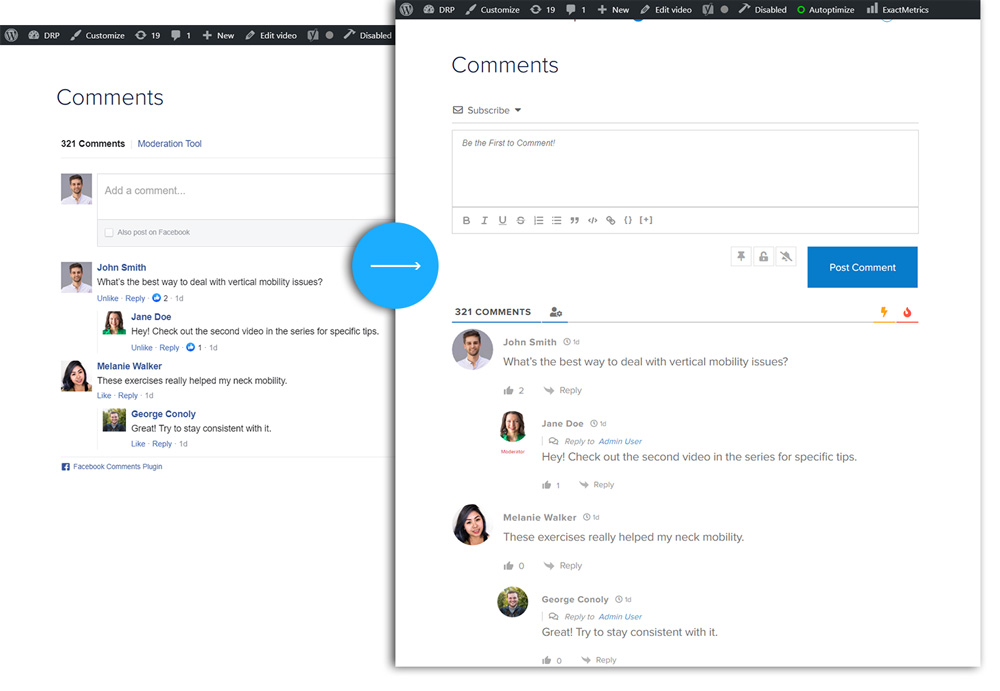
Next, adjust how the comments appear on your site. You can set the width of the comment box to match your page layout. Choose the number of comments to show at once for better readability. Decide if you want to display comments in chronological or social order. These settings help the comments section blend with your site design.
Setting Comment Moderation
Moderation keeps your comment section clean and safe. Use the moderation tools to approve or delete comments. You can assign moderators by adding their Facebook usernames. Set rules to filter out spam and inappropriate content automatically. Regular moderation improves user experience and maintains a positive community.
Credit: fullstackdigital.com
Adding Facebook Comments To Posts And Pages
Adding Facebook comments to your WordPress posts and pages helps increase user interaction. Visitors can easily share their thoughts using their Facebook accounts. This also allows you to build a community and gain more visibility on social media.
There are two common ways to add Facebook comments: using shortcodes and automatic integration. Each method has its own benefits and suits different needs.
Using Shortcodes
Shortcodes let you place Facebook comments exactly where you want. You can add the shortcode to any post or page content. This method gives you control over comment placement.
To use shortcodes, install a Facebook comments plugin that supports them. After activation, insert the shortcode like [fbcomments] in the post editor. The comments box will appear at that spot on your page.
This method works well for specific posts where you want to encourage discussion. It is simple and does not require coding skills.
Automatic Integration Options
Automatic integration adds Facebook comments to all posts or pages without manual input. This saves time if you want comments everywhere on your site.
Many plugins offer this feature. Once enabled, the Facebook comments box appears below each post or page automatically. You can usually customize settings like comment number and width.
This option is good for consistent user interaction across your website. It requires less maintenance and ensures comments are always enabled.
Testing Facebook Comments Functionality
Testing Facebook comments functionality is important after setting it up on your WordPress site. This step ensures everything works smoothly and your visitors can leave comments without issues. You want to check that comments post correctly and appear as expected.
Testing also helps find and fix common problems early. It saves time and keeps your site user-friendly. Let’s explore how to verify comment posting and troubleshoot common issues.
Verifying Comment Posting
Start by posting a test comment on your website. Use a Facebook account different from the admin account. This shows how regular visitors experience the comment feature.
Check if the comment appears immediately under the post. Refresh the page to confirm it is saved properly. Make sure the name and profile picture show correctly.
Try replying to the test comment to check nested comments. Verify that notifications work if enabled. Also, test on mobile devices to ensure responsiveness.
Troubleshooting Common Issues
If comments do not post, check your Facebook App ID settings. Make sure the ID is entered correctly in your WordPress plugin or theme.
Clear your site cache and browser cache to remove old data. Disable other plugins temporarily to find conflicts. Some plugins may block Facebook scripts.
Check your site’s HTTPS status. Facebook comments require a secure connection for proper function. Update your WordPress, theme, and plugins to the latest versions.
Use browser developer tools to look for JavaScript errors. These errors can stop the comment box from loading. Contact your hosting provider if you see server errors.
Credit: authoritynw.com
Optimizing Facebook Comments For Seo
Optimizing Facebook comments can boost your WordPress site’s SEO. Comments add fresh content to your pages. Search engines like pages that update often with real user input. Proper use of Facebook comments helps search engines find relevant keywords in discussions.
Using Facebook comments wisely improves user engagement and site visibility. Let’s explore how to optimize these comments for better SEO results.
Improving Page Load Speed
Facebook comments can slow down your page. Slow pages hurt your SEO ranking. Use lazy loading for Facebook comments to load them only when needed. This method keeps your page fast. Choose a good plugin that supports this feature. Fast pages keep visitors happy and improve search rankings.
Encouraging Quality Discussions
Quality comments add value to your page content. Encourage visitors to write clear and relevant comments. Ask questions to spark meaningful conversations. Remove spam and off-topic comments quickly. Use moderation tools to keep discussions useful. Search engines rank pages higher with good user engagement.
Frequently Asked Questions
How Do I Add Facebook Comments To WordPress?
To add Facebook comments, install a compatible plugin like “Facebook Comments Plugin. ” Configure it with your Facebook App ID and customize settings. Finally, embed the comments box on your posts or pages using shortcode or widget.
Why Use Facebook Comments Instead Of WordPress Comments?
Facebook comments increase user engagement by leveraging social profiles. They reduce spam, simplify login, and enhance social sharing. This integration can boost visibility and interaction on your WordPress site.
Can I Customize The Facebook Comments Box?
Yes, you can customize the width, number of posts displayed, and color scheme. Adjust these settings in the plugin or Facebook developer dashboard to match your site’s design for better user experience.
Is Adding Facebook Comments Seo Friendly?
Facebook comments are SEO friendly as they encourage user interaction and social sharing. However, comments load via JavaScript and may not be fully indexed by search engines. Use complementary SEO strategies for best results.
Conclusion
Adding Facebook comments to your WordPress site boosts user interaction. Visitors can easily share their thoughts and opinions. This feature also helps build a community around your content. It takes only a few simple steps to set up. Keep your site lively and engaging with real-time feedback.
Try it today and watch your audience grow naturally.



