
Are you ready to give your website a fresh new look? Changing your WordPress theme is one of the easiest ways to transform your site’s appearance and feel—without touching a single line of code.
Whether you want something sleek and modern or fun and colorful, the right theme can make all the difference. In this guide, you’ll discover simple steps to switch your theme quickly and safely. Keep reading, and you’ll learn exactly how to make your website stand out and truly reflect your style.

Credit: docs.themeisle.com
Choosing The Right Theme
Choosing the right theme is key to your WordPress site’s success. The theme shapes how your site looks and feels. It also affects user experience and site performance. Picking a theme takes some thought. Consider your budget, site goals, and design needs.
Free Vs Premium Themes
Free themes cost nothing and offer basic features. They work well for simple sites or small budgets. Premium themes have more options and support. They often include better designs and extra tools. Think about what features you really need.
Responsive Design Importance
Responsive design means your site looks good on all devices. Phones, tablets, and desktops show your site properly. This improves user experience and SEO rankings. Choose themes with built-in responsive design for best results.
Matching Theme With Site Purpose
Your theme should fit your site’s goal. A blog needs a clean, readable design. An online store needs product display features. A portfolio site needs image galleries. Match the theme style with what your site offers.

Credit: wordpress.com
Preparing Your Site For A New Theme
Changing your WordPress theme can refresh your website’s look and feel. Proper preparation helps avoid issues and keeps your site safe. Take steps before activating a new theme. These steps protect your content and ensure smooth transition.
Backing Up Your Website
Create a full backup of your site. This includes files, database, and media. Use backup plugins or your hosting service’s tools. Save the backup in a secure place. This allows easy restoration if something goes wrong.
Checking Plugin Compatibility
Plugins add important features to your site. Some plugins may not work with the new theme. Test each plugin’s compatibility with the new design. Disable plugins causing conflicts. Update plugins to the latest versions to improve compatibility.
Testing In A Staging Environment
Use a staging site to try your new theme first. This is a copy of your live site. It lets you see how the theme looks and works. Fix issues without affecting your real site. Many hosts offer easy staging setup tools.
Changing The Theme In WordPress
Changing the theme in WordPress gives your website a fresh look. It helps you match the style to your brand or personal taste. Themes control the design and layout of your site. Switching themes is simple and does not affect your content. Follow the steps below to update your theme easily.
Accessing The Theme Settings
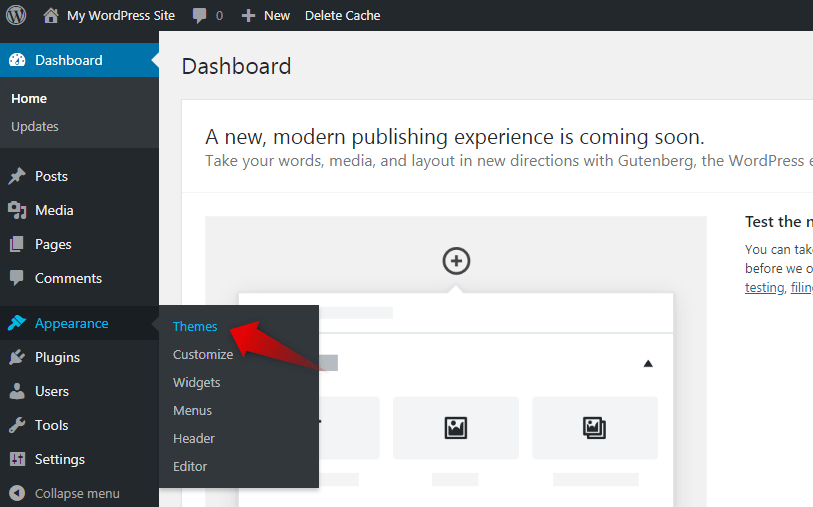
Start by logging into your WordPress dashboard. Look for the “Appearance” menu on the left side. Click “Themes” to open the theme settings page. Here, you see your current theme and other available themes. This area lets you manage and preview themes before activation.
Installing A New Theme
To add a new theme, click the “Add New” button at the top. Use the search bar to find themes by name or style. You can also browse featured or popular themes. Click “Install” on the theme you like. Wait a few seconds while WordPress downloads and installs it.
Activating The Theme
After installation, click the “Activate” button to apply the new theme. Your website design updates immediately. Check your site to see how it looks. You can always switch back or try another theme anytime.
Customizing Your New Theme
Customizing your new WordPress theme helps make your site truly yours. It lets you change the look and feel without touching code. This section shows simple ways to adjust your theme easily. Small changes can make a big difference in how your visitors see your site.
Using The WordPress Customizer
The WordPress Customizer is a tool built into your dashboard. It lets you see changes live before saving them. Open it by going to Appearance > Customize. Here, you can change site identity, layout, and other settings. This tool is user-friendly and guides you through many options.
Adjusting Colors And Fonts
Colors and fonts give your site style and personality. In the Customizer, find options for colors and typography. Choose colors that match your brand or mood. Pick fonts that are easy to read on all devices. Simple color and font tweaks improve your site’s look a lot.
Adding Widgets And Menus
Widgets add extra content blocks to your site’s sidebar or footer. Menus help visitors navigate your site. You can add or remove widgets in the Customizer under Widgets. To create or edit menus, go to Appearance > Menus. Organize pages and links so visitors find what they want fast.
Troubleshooting Common Issues
Changing your WordPress theme can sometimes cause issues. These problems may affect how your site looks or works. Troubleshooting common issues helps fix these problems fast. It keeps your site running smoothly and looking good.
Fixing Layout Problems
After switching themes, your site’s layout may break. Some elements might not align properly. Check your theme settings first. Adjust fonts, colors, and spacing to match your style. Clear your browser cache to see changes. Use the WordPress Customizer to tweak your layout. Sometimes, custom CSS might need updates to fit the new theme.
Resolving Plugin Conflicts
Plugins may not work well with your new theme. This can cause errors or site crashes. Deactivate all plugins and check your site. Activate plugins one by one to find the problem. Update plugins to their latest versions. Replace outdated plugins with better options. Contact plugin support if issues continue.
Restoring From Backup If Needed
If problems cannot be fixed, restore your site from backup. Backups save your site’s data and settings. Use your hosting provider’s backup tool or a plugin. Always create a backup before changing themes. This keeps your content safe and recoverable. Restoring your site returns it to the last good state. It saves time and prevents data loss.
Tips For Maintaining Theme Updates
Keeping your WordPress theme updated is important for security and performance. Updates fix bugs and add new features. They help your site run smoothly and safely. Follow simple steps to maintain your theme updates without stress.
Regularly Updating Themes
Check for theme updates often. Updates come with improvements and security patches. Use the WordPress dashboard to see available updates. Click “Update” to install the latest version. Avoid delaying updates to prevent issues.
Monitoring Site Performance
After updating, test your site carefully. Check if pages load fast and look right. Use tools to measure site speed and errors. Watch for broken links or design problems. Fix issues quickly to keep visitors happy.
Keeping Backups Up To Date
Create backups before each theme update. Backups save your site data in case of problems. Store backups in a safe place. Use plugins or hosting tools for easy backup. Restore backups quickly if something goes wrong.
Credit: www.awardspace.com
Frequently Asked Questions
How Can I Change My WordPress Theme Easily?
To change your WordPress theme, go to Appearance > Themes in your dashboard. Click “Add New,” select a theme, and click “Install. ” Finally, activate the theme to apply it to your site instantly.
Will Changing My WordPress Theme Affect My Content?
No, changing your WordPress theme does not delete your content. Your posts, pages, and media remain safe. However, theme-specific features might change or disappear.
Can I Preview A Theme Before Activating It?
Yes, WordPress allows you to preview themes before activating them. Click “Live Preview” on any theme to see how it looks with your content.
What Should I Do If My Site Breaks After Theme Change?
If your site breaks, activate the previous theme via Appearance > Themes. Clear your cache and check for plugin conflicts. Consider contacting your theme support for help.
Conclusion
Changing your WordPress theme is simple and quick. Choose a theme that fits your website’s style and purpose. Always preview before activating to avoid surprises. Remember to back up your site to protect your content. Enjoy the new look and improved user experience.
Keep exploring themes to find the best fit for your needs. Your website can look fresh anytime with just a few clicks. Stay confident and keep your site updated for visitors.



