
Are you wondering how to upload a video to your WordPress site but don’t know where to start? You’re not alone.
Adding videos can boost your site’s engagement and keep visitors coming back for more. But if the process feels confusing, don’t worry—this guide will walk you through every step clearly and simply. By the end, you’ll have the confidence to share your videos like a pro and make your content stand out.
Ready to get started? Let’s dive in!
Preparing Your Video
Preparing your video before uploading it to WordPress is very important. It helps your video load faster and look good on all devices. Proper preparation also saves space and avoids technical issues.
Follow simple steps to get your video ready. This makes the upload process smooth and efficient.
Choosing The Right Format
Select a video format that WordPress supports well. MP4 is the best choice for most users. It works on all browsers and devices. Other formats like WebM or Ogg are less common but can be useful in some cases. Avoid formats that need special plugins.
Optimizing Video Size
Large video files take longer to upload and slow down your website. Compress your video to reduce the file size. Use tools like HandBrake or online compressors. Keep the balance between quality and size. Aim for a file size under 100 MB for faster loading.
Naming Your Video File
Give your video file a clear and simple name. Use lowercase letters and hyphens instead of spaces. Avoid special characters or long names. A good file name helps with SEO and makes managing files easier. For example, use “product-demo.mp4” instead of “Video 1.mp4”.

Credit: jetpack.com
Uploading Video To WordPress
Uploading video to WordPress helps make your content lively and engaging. Videos can explain ideas better and keep visitors on your site longer. WordPress offers simple ways to add videos to your posts or pages. Understanding these options will help you share your videos easily.
Using The Media Library
The Media Library stores all your files in WordPress. To upload a video, open the Media Library and click “Add New.” Select the video file from your computer and wait for it to upload. WordPress supports common video formats like MP4, MOV, and AVI. Once uploaded, you can find the video ready to use anywhere on your site.
Embedding Video In Posts Or Pages
Embedding videos means adding them inside your content. You can embed videos from external sites like YouTube or Vimeo by copying the video URL. Paste the URL directly into the WordPress editor. The video will appear automatically without extra coding. This method saves your server space and loads videos faster.
Using Video Blocks
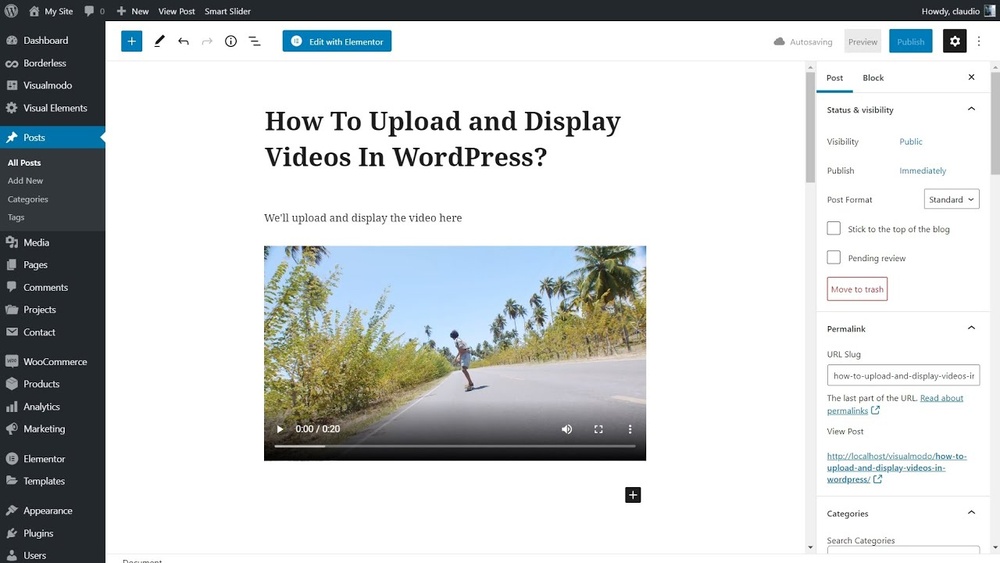
Video Blocks make inserting videos easy and neat. In the WordPress block editor, click the “+” icon to add a new block. Choose the “Video” block, then upload your video or select one from the Media Library. The block shows a video player right on your page. You can adjust size and alignment to fit your design.
Alternative Upload Methods
Uploading videos directly to WordPress is not the only way to share content. Alternative methods can save space and improve website speed. They also offer more flexibility for video management. Using these methods can enhance your site’s performance and user experience.
Embedding From Video Hosting Platforms
Embedding videos from platforms like YouTube or Vimeo is simple. Copy the video URL and paste it into your WordPress editor. WordPress automatically creates an embedded video player. This method does not use your server space. It also allows visitors to watch videos without slowing down your site.
You can customize the video size and alignment within the editor. These platforms also provide advanced features like captions and video analytics. Embedding keeps your site light and fast. It is a popular choice for bloggers and businesses alike.
Using Plugins For Video Uploads
Plugins offer more control over video uploads and display. Some plugins help manage video galleries or playlists. Others optimize video files for faster loading. Installing a plugin can simplify the upload process. It also adds extra features like video compression and lazy loading.
Choose plugins that are easy to use and regularly updated. They should be compatible with your WordPress version. Plugins can enhance video quality and user interaction. This method suits users who want more than basic video support.
Credit: cloudinary.com
Improving Video Performance
Uploading a video to WordPress is just the start. To keep your website fast, you must improve video performance. Slow videos can hurt user experience and SEO. Optimizing video delivery saves bandwidth and speeds up loading times.
Enabling Lazy Loading
Lazy loading delays video loading until the user scrolls near it. This reduces initial page load time. WordPress supports lazy loading by default for images and videos. You can also use plugins to control lazy loading settings. This method saves data and improves speed.
Using A Content Delivery Network
A Content Delivery Network (CDN) stores your videos on servers worldwide. It delivers videos from the closest server to the visitor. This reduces buffering and loading delays. Many CDN providers offer easy integration with WordPress. Using a CDN improves video speed and reliability.
Compressing Videos Further
Compress videos to reduce their file size without losing quality. Smaller files load faster and use less bandwidth. Tools like HandBrake or online compressors work well. Choose the right format, such as MP4, for better compression. Compressing videos improves performance and user experience.
Troubleshooting Upload Issues
Uploading videos to WordPress can sometimes be tricky. Upload issues can stop your video from going live. Understanding common problems helps fix them fast. This section covers simple ways to solve upload troubles.
Handling File Size Limits
WordPress has a limit on video file size. Large videos may not upload. Check your video size before uploading. Compress videos to reduce size without losing quality. Use free tools to make files smaller. Split very long videos into parts if needed.
Fixing Upload Errors
Upload errors can happen for many reasons. Clear your browser cache and try again. Disable any active plugins that might block uploads. Rename the video file to remove special characters. Ensure your internet connection is stable during upload. Retry the upload after these steps.
Checking Server Settings
Your server settings affect video upload success. PHP settings like max_execution_time and upload_max_filesize matter. Access your hosting control panel to view these. Increase limits if they are too low. Contact your hosting provider for help with changes. Proper server settings support smooth uploads.
Enhancing User Experience
Enhancing user experience is key when uploading videos to WordPress. Videos should be easy to watch and understand. This keeps visitors interested and improves your site’s quality. Simple steps can make a big difference in how users enjoy your videos.
Adding Captions And Subtitles
Captions and subtitles help more people enjoy your videos. They make content clear for those who cannot hear well. Also, captions support users who speak different languages. Adding text to your video improves accessibility and engagement. WordPress allows easy uploading of caption files. This small step boosts user satisfaction and SEO.
Customizing Video Player Controls
Custom video controls help users interact with videos better. Controls like play, pause, volume, and fullscreen are essential. You can also add speed options for watching videos faster or slower. Custom controls make videos more user-friendly. WordPress plugins help you add and style these controls easily. A smooth video experience keeps visitors on your site longer.
Optimizing For Mobile Viewing
Most users watch videos on phones and tablets. Videos must look good on small screens. Use responsive video players that adjust to screen size. Avoid videos that take too long to load on mobile data. Compress videos to reduce size without losing quality. Testing videos on different devices ensures a smooth experience. Mobile optimization increases video views and user happiness.

Credit: thewebsitearchitect.com
Frequently Asked Questions
How Do I Upload A Video To WordPress Directly?
To upload a video, go to your WordPress dashboard. Click “Media” > “Add New. ” Select your video file and upload it. Once uploaded, copy the video URL and embed it in your post or page using the block editor.
What Video Formats Are Supported By WordPress?
WordPress supports common video formats like MP4, MOV, AVI, and WMV. MP4 is the most recommended for compatibility and performance. Ensure your video is optimized for web to avoid slow loading times or playback issues on your site.
Can I Embed Videos From Youtube Into WordPress?
Yes, you can easily embed YouTube videos by copying the video URL. Paste the URL directly into the WordPress editor. WordPress automatically converts it into an embedded video player without extra plugins.
How Do I Add A Video To A WordPress Blog Post?
In the post editor, click the “+” icon to add a block. Choose the “Video” block to upload a file or the “Embed” block to insert a video URL. Adjust settings like autoplay or controls as needed before publishing.
Conclusion
Uploading a video to WordPress is simple and quick. Just follow the steps carefully. Choose the right video file and upload it directly or use a plugin. Make sure your video is clear and easy to watch. Add a good title and description for better reach.
This helps visitors find and enjoy your content. Keep practicing to get comfortable with the process. Soon, adding videos will feel natural and boost your website’s appeal. Give it a try today and see the difference videos make.



