
Are you feeling stuck with your WordPress site and wondering, “How do I reset my WordPress site?” Maybe you want a fresh start or need to fix issues that keep popping up.
Resetting your site can seem tricky, but it doesn’t have to be. In this guide, you’ll discover simple steps to reset your WordPress site quickly and safely. By the end, you’ll have the confidence to hit the reset button and get your site back on track.
Ready to take control of your WordPress site? Let’s dive in!
Reasons To Reset WordPress
Resetting a WordPress site is sometimes necessary to fix issues or start over. It clears out old data and settings. This helps create a clean slate for new content or design. Understanding why you might reset WordPress helps decide if it is the right step.
Common Scenarios For A Reset
Many users reset WordPress after testing plugins or themes. Testing can leave unwanted settings or errors behind. A reset removes these leftovers quickly. Another reason is to fix serious website problems that updates or fixes cannot solve. Sometimes, site owners want to change the site’s purpose. Resetting helps start fresh without old content. Developers also reset sites before handing them to clients to ensure a clean setup.
Benefits Of Starting Fresh
Starting fresh improves website speed by removing clutter. It also clears out unused files and data, reducing errors. A reset helps organize content and settings better. It makes the site easier to manage and update. Fresh starts also improve security by removing outdated plugins or themes. Overall, a reset gives control over site content and design again.
Backup Your Website
Backing up your website is the first step before resetting your WordPress site. It protects your content, images, and settings from being lost. A backup gives you peace of mind. You can restore your site quickly if something goes wrong.
Choosing A Backup Method
You can choose manual or automatic backup methods. Manual backups require downloading files and databases yourself. Automatic backups use plugins or hosting services. Pick a method that fits your skill level and needs. Many plugins offer scheduled backups for convenience. Hosting providers sometimes include backup tools in their plans.
Backing Up Files And Database
Your website has two main parts to back up: files and database. Files include themes, plugins, and media uploads. The database stores all your posts, comments, and settings. Use an FTP client or file manager to download files. Export the database using phpMyAdmin or a plugin. Save both parts safely on your computer or cloud storage.
Using Plugins To Reset
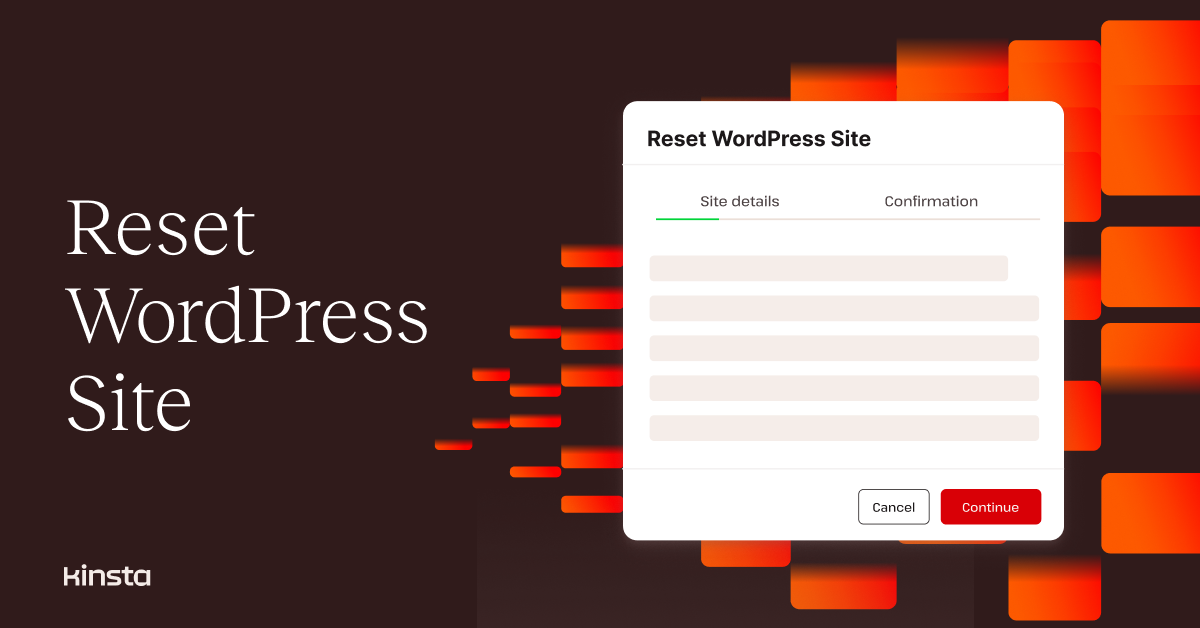
Resetting a WordPress site can be simple using plugins. Plugins help clean your site fast. They remove all content and settings. This leaves your site fresh and ready to start again.
Plugins work with just a few clicks. No need to touch complex code or database settings. This makes them perfect for beginners or anyone wanting a quick reset.
Popular Reset Plugins
Several plugins offer easy reset functions. WP Reset is widely used and trusted. It can reset the entire site or only parts of it.
Advanced WordPress Reset is another option. It resets the database back to default settings fast. Both plugins are free and available in the WordPress plugin directory.
Step-by-step Plugin Reset Process
First, install the reset plugin from the WordPress dashboard. Activate the plugin once installed.
Next, find the reset option in the plugin’s settings. Read the warnings carefully. Resetting deletes all your content permanently.
Type the confirmation word or phrase as requested. Click the reset button to start the process.
Wait a few moments while the plugin clears your site. Once done, your WordPress site looks like a new install.
Manual Reset Method
The Manual Reset Method lets you clear your WordPress site yourself. It removes all files and data. This method gives you full control over the reset process.
You must be careful. Back up your data before starting. This process deletes everything on your site. After reset, your site will look like a new WordPress install.
Deleting WordPress Files
First, access your website files through FTP or your hosting control panel. Find the folder where WordPress is installed. Usually, it is the public_html folder.
Select all WordPress files and folders. Delete them completely. This includes wp-admin, wp-content, wp-includes, and all other files. Removing these files clears the website content and WordPress core files.
Make sure no leftover files remain. Leftover files can cause issues after reset.
Resetting The Database
Next, reset the WordPress database. Log in to your hosting control panel. Open the database management tool, often phpMyAdmin.
Select your WordPress database from the list. Check all tables inside the database. Choose the option to drop or delete all tables.
Deleting tables removes all posts, users, and settings. After this, your database will be empty and ready for a fresh WordPress install.
Close the database tool and return to your hosting panel to install WordPress again.
Reinstalling WordPress
Reinstalling WordPress is a way to start fresh with your website. It can fix many issues and clean up your site. This process removes old files and replaces them with new ones. It does not delete your content if done correctly.
Reinstalling helps when your site is slow or broken. It also removes corrupted files or malware. You get a clean base to build or fix your site.
Fresh Installation Steps
First, back up your website files and database. This keeps your data safe. Next, download the latest WordPress package from the official site.
Delete old WordPress files from your server except the wp-config.php and wp-content folder. Upload the new WordPress files to your server using FTP or your hosting file manager.
Run the WordPress installer by visiting your site URL. Follow the instructions to connect your database. Enter your database name, username, and password.
Configuring Basic Settings
After installation, log in to your WordPress dashboard. Set your site title and tagline under Settings > General. Choose a timezone, date, and time format that suits you.
Go to Settings > Permalinks and select a structure for your URLs. The “Post name” option is best for SEO. Save your changes to apply them.
Install essential plugins like security and caching tools. Activate a theme that matches your site’s purpose. Customize your site appearance to make it unique.

Credit: kinsta.com
Restoring Content Selectively
Restoring content selectively helps keep important parts of your WordPress site. It allows you to bring back posts, pages, themes, and plugins without starting from zero. You save time and keep your site looking familiar to visitors.
This process is useful after resetting your site. You can choose what to restore and what to leave out. It keeps your site clean and organized, avoiding unnecessary files or settings.
Importing Posts And Pages
Start by exporting posts and pages from your backup. Use the WordPress export tool to get an XML file. Then, go to the WordPress dashboard and select “Import.” Choose the XML file to upload your content. This brings back your posts and pages without affecting other parts of your site.
Check all imported posts and pages for accuracy. Fix any missing images or broken links. This step ensures your content looks right and works well for visitors.
Reinstalling Themes And Plugins
After importing content, reinstall your themes and plugins. Download the latest versions from trusted sources. Use the WordPress dashboard to upload and activate them one by one.
Keep only the themes and plugins you need. This reduces site clutter and improves performance. Customize settings after installation to match your previous setup. Test your site to confirm everything works smoothly.
Tips For A Smooth Reset
Resetting a WordPress site can feel tricky. Following some simple tips helps make the process smooth and safe. These tips reduce errors and protect your data. A careful reset sets a clean base for your site.
Avoiding Common Mistakes
Back up your entire site before resetting. Losing data is the biggest risk. Use trusted plugins or manual methods to save files and databases. Clear your browser cache to see changes properly. Avoid resetting on live sites without testing first. Double-check plugin compatibility after reset. This prevents errors and broken features.
Ensuring Website Security
Change all passwords after reset. This includes admin, FTP, and database passwords. Update WordPress to the latest version. Remove unused themes and plugins to reduce risks. Use a security plugin to scan your site. Monitor your site for unusual activity after reset. Keep backups stored safely offline for emergencies.
Credit: kinsta.com
Credit: hackguard.com
Frequently Asked Questions
How Do I Reset My WordPress Site Safely?
To reset your WordPress site safely, use a reliable plugin like WP Reset. Always back up your site before resetting to avoid data loss. This method clears content, settings, and customizations without affecting your hosting or files.
Can I Reset WordPress Without Losing Content?
Resetting WordPress typically deletes content and settings. To keep content, back up your posts, pages, and media before resetting. Alternatively, selectively reset settings using plugins that allow partial resets without deleting your content.
What Is The Easiest Way To Reset WordPress?
The easiest way to reset WordPress is by using a plugin like WP Reset. It offers a quick, one-click reset option to restore your site to default settings without manual database edits.
Will Resetting WordPress Delete My Themes And Plugins?
Resetting WordPress usually deletes themes and plugin data but not the files themselves. After reset, you may need to reinstall or reactivate plugins and themes. Always back up your site to prevent data loss.
Conclusion
Resetting your WordPress site can solve many issues fast. Choose the method that fits your needs best. Always back up your site before starting the reset process. Keep your site safe and running smoothly after reset. Regular maintenance helps avoid future problems.
Follow these simple steps to refresh your site easily. Now, your WordPress site is ready for a fresh start.



