
Are you tired of spam flooding your WordPress site’s comments or contact forms? Adding Google Captcha is the simple fix you need.
It stops bots in their tracks, protecting your site and saving you time. In this guide, you’ll learn exactly how to add Google Captcha to your WordPress site—step by step, with no technical jargon. Keep reading, and you’ll secure your website quickly and easily.
Why Use Google Captcha
Google Captcha is a tool that protects websites from unwanted activities. It helps keep your WordPress site safe and clean. Using Google Captcha makes your site stronger and more user-friendly.
Preventing Spam And Bots
Spam comments and fake sign-ups slow down your website. Google Captcha stops bots from sending spam. It blocks automatic actions that harm your site. This keeps your content and user data safe.
Enhancing Site Security
Security is important for any website. Google Captcha adds an extra layer of defense. It helps prevent hacking attempts and unauthorized access. This makes your WordPress site more secure for visitors.
Improving User Experience
Google Captcha is simple and quick for real users. It stops bad traffic without making visitors wait. This keeps your site smooth and easy to use. A good experience helps visitors trust your site more.
Credit: www.cloudways.com
Types Of Google Captcha
Google Captcha helps protect your WordPress site from spam and bots. It comes in different types. Each type works in a unique way. Choose the right one for your site’s needs and user experience.
Recaptcha V2
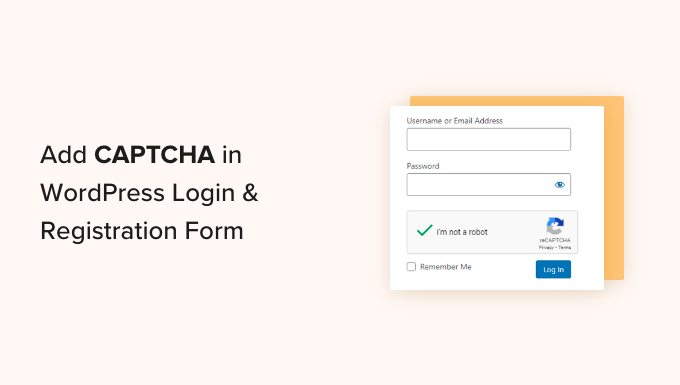
reCAPTCHA v2 asks users to prove they are human. Usually, it shows a checkbox with “I’m not a robot.” Sometimes, users solve image puzzles. It is simple and well known. Many websites use this type to stop spam.
Recaptcha V3
reCAPTCHA v3 works in the background. It does not ask users to click or solve puzzles. Instead, it gives a score based on user behavior. Site owners decide what score is safe. This type keeps the user experience smooth and fast.
Invisible Recaptcha
Invisible reCAPTCHA stays hidden until needed. It triggers only when suspicious activity happens. Users see no checkbox or puzzle unless the system doubts them. This type protects sites without disturbing visitors.
Preparing For Integration
Before adding Google Captcha to your WordPress site, prepare carefully. Proper preparation helps avoid errors and saves time. Follow these steps to get ready for integration.
Creating Google Captcha Keys
Start by creating Google Captcha keys. Visit the Google reCAPTCHA website and sign in with your Google account. Register your website by adding its domain name. Choose the type of captcha you want to use. Google will then generate two keys: a site key and a secret key. Save these keys carefully. You will need them to connect Captcha to your WordPress site.
Choosing The Right Captcha Type
Google offers several captcha types. The most common are reCAPTCHA v2 and reCAPTCHA v3. reCAPTCHA v2 asks users to click a checkbox or solve a puzzle. reCAPTCHA v3 runs in the background without user interaction. Choose the one that fits your site’s needs best. Think about your visitors’ experience and security level.
Backup Your WordPress Site
Backing up your WordPress site is important before making changes. A backup saves your current site data and settings. Use a reliable plugin or your hosting provider’s tool to create a backup. This step protects your site if something goes wrong during integration. Keep the backup file safe and ready to restore if needed.
Credit: kinsta.com
Adding Captcha Using Plugins
Adding captcha to your WordPress site helps stop spam and bots. Using plugins makes this task simple and quick. You do not need coding skills. Plugins handle the complex parts for you. Just follow a few easy steps.
Selecting A Captcha Plugin
Choose a captcha plugin that is popular and well-rated. Check its compatibility with your WordPress version. Look for plugins that support Google reCAPTCHA. Reviews and update frequency show how reliable a plugin is.
Installing And Activating The Plugin
Go to your WordPress dashboard. Click on “Plugins” then “Add New.” Type the plugin name in the search box. Click “Install Now” next to the plugin. After installation, press “Activate” to enable it.
Configuring Plugin Settings
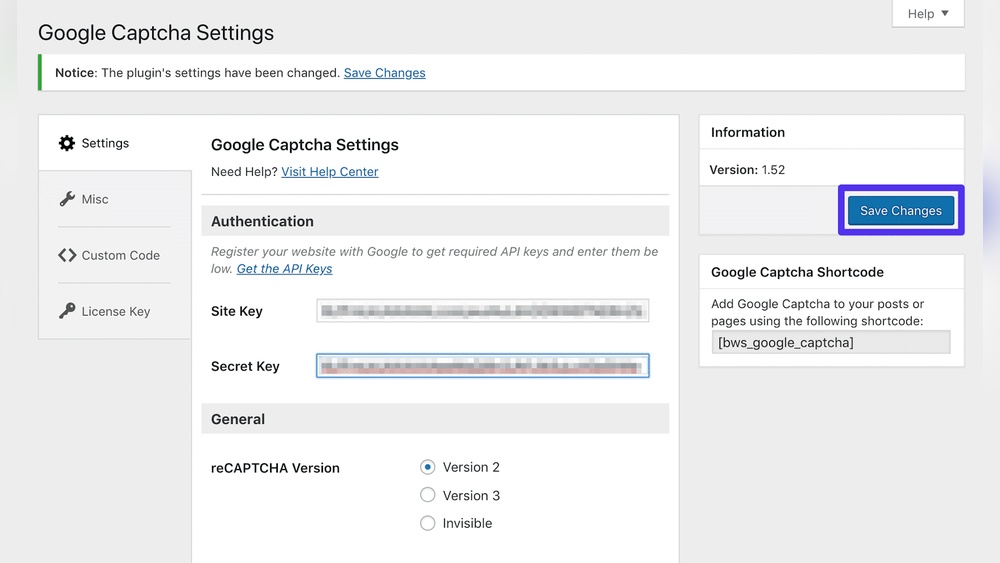
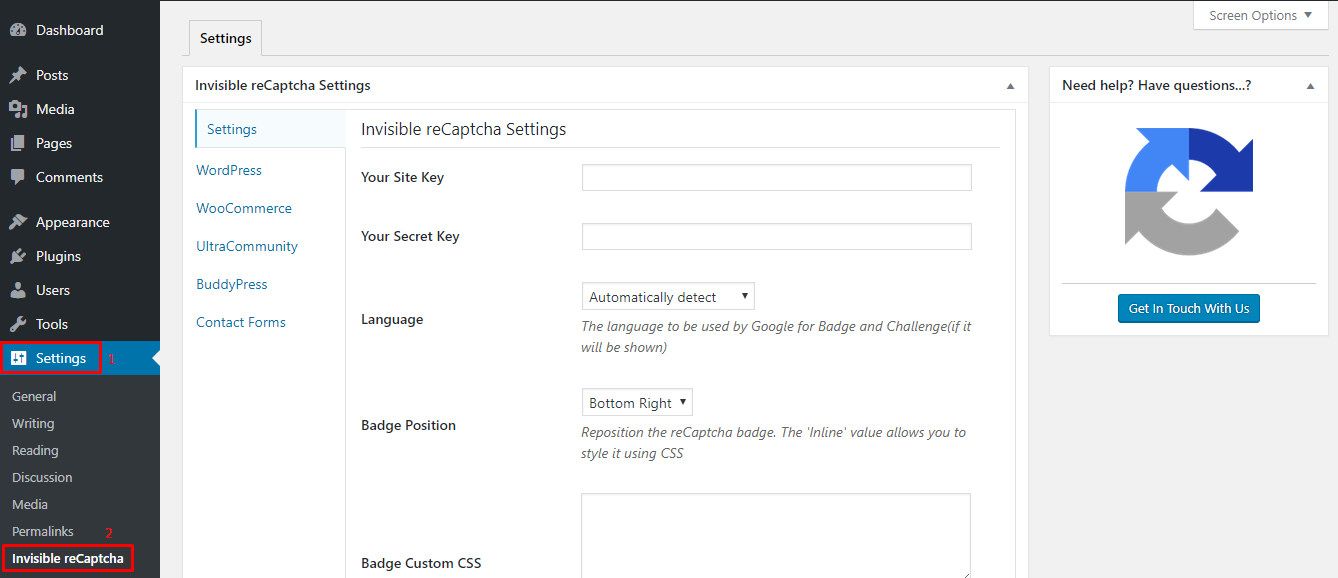
Open the plugin settings page from your dashboard. Enter the Google reCAPTCHA site key and secret key. These keys come from the Google reCAPTCHA website. Choose the captcha type (checkbox or invisible). Save your settings to apply changes.
Testing Captcha On Your Site
Visit the page with the captcha form. Try submitting the form without completing the captcha. The form should block submission. Then, complete the captcha and submit again. It should allow submission this time. This test ensures captcha works correctly.
Manual Captcha Integration
Manual Captcha integration lets you control the process of adding Google Captcha to your WordPress site. You insert the code directly into your forms and handle the verification yourself. This method is great for custom forms or when plugins do not fit your needs.
Adding Captcha Code To Forms
First, you need to include the Google Captcha widget in your form’s HTML. Copy the script from Google’s site and paste it before the closing tag. Then, add the Captcha div inside the form where you want the challenge to appear. It looks like this:
This code shows the Captcha box on your form.
Inserting Site And Secret Keys
Google provides two keys when you register your site: a site key and a secret key. The site key goes into the Captcha code on your form. The secret key stays on your server and is used to verify user responses.
Keep your secret key safe. Never share it publicly. You will need it later for the verification step.
Verifying Captcha Responses
After a user submits the form, send their Captcha response to Google for verification. Use a server-side script in PHP or another language.
Send a POST request to https://www.google.com/recaptcha/api/siteverify with the secret key and the user’s response token. Google will reply with a success or failure status.
Only process the form if the Captcha verification returns success. This step blocks bots and spam effectively.
Credit: www.wpbeginner.com
Troubleshooting Common Issues
Troubleshooting is key when Google Captcha does not work as expected. Problems can stop users from submitting forms or even loading the captcha. Fixing these issues helps keep your website secure and user-friendly.
This section covers common problems and easy solutions. Follow these tips to make your captcha work smoothly.
Captcha Not Showing
Check if the site key and secret key are correct. Wrong keys stop the captcha from appearing. Clear your browser cache and refresh the page. Sometimes, old files cause display problems. Disable caching plugins temporarily to see if they block the captcha. Also, ensure JavaScript is enabled in the browser. Captcha needs JavaScript to load properly.
Validation Errors
Validation errors happen when the captcha response is not verified. Confirm the secret key matches the one in your Google Captcha account. Look for typos or extra spaces. Make sure your server can connect to Google’s verification service. Some hosting providers block outgoing connections. Check server firewall settings or contact your host. Ask users to complete the captcha carefully. Incomplete captcha input leads to errors.
Compatibility With Themes And Plugins
Some themes or plugins conflict with Google Captcha scripts. Test the captcha with a default WordPress theme like Twenty Twenty-One. Disable other plugins one by one to find conflicts. Update all plugins and themes to the latest versions. Outdated software often causes problems. Use plugins from trusted sources only. Avoid plugins that alter login or form functions without clear support for captcha.
Optimizing Captcha For Better Performance
Optimizing Google Captcha on your WordPress site improves user experience and security. Poorly optimized Captcha can slow your site or annoy visitors. Focus on key areas to keep Captcha effective and fast. This helps protect your site without losing visitors.
Balancing Security And Usability
Choose a Captcha type that blocks bots but stays easy for real users. Invisible Captcha works well because it runs in the background. It lets genuine users pass without extra steps. Too many challenges may frustrate visitors and cause drop-offs. Test different settings to find the right mix of security and ease.
Reducing Load Times
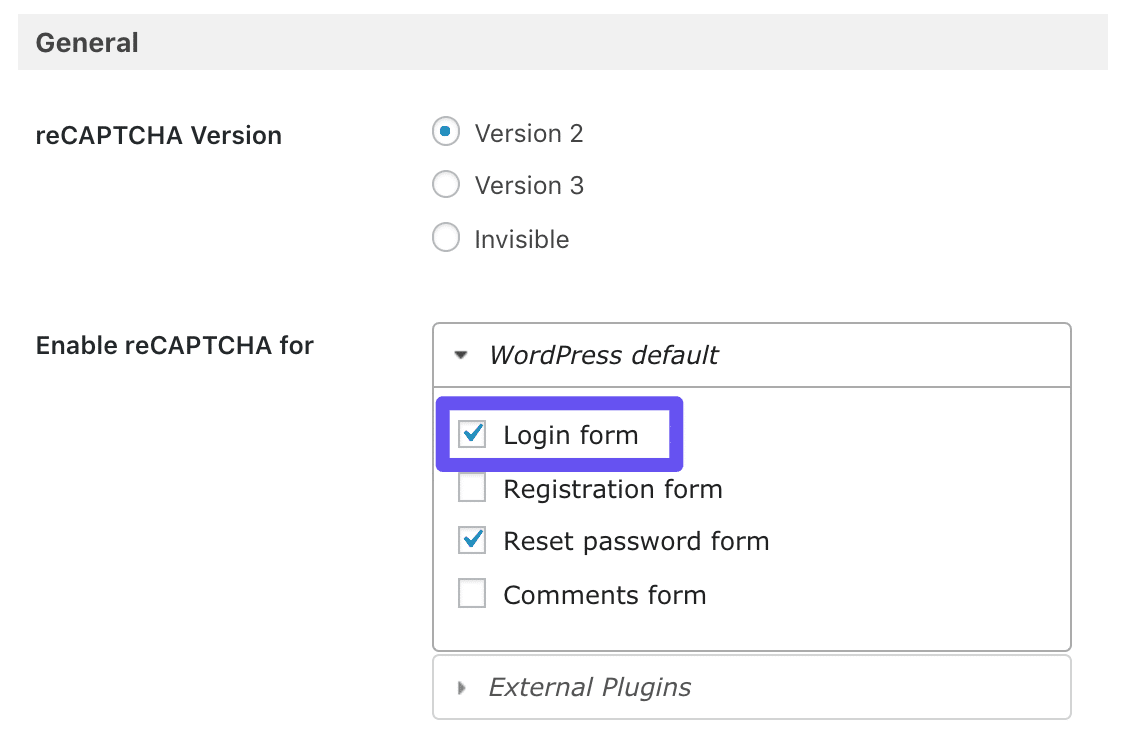
Captcha scripts can slow your page loading speed. Use the latest Google Captcha version to keep it light. Load Captcha only on pages that need it, like login or comment forms. Avoid loading it site-wide if unnecessary. This cuts down extra load and speeds up your site.
Monitoring Captcha Effectiveness
Track how well your Captcha stops spam and fake users. Google provides analytics to check performance. Look for spikes in spam or failed attempts. Adjust Captcha settings based on this data. Regular checks keep your site safe and user-friendly.
Frequently Asked Questions
What Is Google Captcha And Why Use It In WordPress?
Google Captcha protects your WordPress site from spam and bots. It verifies users are human, reducing fake form submissions and improving security.
How To Install Google Captcha Plugin In WordPress?
Go to your WordPress dashboard, navigate to Plugins > Add New, search for “Google Captcha,” install, and activate it. Then configure settings with your site keys.
How Do I Get Google Captcha Site And Secret Keys?
Visit Google’s reCAPTCHA website, sign in, register your site, and get the site key and secret key. Use these keys to enable Captcha on WordPress.
Can I Add Google Captcha To WordPress Contact Forms?
Yes, you can add Google Captcha to popular contact form plugins like Contact Form 7, WPForms, and Gravity Forms to prevent spam submissions easily.
Conclusion
Adding Google Captcha to your WordPress site helps block spam bots. It protects your site from fake sign-ups and unwanted comments. The process is simple and quick to follow. You only need to choose the right plugin and enter your keys.
This small step keeps your site safer and runs smoothly. Keep your visitors happy by reducing spam. Now, you can manage your site with less worry. Try adding Google Captcha today for better security.



