
Imagine being able to tweak and perfect your WordPress theme without the fear of breaking your live site. It’s a possibility that opens doors to creativity and innovation without the risk of downtime or errors.
You deserve to have a website that not only looks great but functions smoothly, and testing your theme safely is the first step in achieving that. By learning how to test a WordPress theme without going live, you can experiment with design elements, functionality, and layout changes with complete peace of mind.
This article will guide you through the process, offering practical steps and tips that ensure your website remains flawless while you work behind the scenes. Dive in to discover how easy it can be to build your dream site with confidence and control.
Local Development Setup
Installing a local server is important for testing. You need a tool like XAMPP or WAMP. These tools create a server on your computer. Install the software and run it. This is your local server.
Open the server control panel. Start the Apache and MySQL modules. Now, your computer is ready. It can run WordPress.
Setting Up WordPress Locally
Download WordPress from the official site. Unzip the file. Move the files to the server folder. Usually, the folder is named “htdocs”. Open a web browser. Type “localhost” in the address bar. Follow the steps to install WordPress.
Create a database for WordPress. Use the MySQL module in the server control panel. Name your database. Enter the database name during WordPress setup. Complete the setup process. Now, you have WordPress on your local server.

Credit: www.youtube.com
Staging Environment
A staging site is like a playground. You can test changes safely. It is not live. Your visitors will not see it. You can try new themes here. It feels like your real site. But it is not. It helps find bugs before they show up.
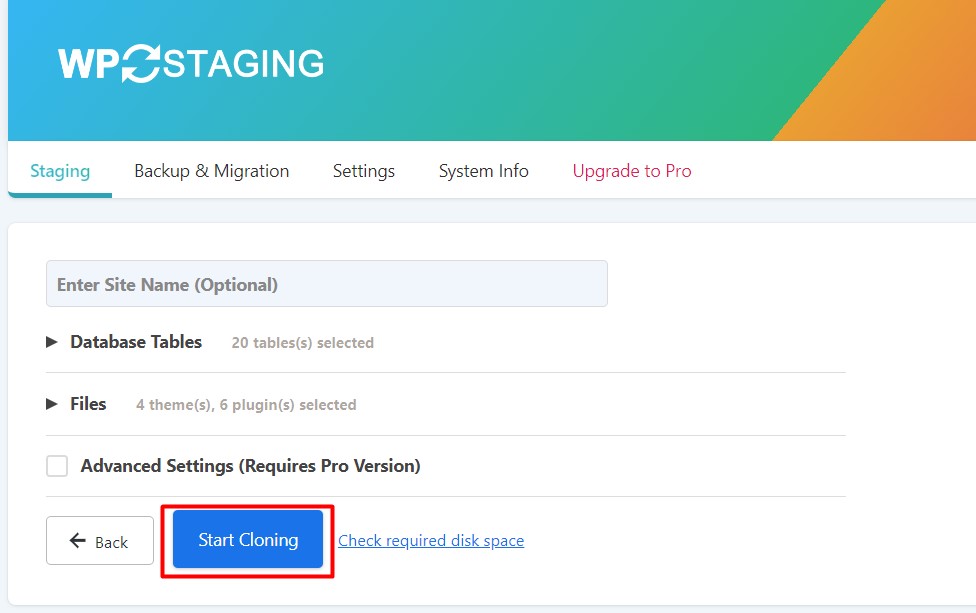
Most hosting providers offer staging tools. You can create a staging site with one click. This is very useful. Always use a staging site to test themes. It keeps your main site safe.
Synchronizing data keeps your staging site updated. It matches your live site. This is important. It helps to catch changes. Your site will stay the same. You can update themes and content safely.
Some tools can help with this. Plugins like WP Staging are useful. They make it easy to sync data. Always check your staging site after syncing. It should look like the live site.
Using Theme Check Plugins
Many tools help check WordPress themes. Theme Check is a popular plugin. It scans themes for errors. Tidy Repo also checks themes. It ensures they work well. Theme Sniffer is another tool. It finds code problems. These tools help keep themes clean. They ensure themes follow WordPress rules. Checking themes is easy with these tools.
Start by installing a theme check tool. Activate the plugin. Select the theme to test. The tool will scan the theme. It will show any problems found. Fix these issues for better performance. Run the test again. Make sure all errors are gone. Testing themes helps avoid live site problems. It keeps websites smooth and fast.
Theme Unit Testing
Unit testing checks small parts of a theme. It helps find errors early. Each test focuses on one feature. Developers can fix problems before they become big. It saves time and effort. Testing keeps the theme working well. Users have a better experience. It is important for quality control.
Test data is fake content. It helps check theme functions. Fake posts, pages, and comments are used. They mimic real site behavior. Developers can see how themes handle different content types. Setting up test data is simple. Use sample text and images. Test data shows if a theme works correctly.
Sandboxing Techniques
Sandbox plugins help you test themes safely. They create a fake environment. This means changes don’t affect your live site. You can try many things. Change colors, fonts, or layouts. Nothing will break your real site.
These plugins are easy to use. Just install and activate. Then, test without fear. It keeps your main site safe. This is great for new users.
Sandboxing offers many benefits. It protects your live site. Mistakes won’t go public. You can test new ideas freely. It saves time and stress. No need to fix live errors.
This is perfect for learning. Try new themes safely. Feel confident with every change. Your site remains safe. Sandboxing is a smart choice.

Credit: instawp.com
Backup And Restore Options
Creating a backup is very important. It keeps your data safe. Use a reliable plugin. This helps to save all your website data. Store your backup in a safe place. You can use cloud storage. This will keep your data secure. Do it before testing a new theme.
Restoring a previous state is easy. You need your backup file. Go to your WordPress dashboard. Find the restore option. Choose your backup file. Click restore. Your website will return to the saved state. This helps if something goes wrong. Always keep your backup updated.
Final Checks Before Going Live
Testing a WordPress theme before going live ensures everything functions well. Use a staging site to check design and compatibility. Fix any issues found to avoid user disruptions.
Compatibility Testing
Check the theme on different browsers. It should look good on all. Test on mobile devices too. A theme must work on phones. Ensure that plugins are compatible with the theme. Plugins must function without issues. Check that all links work correctly. Broken links can cause problems. Test the design on different screen sizes. Everything should fit well. Ensure that forms are accessible and easy to use. Forms should not confuse users.
Performance Evaluation
Measure the loading speed of the theme. Faster is better. Check the image sizes. Large images slow down the site. Minimize code to improve speed. Less code means faster loads. Test the site with online tools. Tools can show speed issues. Optimize the database for better performance. Clean databases run faster. Ensure the theme uses caching techniques. Caching speeds up site loading.
Credit: bdthemes.com
Frequently Asked Questions
How Do I Test My WordPress Site Before Going Live?
Test your WordPress site by using a staging environment or a local server setup. Check functionality, plugins, and themes. Verify responsiveness on various devices. Use tools like Google Lighthouse for performance analysis. Ensure security measures are in place, and debug any issues before launching.
How To Work On A WordPress Site Without Going Live?
Use a staging site or local server to work on your WordPress site. Tools like WP Staging or Local by Flywheel help. They allow you to test changes without affecting the live site. Always back up your site before making changes.
How To Preview A WordPress Theme?
To preview a WordPress theme, install it from the dashboard. Click “Appearance,” then “Themes,” and select “Live Preview. ” This lets you view your site with the new theme without activating it. Ensure the theme is compatible with your plugins for optimal performance.
How Do You Preview Before Publish On WordPress?
Click “Preview” next to the “Publish” button in WordPress. View your post in a new tab. Adjust as needed before publishing.
Conclusion
Testing a WordPress theme without going live is crucial. It ensures your site stays professional and error-free. Use staging sites or local environments for safe testing. This approach helps you spot bugs early. No interruptions for your visitors. Always keep backups.
They save your work if things go wrong. Explore plugins that simplify the testing process. They make your job easier. Remember, a smooth user experience boosts your site’s success. So, test thoroughly before hitting the publish button. Happy testing!


