
Are you ready to remove your WordPress site but don’t know where to start? Deleting a WordPress site might seem tricky, but it doesn’t have to be.
Whether you want to clear space, start fresh, or simply say goodbye to your old site, this guide will walk you through every step. By the end, you’ll feel confident and in control of your website’s future. Keep reading to discover the easiest and safest way to delete your WordPress site—no confusion, no stress.

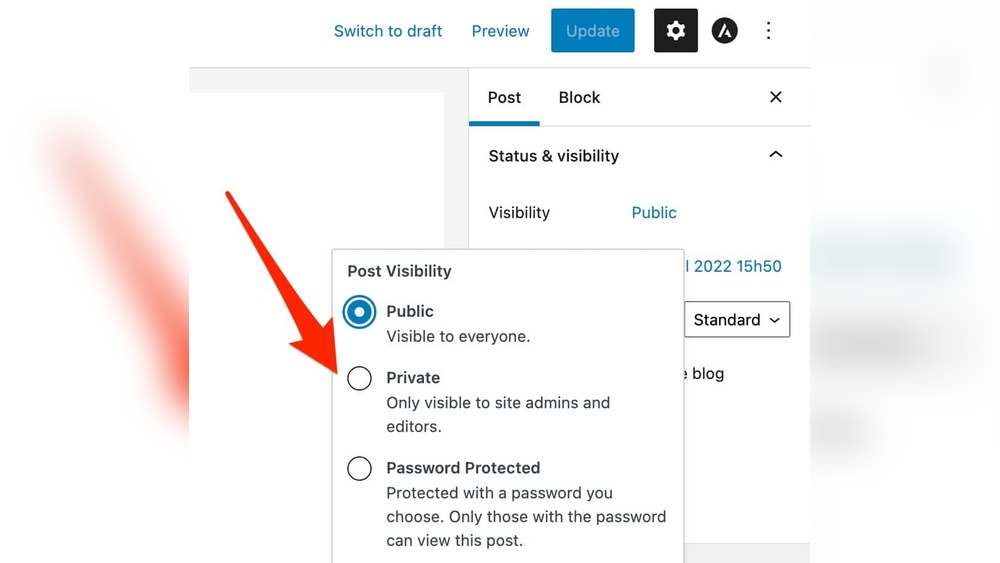
Credit: wpmarmite.com
Backup Your WordPress Site
Backing up your WordPress site is a crucial step before deletion. It protects your content and settings from being lost. You can restore your site later if needed. This process saves all your files and data in a safe place. Let’s break down the backup process into simple steps.
Choose A Backup Method
Select a backup method that suits your skills and needs. Use a plugin for an easy, automated backup. Popular plugins include UpdraftPlus and BackWPup. Alternatively, perform a manual backup using your hosting control panel. Choose the method that fits your comfort level.
Download Files And Database
Download all WordPress files using an FTP client like FileZilla. These files include themes, plugins, and media uploads. Export your database via phpMyAdmin or a similar tool. Your database holds all site content and settings. Make sure to save both files and database.
Store Backup Safely
Keep your backup in a secure location. Use an external hard drive, cloud storage, or both. Avoid storing backups only on your website server. This prevents loss if the server fails. Label your backup files clearly for easy access later.
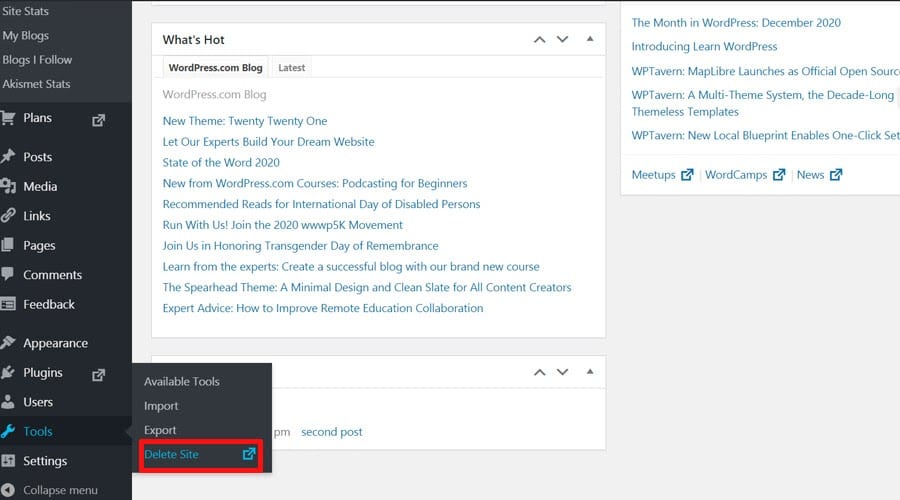
Credit: www.fixrunner.com
Delete WordPress Site From Hosting
Deleting a WordPress site from your hosting account clears space and removes old projects. This process involves removing all files and the database linked to your site. Careful steps ensure you delete everything properly without leaving data behind.
Access Hosting Control Panel
Start by logging into your hosting control panel. Most hosts use cPanel or a similar system. Enter your username and password to access the dashboard. Find the file manager or the section where your website files are stored.
Remove WordPress Files
Open the file manager and locate the folder with your WordPress site files. Select all files and folders inside that directory. Use the delete option to remove these files permanently. Make sure you delete everything related to your WordPress installation.
Delete WordPress Database
Next, go back to the control panel main page. Look for the database section, often named MySQL Databases. Find the database linked to your WordPress site. Select the option to delete the database completely. This step removes all your site’s content and settings.
Remove WordPress Site Via WordPress Dashboard
Removing a WordPress site using the WordPress dashboard is simple and direct. The dashboard gives you control over your site’s settings, content, and tools. You can deactivate plugins and themes, reset your site to its original state, or delete content manually. Each step helps clean up your site before fully removing it.
Deactivate Plugins And Themes
Start by deactivating all plugins. Go to the Plugins menu in the dashboard. Select all active plugins and choose “Deactivate” from the bulk actions menu. This stops plugins from running and affecting your site.
Next, switch your theme to a default WordPress theme like Twenty Twenty-One. Visit the Appearance section, then Themes. Activate a default theme to replace your current one. This ensures no custom themes interfere with the removal process.
Reset WordPress To Default
Resetting WordPress removes all custom settings and content. This step returns your site to a fresh state. Use a plugin designed for resetting WordPress, such as WP Reset. Install and activate the plugin, then follow its instructions to reset your site.
This process deletes posts, pages, media, and users but keeps WordPress files intact. It’s useful when you want to clear your site without deleting the entire WordPress installation.
Delete Content Manually
To delete content manually, go to the Posts and Pages sections. Select posts or pages you want to remove. Use the bulk action “Move to Trash” to delete them quickly.
Empty the Trash to remove content permanently. Also, check the Media Library. Delete any images or files you no longer need. This manual clean-up helps prepare your site for final deletion or a fresh start.
Clear Cache And Cdn
Clearing cache and CDN is important before deleting a WordPress site. Cache stores copies of your site pages. CDN spreads these copies across many servers worldwide. Clearing them ensures no old files stay online after deletion. This stops visitors from seeing outdated content or errors.
Purge Website Cache
Start by clearing your WordPress cache. Many sites use caching plugins like W3 Total Cache or WP Super Cache. Open the plugin settings. Look for a button labeled “Purge Cache” or “Clear Cache.” Click it to remove saved copies of your site pages. This forces the site to load fresh content instead of cached files.
If no plugin is used, check your hosting control panel. Some hosts provide cache options there. Purge any cached files related to your site to avoid showing old data.
Clear Cdn Cache
Next, clear your CDN cache. Log in to your CDN provider’s dashboard. Common CDNs include Cloudflare, KeyCDN, and StackPath. Find the cache section in the dashboard. Select “Purge All” or “Clear Cache.” This removes all cached files from CDN servers worldwide.
Clearing CDN cache helps visitors get the latest site version or a clear error message after deletion. It also helps prevent access to your deleted site’s old content from various locations.
Update Domain Settings
Updating your domain settings is a key step after deleting your WordPress site. It ensures your domain no longer points to your old website. This helps avoid confusion and keeps your online presence clear. Adjusting these settings also prepares your domain for its next use or safely retires it.
Remove Domain From Hosting
Start by removing your domain from your hosting account. This action disconnects the domain from the deleted WordPress site. Most hosting providers have a control panel where you can manage domains. Find the domain list and select the option to remove or delete the domain. This stops the hosting server from displaying your old site on this domain.
Removing the domain frees up resources on your hosting account. It also prevents accidental reactivation of the deleted site. Make sure to save any needed backups before removing the domain.
Set Up Redirects Or Park Domain
After removing your domain, decide what to do next. You can set up redirects to guide visitors to a new website. Redirects help keep traffic and maintain search engine rankings. Use a 301 redirect for permanent moves to a new domain or page.
Alternatively, park your domain if you plan to use it later. Parking displays a simple page or ads while the domain waits for a new purpose. Many registrars offer easy domain parking options. Choose the method that fits your future plans best.
Confirm Site Deletion
After deleting your WordPress site, confirming the deletion is key. It ensures no traces remain online. Checking the site carefully helps avoid surprises later.
Check Website Accessibility
Try to open your website in a browser. If it shows an error or cannot load, the site is likely deleted. Use different devices and browsers to be sure. Clear your browser cache before checking. This step confirms the site is no longer accessible to visitors.
Verify Removal Of Content
Search for your website content using search engines. If pages or posts still appear, deletion may be incomplete. Check your hosting account to ensure all files are removed. Confirm that backups or copies are also deleted. This prevents old content from being restored accidentally.
Alternative Methods To Delete Site
Deleting a WordPress site can seem tricky. There are several ways to remove your site safely. Some methods do not require technical skills. These alternative methods help you delete your site with less effort.
Use Plugins For Site Removal
Plugins can simplify site deletion. Some plugins delete all content and database tables fast. They remove posts, pages, media, and comments. Using a plugin saves time and avoids manual errors. Choose a plugin with good reviews and updates. Activate and follow the plugin’s instructions carefully. Always back up your site before using any plugin.
Contact Hosting Support For Assistance
Hosting providers offer help to delete your site. Support teams can remove files and databases. They handle technical parts for you. Contact your hosting support via email or chat. Provide your site details and request deletion. This method is safe and reliable. Hosting support ensures complete removal from the server.
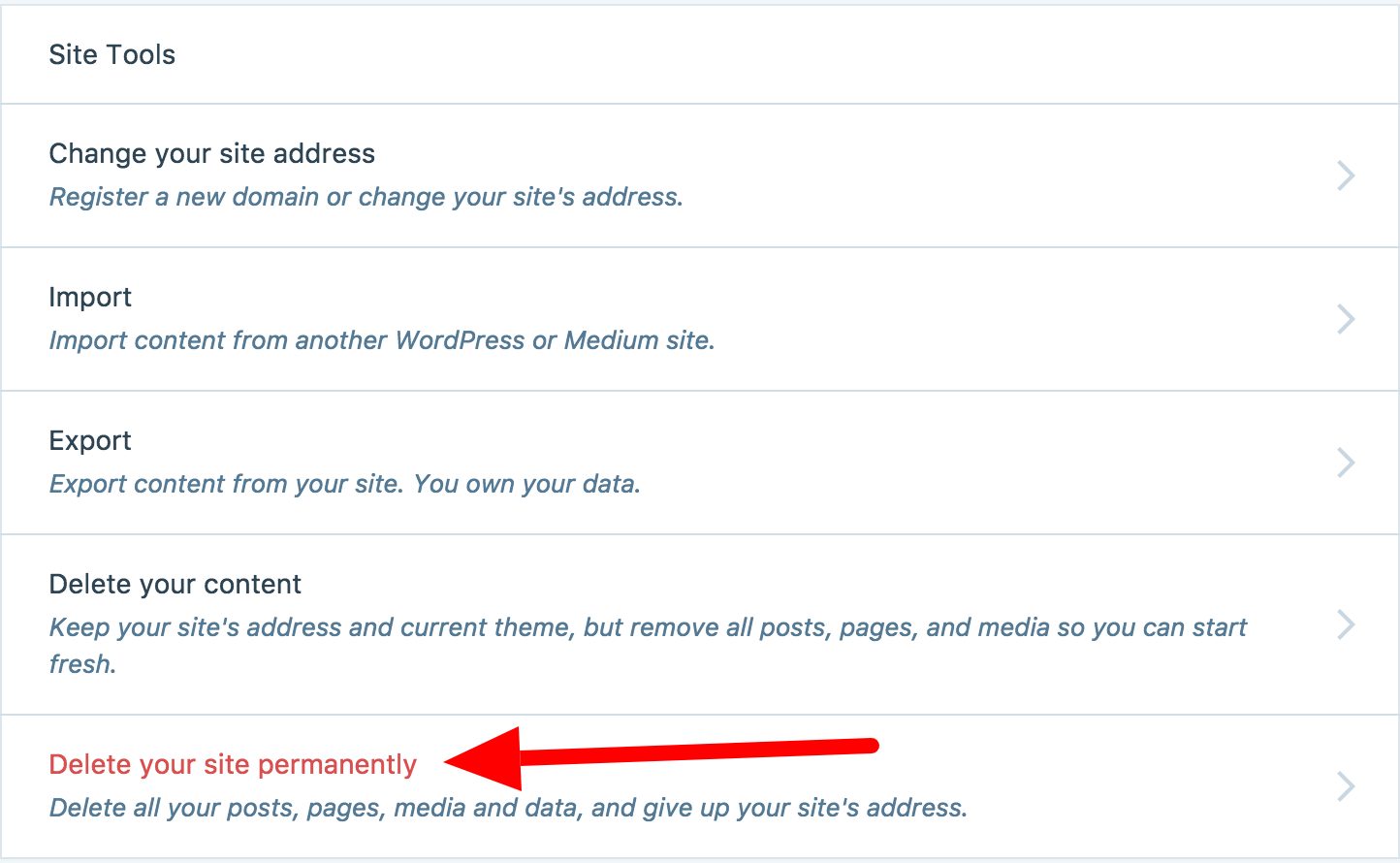
Credit: wordpress.com
Frequently Asked Questions
How Do I Delete A WordPress Site Completely?
To delete a WordPress site, log into your hosting account. Use the file manager or FTP to remove WordPress files. Then, delete the associated database via your hosting control panel. This process removes your site entirely from the server.
Can I Delete A WordPress Site Without Losing Data?
Yes, you can back up your site before deletion. Use plugins or manual methods to save content and database. After backup, proceed with deletion to keep data safe for future use or migration.
What Happens After Deleting A WordPress Site?
After deletion, your website becomes inaccessible to visitors. All content, themes, and plugins are removed from the server. The domain remains yours unless you choose to cancel or transfer it.
Is Deleting A WordPress Site Reversible?
No, deleting a WordPress site is irreversible unless you have a backup. Always create a full backup before deletion to restore your site if needed.
Conclusion
Deleting a WordPress site is simple when you follow clear steps. Always back up your data before starting. Removing the site frees up space and keeps things tidy. Take your time and double-check each action. This way, you avoid mistakes and data loss.
Now, you have control over your website’s presence. Use this guide to manage your site confidently and easily.



