Are you looking to make your WordPress homepage more engaging by adding your latest posts? Showing your posts right on the home page can instantly grab your visitors’ attention and keep them coming back for more.
But if you’re new to WordPress or unsure how to do this, don’t worry—this guide will walk you through simple, step-by-step instructions. By the end, you’ll know exactly how to add posts to your homepage and create a dynamic site that truly reflects your content.
Ready to boost your site’s impact? Let’s get started!
Credit: www.greengeeks.com
Set Up Your WordPress Site
Setting up your WordPress site is the first step to adding posts on your home page. A well-set site creates a strong foundation for your content. It helps your visitors find and enjoy your posts easily. Follow simple steps to prepare your site for posting.
Choose A Theme
Pick a theme that matches your website’s style and purpose. Themes control how your site looks and feels. Many free and paid themes are available in WordPress. Choose one that supports showing posts on the home page. A clean and simple theme works best for easy navigation.
Test the theme on different devices. Make sure it looks good on phones and tablets. A responsive theme improves user experience and keeps visitors longer.
Install Essential Plugins
Plugins add extra features to your WordPress site. Some plugins help manage posts better. Install plugins for SEO, security, and performance. For example, use an SEO plugin to improve your site’s search ranking.
Consider plugins that help display posts on the home page. A plugin like “Recent Posts Widget” can be useful. Keep plugins updated to ensure your site runs smoothly and safely.
Credit: www.wpxpo.com
Create A New Post
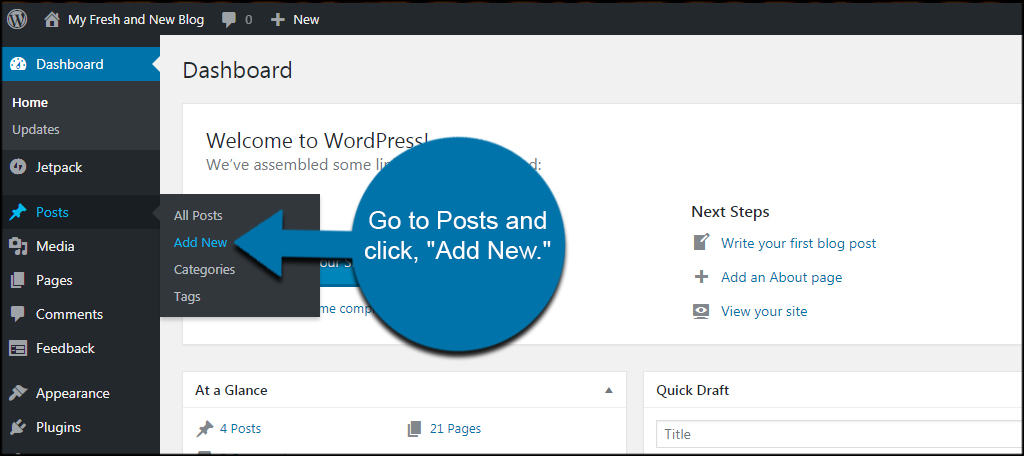
Creating a new post in WordPress is the first step to show fresh content on your home page. This process is simple and fast. You only need to follow a few steps to make your post ready for visitors. Each part of the post helps organize your content and catch readers’ attention.
Add Title And Content
Start by entering a clear and short title. The title tells readers what your post is about. Next, write the main content in the editor area. Use short paragraphs and simple words. This makes your post easy to read. You can also use headings and lists to organize information.
Insert Images And Media
Pictures make your post more interesting. Click the “Add Media” button to upload images or videos. Choose files from your computer or select from the media library. Place images where they fit best in your content. This helps explain your ideas better and keeps readers engaged.
Set Categories And Tags
Categories group your posts by topic. Select one or more categories that match your post. Tags are like keywords that describe the details. Add tags related to your content to improve searchability. Both categories and tags help visitors find your posts easily on your site.
Configure Homepage Settings
Configuring your homepage settings in WordPress helps you control what visitors see first. You can choose to display a static page or your latest posts. This setup affects how your content appears and how users interact with your site.
Select Homepage Display Option
Go to the WordPress dashboard and open the Settings menu. Click on Reading to find homepage display options. Here, you can pick between showing your latest posts or a static page. Select the option that fits your website’s purpose.
Choose Posts Page
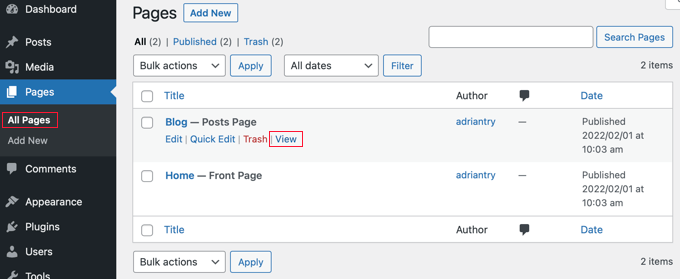
If you select a static page for the homepage, you must set another page to display your posts. In the Reading settings, find the Posts page dropdown menu. Choose the page you want for your blog posts. Save changes to apply your settings.
Use Widgets To Showcase Posts
Widgets offer a simple way to display your posts on the home page. They let you add content blocks without coding. Widgets can show your latest posts, popular posts, or posts from specific categories. This method keeps your home page fresh and interesting. You can manage widgets easily from the WordPress dashboard.
Add Recent Posts Widget
Go to your WordPress dashboard and open the Appearance menu. Click on Widgets. Find the “Recent Posts” widget in the list. Drag it to the widget area where you want it to appear, like the sidebar or footer. This widget shows a list of your newest posts automatically. You can set how many posts to display. It updates every time you publish a new post.
Customize Widget Appearance
After adding the Recent Posts widget, customize its settings. You can change the widget title to something clear, like “Latest News.” Choose to show the post date to add context. Some themes allow you to style the widget with colors and fonts. Check the available options in your theme or use custom CSS for more control. A clean look helps visitors find your content easily.
Add Posts With Page Builders
Adding posts to your homepage using page builders makes the process simple and flexible. These tools help you create layouts without coding. You can control how posts look and where they appear.
Page builders work with drag-and-drop features. They let you place post elements exactly where you want. This method saves time and improves your site’s design.
Use Elementor Or Beaver Builder
Elementor and Beaver Builder are popular page builders for WordPress. Both have widgets or modules to display posts. You can choose to show recent posts, specific categories, or featured articles.
Drag the post widget onto your homepage layout. Then select the posts you want to display. Adjust settings like the number of posts and order.
These builders also let you add filters and pagination. This helps visitors find content easily. No need to write code or use complex plugins.
Design Post Layouts
Page builders let you design how posts appear on your homepage. Choose grid, list, or masonry styles. Customize fonts, colors, and spacing to match your brand.
You can add images, excerpts, and meta information like dates or authors. Make posts easy to scan and attractive to readers.
Use columns and rows to organize multiple posts neatly. Preview your design on different devices. Ensure it looks good on phones and tablets too.
Optimize Homepage For Engagement
Optimizing your homepage for engagement helps visitors stay longer and explore more. A well-organized homepage draws attention and guides readers to your best content. Small changes can make your posts more attractive and clickable. Focus on visuals, summaries, and clear calls to action.
Enable Featured Images
Featured images catch the eye and add color to your homepage. They make posts look interesting and inviting. Choose clear, relevant images for each post. This helps visitors understand the content at a glance. Most WordPress themes support featured images. Make sure to enable them in your post settings.
Add Excerpts For Posts
Excerpts are short summaries that explain what each post is about. They give visitors a quick idea before reading the full article. Write clear, simple excerpts that highlight the main point. Keep them brief, about one or two sentences. Excerpts improve scanning and help readers decide what to read next.
Include Read More Links
Read More links encourage visitors to click and read the full post. They create a clear path from the homepage to detailed content. Place these links after the excerpt or summary. Use simple text like “Read More” or “Continue Reading.” This guides visitors and increases page views on your site.
Troubleshoot Common Issues
Troubleshooting helps fix problems quickly. It saves time and stops frustration. WordPress is easy but sometimes posts do not show or layouts break. Knowing common issues helps keep your homepage clean and tidy.
Posts Not Showing On Homepage
Check if your homepage settings are correct. Go to Settings and then Reading. Make sure “Your latest posts” is selected if you want posts on homepage.
Clear any cache from plugins or browsers. Cached data can hide new posts. Also, check post visibility. Posts must be published, not draft or private.
Look for category filters or plugins that hide posts. Disable plugins one by one to find the cause. Sometimes themes control what shows on homepage.
Layout And Formatting Problems
Inspect your theme’s homepage layout settings. Some themes have special options for post display. Use the Customizer to adjust layout and see changes live.
Check for broken HTML or shortcodes in posts. These can break formatting on homepage. Edit posts to remove or fix faulty code.
Update your theme and plugins. Outdated software often causes display errors. Back up your site before updating to avoid data loss.
Credit: www.wpbeginner.com
Frequently Asked Questions
How Do I Display Posts On The WordPress Homepage?
Go to WordPress Settings > Reading. Set “Your homepage displays” to “Your latest posts”. Save changes. Posts will show on the homepage automatically.
Can I Add Specific Posts To My Homepage?
Yes, use a homepage builder or a custom query in your theme. You can manually select posts to display with plugins or widgets.
How To Create A Static Homepage With Posts Below?
Set a static page as homepage via Settings > Reading. Then assign another page to display posts. This separates homepage content and blog posts.
Which Plugins Help Add Posts To WordPress Homepage?
Popular plugins include Elementor, WPBakery, and Post Grid. These let you customize post display on the homepage without coding.
Conclusion
Adding posts to your WordPress home page helps visitors see your latest content. It keeps your site fresh and interesting. You can choose between showing full posts or just summaries. Use the WordPress settings or widgets to control the layout.
Keep your home page simple and easy to navigate. Regular updates will keep readers coming back. Practice these steps to make your site better every day. Your WordPress home page can become a great space for sharing ideas.