
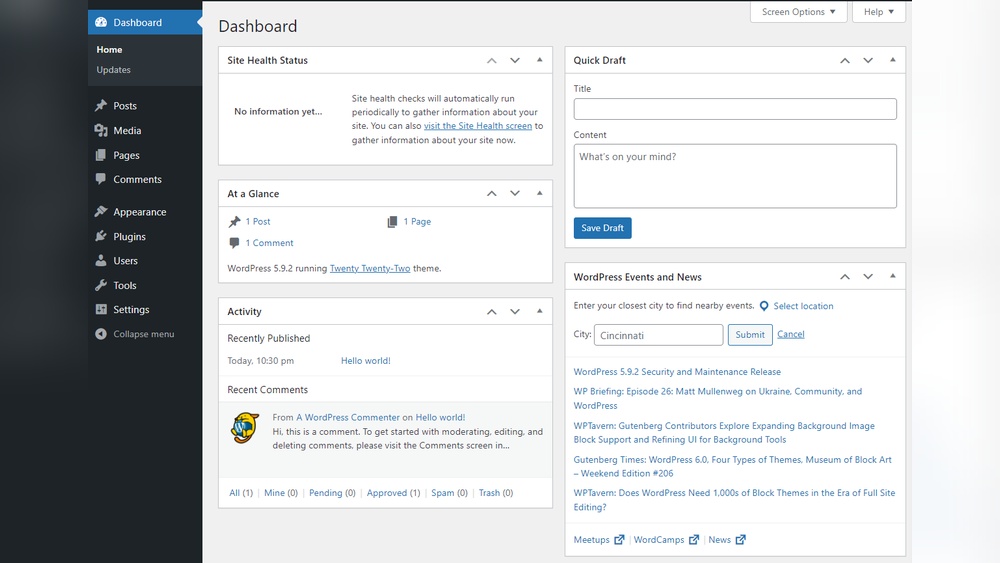
Are you struggling to find your way into your WordPress admin panel? You’re not alone.
Accessing this control center is the first step to managing your website, customizing its look, and adding new content. But if you don’t know where to start, it can feel confusing. You’ll discover simple, clear steps to log in quickly and securely.
By the end, you’ll have full control over your site and be ready to make it truly yours. Keep reading—you’re just moments away from unlocking your WordPress dashboard.
Locate Your Login Url
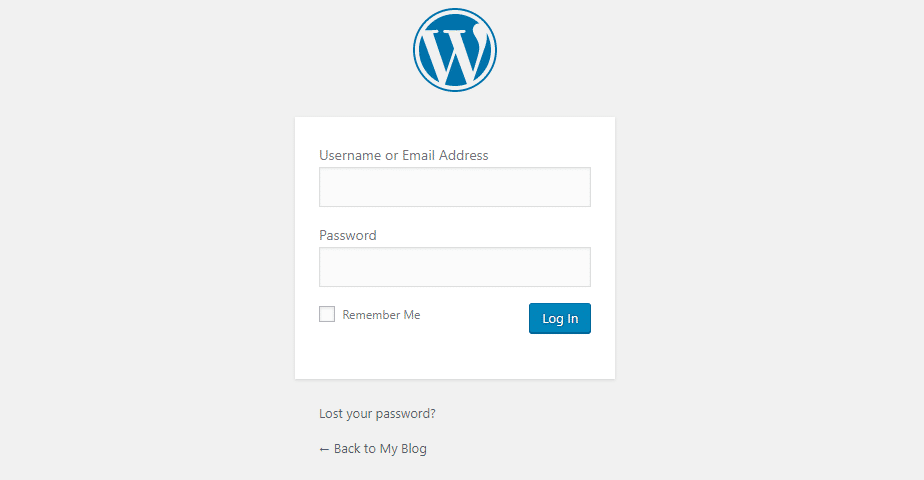
Finding your WordPress login URL is the first step to access the admin panel. It is the web address where you enter your username and password. Knowing this URL helps you manage your website easily.
Common Default Urls
Most WordPress sites use standard login URLs. Try adding /wp-admin or /wp-login.php to your website address. For example, www.yoursite.com/wp-admin usually works. These are the default paths set by WordPress.
If these URLs don’t work, the login page might be customized. Check with your website developer or hosting provider.
Custom Login Url Tips
Some websites change the login URL to improve security. This stops hackers from finding the login page easily. If you have a custom URL, it may look different.
Look for clues in your email or website setup notes. Sometimes, plugins like “WPS Hide Login” change the URL. You can also ask your hosting support team for help.
Credit: kinsta.com
Use Correct Credentials
Accessing the WordPress admin panel starts with using the correct credentials. These credentials are your username and password. Without them, you cannot log in. Using the right details ensures quick and secure access. Keep these details safe and private.
Finding Username And Password
Your username is often the email or a name you chose during setup. Check your email inbox for any welcome messages from WordPress. These emails usually contain your username. Passwords are usually created by you or the site admin. If you saved them in a password manager, check there. Sometimes, the username is “admin” by default.
Resetting Lost Passwords
Lost your password? No worries. Click the “Lost your password?” link on the login page. Enter your username or email address. WordPress sends a reset link to your email. Follow the link to create a new password. Choose a strong but easy-to-remember password. This keeps your site safe and easy to access.
Access Through Hosting Provider
Accessing your WordPress admin panel through your hosting provider is a simple and secure method. Hosting providers often offer tools that help you manage your website efficiently. These tools let you enter your admin panel without typing your WordPress login URL.
This method is useful for beginners who want a quick way to reach their dashboard. It also helps when you forget your WordPress login details. Hosting providers keep all your site information in one place. This makes managing your site easier and faster.
Using Hosting Control Panel
Most hosting providers give you a control panel to manage your website. Popular control panels include cPanel, Plesk, and others. Log in to your hosting account to open the control panel.
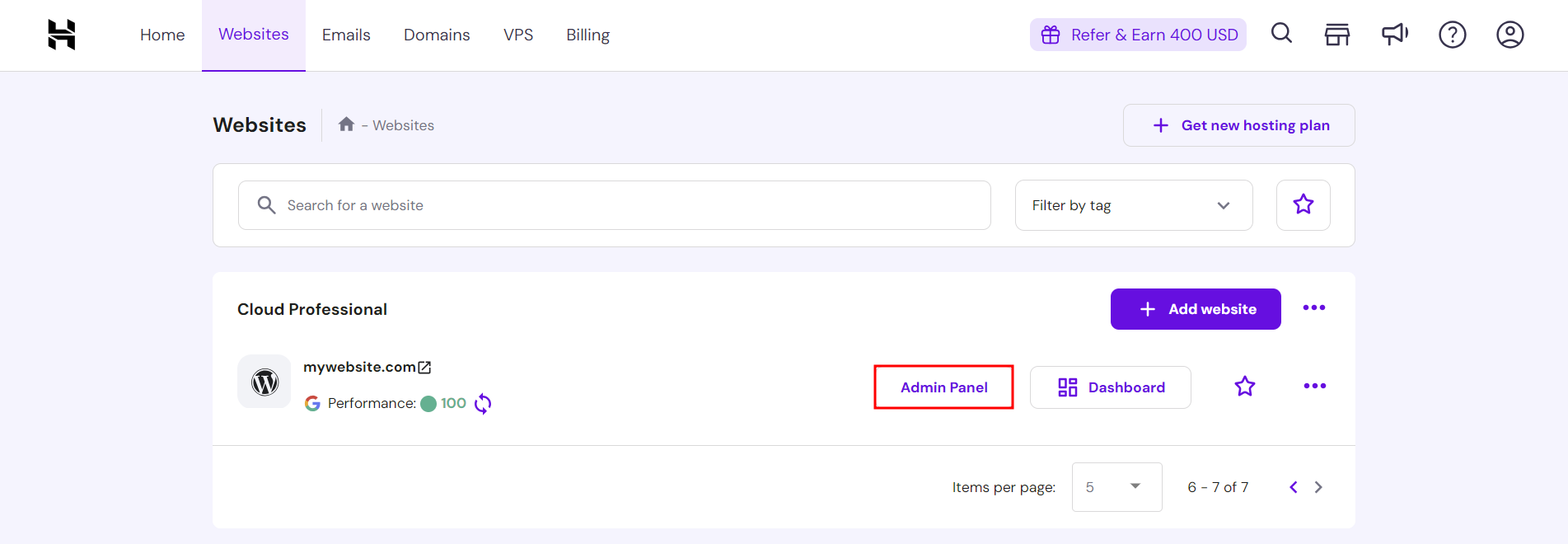
Inside the control panel, find the WordPress or Website section. You will see a link or button to access the WordPress admin panel. Click the link, and you will go directly to the dashboard without entering a username or password again.
This method saves time and reduces login errors. It also keeps your website secure by using the hosting provider’s verified access.
One-click Login Options
Many hosting providers offer one-click login for WordPress sites. This feature lets you enter the admin panel with just one click. No need to enter your WordPress username or password.
One-click login works through your hosting account dashboard. Look for the WordPress icon or a button labeled “Admin” or “Login.” Click it to open your WordPress admin panel instantly.
This option is very helpful for managing multiple sites. It keeps your workflow smooth and saves time. Also, it reduces the risk of entering wrong login details.

Credit: stackoverflow.com
Troubleshoot Login Issues
Accessing the WordPress admin panel is key to managing your website. Sometimes, login problems can stop you from entering this panel. These issues can be frustrating but often have simple fixes.
This section covers easy steps to troubleshoot login problems. Follow these tips to regain access quickly.
Clearing Browser Cache
Your browser saves site data to load pages faster. This is called cache. Sometimes, old cache causes login errors.
Clear your browser cache to remove outdated data. This action forces the browser to load fresh files from the server. After clearing, try logging in again.
Disabling Plugins Temporarily
Plugins add features to your WordPress site. Some plugins can cause conflicts that block logins.
Temporarily disable all plugins to check if one is causing the problem. You can do this by renaming the plugins folder via FTP or your hosting panel. Then, try to log in. If successful, reactivate plugins one by one to find the culprit.
Checking Url Redirects
URL redirects send users from one address to another. Incorrect redirects can trap you on login pages or cause errors.
Verify your site URL settings in the WordPress database or wp-config.php file. Ensure they match your actual website address. Fix any wrong redirects to restore access to the login page.
Secure Your Admin Panel
Securing your WordPress admin panel is crucial. It protects your website from hackers and unwanted access. Simple steps can make your admin panel much safer. Focus on strong security practices to keep your site safe.
Enabling Two-factor Authentication
Two-factor authentication adds an extra security layer. Besides your password, it asks for a code from your phone. This makes it harder for hackers to enter your admin panel. Many plugins offer easy setup for this feature.
Using Strong Passwords
Strong passwords stop many attacks. Use a mix of letters, numbers, and symbols. Avoid common words or simple patterns. Change passwords regularly to keep your account secure.
Limiting Login Attempts
Limiting login attempts blocks repeated tries. After a few wrong attempts, users are locked out temporarily. This prevents hackers from guessing your password easily. Plugins can help set this limit quickly.
Credit: www.hostinger.com
Frequently Asked Questions
How Do I Find My WordPress Admin Url?
Your WordPress admin URL is usually yourdomain. com/wp-admin. Simply add “/wp-admin” to your site’s main URL to access the login page quickly.
What Username And Password Access WordPress Admin?
Use the username and password created during WordPress installation. If forgotten, use the password reset option on the login page to regain access.
Can I Change The WordPress Admin Login Url?
Yes, changing the admin URL improves security. Use plugins like WPS Hide Login to customize or hide the default login URL easily.
How To Recover WordPress Admin Password?
Click “Lost your password? ” on the login page. Enter your email or username to receive a reset link via email instantly.
Conclusion
Accessing the WordPress admin panel is simple and quick. Just remember the URL and your login details. Keep your password safe to protect your site. Regularly update your login info for security. This panel helps you manage your website easily.
Practice these steps to gain control of your site. Soon, you will feel confident handling WordPress tasks. Start exploring your admin panel today.



