
Want to make your WordPress site more interactive and engaging? Adding a comment section is one of the best ways to connect with your visitors and get valuable feedback.
But if you’re not sure how to set it up, don’t worry—you’re in the right place. In this guide, you’ll learn exactly how to add a comment section to your WordPress site quickly and easily. By the end, you’ll have a space where your readers can share their thoughts, ask questions, and build a community around your content.
Keep reading to discover simple steps that anyone can follow, even if you’re new to WordPress.
Benefits Of Comment Sections
Comment sections offer many benefits for WordPress websites. They create a space where visitors can share their thoughts. This interaction keeps visitors interested in your content. Comments also help you understand your readers better. They turn a simple blog post into a lively conversation.
Boosting User Engagement
Comments invite visitors to take part in discussions. This makes the website feel active and welcoming. Readers spend more time on pages with comments. They often return to see new replies. Engagement like this helps build a loyal audience.
Building Community
Comment sections connect people with shared interests. Visitors meet others who enjoy the same topics. This sense of community encourages users to come back. It fosters trust and a friendly environment. A strong community supports your site’s growth.
Improving Seo
Search engines notice active comment areas. Fresh comments add new keywords and content. This helps pages rank better in search results. User-generated content makes your site look relevant. Comments also increase page views and reduce bounce rates.
Preparing Your WordPress Site
Preparing your WordPress site for a comment section ensures smooth interaction with visitors. This step helps create a welcoming space for feedback. Proper setup avoids future issues and keeps your site user-friendly.
Choosing The Right Theme
Select a theme that supports comments. Some themes have built-in comment styles. Choose one that matches your site’s look. This keeps the comment section neat and easy to read. A good theme also works well on mobile devices.
Enabling Comments In Settings
Go to your WordPress dashboard and find the settings menu. Click on “Discussion” to open comment options. Enable the option to allow people to post comments. Adjust settings to require approval for each comment. This helps control spam and inappropriate content. Save your changes before leaving the page.
Adding Default Comment Section
Adding a default comment section in WordPress helps you connect with your readers. It lets visitors share their thoughts on your posts. This feature encourages interaction and builds a community around your content.
WordPress includes a built-in comment system. Activating it is simple and takes only a few steps. You can also control how comments appear and who can post them.
Activating Comments On Posts
Start by going to your WordPress dashboard. Click on “Settings” and then “Discussion.” Here, you will find the option to allow people to post comments. Make sure the box next to “Allow people to post comments on new articles” is checked.
Next, open any post in the editor. Look for the “Discussion” box below the post content. If you don’t see it, click on “Screen Options” at the top and enable “Discussion.” Check the box that says “Allow comments.” Save or update the post. Your readers can now leave comments on that post.
Managing Comment Moderation
Controlling comments keeps your site clean and safe. Return to “Settings” and then “Discussion.” Here, set rules for comment approval. You can choose to approve comments manually before they appear.
Use the comment moderation feature to block spam or unwanted words. Add specific keywords or links that will hold a comment for review. You can also limit the number of links in a comment to reduce spam.
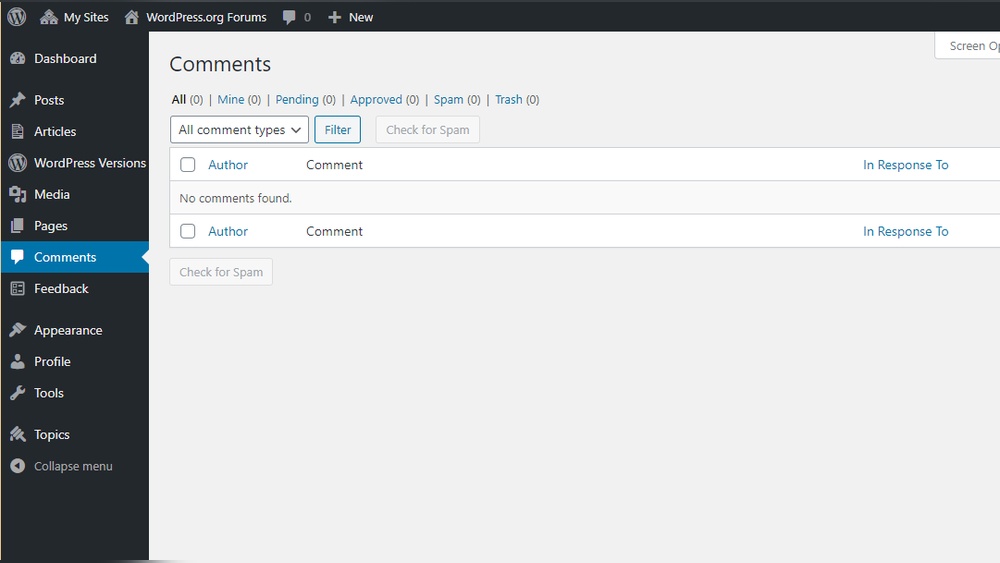
Moderate comments regularly. This helps keep discussions friendly and relevant. You can approve, reply, or delete comments directly from your dashboard under “Comments.”

Credit: wordpress.org
Using Plugins For Enhanced Comments
Adding a comment section to your WordPress site helps build a community. Plugins can improve the basic comment feature. They add new options and make comments easier to manage. Plugins also help keep spam out and encourage more interaction. Using plugins is a smart way to boost user engagement on your blog.
Popular Comment Plugins
Several plugins are well-known for enhancing comments in WordPress. Disqus offers a modern comment system with social login options. Jetpack Comments replaces the default form with a cleaner design. wpDiscuz adds live comment updates and voting features. CommentLuv rewards commenters by linking to their latest blog posts. These plugins help make conversations more lively and organized.
Installing And Configuring Plugins
Start by going to your WordPress dashboard. Click on “Plugins” and then “Add New.” Search for the comment plugin you want. Click “Install Now” and then “Activate.” After activation, find the plugin settings under the “Settings” menu or the plugin’s own menu.
Adjust the settings to fit your needs. Set options for notifications, spam filters, and appearance. Test the comment section on your site. Make sure it works smoothly and looks good on all devices. Regular updates keep the plugin secure and functional.
Customizing Comment Appearance
Customizing the appearance of your WordPress comment section helps create a better user experience. It makes the comment area look neat and matches your website style. Simple changes can make comments easier to read and more inviting for visitors.
Focus on styling comment boxes and adding user avatars. These small tweaks improve the visual appeal and encourage more interaction. Let’s explore how to make these changes step-by-step.
Styling Comment Boxes
Change the look of comment boxes using CSS. Adjust colors, borders, and spacing to fit your site design. Use padding to add space inside each comment box. This makes comments easier to read.
Try different background colors to separate comments from the page. Rounded corners give a softer look. Add shadows for depth and a modern feel. Keep fonts clear and consistent with your theme.
Adding User Avatars
User avatars add personality to your comment section. They show who is talking and make conversations feel personal. WordPress supports avatars through Gravatar by default.
Enable avatars in your WordPress settings. Choose a default image for users without a Gravatar. You can also use plugins to add custom avatar options. Avatars help readers connect with commenters quickly.
Credit: www.tutorialspoint.com
Moderation And Spam Control
Managing comments on your WordPress site is important for a clean and safe environment. Moderation helps keep discussions friendly and relevant. Spam control prevents unwanted messages that can harm your site’s reputation.
Setting clear rules for comments improves user experience. It also reduces the need for manual work. Using tools for spam control saves time and protects your site from harmful content.
Setting Up Comment Filters
Comment filters help catch unwanted words or links. WordPress lets you create a list of banned words. Comments containing these words go to the moderation queue automatically.
You can filter comments by author email or IP address. This stops repeated spam from the same source. Filters keep your comment section clean and easy to read.
Using Anti-spam Tools
Anti-spam plugins block most spam comments before they reach your site. Popular plugins include Akismet and Anti-Spam Bee. These tools check comments against databases of known spam.
They work quietly in the background, saving you time. Some tools add CAPTCHAs to stop bots from posting. This keeps your comment section safe and trustworthy.
Encouraging User Interaction
Encouraging user interaction is key to building a lively WordPress site. A comment section invites readers to share ideas and ask questions. This interaction makes your site more dynamic and trustworthy. It helps create a community around your content.
Prompting Comments
Ask clear questions at the end of your posts. This invites readers to share their opinions or experiences. Use simple language to make it easy for everyone to join the conversation. You can also suggest topics for readers to discuss. Short and direct prompts work best to encourage quick replies.
Responding To Readers
Reply to comments quickly and kindly. This shows readers that their voices matter. A simple thank you or a helpful answer keeps the conversation going. Avoid long or complicated responses. Keep your replies friendly and easy to understand. Engaging with readers builds trust and encourages more comments.

Credit: wordpress.org
Frequently Asked Questions
How Do I Enable Comments In WordPress?
To enable comments, go to WordPress dashboard > Settings > Discussion. Check “Allow people to post comments. ” Save changes to activate the comment section on your posts and pages.
Can I Add A Custom Comment Form In WordPress?
Yes, you can use plugins like WPForms or Comment Form Customizer. These tools let you design and customize the comment form easily without coding.
How To Moderate Comments In WordPress?
Go to the WordPress dashboard > Comments. Here, you can approve, delete, or mark comments as spam to maintain quality and prevent unwanted content.
Are There Plugins To Improve WordPress Comment Sections?
Yes, popular plugins like Disqus, wpDiscuz, and Jetpack enhance comment features. They add social login, voting, and better threading for a richer user experience.
Conclusion
Adding a comment section to your WordPress site helps connect with readers. It invites feedback and starts conversations easily. Visitors feel more involved and valued. Simple steps can make your blog more lively and interactive. Keep your comment area clean and friendly to encourage more participation.
Regularly check and respond to comments to build trust. This small addition can improve your site’s appeal and reader engagement. Try it today and see how your community grows.


