
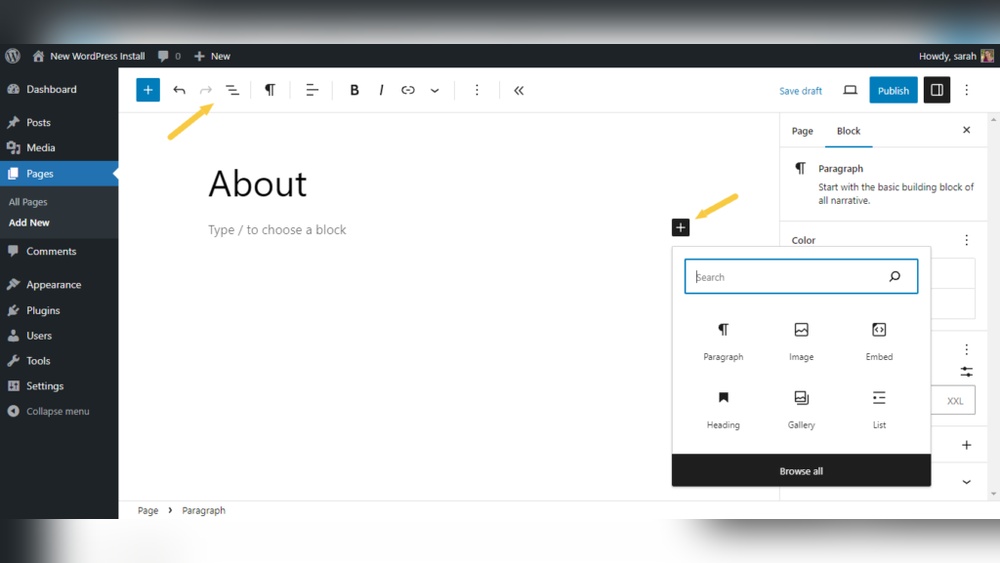
Adding a new page to your WordPress website might seem tricky at first, but it’s actually simpler than you think. Whether you want to share more about your business, showcase your services, or create a blog post, knowing how to add a page gives you more control over your site.
In this guide, you’ll discover easy steps that anyone can follow, even if you’re not tech-savvy. By the end, you’ll feel confident managing your website and expanding it exactly how you want. Ready to take your WordPress site to the next level?
Let’s dive in!
Creating A New Page
Creating a new page on your WordPress website is simple and quick. Pages help organize your site with important content. Follow these steps to create a page easily, even if you are new to WordPress.
Accessing The WordPress Dashboard
First, log into your WordPress dashboard. Use your username and password to sign in. The dashboard is the control center for your website. From here, you manage all your content and settings.
Navigating To Pages Section
Look for the “Pages” menu on the left side of the dashboard. Click on it to open the pages area. This section shows all the pages on your site. You can edit existing pages or create new ones here.
Starting A New Page
Click the “Add New” button at the top of the Pages screen. This opens a blank page editor. Enter your page title at the top. Then, add text, images, or other content in the editor. When done, click “Publish” to make your page live.
Customizing Your Page
Customizing your page is an important step in creating a WordPress website. It helps you make the page look unique and fit your needs. You can change the title, add content, use different blocks, and insert images or media to make the page attractive. This section guides you through simple ways to customize your page easily.
Adding A Title And Content
Start by giving your page a clear title. This title appears at the top and helps visitors know what the page is about. Next, add your content in the main area. You can write text, add lists, or include links. Keep your text short and easy to read. Use paragraphs to separate ideas.
Using Blocks And Widgets
WordPress uses blocks to add different types of content. You can add text blocks, headings, buttons, or quotes. Blocks make your page more organized and flexible. Widgets help add extra features like calendars or recent posts. Place them in sidebars or footers to improve the page’s design.
Inserting Images And Media
Images catch attention and make your page more interesting. Click the image block to upload pictures from your computer. You can also add videos or audio files using media blocks. Always choose files that load fast to keep your page quick. Add captions to explain the images clearly.
Setting Page Attributes
Setting page attributes helps organize your WordPress site. It controls where your page appears in the site structure. It also affects the design and order of your pages. Understanding these options makes your site easier to navigate.
Choosing A Parent Page
A parent page acts like a main category. Your new page becomes a subpage under it. This helps group related pages together. Use this to create a clear site hierarchy. It improves user experience and site navigation.
Selecting A Page Template
Page templates change the look of your page. Your theme offers different templates to choose from. Some templates include full-width, sidebar, or landing page styles. Pick one that fits your content best. Templates give your site a professional feel.
Adjusting Page Order
Page order controls how pages appear in menus. Lower numbers show pages first. Higher numbers push pages down the list. This helps highlight important pages. Adjust the order for a logical flow in navigation.

Credit: skillcrush.com
Publishing Your Page
Publishing your page is the final step to share your content with visitors. This process lets you check your work, save progress, and then make the page visible to the public. WordPress provides simple tools to manage each part of publishing.
Previewing The Page
Previewing shows how your page looks before publishing. Click the “Preview” button to open the page in a new tab. This step helps catch errors or design issues. You see exactly how visitors will view your content.
Saving Drafts
Saving a draft keeps your work safe without showing it online. Click “Save Draft” to store your progress. Come back anytime to edit and improve the page. This feature protects your work from accidental loss.
Making The Page Live
After final checks, make your page live by clicking “Publish.” This action displays the page on your website. Visitors can now read and interact with your new content. You can update or unpublish the page anytime later.
Adding The Page To Navigation
Adding a new page to your WordPress site is only the first step. To make it visible to visitors, you must include it in your website’s navigation menu. This step helps users find your new page easily. It also improves your site’s overall structure and user experience.
Accessing Menu Settings
Start by logging into your WordPress dashboard. Look for the “Appearance” tab on the left side. Click on “Menus” under this tab. This opens the menu management area. Here, you can see your current menus and edit them.
Including The New Page In Menus
Find the box labeled “Pages” on the left side of the menu screen. Locate your new page from the list. Check the box next to it and click “Add to Menu.” The page will now appear in the menu structure on the right.
Rearranging Menu Items
Drag and drop the menu items to change their order. Place the new page where you want it to appear. You can also create submenus by moving items slightly to the right. After organizing, click “Save Menu” to apply changes.

Credit: www.wildflowersandpixels.co.uk
Optimizing For Seo
Optimizing your new page for SEO helps it rank better on search engines. This means more visitors find your website easily. Simple steps can improve your page’s SEO and make it user-friendly.
Setting Meta Titles And Descriptions
Meta titles show the main topic of your page to search engines. Keep titles clear and include important keywords. Meta descriptions summarize the page content in a short sentence. Write descriptions that invite people to click. Both should be unique for each page.
Using Seo Plugins
SEO plugins simplify optimization tasks. They guide you in setting titles, descriptions, and keywords. Popular plugins like Yoast or Rank Math offer easy tools. These plugins check your page for SEO errors and suggest fixes. Use them to improve your content step-by-step.
Creating Friendly Urls
URLs should be easy to read and remember. Use words that describe the page topic clearly. Avoid long numbers or symbols in URLs. A friendly URL helps search engines understand your page better. It also improves user experience and sharing.
Troubleshooting Common Issues
Troubles can arise while adding pages to your WordPress website. These issues can stop your page from showing or cause it to look wrong. Fixing these problems fast keeps your site working well. The following sections cover common problems and easy fixes.
Fixing Page Not Found Errors
Sometimes, WordPress shows a “Page Not Found” error. This happens when the page link is broken or missing. Check if the page URL is correct. Go to Settings and choose Permalinks. Click “Save Changes” to refresh the links. This often solves the problem. Clear your browser cache too. If the issue stays, deactivate plugins one by one. Some plugins can cause conflicts with page links.
Resolving Formatting Problems
Pages may look strange or broken after adding content. This might be due to theme or plugin conflicts. Switch to a default WordPress theme to test if the theme causes the problem. Disable all plugins and enable them one by one to find the culprit. Use the block editor’s preview feature to check formatting before publishing. Avoid pasting text from word processors directly; use the “Paste as Text” option instead.
Managing User Permissions
User permissions control who can add or edit pages. Incorrect settings can block users from making changes. Go to the Users menu and check each role’s capabilities. Administrators have full access, but Editors and Authors have limits. Adjust roles if needed or use a plugin to customize permissions. Clear communication with your team helps avoid permission issues.

Credit: www.youtube.com
Frequently Asked Questions
How Do I Add A New Page In WordPress?
To add a new page, go to your WordPress dashboard. Click “Pages” then “Add New. ” Enter your page title and content, then click “Publish” to make it live.
Can I Customize The Layout Of A WordPress Page?
Yes, WordPress allows layout customization. Use the block editor or page builder plugins to arrange text, images, and other elements as you want.
How Do I Set A Page As My Homepage In WordPress?
Navigate to “Settings” > “Reading” in your dashboard. Choose “A static page” and select the desired page under “Homepage. ” Save changes to update.
Is It Possible To Delete Unwanted Pages In WordPress?
Yes, go to “Pages” in your dashboard, find the page, hover over it, and click “Trash. ” The page will be removed from your site.
Conclusion
Adding a page to your WordPress website is simple and quick. You just create, customize, and publish your content. This helps organize your site and share important information. Regularly updating pages keeps your website fresh and useful. Try adding pages to improve your visitors’ experience today.
Keep practicing, and it will soon feel easy. Your website can grow step by step with each new page.


