
Are you looking to make your WordPress site more engaging by adding downloadable PDFs? Whether you want to share guides, checklists, or eBooks, adding a PDF download to your Elementor-built pages can boost your site’s value and keep visitors coming back.
But how do you do it quickly and easily without any coding? You’ll discover simple, step-by-step ways to add downloadable PDFs to your WordPress Elementor site. By the end, you’ll have everything set up to offer your audience valuable content they can save and share.
Keep reading to unlock this powerful feature and make your website even better.

Credit: www.youtube.com
Prepare Your Pdf File
Preparing your PDF file is the first step to adding it to your WordPress site using Elementor. A well-prepared PDF ensures fast loading and smooth downloads. Take time to check the file size and compatibility. Small details matter for a better user experience.
Optimize Pdf Size
Large PDF files slow down your website. Compress your PDF to reduce its size. Use online tools or software like Adobe Acrobat. Keep the file under 5MB for faster loading. Smaller files help visitors download quickly, even on slow internet.
Remove unnecessary images and blank pages. Lower image resolution if the quality is too high. This keeps the PDF clear but lighter. Optimized files improve site speed and user satisfaction.
Check File Compatibility
Ensure your PDF works on all devices and browsers. Test the file on desktop and mobile phones. Open it in different browsers like Chrome, Firefox, and Safari. This prevents download errors and display issues.
Use standard PDF format, not a special version. Avoid encryption or password protection for easy access. Compatibility guarantees all users can open your PDF without problems.
Upload Pdf To WordPress
Uploading a PDF to WordPress is the first step to share files on your site. WordPress makes it easy to store and manage PDFs. This helps you keep your content organized and accessible. Follow simple steps to upload your PDF and prepare it for use in Elementor.
Use Media Library
Start by opening your WordPress dashboard. Find the Media section and click on Library. Click the “Add New” button at the top. Select the PDF file from your computer. WordPress will upload the file quickly. Once uploaded, it appears in your media library. You can now use this file anywhere on your site.
Organize Uploaded Files
Organizing files saves time later. Create folders or categories in your media library. Use clear names for each folder. Group PDFs by topic or date for easy access. This keeps your library neat and helps find files fast. Good organization improves your workflow and site management.
Add Pdf Link In Elementor
Adding a downloadable PDF link in Elementor is simple and effective. It helps share important files directly on your website. Visitors can click the link and get the PDF instantly. This feature improves user experience and provides quick access to resources.
Insert Button Widget
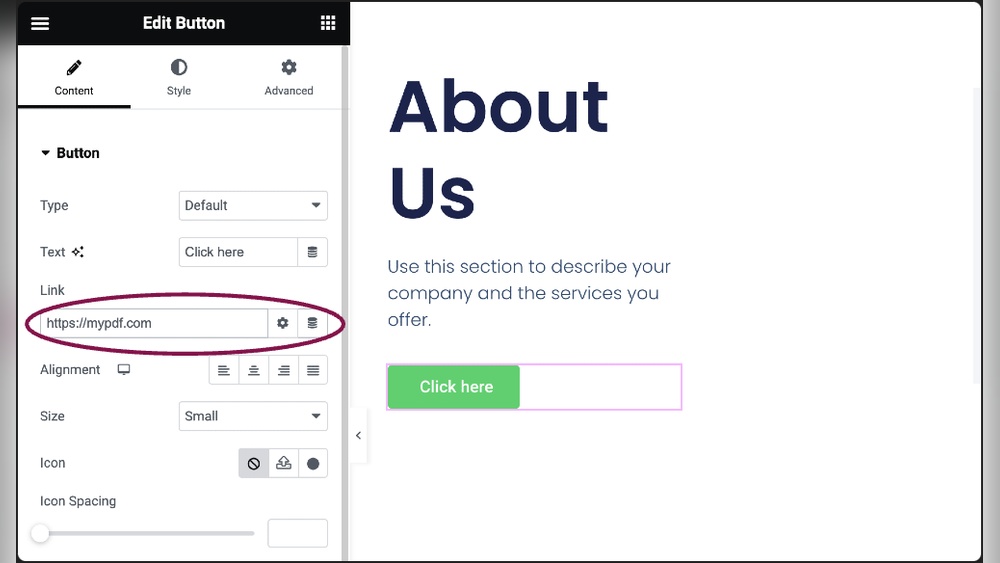
Start by opening the Elementor editor on your page. Find the Button widget in the side panel. Drag and drop the Button widget to the spot where you want the PDF link. This button will serve as the clickable link for your PDF.
Link Button To Pdf
Next, upload your PDF file to the WordPress media library. Copy the file URL. Select the Button widget and go to the link field. Paste the PDF URL there. This connects the button directly to your downloadable PDF.
Customize Button Style
Make your button clear and attractive. Change the text to something like “Download PDF” or “Get File.” Adjust colors, font size, and shape to match your website style. A well-designed button invites visitors to click and download.

Credit: www.primalspace.co.uk
Embed Pdf Viewer In Elementor
Embedding a PDF viewer in Elementor lets visitors see your PDF files directly on your website. This method keeps users on your page without needing extra downloads. It improves user experience and keeps your content interactive.
Using a PDF viewer plugin is simple. It works smoothly with Elementor, a popular WordPress page builder. Follow these steps to embed a PDF viewer and show your documents clearly.
Install Pdf Viewer Plugin
Start by installing a PDF viewer plugin from the WordPress plugin directory. Go to your WordPress dashboard, then click “Plugins” and “Add New.” Search for “PDF viewer” and choose a plugin with good ratings and reviews. Click “Install Now” and then “Activate” to enable the plugin.
Add Pdf Widget
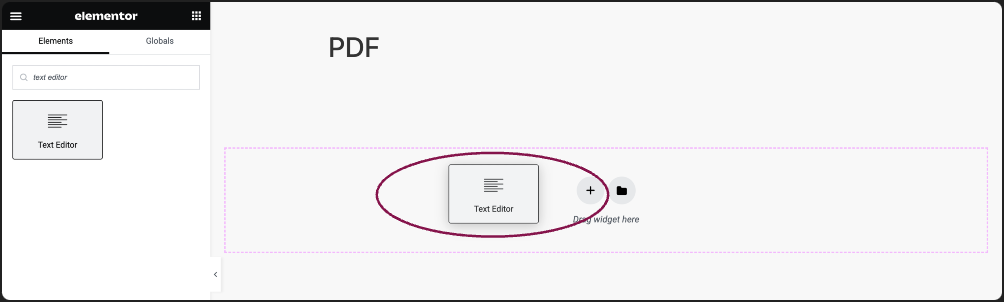
Open the page or post where you want the PDF viewer. Launch Elementor editor for that page. Find the PDF viewer widget in the Elementor sidebar. Drag and drop the widget to your preferred area on the page. This places a frame where your PDF will appear.
Configure Viewer Settings
Upload your PDF file using the widget’s settings panel. Adjust the viewer options such as size, zoom level, and toolbar visibility. Set the viewer to allow scrolling or page navigation. Save your changes and preview the page. Your PDF will display clearly and ready to use.
Test Download And View
Testing the download and view process is important after adding a PDF to WordPress Elementor. It helps confirm that visitors can access the file without trouble. Proper testing ensures a smooth user experience and avoids broken links or errors.
Check the download link on your page. Make sure the PDF opens or downloads quickly. Test on different devices to catch any issues early. This step guarantees that your content is ready for visitors.
Check Download Functionality
Click the PDF download link yourself. See if the file starts downloading immediately. If it does not, fix the link or file settings. Open the downloaded PDF to confirm it works correctly. Ensure the file is not corrupted or incomplete.
Test the download speed. Slow downloads may frustrate users. Optimize the PDF size if needed to improve speed. Confirm the download button or text is clear and easy to find.
Ensure Cross-browser Compatibility
Try downloading the PDF using different browsers. Use Chrome, Firefox, Safari, and Edge for testing. Some browsers handle downloads differently. Check if the PDF opens or downloads properly on all.
Look for any errors or warnings in each browser. Fix problems like broken links or unsupported formats. Test on both desktop and mobile browsers. This ensures all visitors can access the PDF smoothly.
Credit: elementor.com
Troubleshooting Tips
Troubleshooting tips help fix common issues with downloadable PDFs in Elementor. Problems like broken links or plugin conflicts can stop files from working. Simple checks can save time and keep your site running smoothly.
Fix Broken Links
Broken links stop visitors from downloading your PDF. First, check the URL of the PDF file. Make sure the link points to the correct file location.
Re-upload the PDF if the file was moved or deleted. Use the WordPress media library for easy management. Test the link in a new browser tab to confirm it works.
Resolve Plugin Conflicts
Plugins can clash and cause PDF download issues. Deactivate all plugins except Elementor. Check if the PDF link works now.
Reactivate plugins one by one. This finds which plugin causes the problem. Update all plugins to the latest versions. Outdated plugins often cause conflicts.
Clear your site cache after updates. This ensures changes take effect. If issues continue, contact plugin support for help.
Frequently Asked Questions
How Do I Upload A Pdf In Elementor?
To upload a PDF in Elementor, go to your WordPress dashboard. Navigate to Media > Add New. Upload your PDF file here. Copy the file URL for use in Elementor.
How To Add A Downloadable Pdf Link In Elementor?
In Elementor, drag a Button or Text widget. Paste the PDF URL in the link field. Enable the “Open in new tab” option for better UX. Save changes.
Can I Embed A Pdf Viewer In Elementor?
Yes, you can embed a PDF viewer using Elementor’s HTML widget. Insert an iframe with your PDF URL. This allows visitors to view the PDF directly on your page.
Is It Possible To Restrict Pdf Downloads In Elementor?
Elementor itself does not restrict downloads. Use plugins like MemberPress or Restrict Content Pro to control access. This helps protect your PDFs from unauthorized downloads.
Conclusion
Adding a downloadable PDF to your WordPress Elementor site is simple. You only need a few steps to upload and link your file. Visitors can easily find and download your PDF. This helps share important information clearly and quickly. Keep your files organized for better site management.
Try these tips to improve your website’s user experience. Your site will look more professional and helpful. Give it a try today and see the difference it makes.


